Screenshots on Android have evolved far beyond the simple Power+Volume Down combo. In 2026, with Android 16 and custom skins (One UI, Pixel UI, OxygenOS), you get scrolling screenshots, AI editing, instant markup, and much more. Here's the complete guide.
📖 Read more: Google Pixel 10a: The Best Budget Pixel
📸 Basic Screenshot Methods
Method 1: Hardware Buttons
Press Power + Volume Down simultaneously for 0.5 seconds. This works on ALL Android devices without exception.
Method 2: Gesture
On many brands, swipe 3 fingers downward on screen (Samsung, Xiaomi, OnePlus). Enable via: Settings → Motions & Gestures → Screenshot gesture.
Method 3: Quick Settings
Pull down Quick Settings and tap the “Screenshot” tile. Android 16 also lets you add a partial screenshot tile.
Method 4: Google Assistant
Say “Hey Google, take a screenshot” for a hands-free capture.
📖 Read more: OnePlus 15: Review - The Fastest Android of 2026
📜 Scrolling Screenshot — Full Page Capture
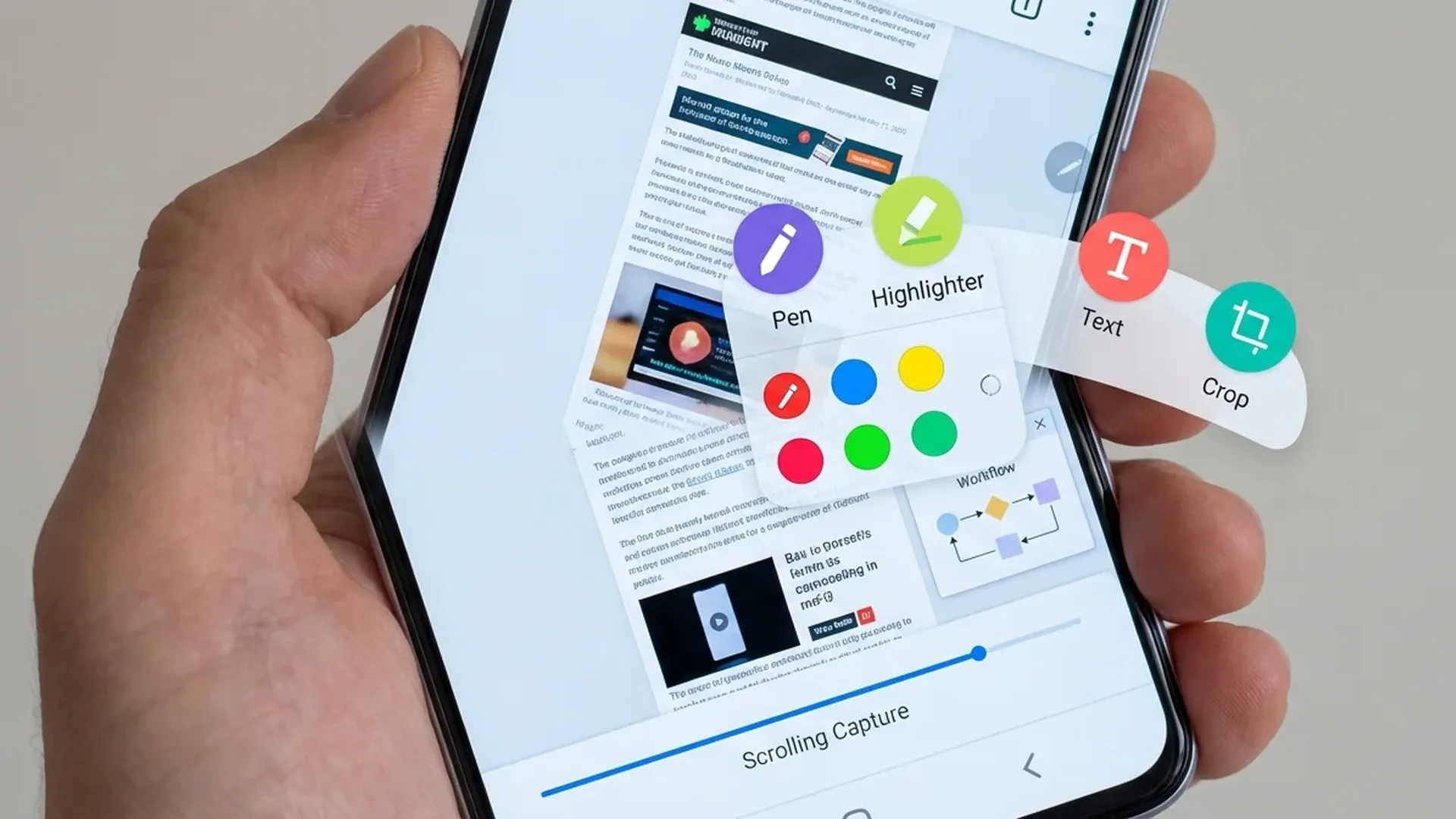
One of Android's most useful features. After taking a regular screenshot, a small menu appears at the bottom. Tap "Capture more" or "Extend screenshot" and the screen automatically scrolls, capturing the entire page.
Tip: On Samsung devices, a toolbar appears after screenshots. Tap the down arrows (↓↓) for scrolling capture. You can tap multiple times to capture even longer pages.
Scrolling screenshots work in browsers, email apps, Samsung Notes, social media feeds, and even settings. They don't work in video players or apps that block screenshots (banking apps, for example).
✂️ Screenshot Editing
After capturing a screenshot, you can immediately:
- Crop: Trim to exact size by dragging corners
- Markup: Draw, add text, insert arrows or shapes
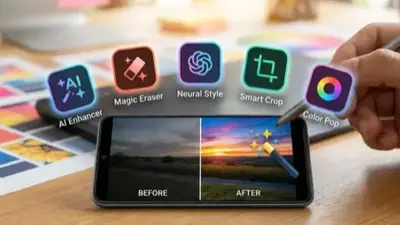
- AI Object Eraser (Samsung): Remove objects or sensitive information using AI
- Text Extract (Android 16): AI recognizes text within screenshots — copy, translate, or share
- Blur/Redact: Hide sensitive data (passwords, emails, numbers) before sharing
📖 Read more: Gemini AI on Android: Guide & Tips 2026
🎯 Partial Screenshot & Pin
On Samsung (Smart Select) and Pixel, you can capture just part of the screen: rectangle, oval, or freehand shape. Perfect when you only need a specific element.
The Pin to Screen feature (Samsung Edge Panel) keeps a screenshot snippet floating above other apps — ideal for copying codes or information while using another app.
🤖 AI Screenshot Features (2026)
New AI screenshot capabilities in 2026:
- Google Lens Integration: Take a screenshot → AI automatically recognizes objects, text, and QR codes
- Samsung Smart Suggestions: After screenshot, AI suggests actions (share to WhatsApp, save to Notes, translate)
- Screenshot Search (Pixel): Search ALL your past screenshots by content — search “flight ticket” and it finds the relevant screenshot
Screenshots on Android in 2026 are no longer simple screen captures — they're a full productivity tool.
Sources: Google Android Support, Samsung