Children are getting smartphones earlier than ever — the average age is now around 10 years old. Parental controls don't mean “spying” — they mean safe usage. In this guide you'll learn how to set up Google Family Link, Digital Wellbeing, content filters, and which third-party apps are worth trying.
📖 Read more: Digital Wellbeing: Reduce Screen Time
What Can You Control?
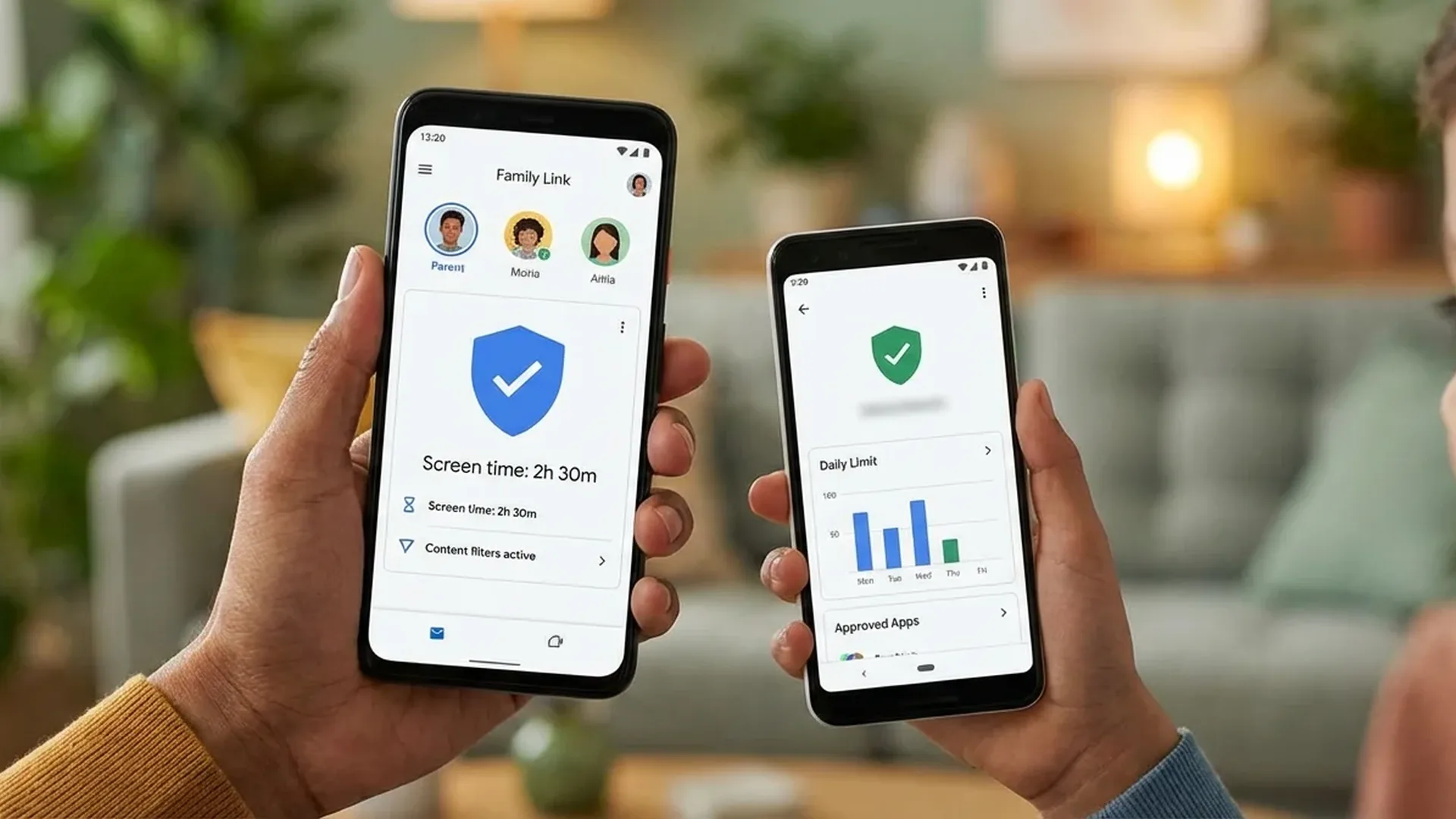
Android offers comprehensive parental control tools through Family Link:
Screen Time
Set a daily time limit (e.g. 2 hours per day). Set a “bedtime” that locks the device. View usage reports: which apps are used and for how long.
Content Filters
Filter inappropriate content on Google Search, Chrome, YouTube, Play Store. Set age-based filters (3+, 7+, 12+, 16+, 18+) for apps and games.
Location Tracking
See in real time where your child is on the map. Set notifications when they arrive at or leave school, home, or tutoring.
App Approval
Every time your child wants to download an app, you receive a notification on your phone. Approve or deny with one tap. Same for in-app purchases.
Remote Lock
Lock the device remotely at any time. Useful if it's lost, stolen, or if a screen break is needed.
📖 Read more: Password Manager for Android: Which to Choose?
Settings by Age Group
5-8
Young Children
- Screen time: 1 hr/day
- YouTube Kids only
- Filters: 7+
- Browser disabled
- Location: ON
9-12
Pre-teens
- Screen time: 2 hrs/day
- YouTube supervised
- Filters: 12+
- Chrome with SafeSearch
- App approval: ON
13-16
Teenagers
- Screen time: 3 hrs / flexible
- Regular YouTube
- Filters: 16+
- Social media supervised
- Gradual autonomy
How to Set Up Family Link — Step by Step
Download Google Family Link on your own phone (parent's) from the Play Store. Sign in with your Google account.
Create a Google account for your child (if under 13). Or connect an existing teen 13+ account by selecting “Add supervision”.
On your child's phone, sign in with the child's account. Accept the supervision link.
Set up Screen Time → Daily Limit. Choose a bedtime (e.g. 9:00 PM - 7:00 AM).
Configure Content Filters → Google Play → Age restriction (e.g. 12+). Chrome → SafeSearch enabled.
Enable Location Tracking in Family Link. Now you can see where the device is 24/7.
Set up Purchase Approval: Play Store → Settings → Require approval for all purchases.
📖 Read more: Android Car Mount 2026: Best Phone Holders
Third-Party Parental Control Apps
If you need more advanced features (social media monitoring, call logs, SMS filters):
Qustodio Free / $50/year
Top-rated parental control app. Web filtering, social media tracking (YouTube, TikTok, Instagram), call/SMS monitoring, panic button. The free version covers 1 device.
Bark ~$10/month
Specializes in AI monitoring for cyberbullying, sexting, depression. Scans social media/messages and alerts you only for significant concerns. Doesn't show every message — respects privacy.
Life360 Free / $8/month
The most popular family location tracker. Real-time location, movement history, arrive/leave notifications, crash detection. The free version is sufficient for basic use.
Kaspersky Safe Kids Free / $20/year
From the well-known security company. Web filtering, app control, screen time, GPS tracking. The premium version adds YouTube monitoring, social media tracking, battery alerts.
📖 Read more: Android Privacy: 10 Critical Settings You Must Change
App Comparison
| App | Screen Time | Web Filter | GPS | Social Media | Price |
| Family Link | ✅ | ✅ | ✅ | ❌ | Free |
| Qustodio | ✅ | ✅ | ✅ | ✅ | $50/year |
| Bark | ✅ | ✅ | ✅ | ✅ AI | ~$10/mo |
| Life360 | ❌ | ❌ | ✅✅ | ❌ | Free/$8 |
| Kaspersky | ✅ | ✅ | ✅ | ✅ | $20/year |
YouTube — The Biggest Concern
YouTube is the number 1 platform that worries parents. Your options:
YouTube Kids (ages 5-8): Separate app with curated content. No comments, no live streams. You can lock it to “Approved content only” mode.
YouTube Supervised (ages 9-12): Regular YouTube but with age filters. 3 levels: “Explore” (9+), “Explore more” (13+), “Most of YouTube” (18+ content filtered).
Restricted Mode (ages 13+): Enable it in YouTube settings. Hides inappropriate videos but it's not 100% effective — some content slips through.
📖 Read more: Android Storage: Free Up Space Now
Social Media & Messaging
Social networks are a complex topic. Some practical tips:
Age limits: TikTok, Instagram, Snapchat require age 13+. Respect them — there are reasons.
Private accounts: Set your child's account to Private. Approved followers only.
DM restrictions: On Instagram: Settings → Privacy → Messages → “Only people you follow”. On TikTok: Family Pairing mode.
Cyberbullying: Talk to your child before giving them a phone. Explain what cyberbullying is, why they shouldn't share personal information, and that they can always come to you if something bothers them.
Tips for Parents
1. Start with conversation, not restriction — Explain why you're setting rules. Children cooperate better when they understand.
2. Set rules together — Create a "digital contract": how much screen time, which apps, what happens if rules are broken.
3. Don't spy secretly — If you use monitoring, tell your child. Trust is more important than control.
4. Gradual autonomy — As they grow up, relax the rules. At 16 they don't need the same filters as at 8.
5. Be a role model — If you're on your phone at the dinner table, you can't forbid it for your child. Set rules that apply to everyone.
Our Verdict
Start with Google Family Link — it's free, built-in, and covers the basics. If you need social media monitoring, add Qustodio or Bark. But above every app: communication with your child is the best parental control “app”.
Frequently Asked Questions (FAQ)
What age is appropriate for a smartphone?
There's no “right” age — it depends on maturity. Most experts agree that 10-12 years old is reasonable, as long as parental controls are in place. Before 10, a tablet without a SIM card is sufficient.
Can my child disable Family Link?
Not easily. If they try to remove supervision, you receive a notification and the device locks for 24 hours. For teens 13+, they can “disconnect” but the device performs a factory reset.
How much screen time is healthy?
The American Academy of Pediatrics recommends: under 6 years: 1 hour/day. Ages 6-12: 1-2 hours. Teenagers: flexible, but with consistent bedtimes without screens.
Does Family Link work on tablets?
Yes. It works on every Android device — smartphones, tablets, Chromebooks. It's not supported on iOS (Apple has its own Screen Time controls).
What happens at age 13?
At 13 your child gains the right to an independent Google account. You can maintain supervision if they agree. Otherwise, they can disconnect — but the device resets.
android parental controls family link screen time content filtering child safety digital parenting mobile security