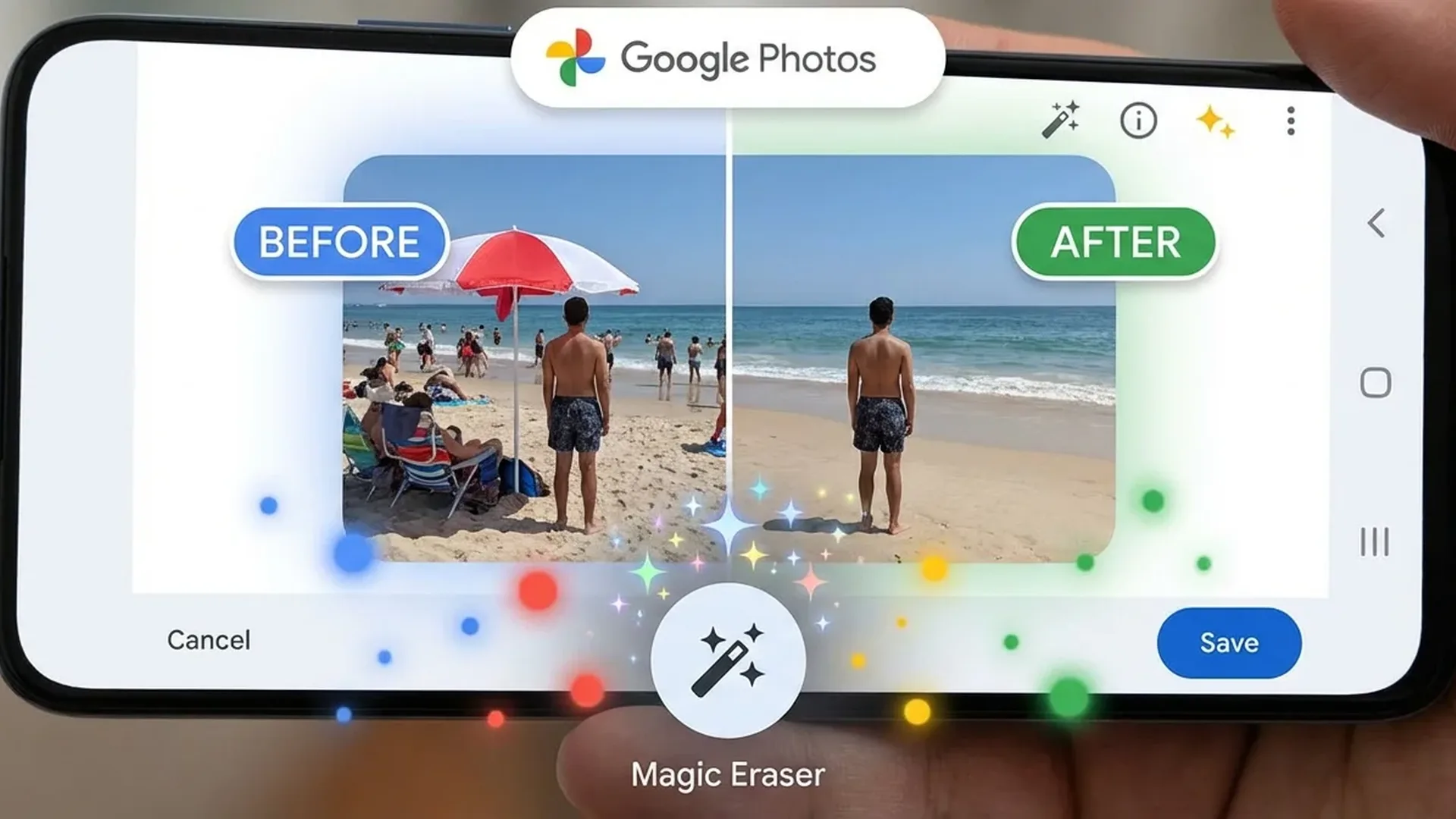
Google Photos isn't just a gallery app — it's the most powerful AI photo editor on your phone. With new 2026 tools, you can do things that previously required Photoshop. Here are 15+ AI tricks you need to know.
📖 Read more: Best Chinese Phones 2026: Top 10 Picks
Magic Eraser — Remove Objects
The most popular AI feature. Open a photo, tap Edit → Magic Eraser. Circle or tap unwanted objects — pedestrians, signs, trash, exes. The AI removes them and reconstructs the background naturally. The 2026 version automatically recognizes distractions and suggests them for removal.
Photo Unblur
Have old blurry photos? Open them and tap Edit → Tools → Unblur. The AI analyzes the image, detects motion blur or instability, and reconstructs details. It's not magic, but results are impressive on faces and text.
Magic Editor — Full AI Editing
Magic Editor is the most powerful AI feature. Select an object or person and: move it to another position, resize it, or remove it entirely. The AI generates new background. You can even change the sky (golden hour, sunset, cloudy) and add lighting effects.
New in 2026: AI Reimagine. Write a text prompt ("make it nighttime", “add snow”, “put flowers in the background”) and the AI transforms the photo according to your description. Results carry a watermark for authenticity.
📖 Read more: Galaxy S26: Satellite Connectivity — How It Works
Best Take — Perfect Group Photos
Took a group photo but someone blinked? Best Take combines multiple frames from a series and replaces faces so EVERYONE is smiling and looking at the camera. Works automatically if you've taken 3+ photos in sequence.
Portrait Light & Blur
Tap Edit → Tools → Portrait Light on any photo with a face. The AI adds studio lighting effects — drag the light around the face. Works even on photos taken without portrait mode. Portrait Blur is similar: it adds bokeh effect to non-portrait photos.
Video AI Editing
AI isn't limited to photos. For videos, you can use: Video Stabilization (AI stabilizer), Video Enhance (improve lighting and colors), and the new Audio Magic Eraser — removes wind noise, cars, or crowd noise while keeping voices clear.
📖 Read more: Gemini AI on Android: Guide & Tips 2026
Color Pop & Filters
Color Pop keeps one object in color and converts everything else to black and white — dramatic effect with one tap. New AI Preset Filters analyze the scene (landscape, portrait, food, night) and apply a customized filter instead of a generic one.
AI Search — Search with Words
Type anything in the search bar: “cat on bed”, “sunset ocean”, “airplane ticket”, “pasta food”. The AI recognizes objects, scenes, text, even emotions in photos. It instantly finds what you're looking for among thousands of photos.
Memories & Cinematic Photos
Memories automatically create highlight reels with music and transitions. The AI selects the best photos based on quality and variety. Cinematic Photos add a 3D parallax effect to static photos — subtle depth movement that makes them come alive.
Tip: Most AI features require a Google One subscription (from €2/month). It's worth it mainly for the extra storage (100GB+) combined with AI tools.
Sources: