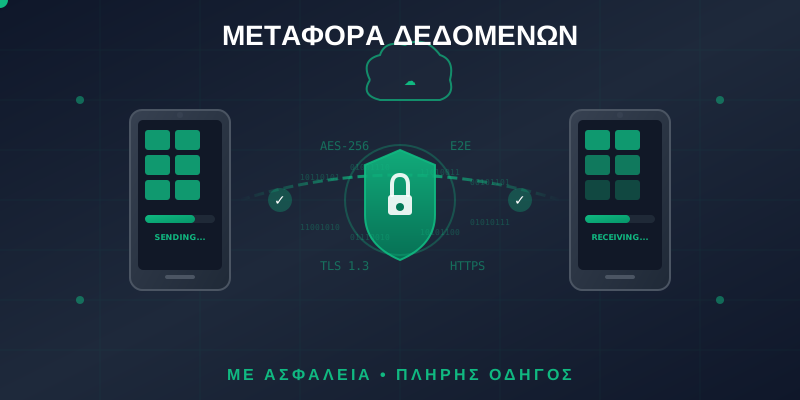
Got a new phone and want to transfer your data safely? Or maybe you just want to back up so you don't lose anything important? In this complete guide, you'll learn everything you need to protect your data and transfer it without any loss.
💡 Important: According to IBM, the average cost of a data breach in 2025 was 4.4 million dollars. Data security is not a luxury - it's a necessity.
Why Does Safe Data Transfer Matter?
Our smartphones contain our entire lives: photos, messages, banking apps, passwords, contacts, notes. Losing or having this data stolen can have devastating consequences.
What You Need to Do BEFORE the Transfer
Before starting any data transfer, there are certain steps you absolutely must follow:
📋 Preparation Checklist
Data Transfer Methods
There are various ways to transfer your data. The choice depends on what devices you have and what you want to transfer.
iPhone to iPhone: Quick Start
Apple has made transferring from iPhone to iPhone extremely easy with Quick Start. Follow these steps:
Android to Android: Google Backup
For Android devices, Google offers automatic backup via your Google Account:
iPhone to Android (or Vice Versa)
Transferring between different platforms is more complex but doable:
From iPhone to Android
- Samsung Smart Switch: The best solution for Samsung devices. Transfers contacts, photos, messages, calendar.
- Google Switch: Available on all Android devices. Follow the instructions during setup.
- Move to iOS (reverse): Apple's official app for transferring from Android to iPhone.
⚠️ Warning: Before switching from iPhone, disable iMessage (Settings > Messages > iMessage OFF) and FaceTime. Otherwise, you won't receive messages from iPhone users!
| What Transfers | iPhone → Android | Android → iPhone |
|---|---|---|
| Contacts | ✅ Fully | ✅ Fully |
| Photos/Videos | ✅ Fully | ✅ Fully |
| WhatsApp Chats | ✅ With app | ✅ With app |
| SMS/iMessages | ⚠️ Partially | ✅ SMS only |
| Apps | ❌ Requires re-download | ❌ Requires re-download |
| App Data | ❌ Depends on the app | ❌ Depends on the app |
Encryption: Your Shield
Encryption converts your data into unreadable code that only you (with the correct password) can unlock. It is essential for every backup.

Types of Encryption
- End-to-End Encryption: Data is encrypted on your device and decrypted only at the destination. Not even Apple/Google can read it.
- In-Transit Encryption: Protection during data transfer (HTTPS, TLS).
- At-Rest Encryption: Data is encrypted when stored.
💡 Tip: Enable “Encrypted Backup” in iTunes/Finder for iPhone or use apps like Cryptomator for extra cloud security.
Cloud Storage: What to Choose
Password Security and 2FA
One of the most critical aspects of data transfer is managing passwords and two-factor authentication (2FA).
Password Managers
Use a password manager to store and transfer your passwords:
- Apple Keychain: Built into iOS. Syncs via iCloud.
- Google Password Manager: Built into Chrome and Android.
- 1Password / Bitwarden: Cross-platform, with password export/import.
⚠️ Critical: Before switching devices, make sure you have access to your 2FA codes! If you use an authenticator app, export them or transfer them first.
WhatsApp Transfer
WhatsApp stores chats locally, so the transfer requires special attention:
iPhone to iPhone
- Use WhatsApp's iCloud backup
- Or it transfers automatically with Quick Start
Android to Android
- Use WhatsApp's Google Drive backup
- Settings > Chats > Chat Backup > Back Up
iPhone ↔ Android
- WhatsApp officially supports cross-platform transfer
- A USB-C to Lightning cable is required
- Follow the in-app instructions during setup
What Does NOT Transfer
It's important to know what cannot be transferred:
- Purchased apps: You'll need to repurchase them on the new system (iPhone→Android)
- DRM content: Movies/music tied to the platform
- Game progress: Unless the app supports cloud save
- Banking apps: Need to be re-registered on the new device
- Health data: Limited transfer between platforms
After the Transfer: What to Do
✅ Post-Transfer Checklist
⚠️ Factory Reset: Before giving away the old device, ALWAYS do a factory reset after making sure everything was transferred. Otherwise, your data can be recovered!
Security Tips
Follow these best practices for maximum security:
- Use strong passwords: At least 12 characters, with numbers and symbols
- Enable 2FA everywhere: Email, social media, banks, cloud storage
- Back up regularly: At least weekly, ideally automatically
- Encrypt your backups: Especially if you store them locally
- Use a VPN: On public WiFi during transfer
- Update your software: Always the latest version of iOS/Android
- Watch out for phishing: Don't enter passwords on suspicious links

Conclusion
Safe data transfer doesn't have to be complicated or scary. With proper preparation, the right tools, and a little attention to security, you can transfer all your data to your new device without loss and without risk.
Remember: backup is your best friend. Even if something goes wrong during the transfer, if you have a recent backup, you haven't lost anything.
🔒 Need help? At OnOff.gr we handle safe data transfers. Bring your devices and we'll take care of it!