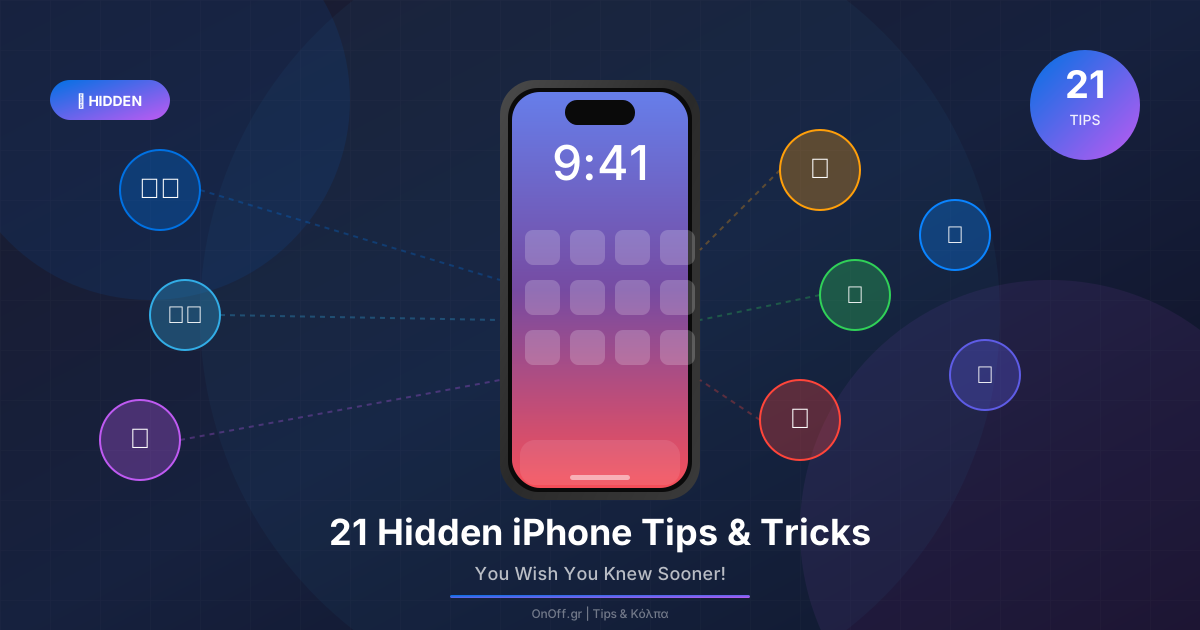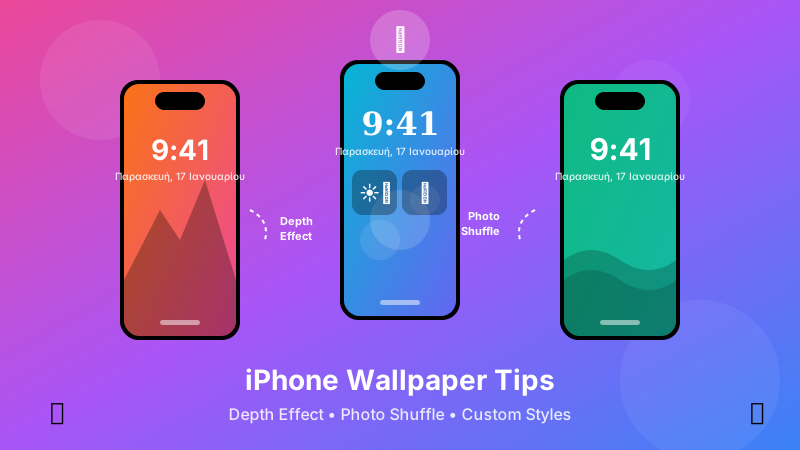
Your iPhone's Lock Screen is much more than just an image! With the new iOS capabilities, you can create wallpapers that change automatically, have a 3D depth effect, and adapt to your needs. Let's see how!
✨ What's New in iOS for Wallpapers
Depth Effect
Your subject in front of the clock!
Photo Shuffle
Automatic wallpaper change
Color Filters
Change colors with one tap
Focus Modes
Different wallpaper for each Focus
Clock Styles
Custom fonts & colors
Widgets
Widgets on the Lock Screen
🎭 1. Depth Effect - The 3D Wallpaper
The Depth Effect is an impressive feature that uses AI to “cut out” the subject of your photo and place it in front of the clock!
How to enable it:
- Long press on the Lock Screen
- Tap Customize → Lock Screen
- Select a photo with a clear subject (face, animal, object)
- Tap the ... (three dots) → Depth Effect
Pro Tip
Works best with portraits, animals, or objects that clearly stand out from the background!
🔄 2. Photo Shuffle - Automatic Change
Tired of seeing the same photo? With Photo Shuffle, your iPhone automatically selects photos and rotates them!
How to set it up:
- Long press on Lock Screen → + (new wallpaper)
- Select Photo Shuffle (top left)
- Choose a category: People, Nature, Cities, or All
- Select frequency: On Tap, On Lock, Hourly, or Daily
On Tap = Magic!
With “On Tap”, every time you touch the Lock Screen the photo changes. Amazing effect!
🎯 3. Focus Mode Wallpapers
You can have a different Lock Screen for each Focus Mode! When Work Focus activates, it automatically switches to a professional wallpaper.
How to set it up:
- Create a new Lock Screen (long press → +)
- Select wallpaper and widgets
- Tap Focus at the bottom
- Link it to the corresponding Focus Mode
Ideas for Focus Wallpapers:
- 🏢 Work: Minimal, dark colors, no distractions
- 🏠 Personal: Family, hobbies, pets
- 😴 Sleep: Dark, relaxing
- 🚗 Driving: Simple, without many widgets
🎨 4. Color Filters & Styles
Even a simple photo can look impressive with the built-in filters!
Available Filters:
- Natural: The original photo
- Black & White: Classic black and white
- Duotone: Two colors (very impressive!)
- Color Wash: Monochrome overlay
How to change filter:
- Customize → Lock Screen
- Swipe left/right on the photo
- Tap the color circle to change the hue
⏰ 5. Custom Clock Styles
The Lock Screen clock is no longer boring! You can change the font, color, and weight.
Available Fonts:
- Rounded: Modern, friendly
- Serif: Classic, elegant
- Bold: Strong, statement
- Arabic Indic: Arabic-style numerals
- Devanagari: Indian style
How to change:
- Customize Lock Screen
- Tap on the clock
- Select Font and Color
📥 Where to Find Wallpapers
🔧 Bonus Tips
- 📐 Ideal resolution: 1290 x 2796 pixels (iPhone 15 Pro Max)
- 🎨 Dark wallpapers: Save battery on OLED screens!
- 🖼️ Combine Lock & Home: Select “Set as Wallpaper Pair”
- 📸 Portrait mode photos: Perfect for Depth Effect
- 🌙 Astronomy wallpapers: Show the Earth/Moon in real-time!
📌 Conclusion
With these tips, your iPhone's Lock Screen will be more beautiful and functional than ever! Remember:
- ✅ Depth Effect for impressive 3D wallpapers
- ✅ Photo Shuffle for variety
- ✅ Focus Modes for organization
- ✅ Color Filters for customization
- ✅ Custom Clock for personal style
Try them out and make your iPhone unique! 🎨