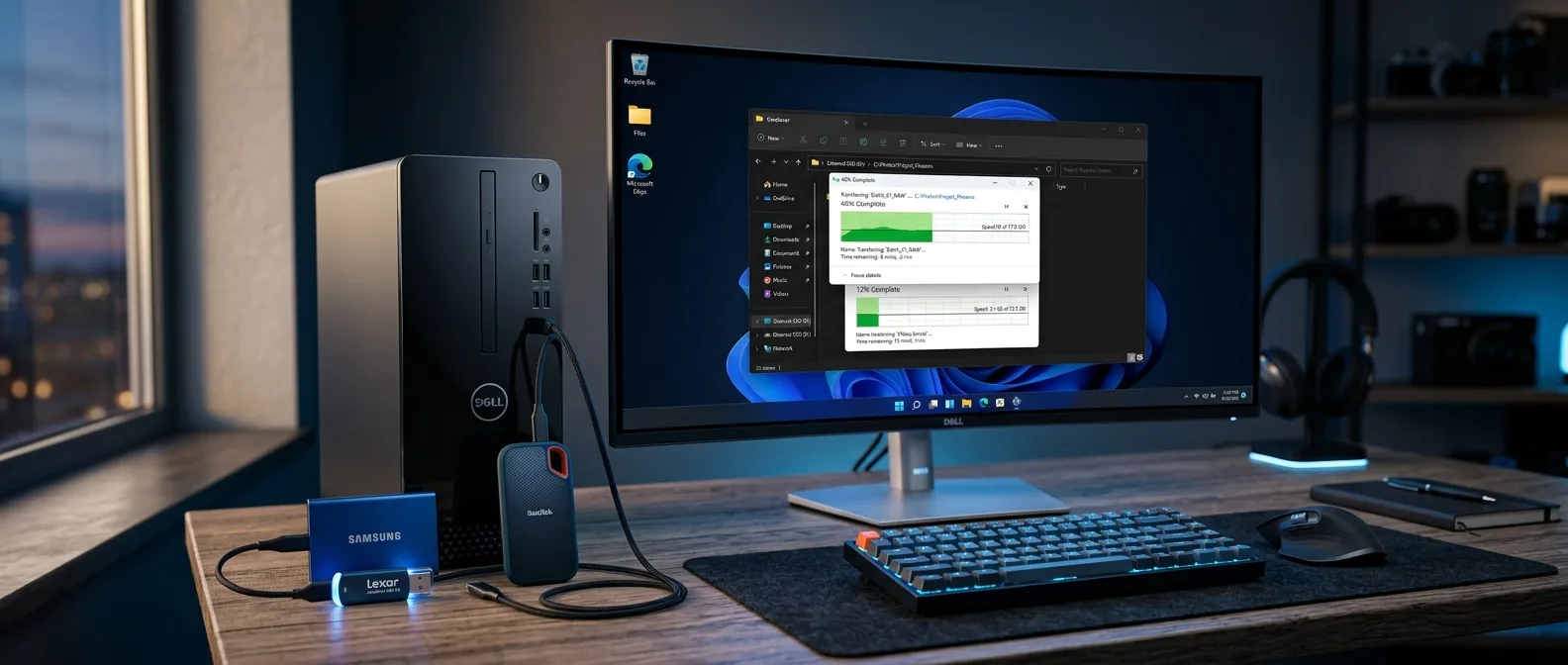
Thirty minutes to copy a 50GB folder to your external SSD? Watching that progress bar crawl at 20MB/s when the specs promise 300MB/s? You're not the problem — Windows 11 just doesn't know how to use your hardware properly.
Every year, SSDs get faster and USB ports get more powerful. But Windows stays... Windows. With the right tweaks, though, you can squeeze up to 3x faster file transfers from the exact same hardware you already own.
📖 Read more: Hidden Windows 11 Tools: Speed Test & Quick Recovery
🚀 The Silicon Divide: SSD vs HDD Performance
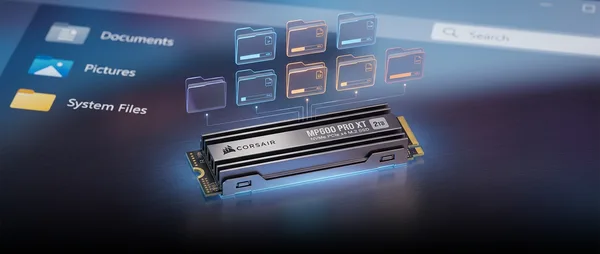
I know you've heard this a thousand times. But if you're still using traditional hard drives for file transfers, fix that first. The numbers don't lie: a typical 7,200 RPM HDD gives you 30-150 MB/s. A SATA SSD hits 500-600 MB/s. An NVMe SSD reaches 3,000-7,000 MB/s — and the newest PCIe Gen5 drives push even higher. What takes 10 minutes on HDD drops to 2 minutes on SATA SSD. And 30 seconds on NVMe. Calculate how much time you'll save over a year. Pro Tip: If you have both old HDD and new SSD, use the SSD as a "staging area" — copy from HDD to SSD first, then SSD to destination. Counterintuitively, this two-step process can be faster than direct copying.
🔌 USB Ports: Not All Connections Are Created Equal
You've got a blazing USB 3.2 SSD but you're plugging it into an ancient USB 2.0 port? Congratulations, you just throttled your 400MB/s drive down to USB 2.0's 60MB/s ceiling. USB 3.0 ports (usually blue inside) give you theoretical 5 Gbps — about 625 MB/s in practice. USB 3.2 Gen 2 hits 10 Gbps. Thunderbolt 3/4 goes even higher.How to identify your ports
Look for: - Blue coloring inside the port - "SS" (SuperSpeed) marking next to the port - Or open Device Manager (Windows+R, type `devmgmt.msc`) and check "Universal Serial Bus Controllers" Obviously, you need a good cable too. A USB 2.0 cable will bottleneck your speed even with perfect hardware.📖 Read more: 10 Hidden Windows 11 Tools Nobody Knows About (2024)
📁 NTFS vs FAT32: The File System Speed Battle
Most Windows drives use NTFS. But if you have an old external drive or USB stick with FAT32, the speed difference is noticeable. NTFS handles caching, metadata, and large files better. An 8GB file will copy faster to an NTFS drive than FAT32. Plus, FAT32 has a 4GB per-file limit — problematic today with 4K videos and large backups.Converting without formatting
To convert a drive from FAT32 to NTFS without losing data: 1. Open Command Prompt as Administrator 2. Type: `convert X: /fs:ntfs` (replace X with your drive letter) 3. Wait for completion Warning: this process isn't easily reversible. But it's worth it.⚡ Robocopy: Windows' Hidden Speed Weapon
File Explorer is pretty and graphical. But when you want speed, Robocopy rules. Robocopy can use multiple threads to copy files in parallel. A simple copy/paste in Explorer runs single-threaded. See the difference?The magic command
Open Command Prompt as Administrator and type: ``` robocopy "C:\Source" "D:\Destination" /e /z /mt:16 ``` What each parameter does: - `/e`: Copies all subdirectories, including empty ones - `/z`: Restartable copy (if interrupted, continues from where it left off) - `/mt:16`: Uses 16 parallel threads If you have NVMe SSD, try `/mt:32` or higher. With HDD, keep it low — too many threads can slow down mechanical drives. 3-5x Faster than File Explorer
128 Maximum threads
📖 Read more: Windows Dual Monitor Shortcuts: 4 Hidden Productivity Hacks
🛡️ The Antivirus Saboteur
You don't think about it often, but Windows Defender scans every file you copy. Real-time. Understand why your 50GB transfer crawls? For large transfers, you can temporarily disable real-time scanning: 1. Windows Security → Virus & threat protection 2. Manage settings → Real-time protection (OFF) 3. Do your transfer 4. **Turn protection back on immediately**The safer solution
Instead of disabling antivirus, add exclusions: 1. Windows Security → Virus & threat protection 2. Manage settings → Add or remove exclusions 3. Add your destination folder temporarily This way you don't risk security but gain speed.🗜️ Compression: Smaller Size, Bigger Speed
When you have thousands of small files, transfer overhead is massive. Each file needs metadata, timestamps, permissions. Windows must open, read, close each one separately. Zip a folder with 10,000 small files and Windows sees one file. One operation instead of 10,000. The difference is dramatic.When compression pays off
- Many small files (code, documents, images) - Network transfers - Not for videos, MP3s, JPEGs (already compressed) Windows 11 has built-in ZIP support. For something more powerful, 7-Zip is free and offers better compression.The secret isn't always faster hardware — it's understanding where your time gets wasted.
Wise old IT admin
📖 Read more: 7 Legal Ways to Skip YouTube Ads (Instantly & Ethically)
🔄 Background Apps: The Invisible Thieves
Every background app "steals" CPU cycles and disk bandwidth. Spotify downloading playlists, OneDrive syncing, Chrome with 47 tabs — all take resources that could go to your file transfer. Before starting a large transfer: 1. Open Task Manager (Ctrl+Shift+Esc) 2. Check the "Processes" tab 3. Close what you don't need 4. Pay special attention to apps using heavy Disk or CPU Don't close system processes — only apps you know can safely close.🔧 Advanced Tricks for Power Users
Write Caching for USB Drives
For external drives you use frequently: 1. Disk Management → Right-click drive → Properties 2. Policies → "Better performance" 3. **Important**: Always "Safely Remove Hardware" after this Caching makes small writes much faster. But if you yank the USB without safely removing, you risk data loss.SMB for Network Transfers
If you're copying files to/from network shares, Windows 11 has built-in features that help: - **SMB Compression**: Compresses on-the-fly during transfer - **SMB Multichannel**: Uses multiple network cards simultaneously These activate automatically when conditions are right.Thermal Throttling in NVMe
NVMe SSDs can thermal throttle when they get too hot. If you have sustained transfers and notice speed drops after several minutes, you might need better cooling for your SSD.🎯 Frequently Asked Questions
Why is Robocopy faster than File Explorer?
File Explorer is single-threaded with heavy GUI overhead. Robocopy runs multithreaded and doesn't bother with graphics — just pure data transfer.Can I use more than 16 threads in Robocopy?
Yes, you can go up to 128 threads (`/mt:128`). But careful: many threads on HDD can make it slower. For NVMe SSDs, try 32 or 64.What if power cuts during Robocopy?
If you use the `/z` parameter, Robocopy can continue from where it stopped. Run the same command again and it will resume. In 2026, with NVMe Gen5 going mainstream and USB4 ports spreading, the potential for fast file transfers is higher than ever. But Windows won't leverage these capabilities on its own. It needs your helping hand. Start with basics — SSD instead of HDD, proper USB ports, NTFS file system. Then move to advanced — Robocopy multithreading, temporary antivirus exclusions, background app cleanup. You don't need to apply everything at once. One by one, test and measure the difference.Sources: