The average adult spends over 4.5 hours a day on their smartphone. If you feel lost in doom scrolling, if you check your phone before saying “good morning,” then Android's Digital Wellbeing tools can help. This isn't about deprivation — it's about conscious use.
📖 Read more: Split Screen on Android: Complete Multitasking Guide
📱 What Is Digital Wellbeing?
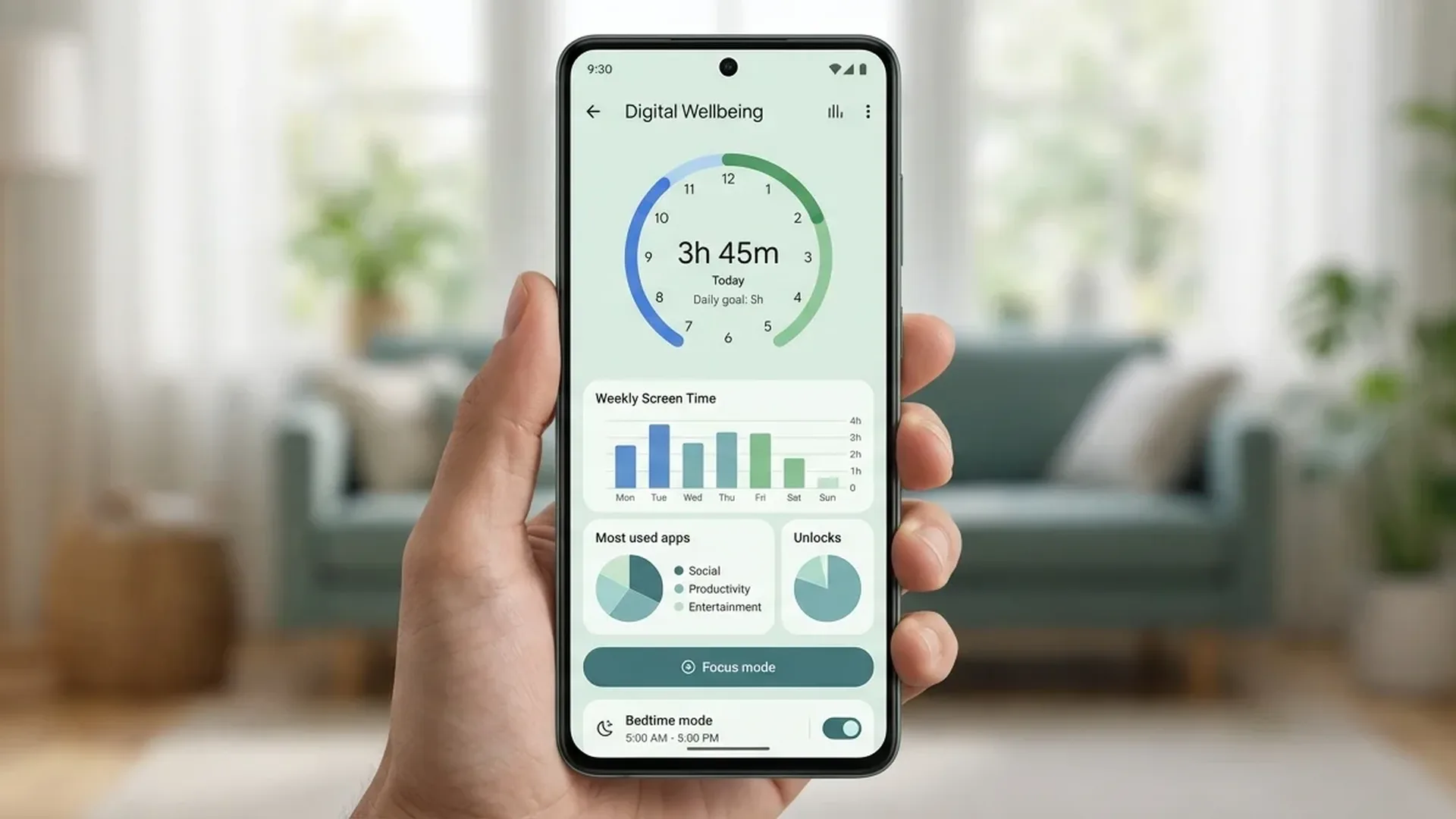
Digital Wellbeing is built into ALL Android devices from Android 9 onwards. Find it at Settings → Digital Wellbeing & Parental Controls. It provides detailed usage stats — how much time you spend in each app, how many times you unlock, how many notifications you receive — AND tools to limit them.
⏱️ Dashboard — See Where You're Getting Lost
The Dashboard shows usage per app, per day or week. You'll be surprised: many discover they spend 2+ hours on Instagram or TikTok WITHOUT realizing it. Tracking is step one — you can't change something if you don't know what's happening.
⏳ App Timers — Set Limits
The top feature. Set a time limit on any app — e.g., Instagram: 30 min/day, TikTok: 20 min, YouTube: 1 hour. When time runs out, the icon goes gray and you can't open the app until midnight. Yes, you can tap “Override” — but having to make that conscious decision helps A LOT.
How to Set App Timers
Settings → Digital Wellbeing → Dashboard → tap app → Set Timer. Or in Dashboard, tap the clock icon next to each app.
🌙 Bedtime Mode — Sleep Without Screens
Bedtime Mode turns the screen grayscale (black and white) and activates Do Not Disturb at a set time. Why grayscale? Because without color, the screen becomes far less attractive — you don't want to scroll Instagram in black and white.
Set up: Settings → Digital Wellbeing → Bedtime mode → Set a schedule (e.g., 11 PM - 7 AM). You can also choose: auto-activate when charging at night.
🔕 Focus Mode — Concentrate Without Distractions
Focus Mode lets you freeze specific apps. Select which apps distract you (social media, games, etc.) and activate Focus Mode. Those apps go gray, can't send notifications, and won't open.
Ideal for: work, studying, quality family time. Set a schedule (e.g., Mon-Fri 9 AM - 5 PM) or activate manually.
📖 Read more: USB-C Hub for Android: Top 5 in 2026
👀 Heads Up — Don't Walk While Looking at Your Screen
A smart feature: if you walk while using your phone, a notification appears "Heads up — watch where you're going". Uses accelerometer and motion sensors to detect walking. Can literally prevent accidents.
📊 10 Tips to Reduce Screen Time
1. Enable grayscale ALL day (Settings → Accessibility → Color correction → Grayscale). Dramatic usage reduction.
2. Remove social media from home screen — put them in a folder on page 2.
3. Disable ALL non-essential notifications. Keep only calls, messages, banking.
4. Set a “screen time goal” in Digital Wellbeing Dashboard.
5. Use a physical alarm clock instead of your phone — avoid morning/evening browsing.
6. Use “Pause” on apps — stop yourself before the timer runs out.
7. Don't bring your phone to the bathroom.
8. Set a “no phone zone” — e.g., bedroom after 10 PM.
9. Try “phone-free meals” — no phones at the table.
10. Do a weekly review — every Sunday check stats and set goals.
🎯 Conclusion
Digital Wellbeing tools don't deprive you — they give you control. Start with App Timers + Bedtime Mode — within a week you'll see 30-40% reduction in screen time. And you'll feel the difference.