Gboard is the world's most popular Android keyboard — but most users only scratch the surface of its capabilities. In this guide, we reveal 20+ hidden tricks that will transform the way you type on your phone.
📖 Read more: Tasker Android 2026: Complete Automation Guide
Gesture Typing — Swipe to Type
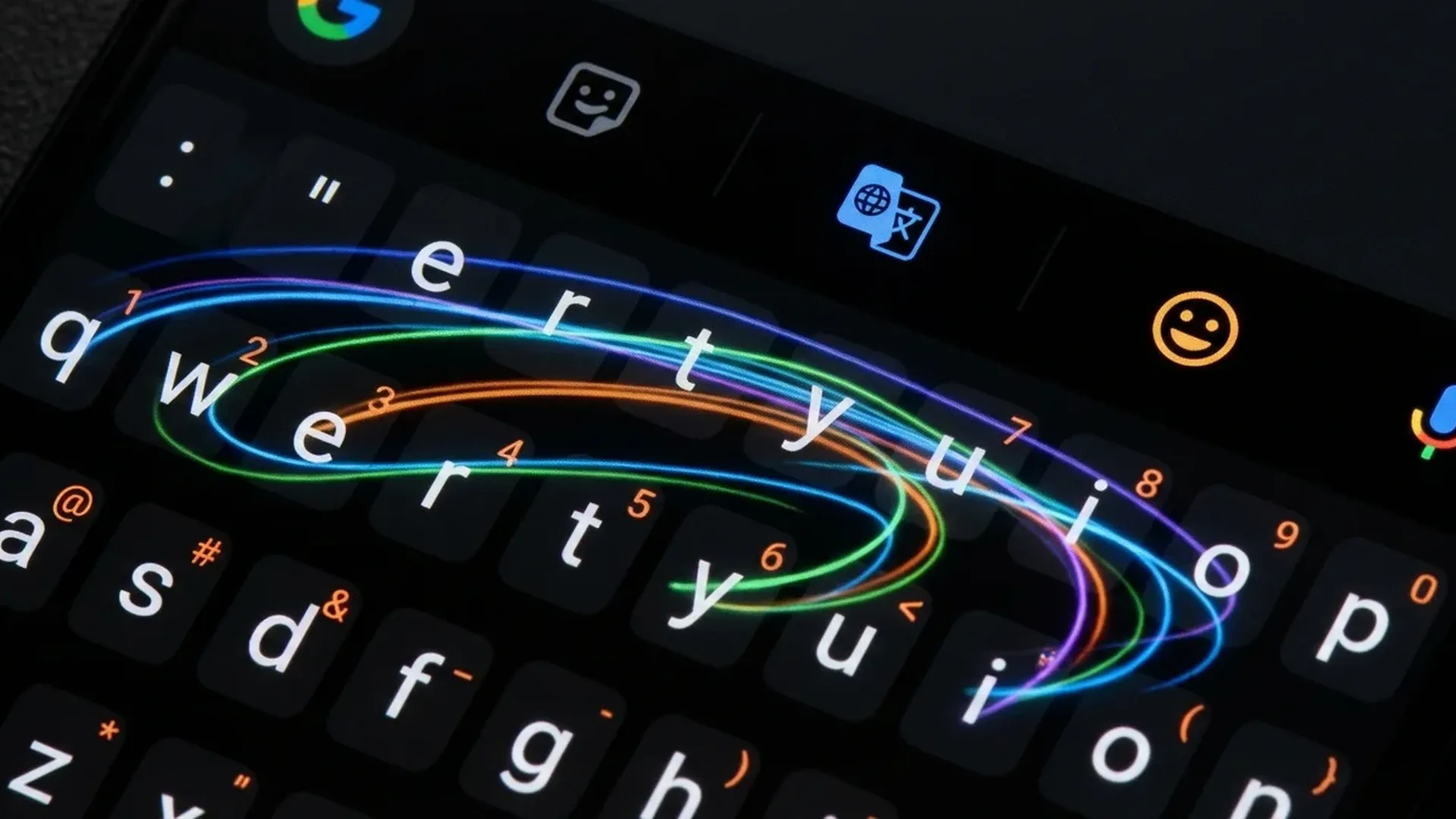
Instead of tapping each letter individually, slide your finger across the letters without lifting it. Gboard recognizes the word automatically. Enable it in Settings → Glide Typing → Enable glide typing. After a bit of practice, you'll type 2-3 times faster.
Gesture typing works remarkably well in most languages. Even if your swipe path isn't perfect, Gboard's prediction algorithm will find the right word. For tricky words, you can pause on a letter to “lock” it in place.
Clipboard Manager — Copy Multiple Items
Stop losing copied text! Tap and hold in the blank area above the letters or tap the clipboard icon in the toolbar. Gboard automatically saves your last 20+ copied items for 1 hour.
You can pin frequently used text (email, address, phone number) so they never disappear. Open the clipboard, long-press a snippet, and select “Pin”. It's always there, ready to paste.
Real-Time Translation
One of the most useful hidden features: tap the Google Translate icon (G → Translate) in Gboard's toolbar. Type normally in your language and the text is automatically translated to your target language — without switching apps.
It supports over 100 languages and translation happens in real time as you type. Perfect for messaging in foreign languages, work emails, or traveling abroad.
Voice Typing — Dictation
Tap the microphone icon and start speaking. Gboard transcribes your speech to text in real time with impressive accuracy. Key words like “period”, “comma”, “new line” are automatically inserted as punctuation marks.
The latest version uses on-device AI, so it works even without internet. Recognition speed is nearly instantaneous — ideal for long messages or on-the-go notes.
Hidden Shortcuts
Move Cursor
Swipe left-right on the spacebar to move the cursor within text. No more tapping to get the exact position!
Quick Delete
Swipe left from the delete key (backspace) to select and erase multiple words at once.
Number Row Long-Press
Long-press letters in the top row to type numbers without switching pages. Enable in settings.
Fractions & Symbols
Long-press numbers for fractions (½, ¼, ¾) and the period key for symbols like …, •, ° and more.
Floating & One-Handed Mode
Tap the "..." icon in the toolbar, then “Floating”. The keyboard shrinks and can be moved anywhere on screen. Ideal when you need to see text behind the keyboard.
📖 Read more: Top 50 Must-Have Android Apps 2026 | Best Samsung Apps
For One-handed mode: long-press the comma (,) and drag to the hand icon. The keyboard shrinks and shifts left or right. Perfect for large 6.5″+ screens you can't reach with one hand.
Search GIF, Stickers & Emoji
Tap the emoji icon (😊) and use the search bar at the top. Type a word (e.g., “happy”, “dog”, “OK”) and instantly find related emoji, stickers, and GIFs. Gboard searches Tenor, GIPHY, and Google Images simultaneously.
You can create custom stickers with Emoji Kitchen: tap two emoji in succession and Gboard generates unique combinations. E.g., 🐱 + 🎉 = cat with a party hat!
Themes & Customization
Go to Gboard Settings → Theme and choose from dozens of color schemes, gradient backgrounds, or even your own photo as the keyboard background. Material You Dynamic Color themes change color based on your wallpaper.
Beyond themes, you can adjust: keyboard size (key height), enable haptic feedback (vibration on each keypress), and add/remove the number row.
Personal Dictionary & Autocorrect
Navigate to Gboard Settings → Dictionary → Personal Dictionary and add words you use often but aren't recognized (usernames, technical terms, slang). You can even set shortcuts: e.g., typing “eml” automatically expands to your email address.
If autocorrect drives you crazy, you can fine-tune it: Text Correction → Auto-correction can be disabled while keeping Next-word suggestions and Spell check active. This way you see suggestions without unwanted corrections.
Privacy Settings
Worried about your data? Go to Gboard Settings → Privacy. You can: disable Gboard improvement (stops sending typing data to Google), delete learned words history, and turn off personalized suggestions. For passwords, Gboard never stores anything in incognito mode.
Pro Tip: Enable Incognito Mode for the keyboard: open a Chrome incognito tab or incognito chat. Gboard displays a mask icon and saves nothing you type — perfect for passwords and sensitive information.
Bonus: Hidden 2026 Features
The latest Gboard version (2026) brings new AI-powered features: Smart Compose that suggests entire sentences based on context, real-time Grammar Check, and Tone Suggestions that tell you if your message sounds friendly, professional, or indifferent.
The Scan Text feature lets you scan text from the real world (books, signs, receipts) directly from the keyboard, without switching to the camera app. Tap the camera icon in the toolbar and point.
Sources: