One tap for Instagram Stories. Another for navigation home. One more for texting your partner. Android app shortcuts exist to eliminate this mindless repetition we do every single day. Instead of hunting through menus and options, shortcuts deliver the exact function you want.
The concept isn't new. But in 2026, most Android users still don't know shortcuts exist. Result? They waste hours every week on repetitive actions that could happen with a single tap.
📖 Read more: Custom Browser Shortcuts: 6 Ways to Speed Up Your Workflow
⚡ What Android App Shortcuts Actually Do
App shortcuts work like "deep links" inside applications. Instead of opening the app and then navigating to a specific function, shortcuts take you directly there. In practice, you can create shortcuts for: - Direct message to a specific contact - YouTube search for new videos - Document scan in Google Drive - Navigation to work or home from Google Maps - Resume the last podcast you were listening to The difference from regular app icons? Shortcuts contain **predetermined actions**. You don't need to think about what to do next — the shortcut already knows.How to Find Available Shortcuts
The process is identical across all Android devices. Open your app drawer, long-press any app icon. If the app supports shortcuts, you'll see a list of options. Long-press any of these options and drag it to your home screen. Done — you've created your first shortcut.🎯 Activity-Based Organization
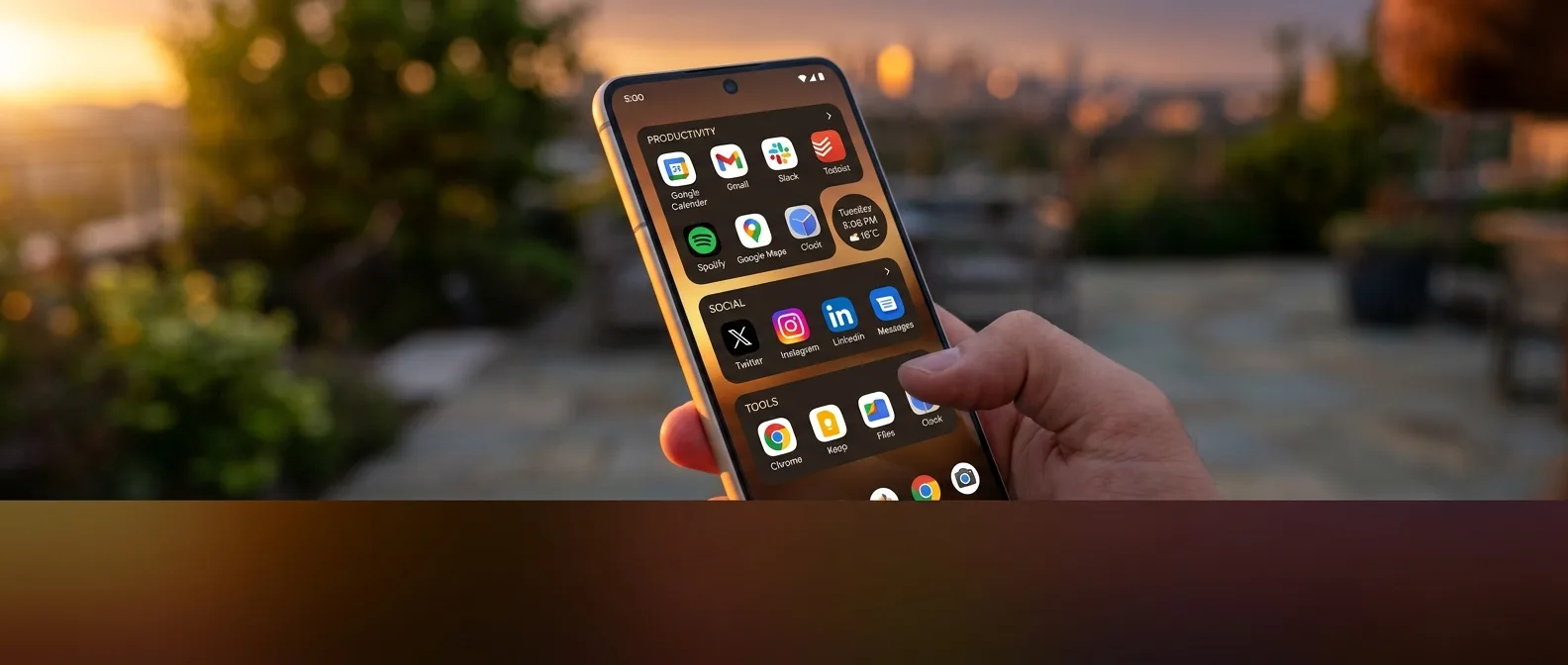
One of the smartest ways to organize shortcuts is by **actions** you perform. Think of it as verbs: reading, listening, watching, calling."Reading" Folder
Shortcut to your last book in Play Books, Kindle Store search, saved articles in Pocket
"Audio" Folder
Last podcast in Spotify, new episode search in Pocketcasts, audiobook resume from Audible
"Work" Folder
Direct message to your boss in Slack, document scan in Drive, new note in OneNote
📖 Read more: PowerShell Windows 11: 4 Commands That Save Hours Daily
🕐 Time-Based Organization: Morning, Afternoon, Evening
The second strategy builds on your **time-based habits**. Every moment of the day has its own repetitive actions.Morning Folder
What do you do immediately after waking up? Maybe check Slack for overnight messages, open Spotify for commute music, order coffee from the Starbucks app. All of these can go in a "Morning" folder. Pro tip: If you use smart home devices, add shortcuts for turning on lights from the Philips Hue app or adjusting the thermostat. The speed difference is obvious when you don't wait for the entire app to load.
Evening Folder
Evenings have different logic. Browsing YouTube subscriptions, continuing podcasts from where you left off, or (let's admit it) mindless scrolling through YouTube Shorts. An "Evening" folder keeps all these activities in one place.👥 People-Based Organization
Smartphones are communication tools. So why not organize shortcuts based on **people** we talk to?Slack Folder
Instead of the generic Slack icon, create a folder with shortcuts for direct messages to the 3-4 people you constantly talk to. Work channels, personal channels, project teams — all in one place.Contacts & Messages
Alternatively, add a widget from the Contacts app that links directly to your favorite people's cards. This way you don't need to choose a messaging platform — you have access to all communication options (SMS, WhatsApp, Telegram) from one point."70% of Android users don't know app shortcuts exist, despite saving an average of 2-3 hours per week on daily tasks."
Android Authority, 2024
📖 Read more: Android 2026: Features That Actually Matter Over Specs
📱 Advanced Shortcut Techniques
Content-Specific Shortcuts
Many apps automatically create shortcuts for content you use frequently. Spotify can create a shortcut to the last album you played. Pocketcasts for the last podcast episode.Widget Integration
Widgets work complementary to shortcuts. A weather widget next to a morning shortcuts folder gives you all the information needed to start your day. Or a calendar widget showing your next appointment can include shortcuts for Google Maps navigation or Google Meet join.🔧 Practical Tips for Better Organization
1. Don't Overdo It
The goal is simplicity. If you create 20 folders with shortcuts, you'll waste more time remembering where you put something than searching for it normally.2. Test Drive Period
Try an organization system for a week before deciding if it works. Habits change — what you think you'll use frequently might prove useless.3. Weekly Review
Every Sunday, glance at your shortcuts. Some you didn't use? Delete them. New ones you need? Add them. 3-5 seconds saved per shortcut
15-20 shortcuts on optimal home screen
2-3 hours saved weekly