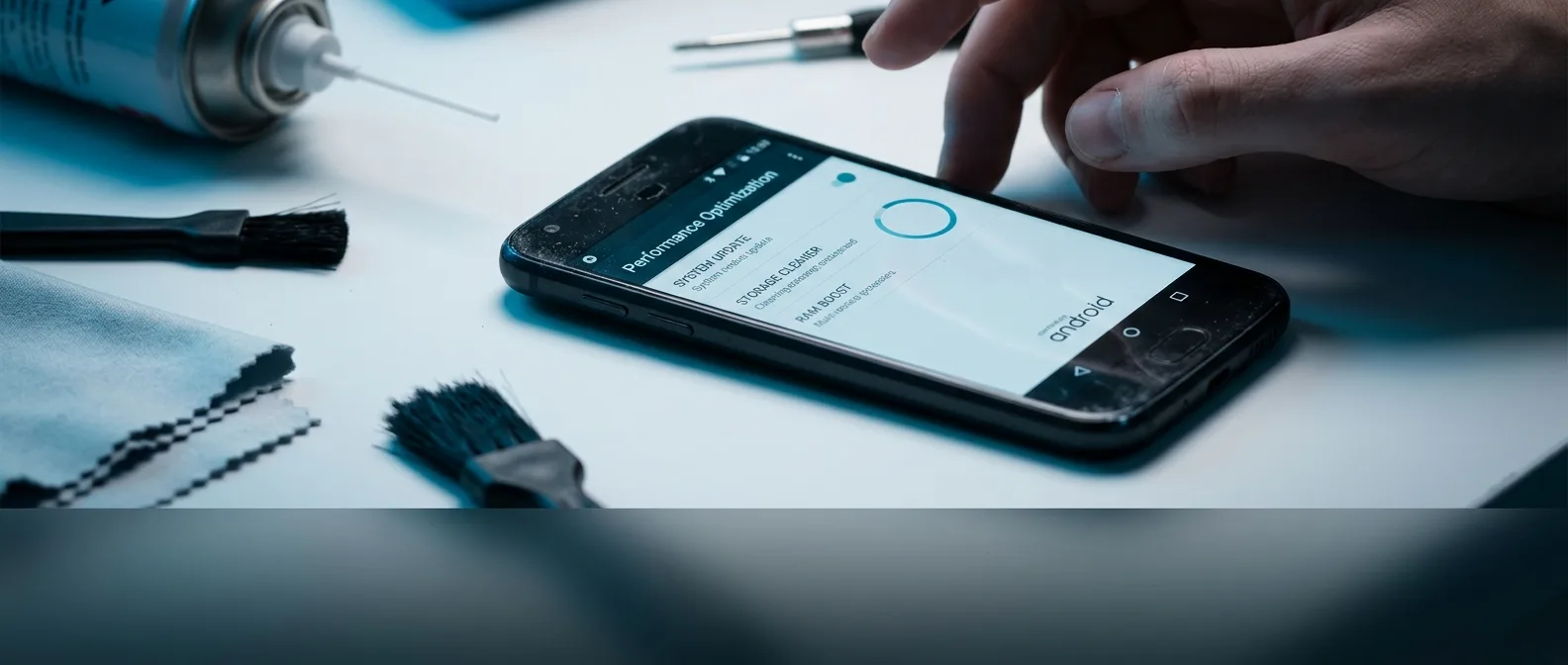
Five years with your phone — and it's starting to throw tantrums. Apps freeze mid-scroll, the battery dies before lunch, and every update loads like it's running through molasses. Before you toss it in a drawer and head to the store, eight **android optimization** strategies can squeeze out a full extra year of life — maybe more.
By 2026, Android phones last longer than ever. But aging remains ruthless. The fix isn't always buying new hardware — it's strategy.
📖 Read more: Hidden Android Setting Doubles Your Phone's Speed
🚀 Updates: The Simple Fix Everyone Mentions but Few Execute
The first move for **android optimization** is the most obvious — and we skip it constantly. Updates aren't just new features. They're patches for bugs you don't know exist, **smartphone speed** improvements under the hood, and security fixes for vulnerabilities you'll never see. Navigate to **Settings > System > Software Update**. Samsung and LG users will find "Update Center" with two options: App Updates and Software Update. Google Pixel keeps it simple — **Security & Privacy > System Updates**. Pro Tip: Enable automatic app updates in Google Play Store. Open the Store, tap your profile icon, go Settings > Network preferences > Auto-update apps. Choose "Over Wi-Fi only" to avoid data charges.
Why This Actually Works
Android evolves constantly. Each patch optimizes memory management slightly, battery performance marginally, or app responsiveness incrementally. It's like car maintenance — small fixes that prevent major breakdowns.🗑️ Digital Decluttering: When Gigabytes Become Granite
When did you last clean your Downloads folder? If the answer is "never," prepare for a shock. More than the memes and music from 2019, what you'll find there is the cause of your **old phone performance** problems. Open your **Files** app and navigate to Downloads. This might take time, but the difference will be noticeable. The logic is simple: when storage fills up, the system struggles to find space for cache and temporary files.The Photo Problem
Photos consume the most space. Every screenshot, every image auto-saved from some app, all accumulating silently. To extract them, connect your phone via USB to a computer.Windows PC
Open File Explorer, find your Android device, navigate DCIM > Camera and drag photos to your computer.
Mac
Open Finder, browse to your Android device, find the DCIM folder and transfer files.
📱 Apps: The Background Process Plague
You have 127 apps installed. You use 23. This scenario is more common than you think. Every app, even unused ones, can run background processes and consume RAM. Go to **Settings > Apps** to see a list of all apps and their storage footprint. Sort by size to catch the culprits. Uninstall anything that no longer provides value.Resource-Heavy Apps: The Hidden Killers
Not all apps are equal. Facebook can consume 300MB RAM while Facebook Lite uses just 50MB. Instagram takes 150MB, Instagram Lite only 30MB. If **mobile performance** matters more than flashy animations, make the switch. 63MB Facebook Standard
1.6MB Facebook Lite
📖 Read more: Phone Link Windows 11: The mobile connection that changes...
⚡ Background Activity: The Invisible Battle
This is the hidden blade that makes the difference. You might have 10-15 apps active in the background without knowing it. These constantly drain battery and processing power — even when you're not using them. To restrict them, go **Settings > Apps**, select each app individually and find "App Battery Usage." You have two options: - **Optimized**: Android decides when the app runs in the background - **Restricted**: Never runs in the background For most apps, "Optimized" is ideal. Save "Restricted" for apps that definitely don't need to send notifications.🧠 RAM Optimization: The Small Secrets
Android RAM works differently than a Windows computer. But there are tricks that make a difference:Live Wallpapers = Performance Killer
Live wallpapers look impressive but consume resources constantly. Every background animation means less memory for your apps. Static wallpaper = more RAM for everything else.Widgets: Fewer is Better
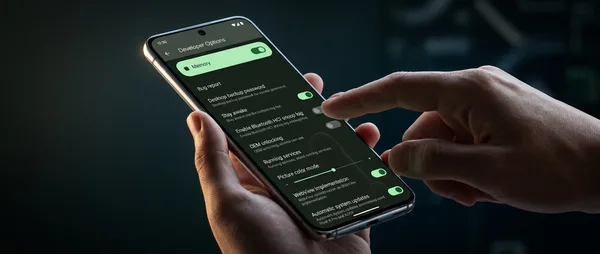
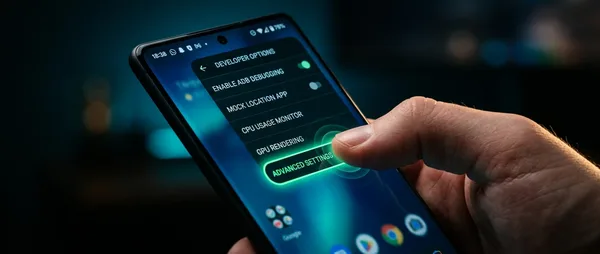
Each widget pulls data continuously. A weather widget refreshes information every hour. Four widgets = four different processes running in parallel. Advanced Tip: Enter Developer Options (Settings > About Phone > tap "Build number" 7 times) and disable System Animations. The interface becomes more "flat" but significantly faster.
📖 Read more: 15 Android Tips, Tricks & Hacks You Need to Know in 2024
🧹 Cache Clearing: The Deep Clean
Cache is temporary data that apps store for faster loading. Over time though, it can consume gigabytes of space — and instead of helping, it hurts performance. Go **Settings > Apps**, select each app individually and look for "Clear Cache." Yes, it takes time. But you often recover 1-2GB of additional space. The first time you open some apps after cache clearing, they'll load slightly slower. After that though, the overall system will be faster.⭐ Factory Reset: The Nuclear Option
If everything above isn't enough, there's the final solution: factory reset. It's like buying a new phone — the device returns to day-one condition. **WARNING**: Before doing this, backup everything. Photos, contacts, messages, apps — all will be lost. But if your phone is in such bad shape that it's unresponsive, this might be the only choice.How to Do It Right
1. Backup to Google Drive or Google Photos 2. Note passwords from your apps 3. Go **Settings > System > Reset > Factory Reset** 4. Wait 20-30 minutes for completion The result might surprise you. Often, the performance difference is dramatic.🎯 Frequently Asked Questions
How often should I do these optimizations?
Every 3-4 months for best results. Updates and cache clearing can happen more frequently — monthly or when you notice performance issues.Is there risk of breaking something with these settings?
All described methods are safe. Factory reset is the only one that permanently deletes data — which is why we emphasize backup. The other steps are reversible.Should I buy an optimization app?
No. Android has all the tools you need built-in. Third-party "booster" apps often do more harm than good — they run in the background and consume resources. These eight strategies won't make your three-year-old phone run like a flagship. But they can definitely give you an extra year of decent use. And at today's smartphone prices — every additional month counts.Sources: