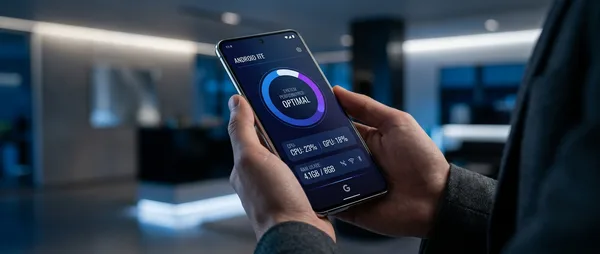
You tap Settings to change something on your phone and see the same menu options you've memorized by heart. But Android packs way more punch than what meets the eye. Android hidden features lurk in unexpected places — buried in long-press menus, tucked behind gestures, or scattered across completely different parts of the system.
These Android tools aren't useless gimmicks. They save time, boost security, and make daily phone use smoother. But since they don't live in the standard Settings app, most users never discover them.
📌 App Pinning: Lock Down Your Phone When Lending It
Ever handed your phone to someone to watch a video or look something up, then silently prayed they wouldn't swipe into your photos? App pinning solves exactly this problem.
How App Pinning Works:
- Open the app you want to pin
- Swipe up to access Recent Apps
- Tap the app icon at the top of the preview card
- Select "Pin" from the menu
Now the user is locked inside that app. They can't switch apps, see notifications, or navigate anywhere else — unless they know how to unpin. Perfect for kids, but also for anyone you're lending your phone to.
⚡ Split Screen: Two Apps Running Side by Side
Watching YouTube while replying to WhatsApp messages? Split screen makes it possible, but many users skip it because they don't know where to find it.
The process is straightforward: open your first app, go to Recent Apps, tap the app icon, and select "Split screen." Then pick your second app.
Video + Chat
Watch videos while texting without losing your place in either
Maps + Spotify
Navigate while switching songs during road trips
Android in 2026 has made multitasking even smoother, but the core functionality remains hidden from standard settings.
🎤 Live Caption: Real-Time Subtitles for Everything
This might be Android's most underrated feature. Live Caption automatically generates subtitles for any audio playing on your device — videos, podcasts, voice messages, even phone calls.
The feature works completely offline without sending data to the cloud — making it ideal for sensitive content.
Android Accessibility Features
To activate it, press any volume button and you'll see the Live Caption icon below the volume bar. Tap it, and subtitles appear in a small movable window.
When Live Caption Shines
In noisy environments where you can't hear clearly, when you want to watch something silently, or for people with hearing difficulties. The accuracy isn't perfect, but for daily use it's impressively good.
📡 Wi-Fi QR Code: No More Password Typing
"What's the Wi-Fi password?" — a question you hear constantly when friends visit. Unless you use Android's hidden QR code sharing.
Go to Wi-Fi settings, tap the network you're connected to, and select "Share." A QR code appears instantly. Anyone who scans it connects automatically without typing anything.
Especially handy when you have complex passwords with symbols and numbers — which security experts recommend but nobody wants to type.
🚀 App Shortcuts: Hidden Menus Everywhere
This might be the most practical of all Android hidden features. Long-press any app icon on your home screen and see what happens.
Many apps reveal hidden menus with app shortcuts that jump directly to specific functions. Google Maps shows "Work," "Home," "Nearby places." Chrome offers "New tab" and "Incognito browsing." Gmail takes you to "Compose" or "Inbox."
Creating Permanent Shortcuts
Here's the clever part: you can drag these options out of the menu and place them as separate icons on your home screen. Next time you'll go straight to that specific function with one tap.
📌 Share Menu Pinning: Stop the Search
Android's Share menu quickly becomes chaos. WhatsApp, Messenger, Gmail, Drive, Photos — all jumbled without clear order. But you can pin your 4 most-used apps to the top.
How to Pin Apps in Share Menu:
- Open any Share menu
- Long-press the app you want to pin
- Select "Pin"
- The app will always appear at the top
Pinned apps appear alphabetically in the first row and stay there regardless of what you've used recently.
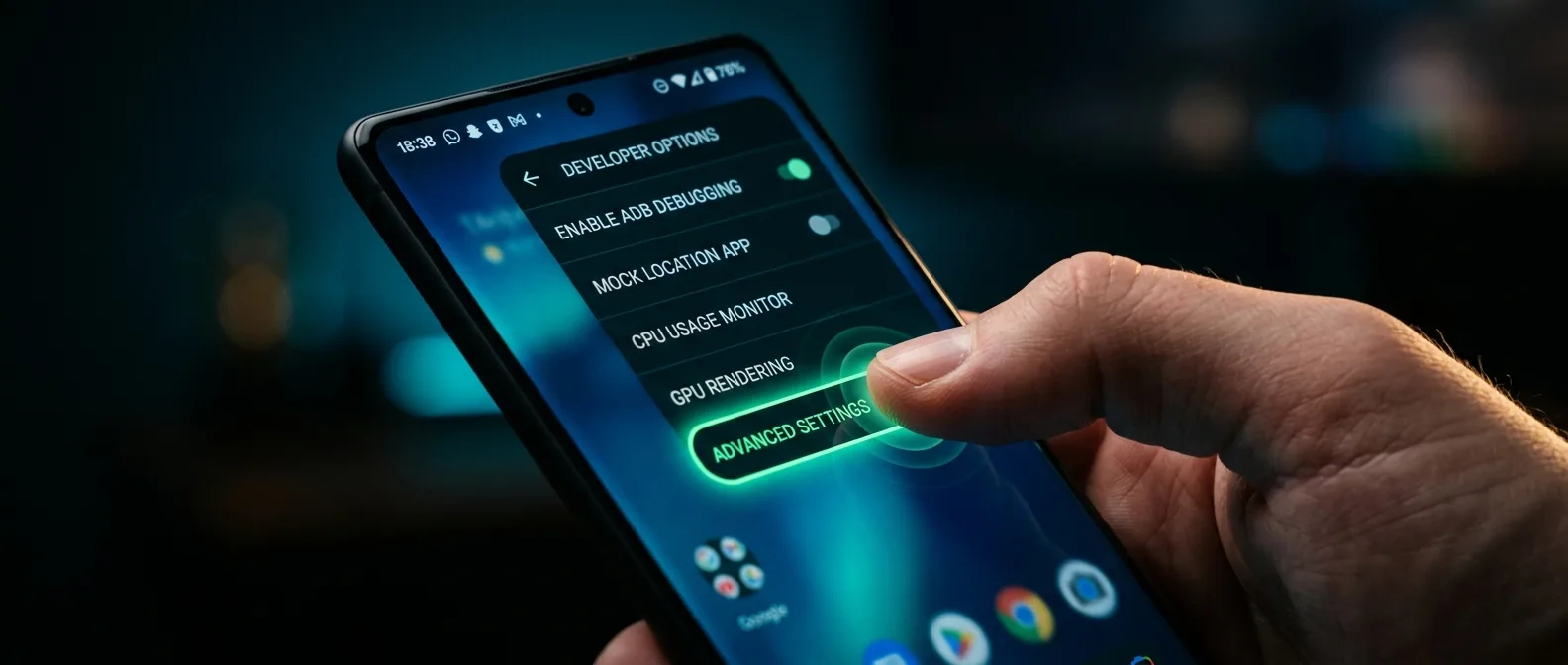
🛠️ Developer Options: The Hidden Control Center
Developer options sound technical, but they include some of the most useful settings for regular users. The problem is they're hidden by default.
To unlock them: go to Settings → About phone and tap "Build number" 7 times. You'll see a "You are now a developer!" message.
What's Worth Using in Developer Options
Animation Scale: Reduce animations to 0.5x to make your phone feel faster. Background Process Limit: Restrict background apps for better performance. Force Peak Refresh Rate: Always enable 120Hz if your device supports it.
Performance Boost
0.5x animations + background limits = snappier user experience
Security Controls
Sensors Off tile for instant camera/microphone shutdown
One particularly useful feature is the Sensors Off tile. Enable "Quick Settings Developer Tiles" in Developer Options, and you can add a button to Quick Settings that instantly disables camera, microphone, and GPS — perfect for moments when you need extra privacy.
🎯 Frequently Asked Questions
Can Developer Options break my phone?
No, if you only change the basic settings I mentioned. Android has safeguards for the more dangerous options. If something goes wrong, just reset to default values.
Do all these features work on every Android phone?
Most do, but they might be in different menus depending on the manufacturer. Samsung, Xiaomi, OnePlus have their own variations, but the core functions exist everywhere.
Do I need root access for these features?
No, these are all built-in Android features that don't require special permissions or modifications. They're just hidden from standard settings.
These hidden features show that Android has much more to offer than what appears at first glance. They're not gimmicks — they're tools that can make daily use easier, faster, and more secure. You just need to know where to look.
Sources: