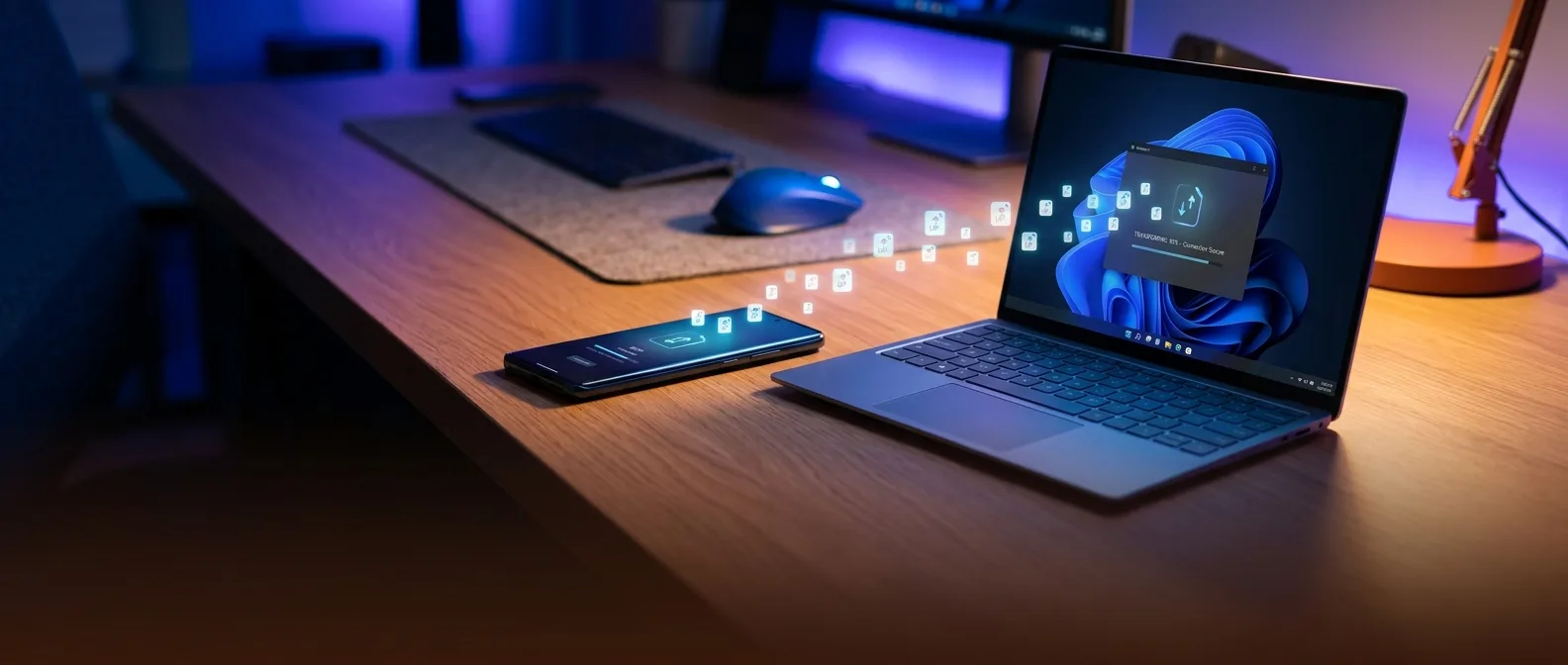
Phone Link in Windows 11 is that feature 90% of users completely ignore — and they're missing out big time. Instead of fumbling with Google Drive or cloud services to move files from your Android to your PC, Phone Link creates a direct bridge between both devices via Wi-Fi and Bluetooth. Microsoft's 2026 update adds even more capabilities that transform your smartphone into a genuine PC extension.
But why should you care? Simple. Phone Link isn't just another notification hub — it's a real productivity solution. Copy text on your phone, paste it on your computer. Reply to messages with your full keyboard. Run Android apps directly on your Windows screen.
🚀 Why Phone Link transforms how you work
Phone Link acts as a bridge between Windows and Android, leveraging the "Link to Windows" app that comes pre-installed on most new Android devices. The difference from cloud solutions? Instant connection.
When you copy-paste a URL from phone to PC, you're not going through Google Drive. When you want to view your phone photos, you're not opening a browser. Phone Link handles everything locally, fast, without uploading anything to the cloud.
What it actually delivers in daily use
Phone Link's real value shows in those tiny daily actions. Get an SMS with a 2FA code? You see it directly on your Windows screen. Want to send a screenshot from your PC to someone? Do it from your phone without touching it.
But the best part is how it reduces distractions. Instead of grabbing your phone to skip a song — and getting lost in Instagram for 15 minutes — you do it from Windows Start Menu.
⚙️ Setup so easy you'll think you're doing it wrong
The installation process is so simple you'll think something's broken. You need only Windows 11 (or Windows 10 with May 2019 Update), Android 7.0+, and both devices on the same Wi-Fi network.
Installation steps:
- Open Phone Link: Type "Phone Link" in Windows search
- Choose Android: When prompted for device type
- QR Code: Scan the code displayed on your PC screen
- Verification code: Enter the number shown on your computer
- Permissions: Accept required permissions on Android
The Link to Windows app downloads automatically to your phone once you scan the QR code. Most Samsung devices have it pre-installed from the factory.
Alternative method: USB connection
If you only want file transfer without notifications and cross-device features, there's the USB method. Connect your phone with a cable, select "Open device to view files" from the Windows notification, and get direct access to Android files through File Explorer.
Simple, but you lose 80% of Phone Link's capabilities.
📱 Hidden features nobody uses
Phone Link in 2026 has upgraded with features that go way beyond basic file sharing. The new version 1.25062.83.0 adds remote PC lock — the ability to lock your computer remotely from your phone.
Shared Clipboard History
Copy text or images on one device, paste on the other. Works both directions.
Photo Sync
Instant access to phone photos from Windows. Save with one click.
Screen Mirroring
Full Android screen display on your computer. Perfect for authentication apps.
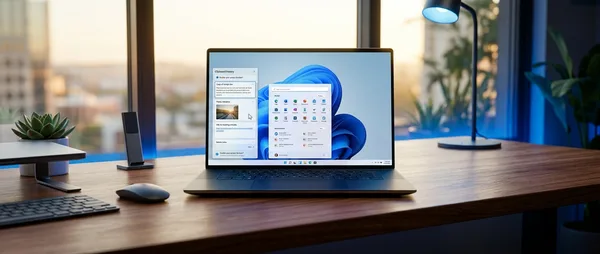
Shared clipboard history is the feature that will save you the most time. Enable "Cross-device copy and paste" in settings and whatever you copy on one device becomes available on the other. Slack messages, URLs, screenshots — everything syncs automatically.
Remote control from Start Menu
If you have OnePlus, Samsung, or other compatible devices, you can control music directly from Windows Start Menu. Skip track, pause, volume — without touching your phone. Same logic applies to call controls when you have headphones connected to your computer.
The Phone Link dashboard in Start Menu also shows your phone's battery and Wi-Fi status. Useful when it's in another room.
🔐 Notifications and privacy: The delicate balance
The biggest dilemma with Phone Link is notifications. You want the convenience of replying to messages from your computer, but not spam from every app you've installed.
The solution lies in Link to Windows app settings. You can choose which apps send notifications to Windows and which don't. Instagram notifications? No thanks. Banking apps with 2FA codes? Yes please.
Phone Link with proper settings reduces distractions instead of increasing them. The key is selective notification filtering.
— Microsoft Productivity Team
The 2026 version adds granular permission controls. You can grant access only to specific phone folders, or restrict functions to certain hours.
Enterprise features slowly arriving
In Windows 11 enterprise editions, Phone Link is starting to support conditional access policies. This means IT can control which phone apps have access to corporate data through the connection.
Not something you'll see in home use, but it shows how seriously Microsoft takes this ecosystem.
🎯 Tips to make it work like a pro
Phone Link includes several undocumented tweaks that solve the most common problems. First, if the connection drops frequently, check if Windows has "USB selective suspend" enabled. Find it in Device Manager → Universal Serial Bus controllers → USB Root Hub Properties → Power Management.
Pro tips for better performance:
- Disable battery optimization: On Android, exempt Link to Windows from battery optimization
- Pin to Start: Pin Phone Link to Start Menu for quick access
- Keyboard shortcuts: Win+K opens Connect panel for fast connection
- Notification filtering: Set phone Do Not Disturb to sync with Windows Focus Assist
For power users, there's also the ability to use PowerShell commands for automation. `Get-AppxPackage Microsoft.YourPhone` shows Phone Link version, while Microsoft PowerToys lets you create custom shortcuts for specific functions.
Troubleshooting in 30 seconds
Most common problems are simple:
- Won't connect: Restart both devices and check you're on the same Wi-Fi
- Slow notifications: Disable battery optimization for Link to Windows app
- Mirroring freezes: Close other apps using camera or screen recording
- Clipboard not working: Sign out and sign in again with Microsoft account
If nothing works, the nuclear option is to unpair and start over. Takes just 2 minutes.
🔮 What's coming next
Microsoft's 2026 roadmap for Phone Link includes several additions beyond basic file transfers.
Universal clipboard that works not just with text and images, but with files. Drag and drop from phone screen to Windows File Explorer. Smart suggestions that automatically propose opening links on your computer that you open on your phone.
But the most interesting feature being tested in Windows Insider builds is reverse mirroring — displaying your Windows screen on your phone. Useful for presentations or when working remotely and you want to see what's happening on your PC from anywhere.
Of course, all this assumes Microsoft keeps Phone Link free. So far there are no signs of monetization, but you never know.
Ultimately, Phone Link is one of those features that once you try it, you wonder how you lived without it. It's not revolutionary technology — it's just well-designed solution to a real problem. And in the tech world, that's much rarer than you'd think.
Sources: