

In today's digital landscape, password security is critical. With the average user managing over 100 online accounts, a password manager isn't a luxury — it's a necessity. We analyze the best password managers for Android in 2026 and help you choose the right one.
📖 Read more: Best Power Banks for Android 2026: Top 10
🔐 Why You Need a Password Manager in 2026
81% of data breaches are caused by weak or reused passwords. A password manager creates, stores, and auto-fills unique, strong passwords for every site. On Android, integration is seamless: autofill works everywhere — in apps, browsers, and even on Smart TVs via companion apps.
In 2026, passkeys are gradually replacing traditional passwords. The best password managers already support passkey storage and sync, making them even more essential — it's no longer just about passwords.
📖 Read more: OnePlus 15T: Is It Worth the Upgrade?
🏆 Top 5 Password Managers for Android 2026
1. Bitwarden — Best Free Option
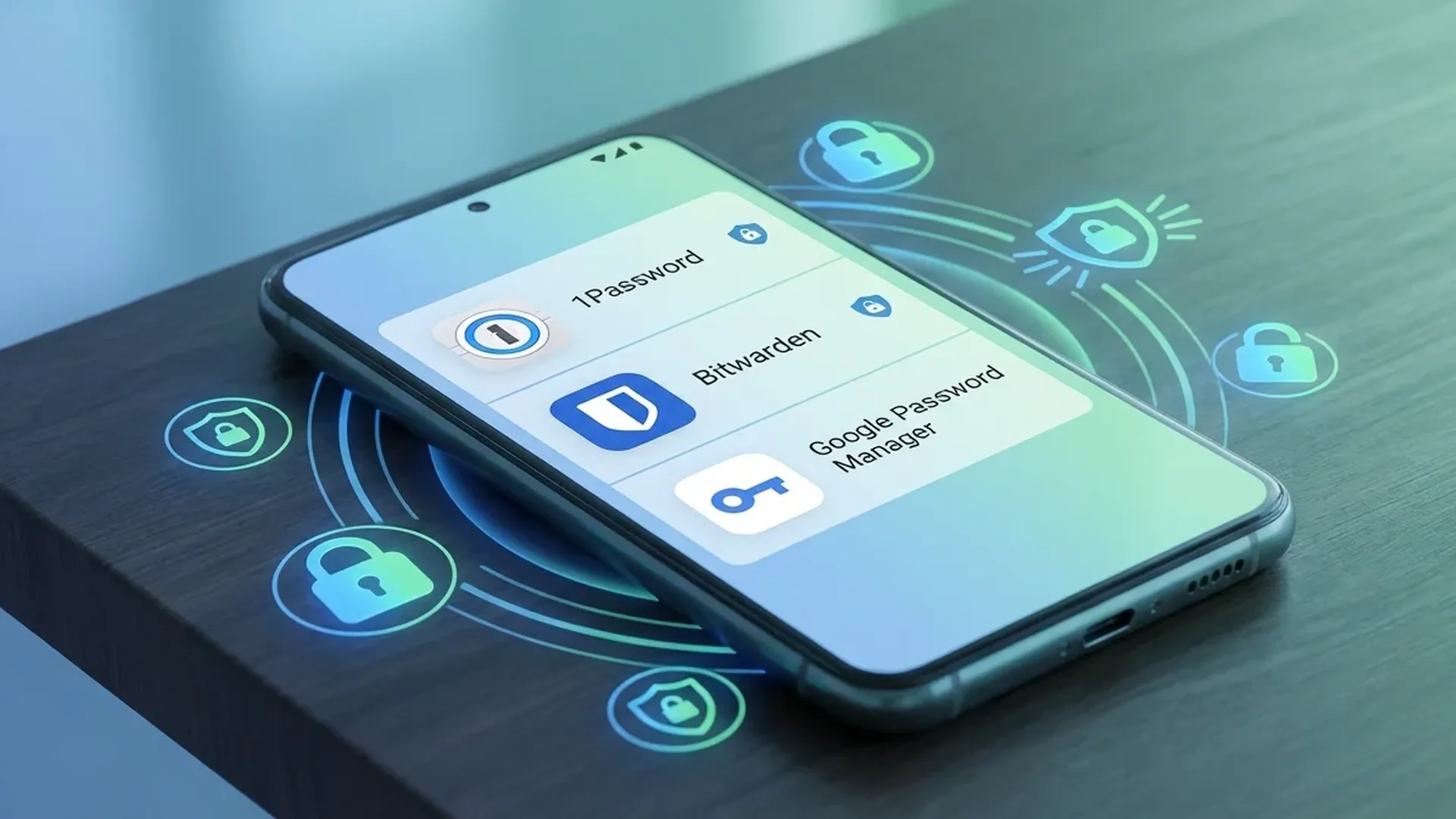
Bitwarden is open-source, end-to-end encrypted, and offers the most generous free plan: unlimited passwords, unlimited devices, password generator, and passkey support. Premium (€10/year) adds TOTP authenticator, encrypted file storage (1GB), and emergency access. Ideal for users wanting security without cost.
2. 1Password — Most Complete
1Password (€36/year) offers the most refined Android UI, excellent family plan (5 members), Watchtower security monitoring, masked emails, and travel mode (hides sensitive data while traveling). Supports passkeys, SSH keys, API tokens, and software licenses. Ideal for families and professionals.
3. Google Password Manager — The Built-In Choice
Google Password Manager is built into Android and Chrome. Free, easy to use, with passkey support and on-device encryption option. In 2026, Google added password sharing (share with Google Contacts), dark web monitoring, and automated password change suggestions. Downside: doesn't work outside Google's ecosystem (no Firefox, Safari support).
📖 Read more: Samsung DeX 2026: Turn Your Phone Into a PC
4. Dashlane — Premium with VPN
Dashlane (€40/year) stands out with a built-in VPN, dark web monitoring, phishing alerts, and automatic password changer that updates passwords on supported sites with one tap. The Android app is excellent with Material You support. Expensive, but an all-in-one solution.
5. Proton Pass — Privacy-First
Proton Pass (free or €24/year) from the creators of ProtonMail. Focuses on privacy: email aliases (hide-my-email), encrypted notes, passkey support, and zero-access encryption. Free plan includes unlimited passwords on unlimited devices. Ideal for privacy-conscious users.
📖 Read more: Samsung Tri-Fold Phone: When Is the Release Date?
📊 Password Manager Comparison
| Feature | Bitwarden | 1Password | Google PM | Proton Pass |
|---|---|---|---|---|
| Price/Year | Free/€10 | €36 | Free | Free/€24 |
| Open Source | ✅ | ❌ | ❌ | ✅ |
| Passkeys | ✅ | ✅ | ✅ | ✅ |
| Cross-Platform | ✅ Full | ✅ Full | Chrome/Android | ✅ Full |
| Family Plan | €40/6 members | €60/5 members | Google One | €48/6 members |
| Email Aliases | ❌ | Masked Email | ❌ | ✅ Hide-my-email |
| Offline Access | ✅ | ✅ | Limited | ✅ |
🛡️ How to Set Up a Password Manager on Android
Setup is simple: 1) Download the app, 2) Go to Android Settings → Passwords → Autofill service, 3) Select your password manager, 4) Enable biometric unlock (fingerprint or face). Now on every login form, you'll see automatic suggestions with saved credentials.
💡 Pro Tip: After setup, run a Security Audit in your password manager. It will show which passwords are reused across sites, which are weak, and which have been found in data breaches. Change them immediately.
Proper password management isn't just convenience — it's your first line of defense in digital security. Choose the password manager that fits your needs and never reuse the same password on two sites again.