

You've been using Android for years, but I bet you don't know at least half of these features. According to reports from Android Police and Google, Android hides dozens of features within its settings that can radically change the way you use your phone.
1. 🔔 Notification History
Accidentally dismissed an important notification? According to Android Police, this is one of the most underrated features. It was introduced in Android 11 and keeps a complete notification history for 24 hours. Go to Settings → Notifications → Notification History and enable it. From then on, when you dismiss a notification, just tap the “History” button in the notification panel to find it.
2. 🔒 Screen Pinning
Want to hand your phone to someone but worried they'll snoop around? According to Google, the Screen Pinning feature locks an app to the screen. Go to Settings → Security → Screen Pinning and enable it. Open your recent apps, tap the app icon, and select “Pin.” To exit, press Back + Recent simultaneously. Perfect for when you lend your phone to kids.
3. 📱 Split Screen
It's been around since Android 7, but very few people use it. Open your recent apps, long-press an app icon, and select "Split Screen". Watch YouTube while chatting, read emails while taking notes, or compare prices. On Samsung devices, you can even save app pairs as shortcuts on the home screen.
4. 🎯 Quick Tap — Double Tap on the Back (Pixel)
According to Android Police, this is one of the coolest Pixel features (4a and newer). Go to Settings → System → Gestures → Quick Tap. Enable it and choose what it does: screenshot, flashlight, pause music, open Google Assistant, or launch any app. Simply double-tap the back of your phone.
5. 🔔 Per-App Notification Muting
According to Android Police, long-press a notification to bring up the notification management options. From there, you can mute or fully disable them. Alternatively, go to Settings → Notifications → App Settings. Android goes even deeper — with notification channels, you can disable an app's marketing notifications while keeping the important ones (e.g., order updates).
6. ⚙️ Customizing Quick Settings
As Android Police reports, Quick Settings (swipe down twice) can be fully customized. Tap the Edit (pencil) button and drag the tiles into any order you want. WiFi, Bluetooth, Battery Saver, Dark Mode — put the ones you use most at the front. In Android 16, Quick Settings also support custom tiles from third-party apps.
7. 🌐 Per-App Language Settings
According to Android Police, this feature was introduced in Android 13 and is a game-changer for multilingual users. Go to Settings → System → Languages & Input → App Languages. You can set your phone to one language but have certain apps (e.g., Twitter, Reddit) in another. Note: you must first add multiple languages to your device, and each app needs to support the feature.
8. 🧭 Gesture Navigation
According to Google Support, go to Settings → System → Gestures → System Navigation. You have three options: gesture navigation (no buttons), two-button navigation, or classic three-button navigation. Gestures free up screen space and provide a smoother experience, but require some getting used to. You can also adjust the back gesture sensitivity on the sides.
9. 📊 Digital Wellbeing & Focus Mode
Go to Settings → Digital Wellbeing. There you can see how much time you spend on each app, how many times you unlocked your phone, and how many notifications you received. You can set app timers — e.g., 30 minutes of TikTok, then it grays out. Focus Mode freezes specific apps (social media, games) while you work or study. Ideal for students and professionals.
10. 📲 Quick Share (formerly Nearby Share)
Stop sending photos through Messenger — they lose quality. Quick Share is Android's AirDrop. Select a file, tap Share, and see nearby devices. It works between Android phones, tablets, Chromebooks, and Windows PCs (with the Quick Share app). It transfers files without compression — photos, videos, APKs, anything you want.
11. 🔋 Battery Share — Reverse Charging
If you have a flagship (Pixel 7+, Samsung S21+), you can charge other devices by placing them on the back of your phone. Earbuds, smartwatch, even a second phone. Settings → Battery → Battery Share. Set a minimum percentage (e.g., 20%) below which it automatically stops. In an emergency, 5–10% is enough for a phone call.
12. 🎧 Live Caption
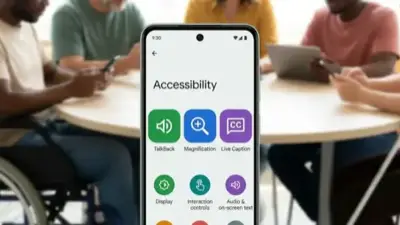
This feature automatically generates captions on any audio/video: YouTube, Instagram Reels, voice messages, phone calls. Settings → Accessibility → Live Caption. It works locally on the device (no internet required). Excellent in noisy environments or when you don't want to disturb others.
13. 🌐 Private DNS — Secure Browsing
Go to Settings → Network → Private DNS and enter dns.google or one.one.one.one (Cloudflare). It encrypts your DNS queries — your ISP can't see which sites you visit. In many cases, browsing also becomes faster because these DNS servers are quicker.
14. 📍 Find My Device
According to Android Police, this should be enabled on EVERYONE's phone. Settings → Security → Find My Device. If you lose your phone or it gets stolen: you can locate it, make it ring (even on silent), lock it, or remotely erase all data. Just go to google.com/android/find from any device.
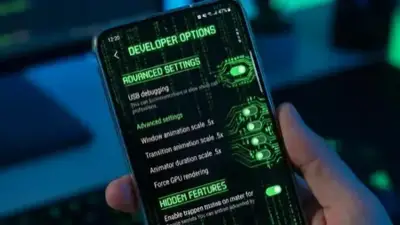
15. 🤖 Developer Options
Unlock them: Settings → About Phone → tap the Build Number 7 times. The most important options:
- Animation duration scale → 0.5x: Reduces animations, making the entire phone feel snappier
- Force Dark Mode: Forces dark theme on apps that don't natively support it
- USB Debugging: Essential for ADB, custom ROMs, and sideloading
- Default USB Configuration → File Transfer: No need to tap it every time you connect
⚠️ Caution with Developer Options
Don't change settings you don't understand. Options like OEM Unlocking or GPU rendering overrides can cause instability or issues with banking apps. If something goes wrong, simply disable Developer Options.
💡 Bonus: What Android 16 Brings
According to 9to5Google (February 2026), the Android 16 update has already rolled out to Pixel devices. New features include Predictive Back Animation (preview before pressing back), Live Updates (notifications become mini widgets), and an improved Desktop Mode. Meanwhile, the Pixel 10a was announced on February 4, 2026 with pre-orders starting February 18.
"Android phones have extensive customization options, but you need to take some basic steps before you start customizing them. We've gathered the most useful tips so you can get the most out of the operating system."