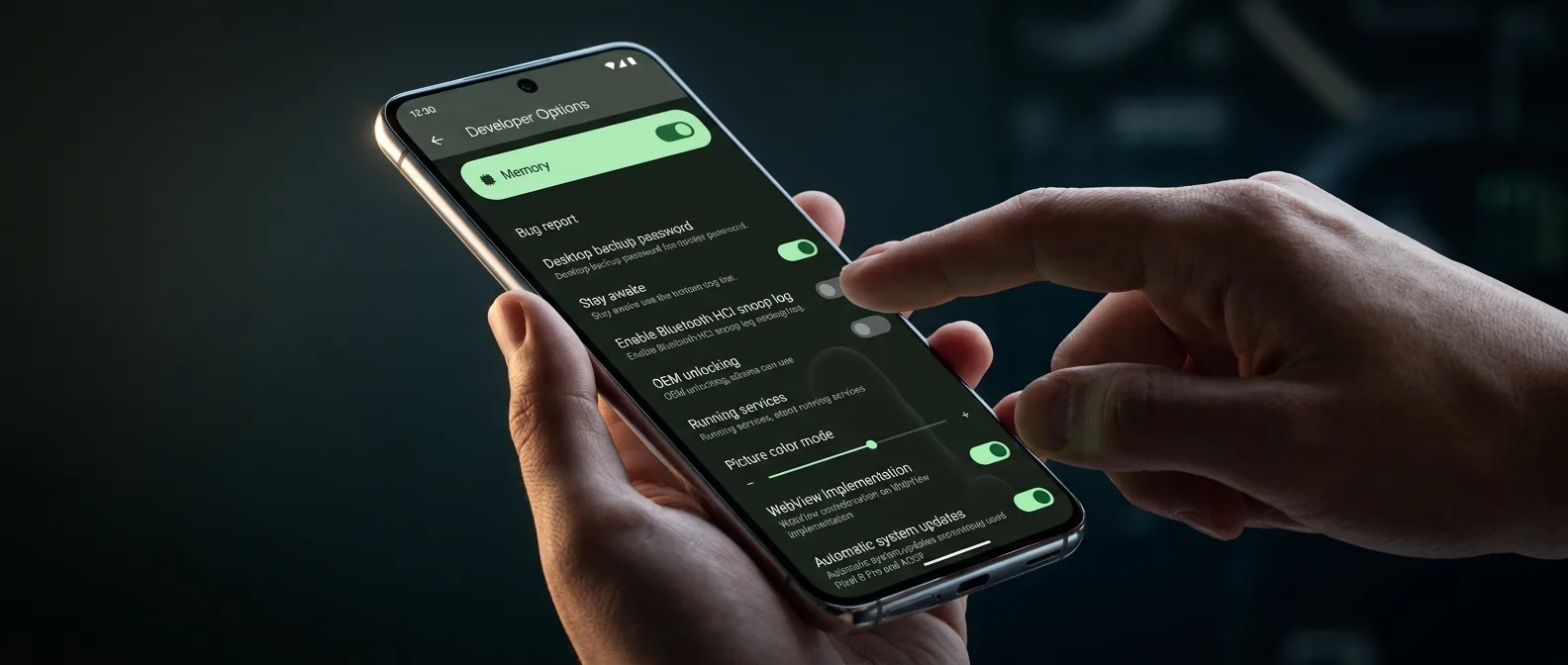
Your Android phone is hoarding memory for logs you'll never read. Buried in Developer Options sits a setting called Logger Buffer Size that most users never touch — and that's costing them performance. Drop this buffer from its bloated default to 64KB and watch your phone shed digital weight. No, it won't transform your processor into a gaming beast, but it'll free up precious RAM that's currently wasted on diagnostic data you don't need.
In 2026, hundreds of Android devices ship with different specs and each manufacturer adds their own spin to the OS. Whether you're running a flagship Pixel or a budget smartphone, this setting frees up RAM most phones squander.
📖 Read more: Android 2026: Features That Actually Matter Over Specs
🔍 What Logger Buffer Size Does to Your RAM
Android never stops writing. Every app launch, system event, and error gets logged to hidden files stored temporarily in your RAM through buffers. Think of it as a diary that never stops recording — except this diary eats memory for breakfast.
These logs help developers hunt bugs and analyze app performance. The problem? Android hoards way more logging data than most users will ever need. Your phone treats every session like a debugging marathon.
Default behavior: Android maintains 256KB to 1MB of logging data in RAM. Sounds tiny, but multiply that across dozens of apps and system processes and it starts adding up fast.
🚀 How Shrinking Buffers Speeds Up Android
Cut the Logger Buffer Size from default to 64KB and you trigger a performance cascade. Less RAM wasted on logs. More memory available for apps. Less background processing managing those logs.
The result isn't magic — it won't turn an old phone into a speed demon. But the difference shows up in daily tasks:
- Smoother scrolling in apps like Instagram and Facebook
- Faster app switching during multitasking
- Fewer lag spikes while gaming
- Slight battery life improvement
⚙️ Unlocking Android Developer Options
First, you need to unlock the hidden settings. The process stays identical across all Android devices, but the menu location varies by manufacturer.
Step-by-Step Process:
- Open Settings on your device
- Navigate to "About Phone"
- Find "Build Number"
- Tap 7 times consecutively on the build number
- Enter your PIN or password when prompted
- You'll see the message: "You are now a developer!"
Note: On Samsung devices, Build Number typically lives at: About phone > Software information > Build number. OnePlus devices: About device > Version.
🎯 Changing the Logger Buffer Size Setting
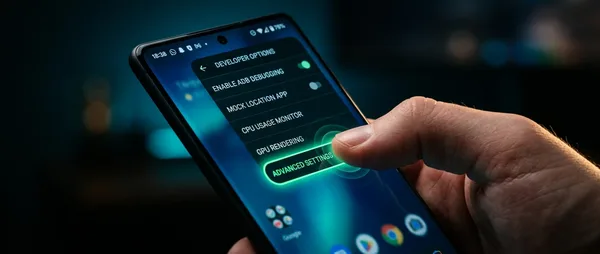
Now comes the main event. After enabling Developer Options, you'll find the new menu at the bottom of Settings or inside the "System" menu depending on your device.
The Process:
- Go to Settings > System (or System & Updates)
- Select "Developer Options"
- Scroll down to the "Debugging" section
- Find "Logger Buffer Size"
- Select "64K" from the options list
- Restart your device
Why restart? The change needs a full reboot to take effect completely and start the system with new parameters.
"After the restart, the difference was immediate. Instagram scrolling became smoother and app switching faster, even on a Pixel 8a."
User experience, Android forums 2026
📖 Read more: Android Optimization: 8 Tricks for +1 Year Phone Life
⚠️ What to Avoid in Developer Options
Developer Options contains dozens of advanced settings. Not all of them play nice with regular users. Some settings can cause problems or affect system stability.
Settings to AVOID:
- OEM Unlocking — Opens the bootloader (advanced users only)
- USB Debugging — Unless needed for specific purposes
- GPU Debug Layers — Can cause crashes
- Feature Flags — Experimental features that might be unstable
After changing the Buffer Size, consider disabling Developer Options again if you don't need them. This prevents accidental changes down the road.
📊 Other Performance-Boosting Developer Settings
Since you already have Developer Options enabled, there are other settings worth trying for better performance.
Animation Scale Adjustments:
Reduce these values:
- Window Animation Scale: from 1x to 0.5x
- Transition Animation Scale: from 1x to 0.5x
- Animator Duration Scale: from 1x to 0.5x
This makes animations faster and creates the feeling of a snappier system. Some prefer turning them off completely, but then you lose Android's visual continuity.
Memory Usage
Monitor how much RAM apps consume through the "Memory" menu in Developer Options.
Wi-Fi Verbose Logging
See signal strength for each Wi-Fi network for better connections.
🔋 Battery Life Impact
Reducing Logger Buffer Size has a small but noticeable positive impact on battery life. Less background processing means less energy consumption from the processor.
Don't expect miracles — we're talking 5-10 minutes of extra screen time in a day of use. But every improvement counts, especially on older devices with batteries that have lost some capacity.
Where the difference shows most:
- Smartphones with less than 6GB RAM
- Devices 2-3 years old and older
- Budget and mid-range phones
- Tablets with lower specs
🎯 Frequently Asked Questions
Is changing Logger Buffer Size safe?
Yes, completely safe. The only side effect is that if a bug appears in the system or an app, diagnostic data will be limited. For regular users, this has zero practical meaning.
Can I revert to the original setting?
Absolutely. Go back to Logger Buffer Size and select the default value (usually 256K or 1M). Restart and the system returns to its original state.
Will I lose data from this change?
No, it doesn't affect any personal information, apps, or settings. It only changes how many system logs Android keeps in memory.
This simple setting won't make your phone feel brand new, but it's one of those small tricks that when combined, create noticeable improvement. Best part? It costs nothing and reverses with two taps.
Sources: