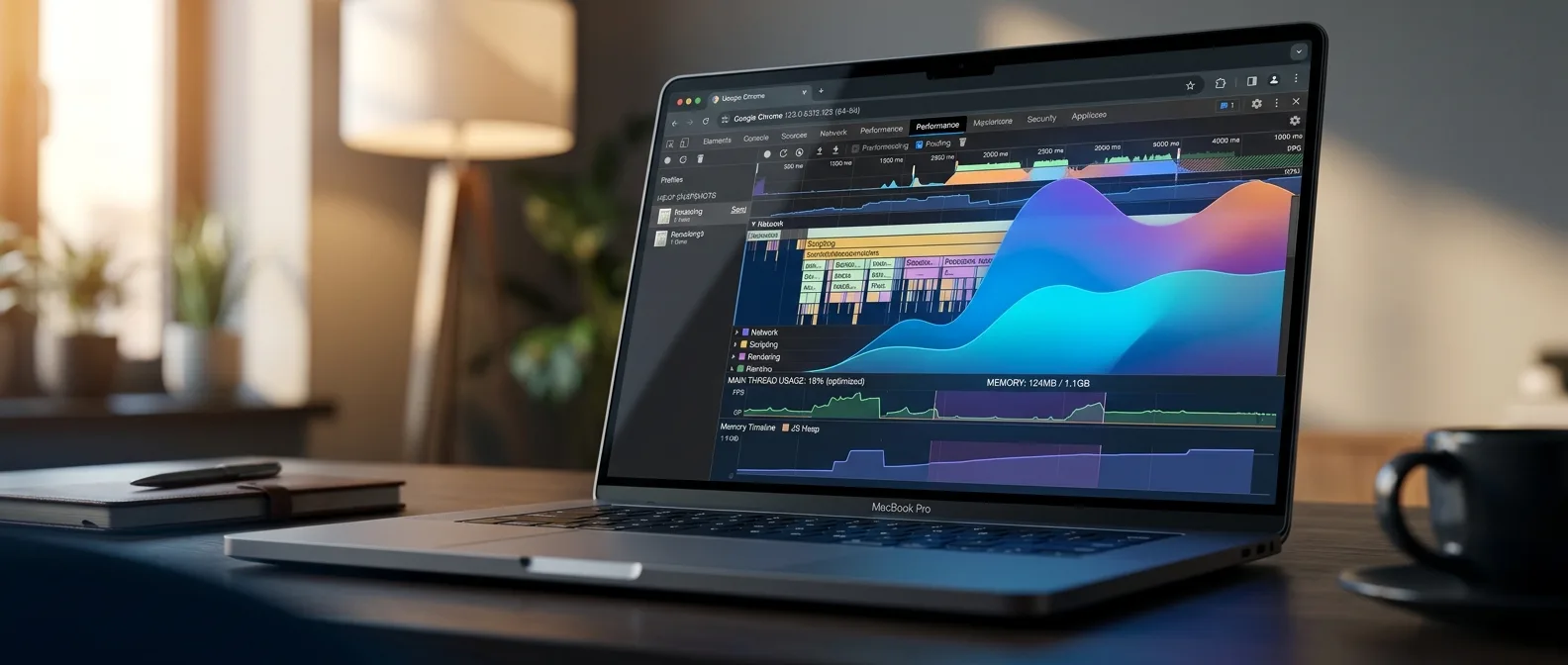
Six flags in your address bar — that's the difference between a blazing-fast Chrome and a sluggish browser that turns your laptop into a space heater. Hidden inside chrome://flags, experimental features wait to give your Chrome the speed it deserves in 2026.
Google Chrome has earned its reputation as a RAM hog. Yet while we complain about its memory appetite, we completely ignore the settings that could make it faster. Chrome flags are experimental features that aren't ready for prime time, but work surprisingly well in practice.
Some boost scrolling smoothness. Others slash page load times. A few harness your graphics card for faster rendering. Apply the right ones and you'll feel the difference immediately.
📖 Read more: Back Tap iPhone: The Hidden Feature That Changes Everything
🚀 GPU Rasterization: Put Your Graphics Card to Work
Every time you visit a page, your browser converts HTML code into the images you see. We call this process rasterization. Usually your CPU handles it. GPU rasterization shifts that work to your graphics card instead.
Why does this matter? GPUs are built to process visual data at insane speeds. A graphics card can handle thousands of small tasks simultaneously — exactly what's needed to draw text, buttons, and photos.
How to enable it: Type chrome://flags/#enable-gpu-rasterization in your address bar and switch from "Default" to "Enabled". Restart Chrome to see the difference.
The change is most obvious on pages packed with photos or videos. Think of it as putting a specialist on the job that suits them, instead of letting the general manager handle everything.
⚡ Zero-Copy Rasterizer: Fewer Steps, More Speed
Imagine Chrome is a delivery driver. Usually, it takes data from one place, transfers it to an intermediate location, then sends it to the GPU for rendering. Zero-copy rasterizer cuts out that middle step.
Instead of writing data somewhere and moving it again, Chrome sends it straight to the GPU. Fewer steps means less delay. In the internet world, every millisecond counts.
The flag you need is chrome://flags/#zero-copy. The improvement might not look dramatic on fast computers, but on older machines it makes a real difference.
📖 Read more: Hidden Windows 11 Tools: Speed Test & Quick Recovery
🎯 Smooth Scrolling and Partial Swap: For Smoother Navigation
Regular Chrome scrolling can feel jerky. It moves in small steps instead of flowing naturally. Smooth scrolling fixes this problem — it makes movement more fluid and easier on the eyes.
Even more useful is partial swap. When you scroll and something changes on screen, Chrome sometimes redraws the entire frame. Even if only a tiny piece actually changed. Partial swap forces the browser to update only the part that really changed.
Settings for Better Experience
Smooth Scrolling
Enable at chrome://flags/#smooth-scrolling for more natural page movement.
Partial Swap
Find chrome://flags/#disable-partial-raster and change it to "Disabled".
The difference isn't always obvious on every website. But when you're reading long articles or browsing image-heavy content, you'll notice it.
🌐 Experimental QUIC Protocol: Faster Connections
QUIC (Quick UDP Internet Connections) is a protocol Google developed to improve how browsers talk to servers. Instead of traditional TCP connections, QUIC runs over UDP and reduces the "handshakes" needed to establish a secure connection.
With old protocols, your browser and the server exchange many messages to agree on encryption. QUIC combines these steps and cuts unnecessary exchanges. Less waiting for you, faster page loads.
QUIC can reduce page load times by 20-30% on slow connections.
Google Performance Team Study
Since major Google services (YouTube, Gmail, Search) support QUIC, you'll see improvements there first. To enable it, go to chrome://flags/#enable-quic.
📖 Read more: 15 Ways to Double Your Phone Battery Life (Proven Tips)
📥 Parallel Downloading: Why Wait?
When you download a file, Chrome usually does it with one connection. From start to finish, sequentially. Parallel downloading changes this approach — it splits the file into chunks and downloads them simultaneously.
Instead of one connection, Chrome opens multiple connections to fetch different parts of the file. Then it combines them to complete the download. Better bandwidth utilization, faster transfers.
When It Helps Most
The benefits are most obvious with large files — 50MB and up. For smaller downloads, the difference might be negligible. But when you're downloading software, videos, or game installations, you'll notice it.
Enable it at chrome://flags/#enable-parallel-downloading. Note: some servers don't support multiple connections, so the improvement depends on the site's end too.
🔧 How to Enable Chrome Flags
The process is the same for all flags. Type chrome://flags in your address bar and hit Enter. You'll see a page with warnings about experimental features — don't worry, that's normal.
Step-by-Step Instructions:
- Use the search box to find the flag you want
- From the dropdown menu, change from "Default" to "Enabled"
- Restart Chrome for changes to take effect
- If something goes wrong, return to the flags page and hit "Reset all"
The good thing about flags is they're not permanent changes. If you notice problems or later dislike a setting, you can easily revert it.
📖 Read more: AirPods Pro 2 Tips & Tricks: 15 Hidden Features You Need
⚠️ What to Watch Out For
Chrome flags are experimental for a reason. Not all of them are stable. Some might cause crashes, others might make certain pages load incorrectly. That's why the "Reset all" button exists.
Also, don't enable 20 flags at once and then wonder why Chrome became slow. Start with 2-3, see how the browser behaves, then add more if needed.
Some flags might be removed in future Chrome versions — either because they got integrated into the main functionality, or because they were abandoned. This is normal for experimental features.
🎯 Frequently Asked Questions
Are Chrome flags safe?
Generally yes, but since they're experimental, they might cause problems. If something happens, just reset to defaults with "Reset all". Google tests them extensively before making them available.
Do flags affect browser security?
Some flags might disable specific security features. Always read each flag's description before enabling it. The flags we mentioned in this article are generally safe.
How many flags can I enable simultaneously?
There's no specific limit, but the recommendation is to start with few. Many active flags might create conflicts or slow down the browser.
Sources: