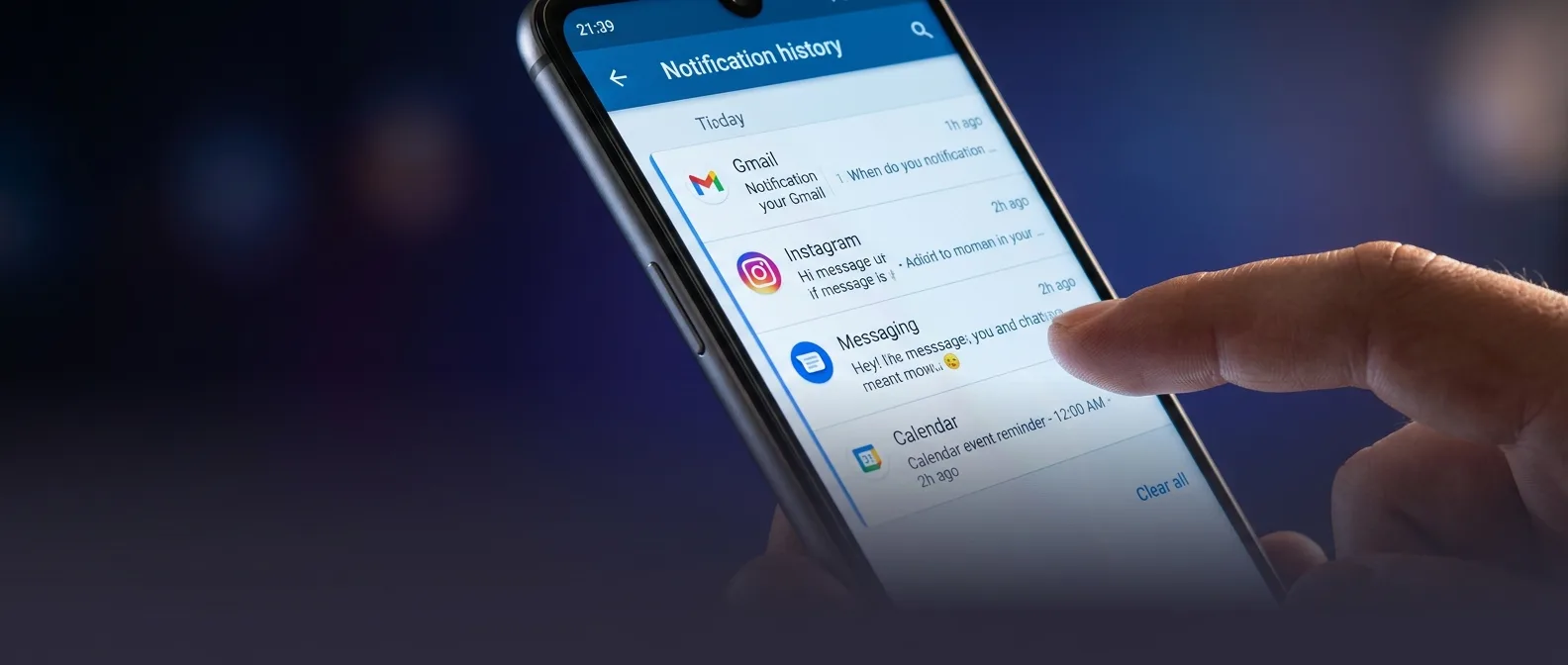
You swiped away an important notification and now you're staring at your phone wondering what it said. Or maybe you want to clear your notification shade but you're terrified of losing something critical. There's a hidden Android feature that'll save your sanity.
Android keeps a complete record of every notification you've received in the last 24 hours. Even the ones you dismissed with your finger. But this lifesaving feature hides deep in your settings — which explains why 90% of users have no clue it exists.
📖 Read more: 15 Android Tips, Tricks & Hacks You Need to Know in 2024
🔍 What is Android Notification History
Notification History is Android's built-in service that logs every alert your phone receives. Think of it as your browser's "Recently Closed Tabs" but for notifications.
The history only keeps notifications for 24 hours, not since you bought your phone. That's good for privacy, but enough time to recover what you need.
The feature splits into three categories: notifications you've "snoozed," ones you recently dismissed, and a complete archive of everything from the past day. Android 2026 adds better search within these categories.
📱 Finding Notification History on Samsung Galaxy
Samsung Galaxy phones dominate the Android market. Here, notification history lives at: Settings > Notifications > Advanced settings > Notification history.
But there's a faster route. Open Settings and type "Notification history" in the search bar. Or just tell Bixby (or Gemini if you've switched): "Open notification history" and it'll take you straight there.
Snoozed Notifications
Alerts you've postponed for later or that launcher apps like Niagara have automatically delayed.
Recently Dismissed
The ones you swiped away — pure gold for recovering lost notifications.
Last 24 Hours
Complete list of every notification you received, including ones you haven't seen yet.
The Galaxy Device Trick
On Samsung phones, when you tap a dismissed or snoozed notification, it opens the corresponding app directly. Email notifications take you to Gmail, Slack notifications to Slack. But if you tap a notification from the general 24-hour archive, it opens that app's notification settings instead.
🎯 Google Pixel: Simpler but...
On Pixel devices, notification history is less buried. Navigate to Settings > Notifications > Notification history and you're done.
Surprising detail: Pixel phones ship with notification history disabled by default, unlike Galaxy devices that have it enabled out of the box.
Google Pixel 10a Review Findings
This means if you own a Pixel and never enabled it, there's no notification archive. You need to flip the "Use notification history" toggle first, then wait 24 hours for it to start collecting data.
⚠️ What to Watch Out for with Notification History
The feature has zero biometric protection. Anyone with access to your unlocked phone can see every notification from the past 24 hours. That includes Telegram messages, Venmo transactions, or anything else sensitive.
Sleeping Apps: A Gotcha
Samsung devices have a feature that puts unused apps into "deep sleep." These apps can't send notifications at all, so notification history won't record them. If you're worried about missing something, open apps regularly or add them to the "Never sleeping apps" list.
🔧 How to Disable Notification History
If you're uncomfortable storing private notifications, you can turn it off. But heads up:
When you disable the toggle, ALL existing records get deleted. Even if you re-enable it immediately, the old history is gone forever.
There's no way to make it selective — you can't exclude specific apps from recording. It's all or nothing.
💡 Alternative Solutions and Tricks
Notification Snoozing
Instead of dismissing notifications, you can snooze them. On most Android versions, if you gently swipe a notification you'll see a clock icon. Tap it and you can delay the alert for up to 2 hours.
The "Clear All" vs "Clear Silent" Difference
Your notification shade has two clearing options. "Clear all" wipes everything, while "Clear silent" only removes quiet notifications. Useful when you want to keep important messages but ditch app update alerts.
Notification Cooldown (Android 14+)
A new feature that reduces sound and pop-ups when you receive too many notifications in a short timeframe. Perfect for when you return from airplane mode after a flight.
🚀 Advanced Settings
In the "if you know, you know" category: you can change how notifications behave per app. Alerting vs Silent modes, lock screen visibility, notification dots on icons — all controlled through Settings > Notifications > App notifications.
Pro tip: You can change a notification's behavior by long-pressing it in the notification shade and then tapping Settings.
🎯 Frequently Asked Questions
Can I extend the time limit beyond 24 hours?
No. Android has hardcoded the 24-hour limit for privacy and performance reasons. There's no hidden setting to change it.
Why don't some notifications appear in the history?
Likely the apps are in "deep sleep" mode (Samsung) or have notifications completely disabled. Also, system notifications like calls aren't recorded.
If someone steals my phone, will they see all my notifications?
Not if you have a screen lock. But if someone knows your PIN/password, then yes — notification history has no separate lock. That's why you might want to disable it entirely in sensitive environments.
Android notification history is one of those features that once you discover it, you wonder how you lived without it. Sure, it takes some digging to find, but it's worth the effort. Especially when your mom asks "didn't you see my message?" and you can prove she never sent it.
Sources: