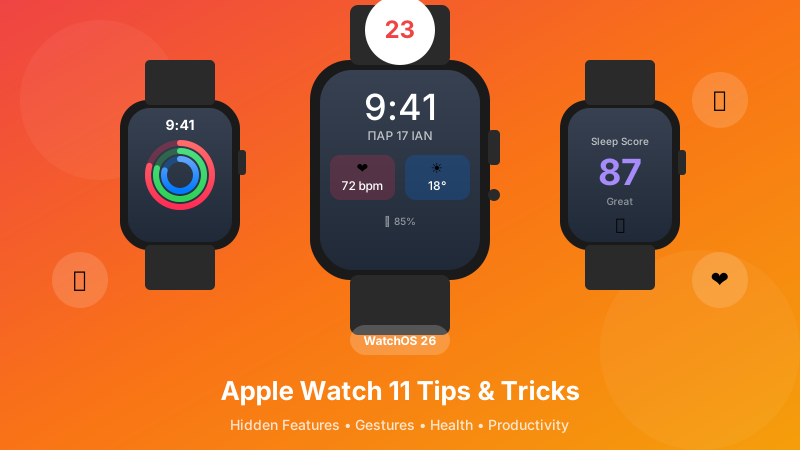
The Apple Watch 11 with WatchOS 26 is more powerful than ever! In this guide, you'll discover 23 hidden features that will change the way you use your watch. From gestures to health features!
📋 Contents - 23 Tips
👆 Gestures & Controls
Gestures for quick control
🤚 Wrist Flick
Scroll without touching the screen! Simply flick your wrist up and down to browse through lists and notifications.
👆👆 Double Tap
Double tap with your index finger and thumb to answer calls, stop timers, dismiss alarms - all without touching the watch!
🤫 Cover to Mute
Cover the screen with your palm to instantly silence calls and notifications! Very useful in meetings.
🎵 Audio Features
Music and audio
👂 Live Listen
Use your Apple Watch as a microphone for your AirPods! Perfect for hearing better in noisy environments or lectures.
🎵 Music Detection
Built-in Shazam! Find out what song is playing directly from your watch without pulling out your iPhone.
🔊 Play Music from Speakers
The Apple Watch 11 has a speaker loud enough for music! You can listen to podcasts or music without headphones.
❤️ Health & Fitness
Health and fitness
😴 Sleep Score
New in WatchOS 26! See how well you slept with a score from 0-100. Analyzes deep sleep, REM, and interruptions.
🔋 Body Battery
New feature that shows how much “energy” you have! Combines sleep, stress, and activity to tell you if you're ready for a workout.
💓 Vitals Alerts
Your watch monitors your vitals every night. If 2+ measurements are outside your normal range, it alerts you!
💉 Hypertension Alerts
New on Apple Watch 11! Detects signs of hypertension and alerts you to visit a doctor. Requires calibration with a real blood pressure monitor.
🏃 Workout Buddy
Work out with a friend virtually! See their progress in real-time and compete against each other.
🚫 Turn Off Workout Buddy
If you don't want to see the other person, you can hide the display without disconnecting.
🎨 Watch Faces
Customize appearance
🆕 New Watch Faces
WatchOS 26 brings new faces! Flux (dynamic), Photos (improved with depth effect), Numerals Duo, and many more.
👆 Swipe to Switch Watch Face
Swipe left/right on the screen to quickly switch between your watch faces!
🗣️ Speak & Feel Time
Discreetly find out the time! Hold 2 fingers on the screen to hear or feel (haptic) the time.
📝 Productivity
Productivity and tools
📝 Notes App
New in WatchOS 26! Full Notes app on your watch. Create, edit, and view notes directly.
🌍 Live Translation
Real-time translation from your watch! Speak and see the translation instantly. Supports multiple languages!
📍 Find Features
Find your devices
⌚ Find Watch
Lost your watch? From your iPhone, make it ring loudly even if it's in silent mode!
📱 Find iPhone
Lost your iPhone? From the Watch, make it ring! You can also make it flash the LED.
🎬 Media & Sharing
Media and sharing
▶️ Autoplay Media
When music or video is playing on your iPhone, Now Playing automatically appears on the Watch for control.
🤝 Tap to Share
Share contact info, Apple Pay, or NameDrop simply by bringing the watches close together!
⚙️ Settings & Optimization
Settings and optimization
🎛️ Edit Control Center
Customize the Control Center! Add, remove, or rearrange controls however you like.
🔄 Background App Refresh
Choose which apps refresh in the background. Turning off some will save battery!
Battery Tip
For better battery life: Turn off Background App Refresh for apps you don't need, use a dark watch face, and disable Always-On Display if you don't need it.
📌 Conclusion
The Apple Watch 11 with WatchOS 26 is the most complete smartwatch! Our favorite tips:
- ✅ Double Tap - Hands-free control
- ✅ Sleep Score - Understand your sleep
- ✅ Body Battery - Know when you're ready
- ✅ Live Translation - Translation on your wrist
- ✅ Notes App - Notes everywhere
Try them out and make the most of your watch! ⌚