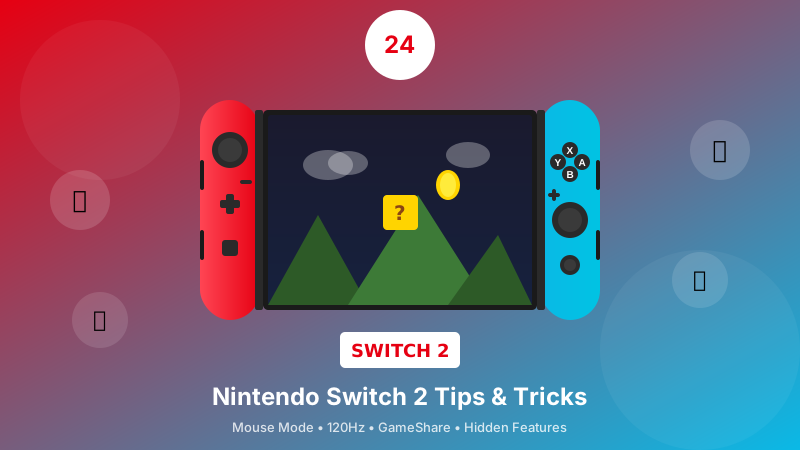
Got a Nintendo Switch 2 and want to get the most out of it? In this guide, you'll discover 24 hidden features that will make your gaming 10 times better! From Mouse Mode to 120Hz gaming!
📋 Contents - 24 Tips
🎮 JoyCon & Controls
Controls and controllers
🔍 Find a Lost JoyCon
Lost your JoyCon somewhere in the house? The Switch 2 can make it vibrate so you can find it! Works even if it's under the couch.
🖱️ Mouse Mode
New feature on Switch 2! Use the right JoyCon as a mouse for games that support it. Perfect for strategy games!
🎯 Mouse Sensitivity
Customize the mouse mode sensitivity to your liking! Faster for action, slower for precision.
📳 Rumble Vibration
The HD Rumble on Switch 2 is more powerful! Adjust the intensity or disable it to save battery.
🔄 Swap A & B Buttons
If you're coming from Xbox or PC, the A/B buttons might confuse you. Swap them for a more familiar layout!
⚡ Quick Settings & Buttons
Hidden buttons and quick settings
⚙️ Hidden Quick Settings Button
Hold the Home button for quick access to brightness, airplane mode, sleep mode without leaving your game!
📸 Screenshot + Screen Record Button
One tap = screenshot. Hold = video! You can record up to 30 seconds of gameplay.
Video: Long press the Capture button
🔎 Hidden Magnifier Button
New on Switch 2! Zoom into any part of the screen to see details - useful for small text!
🔊 Hidden Button Sound Effects
Enable sounds when pressing buttons in the menu - gives a retro Nintendo vibe!
🖥️ Performance & Display
Performance and display
🚀 Load Games Faster
Use internal storage instead of SD card for faster loading! Internal storage is much faster.
📺 Change Resolution
The Switch 2 supports up to 4K when docked! Choose the best resolution for your TV.
🎯 Turn On 120Hz
For ultra-smooth gaming! If your TV supports 120Hz, enable it for epic gameplay.
🎧 Audio & Connectivity
Audio and connectivity
🎧 Connect Bluetooth Earphones
Finally! Connect your AirPods or any Bluetooth headphones directly to the Switch 2!
📺 Turn On TV with Dock
When you place the Switch in the dock, the TV turns on automatically and switches input! Magic.
🔌 Extra USB-C
The Switch 2 dock has an extra USB-C port! Connect controllers, headsets, or external storage.
🔋 Battery & Power
Battery and power
🔋 Show Battery Percentage
See exactly how much battery is left instead of just the icon!
⚡ Save Battery
Lower brightness, turn off vibration, disable WiFi when not needed for more playtime!
📱 Charge Your Phone
New feature! The Switch 2 can charge your phone via USB-C if you have enough battery!
👥 Multiplayer & Sharing
Multiplayer and sharing
🎮 Dual Player (JoyCon)
Split the JoyCons and play with 2 players! Each JoyCon becomes a separate controller.
🎮 Dual Player (GameShare)
New! Share a game with a friend who has a Switch 2 nearby - without buying it!
💳 Share Virtual Game Cards
Create virtual game cards and share them with friends! Just like the good old days.
📤 Auto Send Screenshots
Automatically send screenshots to your phone or cloud! No manual transfer needed.
📁 Organization & Apps
Organization and apps
📂 Creating Groups
Organize your games into folders! Create groups for RPGs, multiplayer, favorites.
📺 YouTube App & System Pin
Watch YouTube on Switch! And to protect your kids, set a System PIN for purchases and mature content.
PIN: Settings → Parental Controls → Set PIN
Pro Gaming Tip
For the best gaming experience: Enable 120Hz, connect Bluetooth headphones, and use Mouse Mode for strategy games. Game like a pro!
📌 Conclusion
The Nintendo Switch 2 is the ultimate gaming console! The top 5 tips:
- ✅ 120Hz Mode - Ultra-smooth gameplay
- ✅ Mouse Mode - Perfect for strategy
- ✅ GameShare - Share games with friends
- ✅ Bluetooth Audio - Wireless headphones at last!
- ✅ Find JoyCon - Never lose a controller again
Let's-a go! 🍄