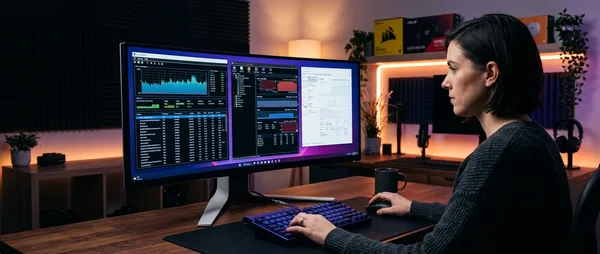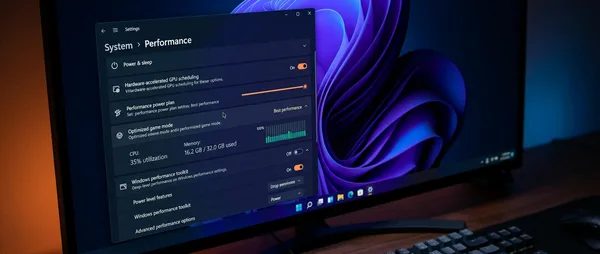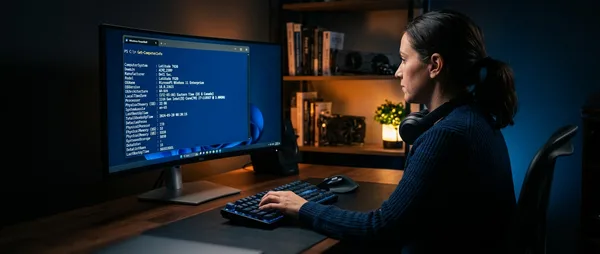
Your PC starts acting weird — freezing mid-task, taking forever to boot, throwing cryptic error messages. First instinct? Call a tech. But here's the thing: most Windows problems can be diagnosed and fixed without spending a dime. The Windows Repair Toolbox crams over 50 diagnostic and repair tools into a single free application that doesn't even need installation.
📖 Read more: I Moved Windows Folders to Another Drive: 2x Faster PC
🔧 What Makes Windows Repair Toolbox Different
Think Swiss Army knife for PC troubleshooting. Windows Repair Toolbox is a portable app that bundles dozens of diagnostic utilities into one central hub.
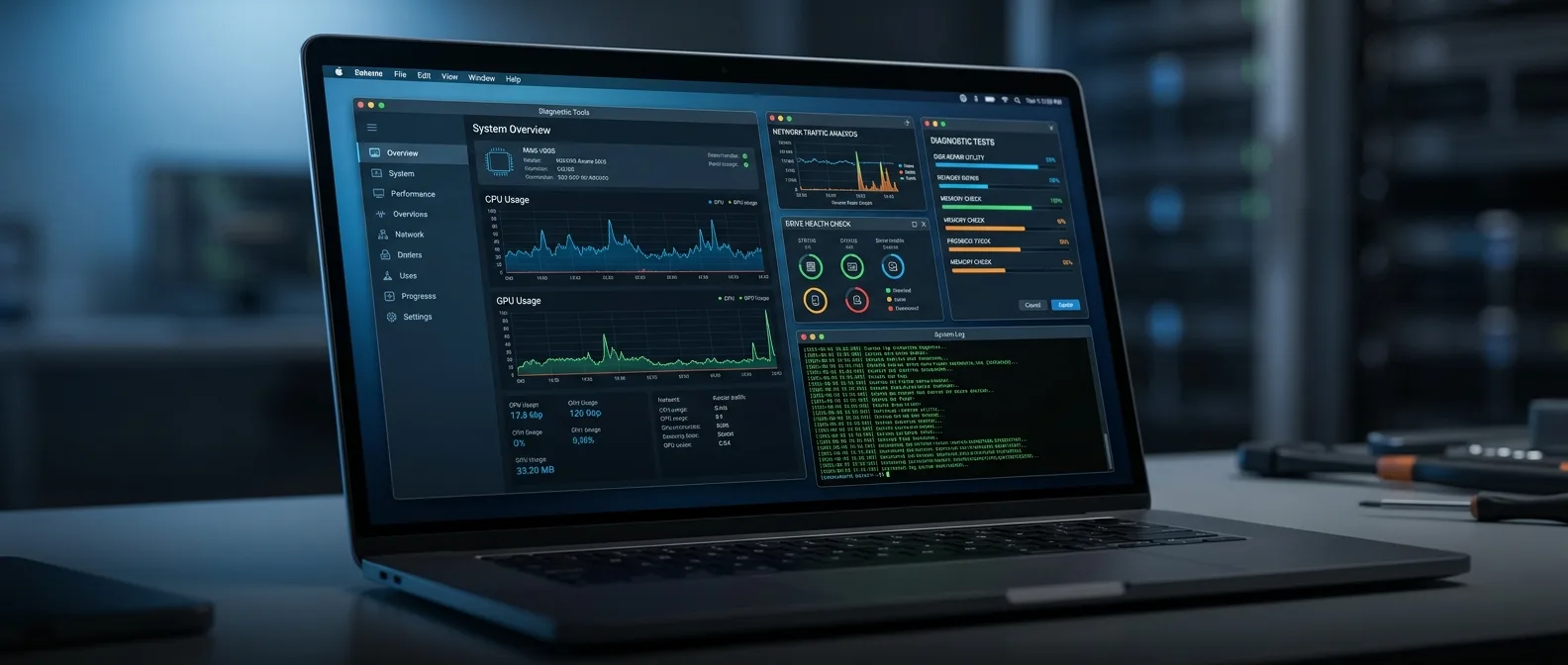
Fire it up and you immediately see basic system info — your CPU, Windows version, RAM, and whether BitLocker encryption is active. The app also confirms your internet connection, which matters because it downloads most tools on-demand.
Why portable matters: Copy it to a USB stick, pre-load it with your favorite tools, and use it on offline machines. No installation headaches.
📱 Five Categories of Windows Repair Tools
The interface splits into five main tabs, each serving a different purpose.
Tools — The Main Arsenal
This is where most of the action happens. You'll find HWiNFO for temperature monitoring, CPU-Z for detailed component specs, and tools for testing RAM, hard drives, and graphics cards.
Particularly useful is the simplified GUI for Microsoft Sysinternals suite. Instead of manually running commands like CHKDSK, DISM, and SFC from command prompt, you get one-click access.
Malware Removal — Clean House
Over 10 tools for detecting and removing malware. You'll recognize names like Malwarebytes, ESET Online Scanner, and Emsisoft Emergency Kit.
Microsoft Safety Scanner is also available — a reliable tool many people overlook. It won't replace your main antivirus, but provides a second opinion when you suspect infection.
Tests — Verify Everything Works
Quirky tests you wouldn't think of yourself. It can check if your PC opens various file types, whether your webcam and microphone work properly, and other basic functions we take for granted.
There's also a stress test using FurMark for your graphics card — though for extensive testing you'll need additional tools.
🛠 Practical Features That Actually Matter
Notes Tab — Remember What You Did
Simple but smart feature. You can keep notes during diagnosis and save them to the app's root folder. Useful when working on complex problems that need multiple interventions.
Or when fixing a friend's computer and wanting to explain what happened.
Ready-Made Shortcuts for Windows Tools
Instead of hunting through Windows menus, you get direct access to Event Viewer, Disk Cleanup, Reliability Monitor, and other built-in tools. Sounds trivial, but saves significant time in practice.
Uninstallers and Driver Management
Includes Display Driver Uninstaller (DDU) — a must-have tool when you have graphics driver problems. Also various tools for updating drivers and removing programs that won't uninstall cleanly.
⚠️ What Doesn't Work So Well
Not everything is perfect. Some tools aren't available in portable form, so they require installation. The inclusion of CCleaner is questionable — since Avast acquired it, the tool has lost much of its former reliability.
There's considerable overlap between tools. Good because you have options, bad because it can be confusing. Some popular tools like Uninstalr are missing, and for GPU stress testing you only get FurMark.
Windows Repair Toolbox isn't magic — it won't automatically tell you what's wrong the moment you open it. But it makes the troubleshooting process much less stressful.
— HowToGeek Review
📖 Read more: Galaxy S25 Ultra vs iPhone 16 Pro: Ultimate 2024 Comparison
💰 Free vs Paid — Worth the Upgrade?
The free version covers most needs. The paid version (pay-what-you-want model) only adds a few extra features.
The main addition is "Unattended Mode" that runs malware removal tools automatically without supervision. You can also create XML files with your own tools and integrate them into the interface.
For average users, the free version is more than enough. The paid version targets technicians handling multiple PCs.
🚀 Alternatives for Serious Problems
Windows Repair Toolbox only works when Windows can boot. When your PC won't start at all, you need bootable solutions.
Hiren's BootCD (now based on Windows 11 PE) remains the gold standard. You can put it on a USB stick and boot any PC that supports UEFI boot and has at least 4GB RAM.
Medicat USB is a similar option with a slightly different approach. Choosing between the two is personal preference — both are excellent toolkits for recovery situations.
🎯 When to Use Windows Repair Toolbox
You don't need problems to benefit from the Toolbox. HWiNFO, CPU-Z, and GPU-Z are always useful for monitoring, checking temperatures, and seeing what components you have.
Easy access to Windows utilities from one place instead of hunting through system menus is more convenient than it sounds.
Problem Diagnosis
Combined hardware and software tools for pinpointing the cause
Malware Removal
Multiple scanners for comprehensive threat cleanup
Portable
Runs from USB without installation — perfect for technicians
🔍 The 2026 Verdict
In 2026, as PCs become more complex but also more reliable, a tool like Windows Repair Toolbox becomes even more important. Not because they break more often, but because when they do break, the solutions are more specialized.
Its biggest advantage is resource consolidation. Instead of having 20 different programs installed "just in case," you have a central launcher that downloads them when needed.
The quality of tools the developer chooses plays a major role. Here the collection is generally solid, with a few questionable choices. Still, for a free tool that needs neither installation nor registration, you'll struggle to find a better utility-to-effort ratio.
Sources: