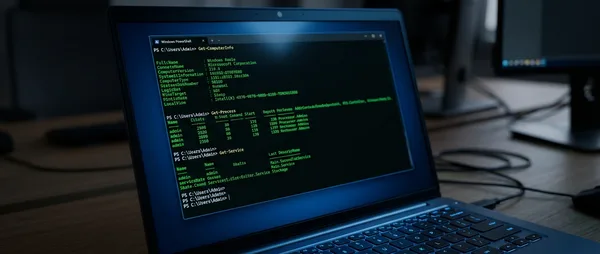
One terminal window. One command. Your entire Windows system laid bare on the screen. You probably didn't know that PowerShell Get-ComputerInfo can reveal more information about your PC than Control Panel, Task Manager, and System Information combined.
Windows 11 in 2026 hoards massive amounts of data scattered across dozens of system locations. Most users have no clue that a single line of code can deliver a complete blueprint of their machine — from BIOS version to Secure Boot status to hardware specs that Windows typically keeps locked away.
If you've ever found yourself clicking through menu after menu hunting for your exact Windows build or installation date, the command we're about to explore will make you wonder why you didn't discover it sooner. PowerShell diagnostics work like having a direct window into the database Windows maintains about your computer.
📖 Read more: PowerShell Windows 11: 4 Commands That Save Hours Daily
🔍 The One Command That Changes Everything
When How-To Geek revealed just how simple it is to see all of Windows' hidden data, they were talking about Get-ComputerInfo. It's exactly as straightforward as it sounds:
Get-ComputerInfo
That's it. No downloads, no installations, no third-party tools. Open PowerShell and get a complete inventory of everything Windows knows about your system.
The first time you run it, you'll think something broke. So much information will flood your screen that you'll experience genuine information overload. But that's exactly where this command's power lies.
In the past, checking your BIOS version meant diving into System Information. Seeing your RAM configuration required another menu. Security settings lived somewhere else entirely. Get-ComputerInfo ends this hide-and-seek game with your own computer's data.
📊 What the Command Actually Reveals
This command pulls information from every corner of your system that you'd normally visit separately. We're talking about details that Windows typically buries deep in settings menus or registry entries.
Detailed Hardware Information
You'll see your processor with more detail than Task Manager ever shows. Not just the name, but architectures, clock speeds, and support features you didn't even know existed.
RAM appears with precision — not rounded numbers but exact capacity down to the byte. And if you've ever wondered how many memory slots your motherboard has, the answer's right there.
BIOS and Firmware Details
BIOS details appear instantly. Get-ComputerInfo gives you exact BIOS version, release date, even whether it supports UEFI or legacy boot modes. Information you'd normally only find by restarting and entering BIOS setup.
⚡ How to Filter the Results
The raw output is impressive but overwhelming. Like getting handed the entire car manual when you just want to check the odometer reading.
That's where filtering comes in. Instead of swimming through hundreds of lines of text, you can tell PowerShell exactly what you want to see:
Get-ComputerInfo | Select-Object CsModel, WindowsVersion, BiosVersion, CsTotalPhysicalMemory
This variation gives you only the computer model, Windows version, BIOS, and total memory. Clean and simple.
If you're hunting for something specific — say, BIOS information — you can search within the results:
Get-ComputerInfo | findstr /i "bios"
Examples of Useful Filters
For a quick security check:
Get-ComputerInfo | Select-Object CsSecureBootState, CsVirtualizationSecurityOptOut
For network configuration overview:
Get-ComputerInfo | Select-Object CsDomainRole, CsWorkgroup, CsTotalPhysicalMemory
For troubleshooting dates:
Get-ComputerInfo | Select-Object OsInstallDate, OsLastBootUpTime, WindowsVersion
📖 Read more: Windows 11 Virtual Desktops: Complete Work-Life Separation
🎯 Real-World Use Cases
This command solves everyday support problems. Whether you're doing support, managing computers, or just want to know what's actually inside your PC.
Say someone calls and says "my computer isn't working right." Previously you'd have to guide them through at least five different menus to gather basic system information. Now one command gives you the complete system profile.
Hardware Inventory
Complete hardware catalog without opening the case
Security Audit
Verify Secure Boot, BitLocker, and other security features
Network Config
Network details and domain membership at a glance
System Timeline
Installation dates, updates, and last boot times
Remote Computers and Automation
The power multiplies when you combine this command with remote execution. If you manage more than one computer, you can gather information from all of them simultaneously:
Invoke-Command -ComputerName "PC01","PC02","PC03" -ScriptBlock { Get-ComputerInfo }
Or create automated scripts that run on scheduled intervals and send you reports. Many companies use this for asset management without needing third-party tools.
🚧 Limitations and Cautions
Like any powerful tool, it has weak spots. The first and most obvious is that the output is... raw. No pretty interface, no organization into tabs, no color coding.
It's like reading the source code of a database. Powerful, but requires familiarity to use effectively.
"The first time you run it, you think PowerShell is broken. After a few uses, you can't imagine life without it."
— System Administrator on Reddit
Also, if you don't know what you're looking for, it's easy to get lost in the data ocean. Takes some learning time to understand which properties are useful and which are just noise.
Performance Considerations
The command can be slow on older systems or when running on remote computers with slow connections. It gathers information from many different parts of the operating system, so it needs time to complete.
🔧 Advanced Techniques
As you get comfortable with the command, you discover ways to make it even more useful. You can combine the results with other PowerShell commands to create custom reports.
For example, if you want to see only critical security settings:
Get-ComputerInfo | Where-Object {$_.CsSecureBootState -eq "On" -and $_.BiosEmbeddedControllerMajorVersion -gt 1}
Or if you want to export the data to CSV for further analysis:
Get-ComputerInfo | Export-Csv -Path "SystemInfo.csv" -NoTypeInformation
Comparison with WMI/CIM Cmdlets
Many will wonder why not use the older Get-WmiObject or Get-CimInstance. Get-ComputerInfo is essentially a wrapper that gathers data from multiple WMI classes and presents them unified.
It's slower than individual WMI queries but much more convenient for general use. If you need something specialized, the WMI cmdlets are still there.
💡 Final Thoughts
Get-ComputerInfo becomes essential once you start using it. It doesn't replace every diagnostic tool, but for most daily needs it's the only thing you need.
Windows scatters system data across dozens of locations. This command pulls it all together. And the best part? It's already there, waiting for you to discover it.
Next time you need to explain to someone what exactly their computer has, you'll know what to do. Two words in PowerShell and the whole truth will be right in front of you.
Sources: