Task Manager DeLuxe vs System Informer vs Process Lasso: Complete Comparison
Windows Task Manager does the bare minimum. After hours testing three popular alternatives, one tool stands out — and it might surprise you which one. Task Manager DeLuxe, System Informer, and Process Lasso all promise more than Windows' default tool, but which one actually delivers in 2025?
Windows Task Manager handles basic tasks fine. But when you need to understand what's happening under the hood — or when a stubborn process refuses to die — its limitations become obvious. That's where specialized system tools come in.
📖 Read more: Windows Repair Toolbox: Free Tool for Instant PC Diagnosis
🎯 Task Manager DeLuxe: The Complete Package
Task Manager DeLuxe tries to be the only system tool you'll ever need. It largely succeeds.
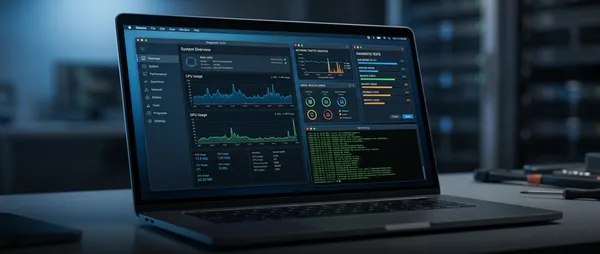
The main screen shows you everything immediately: which apps are hogging CPU and RAM, total resource usage, even network activity. No clicking around required.
Nine tabs cover the expected Processes and Services, plus the excellent Autoruns. Here you see processes that launch automatically but don't appear in standard Task Manager. Many can be disabled with a few clicks.
The Network tab shows details about your network devices, while Performance tabs offer far more information than Task Manager. There are also shortcuts to Control Panel, Event Viewer, Task Scheduler and other Windows tools — all from one place.
VirusTotal Integration
One of the most useful features is direct VirusTotal access. With a free API key, you can scan files for malware without leaving the app. You can even submit files that don't exist in their database yet.
The only downside? You can't sort processes by CPU or memory usage. Surprisingly, this wasn't a deal-breaker — the most demanding processes appear on the main screen and in the Performance tab's CPU overview.
⚡ System Informer: Task Manager on Steroids
System Informer (successor to Process Hacker) looks most like Windows Task Manager of the three. Six tabs — Processes, Services, Network, Disk, Firewall, Devices — cover everything.
You can easily monitor active processes and services, check which ones use the most memory or CPU, sort by any criteria, and perform various operations — terminate, suspend, restart, freeze.
Features like CPU priority and affinity, enabling CPU boost for specific processes, and disk priority settings are available. Interesting is the option to search for process names online from the context menu — and it uses DuckDuckGo instead of Google.
Performance Graphics
The main screen doesn't include graphs, but you can open them with the System Information button. There you see basic usage graphs for CPU, memory, disks and GPU. You can even display each disk separately or multiple GPUs if your system has more than one.
That's exactly the problem. Performance graphs need a separate window — and that breaks the workflow.
🔧 Process Lasso: The Automation Expert
Process Lasso doesn't impress at first glance — its UI isn't the prettiest. But it's arguably the smartest of the three.
You see detailed information for each process, set CPU, GPU and memory priority, as well as CPU affinity. You can bind specific CPU cores to each process, even disable hyperthreading if you want.
IdleSaver
Changes power plan when system is idle
Gaming Mode
Automatic switch to performance mode for games
ProBalance
Automatic priority adjustment for responsive system
ProBalance is Process Lasso's secret weapon. It monitors processes and their CPU usage, adjusting priority on-the-fly to keep your PC responsive even when an app consumes all available CPU.
Does It Actually Work?
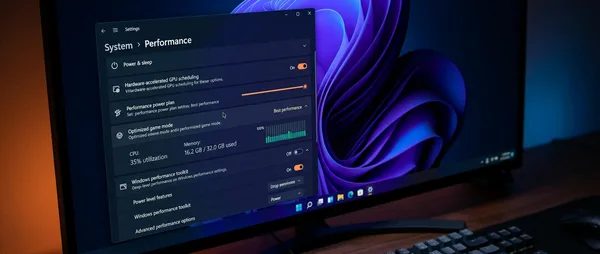
I tested the CPUEater demo that comes with the app. With ProBalance enabled, I managed to open most applications within seconds while the simulated process used all CPU cores at 100%. It's not a gimmick.
Process Lasso is ideal for gamers and anyone who wants their PC to stay responsive under heavy CPU loads. It can genuinely improve performance in CPU-limited games.
📊 The Final Comparison
After extensive testing of all three, Task Manager DeLuxe emerges as the winner — but not for the reasons you'd expect.
"The most important thing a Task Manager alternative must offer is all the information you need in a clean, readable interface."
— Conclusion after 2 weeks of use
Task Manager DeLuxe doesn't have Process Lasso's advanced performance optimization features. Nor System Informer's extensive debugging tools. But it has something more important: the best information presentation.
It's also fully portable — no installation required. Just download it, run it, and you're ready to go.
Which Should You Choose?
Task Manager DeLuxe: If you want all information on one screen without complexity
Process Lasso: If you're a gamer or work with CPU-heavy applications
System Informer: If you need debugging and technical details
All three are worth trying — they're free and each has its strengths. But if you want just one tool that covers most needs without confusing you, Task Manager DeLuxe is the safest choice.
🛠️ Installation and Setup
All three programs are simple to use. For System Informer, download from the GitHub page or official website. It's available in installer and portable versions.
Process Lasso has a free version with all important features. The paid version adds some extras, but the basic one is sufficient for most users.
Task Manager DeLuxe works immediately after download — doesn't even need installation. If you want VirusTotal integration, create a free account and get the API key.
Use With Caution
All these tools give you access to protected processes that Windows normally hides. This means you can "break" something if you don't know what you're doing.
Keep a restore point or system backup when you start experimenting. The learning curve is worth it for the insight you gain.
In 2025, we don't need to be limited by the basic Task Manager. These alternatives show how much better system management can be — and how far behind Microsoft has fallen in this area. Which one will you keep?
Sources: