📖 Read more: Phone Link Windows 11: The mobile connection that changes...
🔕 Kill the Productivity-Crushing Notifications
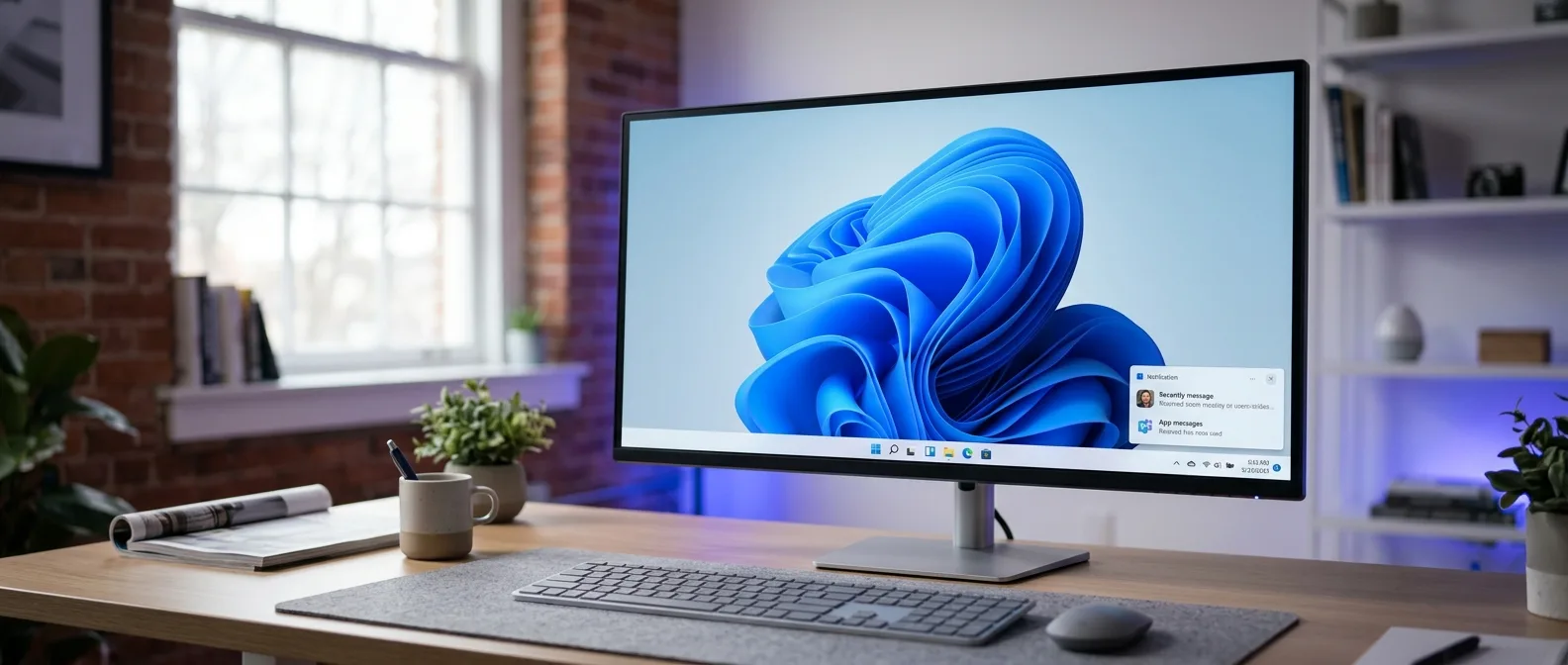
Every notification that pops up in your screen corner costs more than you think. Research shows it takes about 20 minutes to regain full concentration after an interruption. That delay turns every "ding" into a silent productivity assassin. Open Settings and navigate to System > Notifications. You'll find a list of apps with toggles next to them. Simply turn off the ones you never want to hear from again. If you don't want to disable them completely, you can mute them instead.Pro tip: Focus Assist is your best friend when you need absolute silence. You can enable it manually or schedule it for specific hours.
💡 Stop Microsoft's "Helpful" Windows 11 Tips
Microsoft has a weird obsession with teaching you how to use your own computer. This might be useful for someone who just discovered the mouse, but for everyone else it's just irritating. Go to Settings > System > Notifications and scroll down until you find the "Additional settings" section. There, simply uncheck the three boxes related to tips and suggestions for optimizing Windows.Advanced Method: Registry Editor
If you want to be absolutely sure these tips never return, you can use the Registry Editor. Press Windows+R, type "regedit" and navigate to: `HKEY_LOCAL_MACHINE\SOFTWARE\Policies\Microsoft\Windows\CloudContent` Create a new DWORD named "DisableSoftLanding" and give it a value of 1. After a restart, Microsoft tips will be gone forever.📖 Read more: Windows 11 DNS over HTTPS: Hidden Setting Speeds Up Browsing
🎯 Clean Windows 11 Start Menu Ads
The Start Menu in Windows 11 has transformed into something between a launcher and an advertising banner. It displays recently added apps you didn't ask for and "recommended content" — which is actually ads. To clean it up, go to Settings > Personalization > Start. From there you can stop showing recently added apps and recommended content. Also, in the Folders section you can add useful shortcuts like File Explorer or Downloads below the power button.Clean Up the Taskbar Too
The Taskbar comes loaded with various widgets nobody needs. Go to Settings > Personalization > Taskbar and start flipping switches. You can hide the search box, Chat icon, even Copilot.Widgets Panel
Right-click the taskbar and select Taskbar settings. Turn off the Widgets toggle to make the news and weather panel disappear.
Web Search
Windows search returns web results from Bing even for local searches. Use Winaero Tweaker to disable this annoying feature.
📱 Default Apps: End Edge Tyranny
Microsoft has made changing default apps in Windows 11 more complicated than necessary. Instead of a simple click like in Windows 10, you now have to configure each file type separately. Go to Settings > Apps > Default Apps and prepare for some extra clicks. If you want to change the default image viewer, you'll need to configure JPG, PNG, TIFF and other file types separately. It's tedious, but worth the effort — especially for apps you use daily.📖 Read more: I Moved Windows Folders to Another Drive: 2x Faster PC
⚡ Speed: Clean Up Windows 11 Startup Apps
Even a brand new Windows 11 computer can feel strangely slow after a few days of use. The main culprit is usually startup apps that accumulate without you noticing.🚫 Lock Screen: End the Ad Invasion
Windows 11 has the charming habit of turning your lock screen into advertising space. "Spotlight" images with hidden ads, suggestions for Microsoft services, and "fun facts" nobody requested. To stop this, go to Settings > Personalization > Lock screen. Choose "Picture" or "Slideshow" instead of "Windows Spotlight." Then uncheck the "Get fun facts, tips, tricks, and more on your lock screen" checkbox."When I open my computer, I want to work — not read ads for Office 365."
— Every self-respecting user
📖 Read more: Windows 11 File Transfer Speed: 7 Ways to Triple Performance
🔧 Right-Click Menu: Return to the Past
Microsoft decided to "clean up" the right-click menu by hiding most options behind a "Show more options" button. This means an extra click every time you want to access familiar options or third-party integrations. If this annoys you (and it should), you can restore the classic right-click menu through the Registry Editor. Warning: Create a restore point first for safety. In Registry Editor, navigate to: `HKEY_CURRENT_USER\Software\Classes\CLSID` Create a new key named `{86ca1aa0-34aa-4e8b-a509-50c905bae2a2}` and inside it a subkey named `InprocServer32`. Leave the default value empty and restart.⚙️ Bonus Tips for Advanced Users
If you've made it this far, you want to go one step further. Here are some more tricks to make Windows 11 behave more like a tool than an advertising platform.Remove Bing from Search
When you type "Word" and accidentally write "wrd," Windows instead of trying to help you locally opens a Bing search in Edge. Use Winaero Tweaker to disable this without needing to mess with the Registry.Manage Telemetry
Windows 11 sends massive amounts of usage data to Microsoft. In Privacy settings you can limit what gets sent, but for full control you need tools like O&O ShutUp10++ which also works on Windows 11. All these changes take about 15 minutes to implement — but the difference you'll feel in daily use is enormous. Instead of an operating system that constantly tries to sell you something or interrupt you, you'll have a computer that leaves you alone to work. Which is exactly what it should have done from the beginning.Sources: