Windows 11 hides dozens of tools that most users don't know about! From the legendary “God Mode” to Clipboard History, these hidden features will turn you into a power user. Get ready to be amazed!
🎯 1. God Mode - All Settings in One Place
God Mode gives you access to 200+ settings from a single folder! All your computer settings organized alphabetically.
How to enable it:
- Create a new folder on the Desktop
- Rename it to:
GodMode.{ED7BA470-8E54-465E-825C-99712043E01C} - Press Enter - the icon will change!
- Open the folder and enjoy!
📺 Watch it in video:
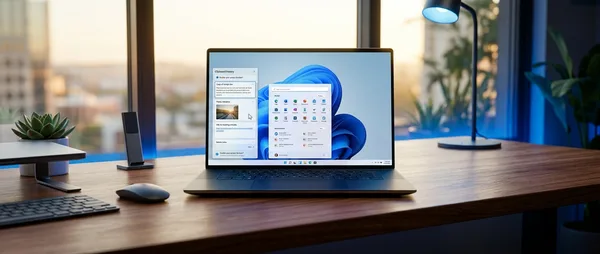
📋 2. Clipboard History
Copied something and then copied something else? With Clipboard History you have access to everything you've copied!
The first time it will ask if you want to enable it. Press “Turn on” and you're ready!
🪟 3. Snap Layouts - Smart Window Organization
Organize your windows into preset layouts with a hover!
Or simply hover your mouse over the maximize button of any window!
📺 Quick tip:
🔍 4. Quick Search
Search for files, apps, settings, even on the web!
Or simply start typing when you're in the Start Menu!
📸 5. Snipping Tool with OCR
The new Snipping Tool can recognize text inside images and copy it!
After the screenshot, open it in Snipping Tool and press “Text actions” for OCR!
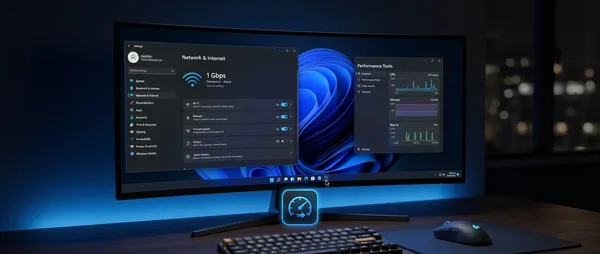
🎮 6. Xbox Game Bar - Not Just for Games
Screen recording, performance monitoring, Spotify widget and more - you don't need a game to use it!
📺 Game Bar in action:
🖥️ 7. Virtual Desktops
Create multiple desktops - one for work, one for personal use, one for gaming!
🔒 8. Dynamic Lock - Auto Lock
Connect your phone via Bluetooth and Windows will automatically lock when you walk away!
- Settings → Accounts → Sign-in options
- Dynamic Lock → Enable
- Connect your phone via Bluetooth
⌨️ 9. Emoji Panel - Emoji, GIFs, Symbols
Access emoji, GIFs, kaomoji and symbols from anywhere!
📺 More tips:
🔊 10. Focus Assist - Do Not Disturb
Block all notifications when you want to focus!
You can set it to activate automatically at specific times or during presentations!
Bonus Tip!
Press Win + Shift + S anywhere for an instant region screenshot - works even in fullscreen games!
📌 Conclusion
Windows 11 is full of hidden gems waiting to be discovered! Start with Clipboard History (Win+V) and Snap Layouts (Win+Z) - they're the most useful for daily use.
Which was your favorite? Tell us in the comments! 💬