

Your Android knows everything: where you go, what you search, who you talk to, what you buy. If you don't configure the right settings, you're sharing data with dozens of companies without knowing it. Here are 10 critical privacy settings you need to change immediately.
📖 Read more: 15 Hidden Android Features You Didn't Know About
1. Disable Location History
Google records your every movement. Go to Settings → Location → Google Location Services → Location History and tap Turn Off. You can also set auto-delete every 3 or 18 months. Bonus: go to myactivity.google.com and delete existing history.
2. Limit Personalized Ads
Go to Settings → Google → Ads and turn off "Ad personalization". This doesn't stop ads but stops detailed tracking. Ads will be generic instead of targeted. Also tap “Reset advertising ID” regularly.
3. Review App Permissions
Go to Settings → Privacy → Permission Manager. Check especially: Location — how many apps have “Allow all the time”? Change to “Only while using” or “Ask every time”. Camera & Microphone — remove access from apps that don't need them. Files & Media — grant access only to photos instead of entire storage.
📖 Read more: Android VPN 2026: Top 5 Most Secure
4. Enable Privacy Dashboard
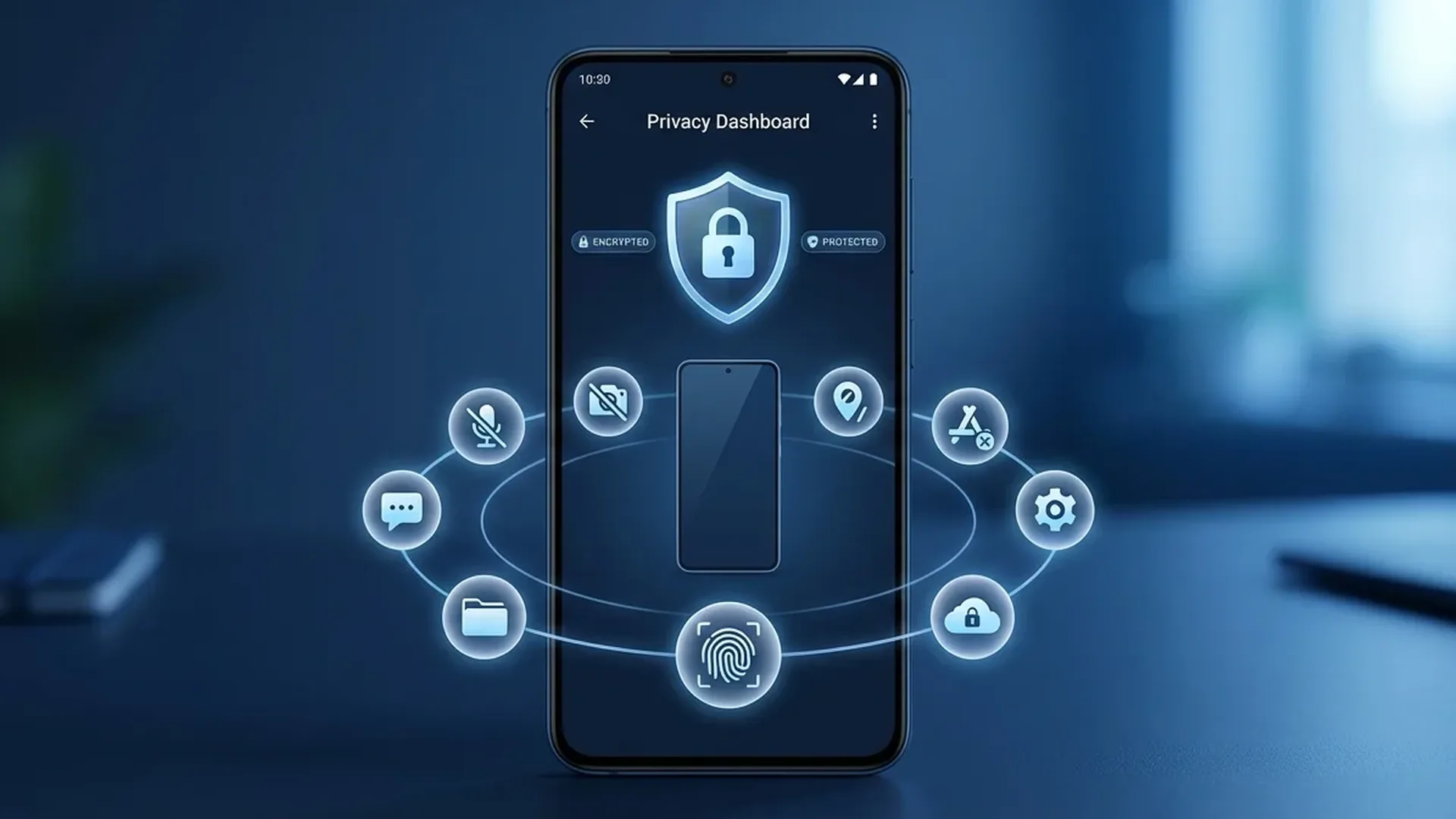
The Privacy Dashboard (Settings → Privacy → Privacy Dashboard) shows exactly which apps used camera, microphone, and location in the last 24 hours. Check it weekly — if you see something suspicious (e.g., a game using microphone), remove the permission or delete the app immediately.
5. Secure Your Lock Screen
Use biometric lock (fingerprint + PIN at least 6 digits). Avoid Pattern Lock — it's easy to observe. Enable: "Lock after screen timeout" (immediately, not after 5 seconds), "Power button instantly locks", and hide sensitive notifications on the lock screen (Show sensitive content only when unlocked).
📖 Read more: Android Backup 2026: Complete Safety Guide
6. Be Careful with Public WiFi
Public WiFi (cafes, airports, hotels) is inherently insecure. On public WiFi: always use a VPN, avoid banking transactions, don't log into accounts without 2FA. Enable "Randomize MAC address" (WiFi Settings → Advanced) so you can't be tracked between networks.
7. Enable 2FA Everywhere
Two-Factor Authentication (2FA) is the most important security setting. Enable it on: Google, email, social media, bank, and every important service. Use Google Authenticator or Passkeys instead of SMS codes (SMS can be intercepted via SIM swap).
📖 Read more: Android Battery: 15 Proven Battery Saving Tips
8. Limit App Permissions During Installation
When installing a new app, don't tap “Allow” on every request. Start with "Deny" for everything, and grant permissions only when you actually need them. A calculator app doesn't need access to contacts. A flashlight app doesn't need location.
9. Enable Find My Device
If you lose your phone or it's stolen: Settings → Google → Find My Device → On. You can then via android.com/find: see the location, lock the device, display a message, or perform a full remote data wipe.
10. Check Google Activity Controls
Go to Settings → Google → Manage Your Google Account → Data & Privacy → Activity Controls. Here you control: Web & App Activity (Google searches, Chrome, voice), YouTube History, Ad Personalization. You can: disable everything, or set auto-delete every 3/18/36 months.
Tip: Do this check every 3 months. New apps get installed, permissions change, and Google adds new settings. Bookmark this article as a reminder!
Sources: