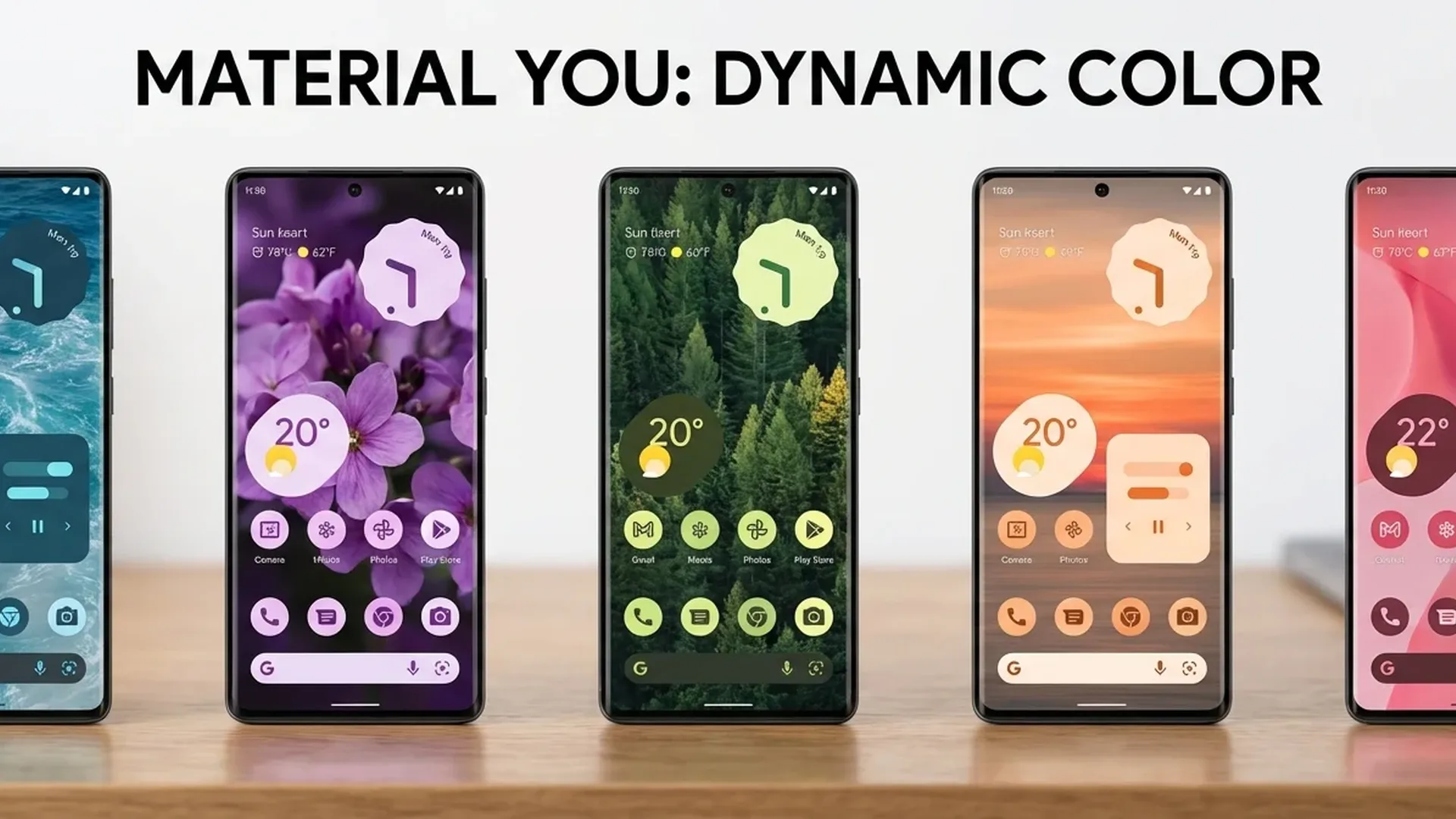
Material You is Google's design language that gives every Android a unique appearance. Change colors, icons, fonts, widgets, and create a phone that looks uniquely yours. Follow this complete guide.
📖 Read more: Google Find My Device: Android Tracking Guide 2026
Dynamic Color — Colors from Wallpaper
The core feature: long-press on your Home Screen → "Wallpaper & Style". Change your wallpaper and the system automatically extracts a color palette. This palette applies to: Quick Settings, notifications, Settings, Google apps (Gmail, Maps, Phone, Messages), widgets, and lock screen.
You can choose between 4-5 palettes extracted from the same image — each emphasizes a different color. You can also set a manual color regardless of wallpaper (Basic Colors at the bottom).
Themed Icons
Enable Themed Icons (Wallpaper & Style → Themed Icons) for monochrome icons across your entire home screen. Icons follow the Material You color palette — they become single-color matching your theme. Supported by most Google apps and increasingly more third-party apps.
Widgets — New Generation
Material You widgets are stunning. Long-press → "Widgets". Try: Google Clock (large analog clock), Google Weather (dynamic widget), Google Calendar (upcoming events), At a Glance (date, weather, reminders, traffic). All change colors automatically.
New in Android 16: widgets can be resized more freely, have matching rounded corners, and support stacked widgets — multiple widgets in the same spot, swipe to switch.
Custom Fonts & Icon Shapes
On Samsung (One UI): Settings → Display → Font Size & Style → download new fonts. On Pixel: change fonts via Pixel Customization. For icon shapes: Settings → Display → Icon Shape — choose round, square, squircle, or teardrop.
📖 Read more: Google Photos AI Editing Tricks 2026
Dark Theme Options
Enable Dark Theme (Settings → Display → Dark Theme) — on OLED screens it saves 20-30% battery. New in Android 16: Contrast Level — choose between Default, Medium, High. High contrast makes text more readable in direct sunlight.
Set an automatic schedule: Dark Theme activates at night, Light Theme during the day. Or set custom hours.
Lock Screen Customization
Long-press on the lock screen (Android 16+) to: change clock style (5+ styles), change shortcuts (bottom left/right — camera, flashlight, wallet, etc.), customize notifications (show/hide/minimal), and change wallpaper separately for lock screen and home screen.
Third-Party Launchers & Icon Packs
Want full control? Install a launcher: Nova Launcher (full customization), Lawnchair (AOSP look), Niagara Launcher (minimal). Combine with icon packs from the Play Store: Delta, Whicons, Linebit, CandyCons. Use swipe-up gesture for app drawer, double-tap for screen off, pinch for widgets.
Tip: On Samsung, install the free Good Lock app (Samsung Galaxy Store) — it provides 10x more customization options: themes, fonts, lock screen, task manager, edge panels, notification styles. Free and official.
Sources: