

Got a new Android phone and want to transfer everything from your old one? Or maybe you're making the big switch from iPhone to Android? Data transfer in 2026 is easier than ever — but there are plenty of pitfalls that can cost you photos, messages, or even passwords. In this complete guide, we cover every transfer method step by step, with the latest tools offered by Google, Samsung, and third-party manufacturers.
Before You Start: Proper Preparation
Before you touch your new phone, there are a few things you need to do on your old one. Proper preparation is the most important factor for a smooth transfer, and many users skip this step.
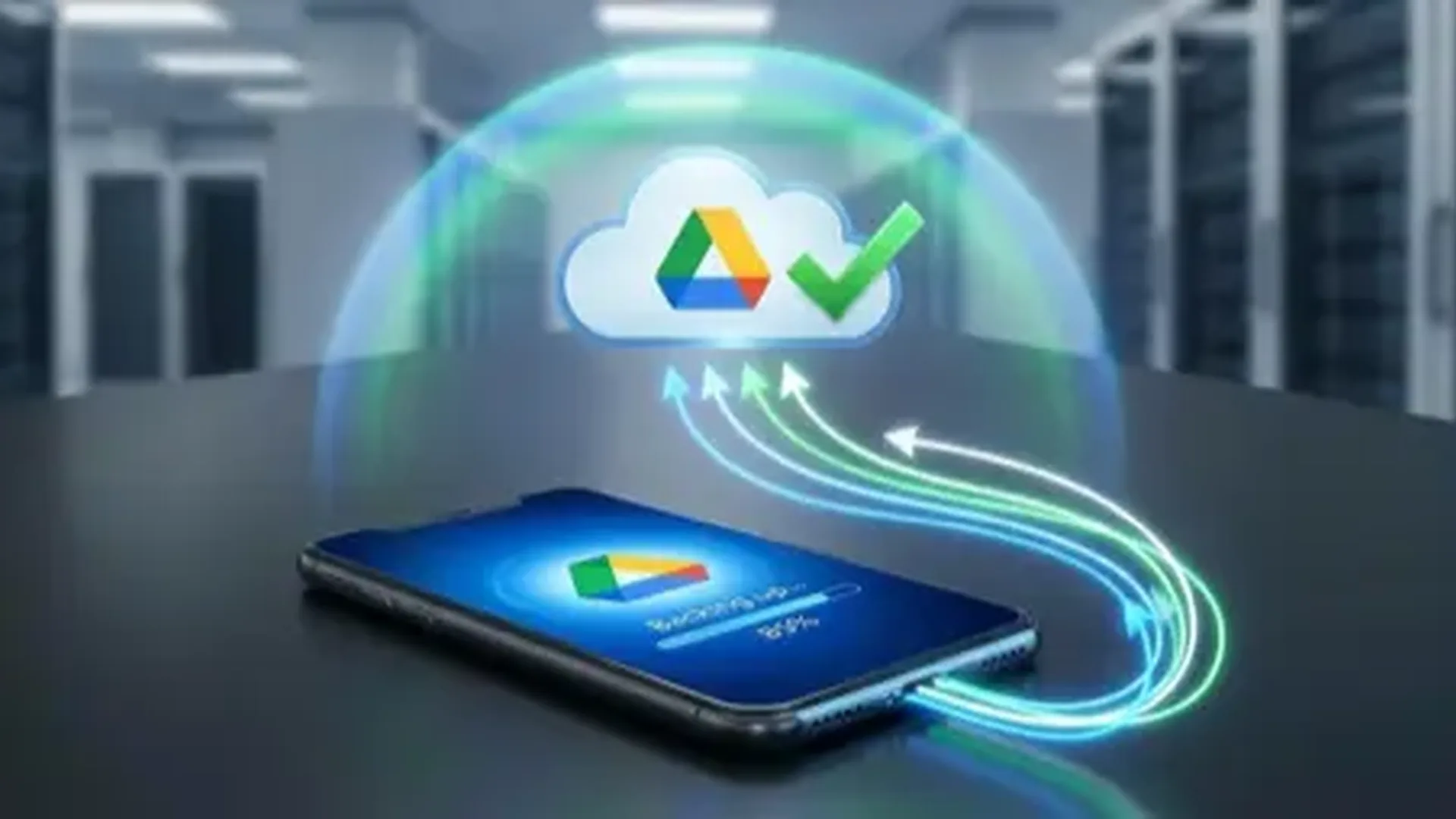
First of all, make sure Google Backup is enabled. Go to Settings → Google → Backup and verify that automatic backup is active. Android backup automatically saves your app list, contacts, SMS/MMS/RCS messages, call history, and various device settings. This is your safety net in case something goes wrong.
Next, back up your photos. Open Google Photos and make sure sync is enabled. If you have many photos, leave the phone connected to Wi-Fi and a charger until the upload is complete. A green checkmark at the bottom of the app confirms that everything has been uploaded.
Finally, take care of your passwords. If you use Google Password Manager, your passwords will transfer automatically. If you use a third-party app (Bitwarden, 1Password, LastPass), make sure your account is synced.
One more thing many people forget: authenticator apps (2FA). If you use Google Authenticator or a similar app, you need to transfer the codes before switching phones, otherwise you risk getting locked out of your accounts. Google Authenticator now supports cloud sync via Google account, so make sure to enable this feature.
Method 1: Google Backup — The Simplest Solution
Google's built-in backup solution is the most reliable and universal transfer method. You don't need any additional tools — just your Google account.
During the initial setup of your new Android, you'll be asked if you want to restore data from a previous device. Simply sign in with the same Google account and select the backup you want. The process transfers:
• Apps: Downloaded automatically from the Play Store
• Contacts: Synced via Google Contacts
• SMS/MMS/RCS Messages: Full history
• Call History: All calls
• Device Settings: Wi-Fi passwords, wallpaper, brightness, etc.
• App Data: Game progress, app settings (if supported by developers)
An important development Google is preparing, based on findings in Play Services from April 2025, is the ability to back up your eSIM to your Google account. This means that if you lose or break your phone, you won't even need to visit your carrier — your SIM card will be restored automatically via the cloud. The feature hasn't been widely released yet, but it shows where the technology is heading.
Method 2: USB-C Cable Transfer — The Fastest
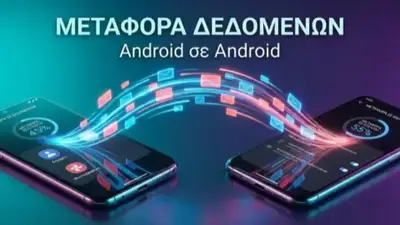
If you want the fastest transfer without depending on the internet, wired transfer via USB-C to USB-C cable is the best option. Nearly all modern Android phones support this method during the initial setup.
The process is extremely simple: connect the two phones with a USB-C cable, follow the on-screen instructions on the new phone, and select what you want to transfer. In addition to the basics (apps, contacts, messages), wired transfer can also move photos, videos, and files that aren't included in cloud backup.
Transfer times: Depending on the amount of data, the process takes 15-45 minutes. A phone with 64GB of data needs about 20-25 minutes, while 128GB+ can take over 40 minutes. Make sure both phones are charged to at least 50%.
Method 3: Samsung Smart Switch — For Galaxy Users
If you're switching to a Samsung Galaxy, Smart Switch is the most comprehensive tool. It comes pre-installed on all Galaxy devices and can transfer data from virtually any other device — Android or iPhone.
Smart Switch excels compared to basic Google Backup in several key areas. It transfers the home screen layout, widgets, accessibility settings, and even some app settings that Google Backup doesn't cover. If you're switching from an old Samsung to a new one, the experience is nearly seamless — the new phone will look almost identical to the old one.
Three ways to use Smart Switch:
• Wired: Via USB-C to USB-C cable (fastest method)
• Wireless: Via Wi-Fi Direct (no internet needed, peer-to-peer)
• Via SD card: Backup to microSD and restore on the new phone
One small downside: Smart Switch only transfers to Samsung devices. If you're leaving Samsung, you'll need to use Google Backup or wired transfer.
Method 4: From iPhone to Android — The Complete Guide
Transferring from iPhone to Android has always been the most difficult switch, but in 2025-2026 Google has taken significant steps to simplify it.
In August 2025, alongside the Pixel 10 launch, Google introduced the "Head Start" tool. It's an online tool (pixel.google.com/head-start) that guides iPhone users step by step before they even receive their new Android. Head Start asks you to download Google Photos on your iPhone and do a full backup of photos and videos. Then, it guides you through exporting passwords from Safari to Google Password Manager.
The idea is clever: you complete the time-consuming steps before the new phone arrives, so when you open it, the transfer happens in minutes instead of hours. The tool also works in reverse — if you're transferring from Android to Android, it checks whether Google backups are already active, and if so, simply says “you're ready.”
What can be transferred from iPhone to Android:
• Contacts: Full transfer via cable or Google account
• Photos and videos: Via Google Photos or cable
• SMS messages: Via cable during setup
• Calendar: Sync via Google Calendar
• Apps: Corresponding Android versions are downloaded automatically
• Wi-Fi passwords: Transferred via cable
What doesn't transfer:
• iMessages: Disable iMessage on iPhone before switching!
• iOS-only apps: Apps that don't exist on the Play Store
• iTunes purchases: DRM-protected content
• Apple Watch data: Not compatible with Android smartwatches
Quick Share & AirDrop: The File Sharing Revolution
One of the biggest developments of 2025 was the Quick Share and AirDrop collaboration. In November 2025, Google announced that Android's Quick Share can now send and receive files directly from iPhone, iPad, and Mac — without an intermediary server.
This isn't some workaround or hack. The connection is direct peer-to-peer, data never passes through any server, nothing is logged, and no additional information is shared. Google developed the feature in Rust — the language considered an industry standard for secure systems — protecting against buffer overflow attacks and other vulnerabilities.
The company commissioned an independent third-party security expert (NetSPI) to test the system, who described it as "significantly stronger" than other implementations in the industry. The feature launched exclusively on the Pixel 10 series, but in February 2026, Eric Kaye, VP of Engineering for Android, announced that interoperability will expand to many more Android devices very soon.
To enable the feature on Pixel 10: Settings → tap your name at the top → All services → Privacy and security → System services → update “Quick Share Extension” and restart.
Wireless Transfer of Large Files
Besides Quick Share, there are several excellent apps for wirelessly transferring files between devices. The most popular remains Google's Quick Share (formerly Nearby Share), which works between Android, Windows, and now iOS. Transfer happens via Wi-Fi Direct or Bluetooth, depending on the file size.
For files larger than a few GB, Wi-Fi Direct connectivity reaches speeds of 300-500 Mbps on modern phones, meaning a 5GB 4K video transfers in less than a minute. The same transfer via Bluetooth would take over an hour.
Alternative apps worth knowing about:
• Files by Google: Built-in sharing feature on many Android devices
• Send Anywhere: Cross-platform, works with a 6-digit code
• Snapdrop / Pairdrop: Web-based, no installation needed, works on the same network
• KDE Connect: Ideal for connecting Android to a Linux/Windows computer
Cloud Backup: Google One, Samsung Cloud, OneDrive
Cloud transfer is perhaps the safest method, since your data always exists somewhere beyond just your phone. Let's look at the main options.
Google One is the most widely used solution. Every Google account comes with 15GB of free storage, shared between Gmail, Google Drive, and Google Photos. If you need more space, plans start at €1.99/month for 100GB. The premium 2TB option (€9.99/month) is enough for most users.
Samsung Cloud offers 5GB free for Galaxy users. If you're already paying for a Samsung account, your data (settings, Gallery, Samsung Notes) transfers automatically to the new Galaxy. Since 2025, Samsung has been working more closely with Microsoft's OneDrive for photos.
Microsoft OneDrive is an excellent alternative, especially if you already use Microsoft 365. With the 1TB included in the subscription (€69/year), you can automatically back up all your photos and have them available on Windows, Mac, Android, and iOS.
Transferring WhatsApp, Viber, and Messaging Apps
Perhaps the most critical transfer for many users is WhatsApp. Transferring WhatsApp chat history between Android devices is now very easy via Google Drive backup. Open WhatsApp on your old phone, go to Settings → Chats → Chat backup, and back up now. On the new phone, during WhatsApp installation, you'll be prompted to restore the backup.
If you're switching from iPhone to Android, WhatsApp now supports chat history transfer via USB-C cable during initial setup. This feature has been integrated into both the Google transfer tool and Samsung Smart Switch.
For Viber, transferring between Android devices is done via Viber backup to Google Drive. Go to Viber → Settings → Account → Viber Backup. Important: if you're moving to a new phone number, you need to change the number in Viber first before making the transfer.
Telegram doesn't require any transfer — all data is stored in the cloud and is available immediately once you sign in on the new phone.
Transferring Authenticator Apps (2FA)
This is the point where many users lose access to important accounts. Two-factor authentication apps require special attention.
Google Authenticator: Now supports cloud sync via Google account, so your codes transfer automatically. Make sure the feature is enabled (cloud icon in the app). The app was fully redesigned in August 2024 with a Material You makeover.
Microsoft Authenticator: Supports cloud backup via Microsoft account. Enable it in the app's settings.
Authy: Automatic sync between devices, the most painless solution.
If you use an app that doesn't support cloud sync, you need to transfer accounts manually before deactivating the old phone. Log into each account, disable 2FA, and re-enable it on the new phone.
What to Do After the Transfer
Data transfer doesn't end once the initial setup is complete. There are several things you should check during the first few days.
Check your photos: Open Google Photos and make sure all photos are there. Sometimes, photos in local folders (e.g., Screenshots, WhatsApp Images) don't transfer automatically.
Check your messages: If you use RCS via Google Messages, enable the feature on the new phone and verify that old messages appear.
Don't erase the old phone right away: Keep it for at least one week after the transfer. Many users discover days later that some data is missing — 2FA codes, notes, or local files that weren't transferred.
Factory reset after verification: Once you've confirmed that everything transferred correctly, factory reset the old phone, especially if you plan to sell or give it away. Remove your Google account first to avoid FRP (Factory Reset Protection) lock.
🔑 Tips for a Safe Transfer
• Always keep the old phone for 7+ days after the transfer
• Verify that Google Authenticator has cloud sync enabled before switching
• Disable iMessage if you're leaving iPhone
• Manually back up WhatsApp/Viber before the transfer
• Use a USB-C cable for faster transfer of large files
• Quick Share + AirDrop now works on Pixel 10 — coming soon to more Android devices