After years of hunting through PowerToys profiles and downloading third-party apps for basic tasks, what I discovered in 2026 might surprise you. Windows 11 hides productivity tools that could change how you work — if you know where to look. Four features that justify the upgrade by themselves.
How many times have you searched for a PowerToys profile or downloaded an app for something Windows already does? Microsoft hasn't done a great job promoting what they've built in. But that doesn't mean it's not there.
I've made a conscious choice over the past few months: I use exclusively native Windows tools for productivity. Zero third-party apps. The result? Faster system, fewer updates, and — most importantly — rock-solid performance.
📖 Read more: 10 Hidden Windows 11 Tools Nobody Knows About (2024)
🎤 Voice Typing: Your Voice Becomes Text (Perfectly)
When did you last use voice input on your computer? Probably never — and I get it. Windows 10's old systems were basically useless.
Microsoft embedded Azure Speech Services into Windows 11. The same neural networks that power professional transcription services. The result is stunning.
Try this test: Hit Windows + H and start talking. You'll notice it automatically adds punctuation — without needing to say "comma" or "period." It analyzes your speech rhythm and handles it alone.
The difference from the past is night and day. I've written entire paragraphs while walking around the room — something that gives writing a more natural tone. When I don't need to interrupt my thought flow to say "period," writing becomes genuinely faster than typing.
If you were considering a Dragon or Otter.ai subscription for basic transcription, stop here. Windows 11 already has a world-class engine waiting behind Windows + H.
How to Enable Voice Typing
There's no setup. Press Windows + H and start talking immediately. The system downloads necessary language packs locally — so your privacy stays secure.
📋 Clipboard History: The End of "I Don't Remember What I Copied"
This is my personal favorite feature. It solves a problem we've all experienced: you copy a link, don't paste it immediately, copy something else — and lose the first item.
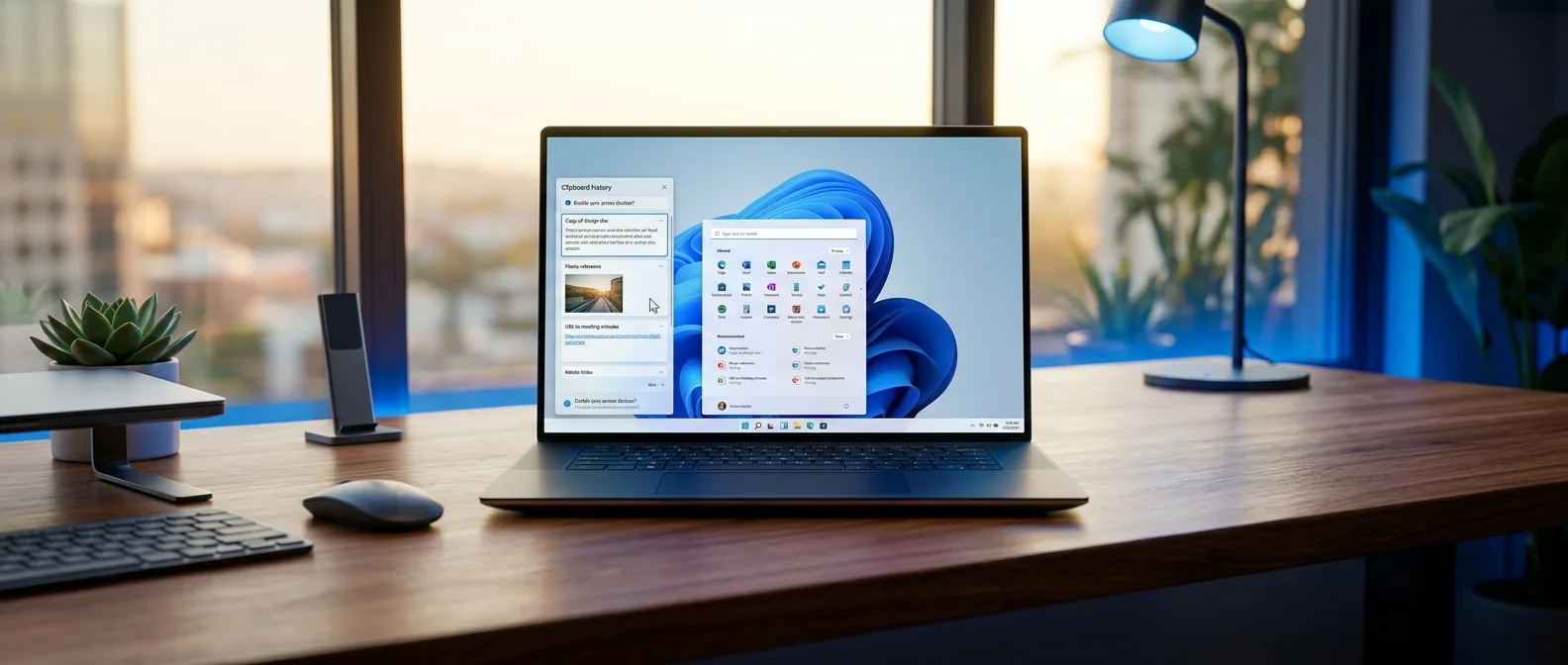
With Clipboard History (Windows + V), this problem vanishes completely. Instead of holding one item, your clipboard can store up to 25. Text, links, screenshots — whatever you copy gets temporarily stored until the next reboot.
Windows + V brings up the history. If you want to keep an item permanently, you can pin up to 5 of them — and they'll survive even reboots.
There's also smartphone sync if you use SwiftKey keyboard. Text between devices without email or cloud storage.
Enabling Clipboard History
Settings > System > Clipboard, enable "Clipboard history." If you want cross-device sync, also enable "Sync across your devices."
🪟 Snap Layouts: Window Management That Actually Works
Windows is supposedly about multitasking. In practice though, aligning windows was always tedious — until Snap Layouts.
Windows + Z or hover over the maximize button. A menu appears with ready-made layouts that fit your screen size. And we're talking about layouts that make sense — not just splitting down the middle.
Smart Layouts
The system detects screen size and suggests matching layouts — from thirds splits to complex arrangements for ultrawide monitors.
Snap Groups
When you arrange 2-3 apps in a layout, Windows remembers them as a group. Minimize all and restore with one click from the Taskbar.
Snap Groups is the real productivity hack. Browser left, notes right — Windows treats it as one unit. When you minimize everything and later hover over either one in the Taskbar, an option appears to restore the entire group.
I often work with a triple setup: code, documentation, terminal. With Snap Groups, all three return to position with one click.
📖 Read more: Apple Watch 11: 26+ Hidden Features & Tips for WatchOS 26
💬 Live Captions: Subtitles Everywhere
How many times have you found yourself watching video or joining a call without being able to turn on audio? Or someone has a broken microphone in the meeting?
Windows 11 Live Captions (Win + Ctrl + L) solve the problem by delivering real-time subtitles for the entire operating system.
It's not tied to specific apps. Google Meet, YouTube, podcasts in browsers without captions — everything's covered.
System-level functionality
What makes it even better is that it's completely private. When you enable it for the first time, Windows downloads a small language pack. All audio processing happens locally — your calls and videos aren't sent to servers for transcription.
And if captions cover something on screen, you can move them anywhere you want.
Bonus: Text Extractor and Color Picker
In the same Snipping Tool, there are two more hidden tools. Text Extractor (Windows + Shift + T) performs OCR on whatever you select on screen. Color Picker grabs the exact color from anywhere on the desktop.
I work in design and Text Extractor has saved hours of work. Instead of retyping text from screenshots or PDFs, I select it and it becomes immediately editable text.
⚡ How These 4 Tools Change Your Work
After months of using exclusively native Windows tools, I've noticed something interesting. It's not just about speed — it's about mental overhead.
When you don't need to remember where the file you copied 10 minutes ago is, when you don't need to interrupt work to align windows, when you can capture thoughts while walking — workflow becomes smoother.
Pro tip: Enable all of them simultaneously. Each one alone is useful, but together they create an ecosystem that reduces thought interruptions.
Microsoft did something smart here. Instead of forcing you to learn new software, they embedded features that solve real problems. Clipboard History instead of 10 different clipboard managers. Voice Typing instead of Dragon subscriptions. Snap Layouts instead of window management apps.
🎯 Settings Worth Enabling Immediately
Clipboard History & Sync
Settings > System > Clipboard: Enable "Clipboard history" and "Sync across your devices" if you have multiple devices.
Voice Typing
No settings required — just Windows + H and it works. If you use multiple languages, the system adapts automatically.
Live Captions
Settings > Accessibility > Captions: Enable Live captions. You can customize font, size, and color.
Title Bar Window Shake
Settings > System > Multitasking: Enable "Title bar window shake" for instant minimize of all other windows.
These features aren't just "nice to have" additions. They're tools that can change how you interact with your computer every day. In 2026, there's no reason to pay for functionality we already have — it just hides behind a few keyboard shortcuts.
And yes, there are more. But these four are the ones you'll use daily — not once a week to impress friends with Windows tricks.
Sources: