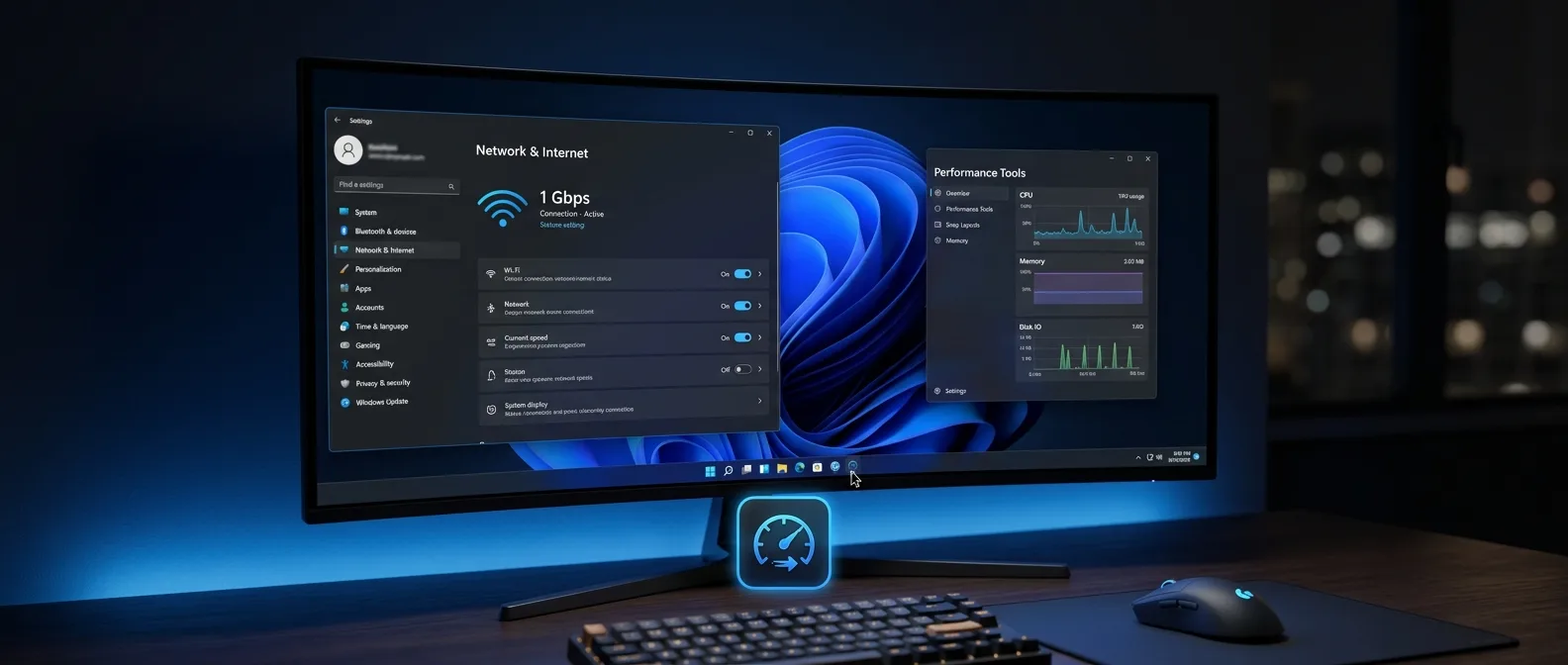
Windows 11 hides secrets that can surprise you. May 2026's 25H2 update shipped features that don't make noise — but change how you use your computer. From AI tools that work inside File Explorer to speed tests in the taskbar and automated escapes from boot failures.
📖 Read more: Windows 11 File Transfer Speed: 7 Ways to Triple Performance
🧠 AI Actions: File Explorer Gets Smart
How many times do you right-click a file wanting to remove backgrounds or summarize a PDF? AI Actions brings these tools to File Explorer's context menu — without opening separate apps. Right-click any file and you'll see a new submenu with options based on file type. For images, you get Bing Visual Search, blur/remove background, Generative Erase in Photos, and text descriptions. For documents (DOC, PPTX, PDF, TXT), there's summarization and key insights — if you have Microsoft 365.The tools don't run inside File Explorer. They pass the file to the appropriate app and processing happens there. To enable them: Settings → Apps → Actions and choose what you want.
Limitations Worth Knowing
Not all file formats are supported yet. AI output quality depends on Microsoft's cloud services — if they're slow, you'll be slow too. Some functions require a Microsoft 365 subscription.⚡ Speed Test from the Taskbar
Windows 11 now has a speed test shortcut built into the taskbar. Click the network icon in the system tray and you'll find a "Speed Test" option at the bottom of the panel.What It Measures
Download speed, upload speed, and latency — enough to check if you're getting what you pay your ISP for.
How It Works
Opens your default browser with a Bing-powered speed test that runs Ookla's Speedtest on the backend.
📖 Read more: 10 Hidden Windows 11 Tools Nobody Knows About (2024)
🎙️ Voice Access with Fluid Dictation
Old Voice Access in Windows 11 wrote whatever you said verbatim. Including "ums," "wells," and broken sentences. If you tried voice dictation before and gave up, Fluid Dictation might make you try again.The new system uses an on-device AI model that interprets your speech as complete sentences and writes what you meant — not what you literally said.
How to Enable It
Go to **Settings → Accessibility → Speech** or press **Windows + H**. The feature is active by default if you have a Copilot+ PC. Works anywhere that accepts text input. If you want to restore the original sentence, say "Revert" or "Undo that" — or press Ctrl+Z.📖 Read more: Apple Watch 11: 26+ Hidden Features & Tips for WatchOS 26
🔧 Quick Machine Recovery: Self-Diagnosis
How many times has your PC gotten stuck in a boot loop? Quick Machine Recovery is a built-in self-repair mode for when Windows won't start at all. Instead of throwing you into a generic recovery screen and hoping you know what you're doing, the new system connects to Microsoft's cloud to diagnose the problem and apply known fixes automatically.What It Doesn't Do
Only works for known problems that Microsoft has published fixes for. Doesn't restore user files. But for boot loops that usually meant hours of troubleshooting or fresh installs, it's a serious safety net. Enable it: **Settings → System → Recovery → Quick machine recovery**.🛡️ Smart App Control: Second Chance
Smart App Control was a Windows 11 security feature that blocked untrusted apps using cloud intelligence and code signing. The problem? All-or-nothing design. Once you turned it off, the only way to get it back was a clean install of Windows 11. This made it useless for anyone who occasionally used unsigned or niche software.Still, users report it continues blocking legitimate apps like qBittorrent and various CLI tools. Some noticed slower performance when running installers. If you use lots of unsigned utilities, you might want to keep it off and rely on Defender and SmartScreen.With recent 25H2 updates, you can now turn Smart App Control off and back on without reinstalling.
Windows 11 25H2 Release Notes
📖 Read more: Chrome Flags: 5 Hidden Settings That Double Browser Speed
⌨️ Small Changes with Big Impact
Beyond headline features, 25H2 includes changes that go unnoticed — but make daily use smoother.Git Integration in File Explorer
File Explorer now has a version control section in **Settings → System → Advanced settings** that lets you add Git repositories. Explorer can show commit info like last change date and commit message directly in columns.New Keyboard Shortcuts
- **Win + -** for en dash - **Win + Shift + -** for em dash - Useful if you write frequently and want proper typographySharing Menu Improvements
The sharing menu now lets you pin your favorite apps to the top instead of relying on an auto-generated list.Hardware Indicator Position
You can move the hardware indicator overlay (volume, brightness, airplane mode pop-ups) to top left, top center, or bottom center through **Settings → System → Notifications → Position of on-screen indicators**. None of these are headline features. But they're the kind of tweaks that make daily use smoother.🎯 Frequently Asked Questions
Do I need a Copilot+ PC for all of this?
Not for everything. Fluid Dictation requires a Copilot+ PC, but AI Actions, Speed Test, and Quick Recovery work on all Windows 11 systems with the 25H2 update.
Are AI Actions safe?
AI Actions send data to Microsoft's cloud services for processing. If this concerns you, you can disable them from Settings → Apps → Actions.
Is the Speed Test accurate?
It uses Ookla's Speedtest on the backend, so accuracy is comparable. But it runs through the browser, so it might be affected by browser overhead or extensions.
These changes show Microsoft paying attention to practical, everyday improvements. They don't make for flashy announcements, but they make Windows 11 better to use. Especially in 2026, when AI features tend to be more marketing than practical value, these hidden tools have real utility.