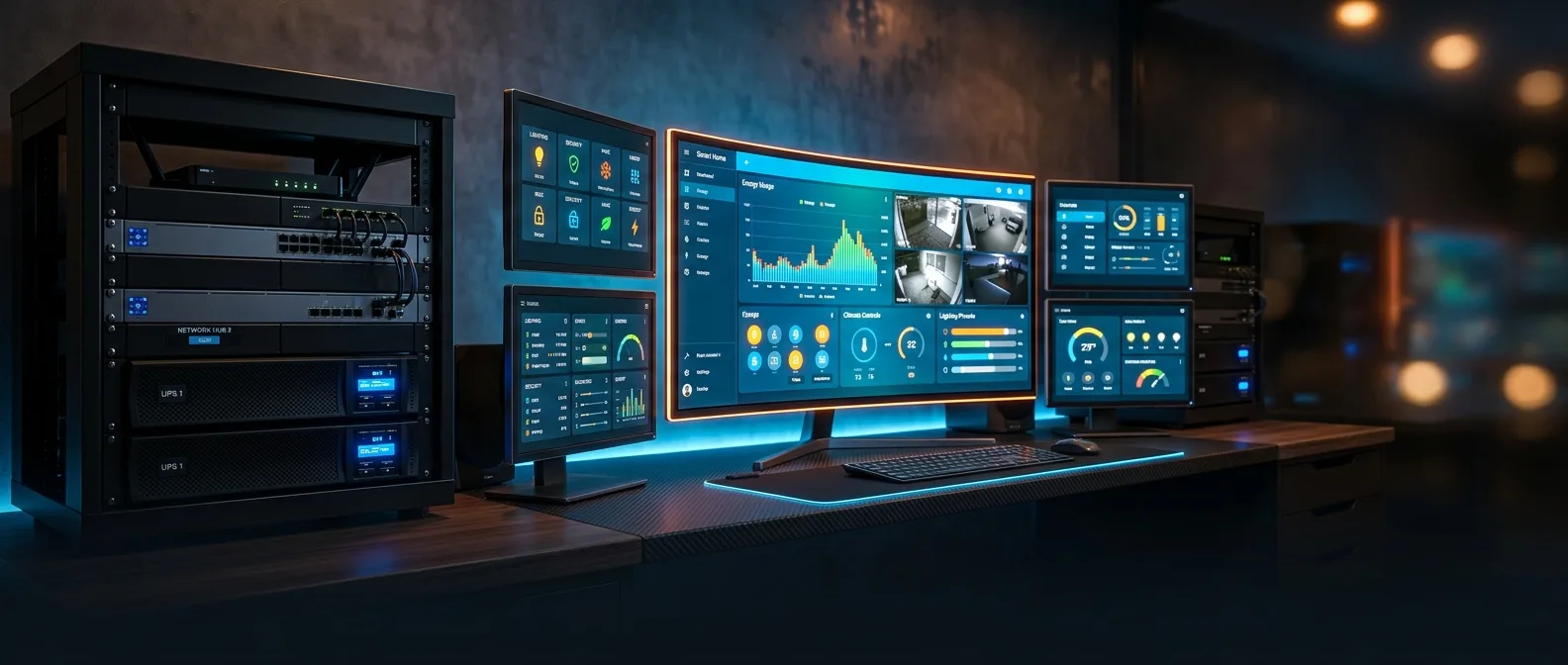
You walk through the door, pull out your phone, open Home Assistant and... black screen. The hallway light doesn't turn on automatically. The heating has stopped. The truth is that smart home systems crash more often than we like to admit. Fortunately, there are tricks that keep Home Assistant alive 24/7.
Five minutes down and the house already feels wrong. Fifteen minutes and you start getting cold. Half an hour and you realize how many things you'd automated without even thinking about it. That's how it always goes with good systems — you take them for granted until they break.
In 2026, we have no excuse for systems that collapse at the first hiccup. With the right tricks from the homelab community, you can hit over 99% uptime — that's less than 9 hours of downtime per year.
📖 Read more: Windows 11 Smart App Control: Hidden Security That Blocks Malware
⚡ UPS: Your Shield Against Power Outages
The simplest trick is never letting your system go without power. An Uninterruptible Power Supply (UPS) is like an airbag for your Home Assistant — you hope you never need it, but when you do, it saves your life.
What's the difference from a simple backup battery? The UPS sits between the wall outlet and your device, passing power normally until it gets cut off. Then, in milliseconds, it switches to battery without losing a single device.
Pro Tip: Don't just connect the server to the UPS. The router, Zigbee coordinator, and anything critical for connectivity needs protection. An 800VA UPS costs around €150 and keeps the essentials alive for 30-60 minutes.
The real magic comes with software. Network UPS Tools (NUT) can send battery level to Home Assistant. If the battery drops below 20%, a simple automation triggers graceful shutdown before the UPS dies. No data corruption, no surprise reboots.
Which UPS Should You Choose?
For a typical Home Assistant setup with Raspberry Pi or mini PC:
- APC Back-UPS BX1100CI-GR (around €120): 1100VA, 4 protected outlets, USB for monitoring
- CyberPower CP1500EPFCLCD (around €180): 1500VA, LCD display, pure sine wave
- EATON 3S 700 DIN (around €95): 700VA, compact for small setups
🔍 Instant Notifications: Know Immediately When Things Go Wrong
Even with a UPS, Home Assistant can hang from bugs, memory leaks, or just bad luck. The key is finding out immediately — not when you get home and find the lights off.
Enter Uptime Kuma. A tool that runs in a separate container or VM and "pings" Home Assistant every 30-60 seconds. We're not talking about simple ping — but real HTTP checks on the web interface.
Uptime Kuma runs in Docker within 5 minutes. One line:
docker run -d --name uptime-kuma -p 3001:3001 -v uptime-kuma:/app/data --restart=always louislam/uptime-kuma:1
Then open localhost:3001, create a monitor for Home Assistant (http://192.168.1.x:8123) and set up Telegram notifications. First crash — notification on your phone before it even fully happens.
What Else Should You Monitor?
Since you already have Uptime Kuma, why not other critical services:
- Zigbee2MQTT: If it goes down, you lose all Zigbee devices
- MQTT Broker: The central nervous system of many IoT devices
- Router/Gateway: Ping the gateway to see if you have internet
- Node-RED: If you're running additional flows there
📖 Read more: 25 iPhone Tips & Tricks You Wish You Knew Sooner
💾 Backups: The Safety Net That Saves You
No system is immortal. The question isn't if hardware failure will happen, but when. And that's where backups save you from having to reconfigure everything from scratch.
Home Assistant has a built-in backup system that creates complete snapshots. But that's just the beginning. The "Home Assistant Google Drive Backup" add-on automatically sends backups to the cloud.
Backup Schedule
Daily backups for production, weekly for testing setups. Keep at least 7 local + 30 in the cloud.
Cloud Storage
Google Drive, Dropbox, or Nextcloud — anything outside the physical server. If the house burns down, backups stay safe.
If you're running Home Assistant on Proxmox or VMware, you also have hypervisor-level backup. This is like "quick save" in a videogame — take a snapshot before risky changes, undo if something goes wrong.
The trick here is testing your backups. If you don't know whether restore works, you don't have a backup — you have lies in compressed format.
Automated Backup Testing
Every month, set up a Home Assistant automation that:
- Does a test restore on a trial VM
- Checks if integrations load
- Sends a report to Telegram with the results
Oddly enough, this automation has saved my skin more times than I can remember.
📖 Read more: Phone Camera: 5 Tricks for Professional Photos
🔗 Decouple Critical Components
Here's the difference between amateur and pro setups. Instead of running everything on the same server, you split components into separate pieces that can survive on their own.
Classic example: Zigbee coordinator. Instead of connecting it directly to Home Assistant, run Zigbee2MQTT on a separate Raspberry Pi or container. When the main system goes down, the Zigbee network keeps working.
Why Do This: When Home Assistant crashes, you can quickly spin up a new instance on another machine and point it to the existing MQTT broker. Instant recovery instead of hours troubleshooting.
The same logic applies to:
- MQTT Broker: Mosquitto in a dedicated container
- InfluxDB: Separate instance for historical data
- Node-RED: Its own container for complex flows
- Security Cameras: Frigate or Shinobi separate from HA
This "microservices" approach makes debugging easier. When something goes down, you know exactly which piece is broken instead of hunting through a monolithic system.
💽 Reliable Storage: No SD Cards for Production
Let's face it — Raspberry Pi with SD card is an easy start but cheap death for production use. Home Assistant constantly writes logs, history, database updates. A Class 10 SD card can't handle this abuse for long.
You know the symptoms: random crashes, slow response, corrupted database, mysterious errors in logs. Usually happens at the worst moment — when you're on vacation or during a storm.
The solution is USB SSD or, even better, a dedicated mini PC with NVMe storage. A small Samsung T7 500GB USB SSD costs around €60 and makes a world of difference in reliability.
Migration from SD Card to SSD
If you're already running on SD card, the transition is painless:
- Make a full Home Assistant backup
- Flash Home Assistant OS to USB SSD
- Boot from USB (not SD card)
- Restore the backup
Total downtime: about 30 minutes. The improvement in response and stability is immediate.
📖 Read more: Unbreakable Passwords: 2026 Guide to Ultimate Security
🎯 Monitoring & Alerting That Actually Works
The combination of Home Assistant + Uptime Kuma + proper automations can create a monitoring system that enterprise data centers would envy.
The trick is smart notifications. You don't want spam every time WiFi drops for 10 seconds, but you want to know immediately if something actually broke.
Good monitoring isn't what alerts you about everything. It's what alerts you only when you need to intervene.
— DevOps wisdom
Set up escalation rules: first silent notification, after 2 minutes sound, after 5 minutes call. Different channels for different severity levels.
Essential Alerting Rules
- Immediate: Home Assistant down, security breach, fire/smoke alarm
- Within 5min: Critical services (heating/cooling), UPS on battery
- Within 30min: Non-essential services, certificate expiring soon
- Daily digest: Performance stats, backup status, update notifications
Home Assistant can send notifications via Telegram, Discord, email, push notifications, even turn on a red light if something's down. Your imagination is the limit.
📖 Read more: Samsung Galaxy S25 Ultra: 50+ Hidden Tips & Secret Features
🛠 Advanced Tricks from the Homelab Community
Inside homelab communities are tricks you won't find in any manual. Real solutions from people running 24/7 services in their basement.
Hardware Watchdog: Small module that monitors the system and does hardware reset if it sees it's hung. Costs €15, avoids midnight drives for physical restart.
Temperature Monitoring: DHT22 sensors in the rack for early overheating warning. If temperature rises above 45°C, the system sends alert and does controlled shutdown.
Network Redundancy: Second internet connection (4G USB modem) that activates automatically if main DSL/Fiber goes down. Costs €20/month, saves from ISP outages.
Health Checks
Automated scripts that check disk space, memory usage, CPU temperature every 5 minutes.
Auto-healing
Services that auto-restart themselves if they crash, database cleanup scripts, log rotation.
Container Orchestration for Home Assistant
In more advanced setups, Home Assistant runs on Docker Swarm or Kubernetes cluster. If one node goes down, the cluster automatically moves containers to another node. Zero downtime migrations.
Of course, this requires multiple servers and shared storage (NFS/Ceph). Overkill for the average user, but if you have spare hardware and want to experiment...
📊 Performance Monitoring & Capacity Planning
Keeping the system alive isn't enough — you need to know when it starts struggling. Home Assistant has built-in statistics for CPU, memory, disk usage that you can dump into InfluxDB and Grafana.
Warning signs to watch for:
- Memory usage >80%: Time for RAM upgrade or optimization
- Database size >2GB: Needs purging of old records
- Average response time >500ms: Bottleneck somewhere in the chain
- Log errors >10/hour: Something's wrong with integrations
Capacity planning isn't just for enterprise systems. If you see you're using 70% of available storage, time for cleanup or expansion before hitting 100% and crashing.
Most important? Make monitoring fun, not work. Dashboard with pretty graphs, colorful alerts, gamification with uptime scores. If you enjoy looking at it, you'll pay more attention to warning signs.
With these five tricks — UPS, monitoring, backups, decoupling, and reliable storage — your Home Assistant can reach enterprise-level reliability. Not because it's easy, but because it's worth the effort. Because when you come home and the lights turn on automatically, the Wi-Fi works, the temperature is perfect — that's when you understand why all this effort was worthwhile.
Sources: