Buried in Windows 11's latest 25H2 update sits a security feature you probably don't know exists — and almost certainly don't have enabled. Smart App Control acts as your system's silent bouncer, blocking suspicious apps before they can cause damage. But turn it on, and there are a few things you need to know first.
📖 Read more: Phone Link Windows 11: The mobile connection that changes...
🛡️ What Smart App Control Does (And Why It's Different)
Smart App Control flips traditional antivirus logic on its head. Instead of letting programs run and then scanning for threats, it blocks everything by default unless it passes two critical tests.
When you try to launch any application, the system runs three quick checks: First, it verifies the app has a valid digital signature from a recognized developer. Then it consults Microsoft's cloud intelligence service, which aggregates behavioral data from millions of Windows systems worldwide.
Cloud Intelligence in Action: The system taps into a massive database tracking the behavior of millions of applications. If an app has been flagged as suspicious or linked to malware campaigns, it gets blocked instantly.
Fail either check, and the app won't run. Period. There's no "run anyway" button, no override option. This rigid approach blocks zero-day threats that traditional antivirus might miss.
⚙️ The Three States: Evaluation, On, and Off
Smart App Control operates in three distinct phases, each serving a different purpose.
Evaluation Mode: Silent Observation
Fresh Windows 11 installations start in "Evaluation" mode. Here, Smart App Control watches silently as you use your computer. It logs what apps you run, how often you use unsigned software, and whether its restrictions would break your daily workflow.
This observation period can last anywhere from a few weeks to a month. If the system determines you're a good candidate — meaning you mostly use mainstream, signed applications — it automatically switches to "On" mode. But if it detects heavy use of unsigned apps or specialized tools, it stays "Off" to avoid constant interruptions.
On Mode: Full Protection With Consequences
When Smart App Control activates fully, it takes control. Every app that fails its checks gets blocked without exceptions. This means some perfectly legitimate programs — like qBittorrent, various command-line tools, or older games — might refuse to run.
Off Mode: The One-Way Exit (Until Now)
Turn off Smart App Control, and traditionally you couldn't turn it back on without a clean Windows install. This wasn't a bug — Microsoft designed it this way to prevent security loopholes that malicious apps could exploit.
🔍 The Big 25H2 Change: Coming Back From Off
Until recently, disabling Smart App Control meant your only path back was formatting and starting fresh. The 25H2 update changed this logic — at least partially.
Now you can disable and re-enable it without starting from scratch. This makes the feature far more practical for users who want to test it without fear of getting locked into their choice.
If you use lots of specialized tools or older programs, Smart App Control can become a roadblock. But if most of your apps come from the Microsoft Store or known developers, the protection might be worth the trade-offs.
— Testing on clean Windows 11 installation, 2026
The change isn't perfect, though. Reports still surface of legitimate applications getting blocked, and some users notice slower performance when installing new software.
📋 How to Check and Configure Smart App Control
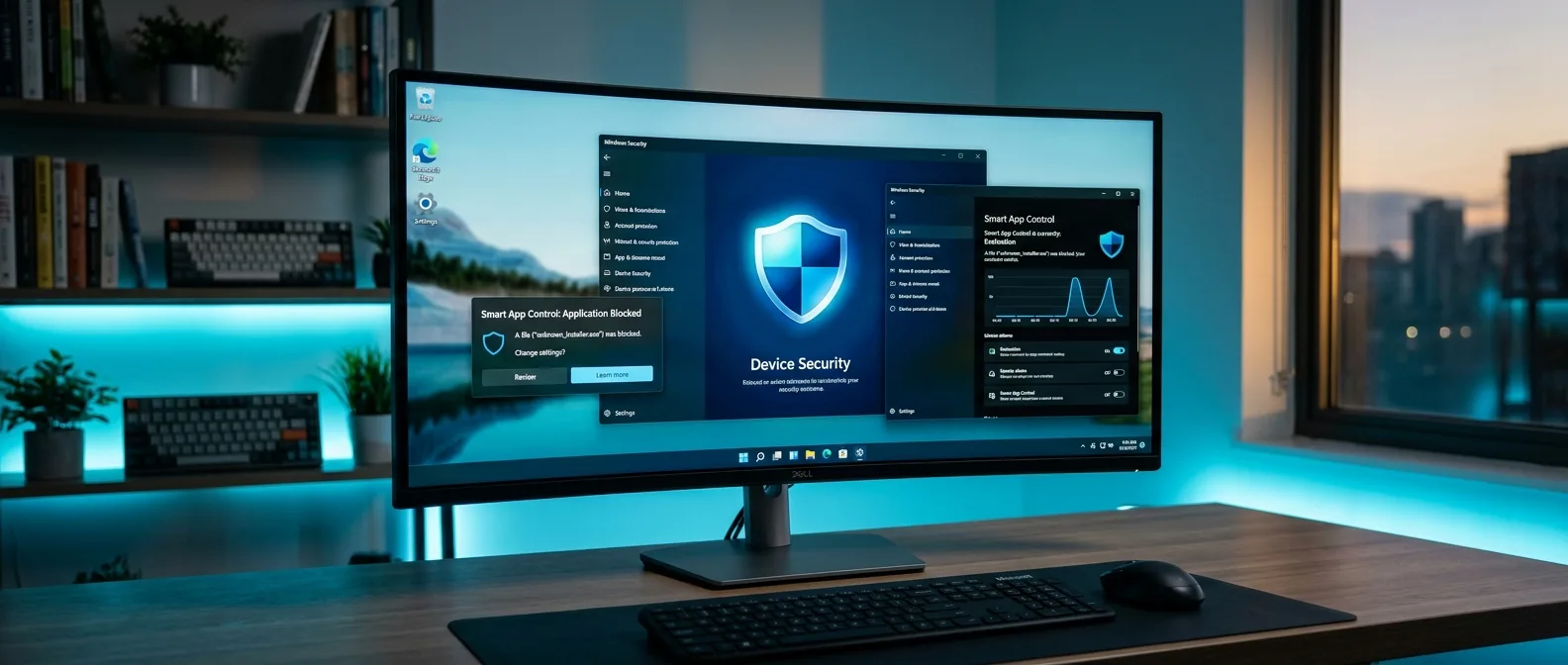
Finding Smart App Control requires navigating Windows 11's scattered settings. Skip the main Settings app — you won't find it there. Instead, open the **Windows Security app** directly.
Click **App & Browser Control**, and if the feature is available, you'll see a **Smart App Control** section. The interface shows your current state (Evaluation, On, or Off) and lets you toggle between them.
Evaluation Mode
Silently observes your usage patterns to determine if you're suitable for protection.
On Mode
Active protection — blocks all untrusted applications without exceptions.
Off Mode
Disabled — doesn't interfere with application execution.
**Critical detail:** If you upgraded from an older Windows version instead of doing a clean install, Smart App Control will always show "Off" and can't be enabled. This happens for compatibility reasons — Microsoft doesn't want to break existing workflows.
⚡ Performance and Practical Considerations
Microsoft claims Smart App Control has a "lighter impact" on performance compared to traditional antivirus solutions. The logic is that instead of constantly scanning for threats, it simply blocks apps that don't pass initial checks.
In practice, the difference isn't dramatic. Windows 11 systems are already well-optimized, and the additional overhead is minimal. Where you'll notice a difference is in the speed of installing new applications — some installers may run slower due to the extra verification steps.
Who Should Use Smart App Control?
Smart App Control works best for specific types of users. If you fall into any of these categories, you'll likely find it useful:
- Casual users: People who primarily use mainstream applications and web browsers
- Enterprise environments: Corporate systems with standardized software
- Family computers: Machines used by people without technical expertise
But if you're a developer, power user, or rely on specialized tools for work, Smart App Control might become more obstacle than assistant.
🎯 Common Questions About Smart App Control
Can I set exceptions for specific applications?
No — this is the key difference from traditional antivirus programs. If Smart App Control blocks an app, there's no way to whitelist it without disabling the entire feature.
What happens to old games and retro software?
This is a known pain point. Many older programs lack modern digital signatures, so they get blocked automatically. If you have a collection of vintage software, you'll probably need to keep Smart App Control disabled.
If I enable it now, will it affect apps I already have installed?
No — Smart App Control only checks new applications trying to run. Already-installed programs will continue working normally.
Smart App Control is one of those features you'll either love or hate — there's no middle ground. For some, it'll be the ultimate guardian that saves them from malware and sketchy downloads. For others, it'll be an annoying barrier to creativity and productivity.
Sources: