📖 Read more: Apple Watch X: The Anniversary Edition
What Is Double Tap?
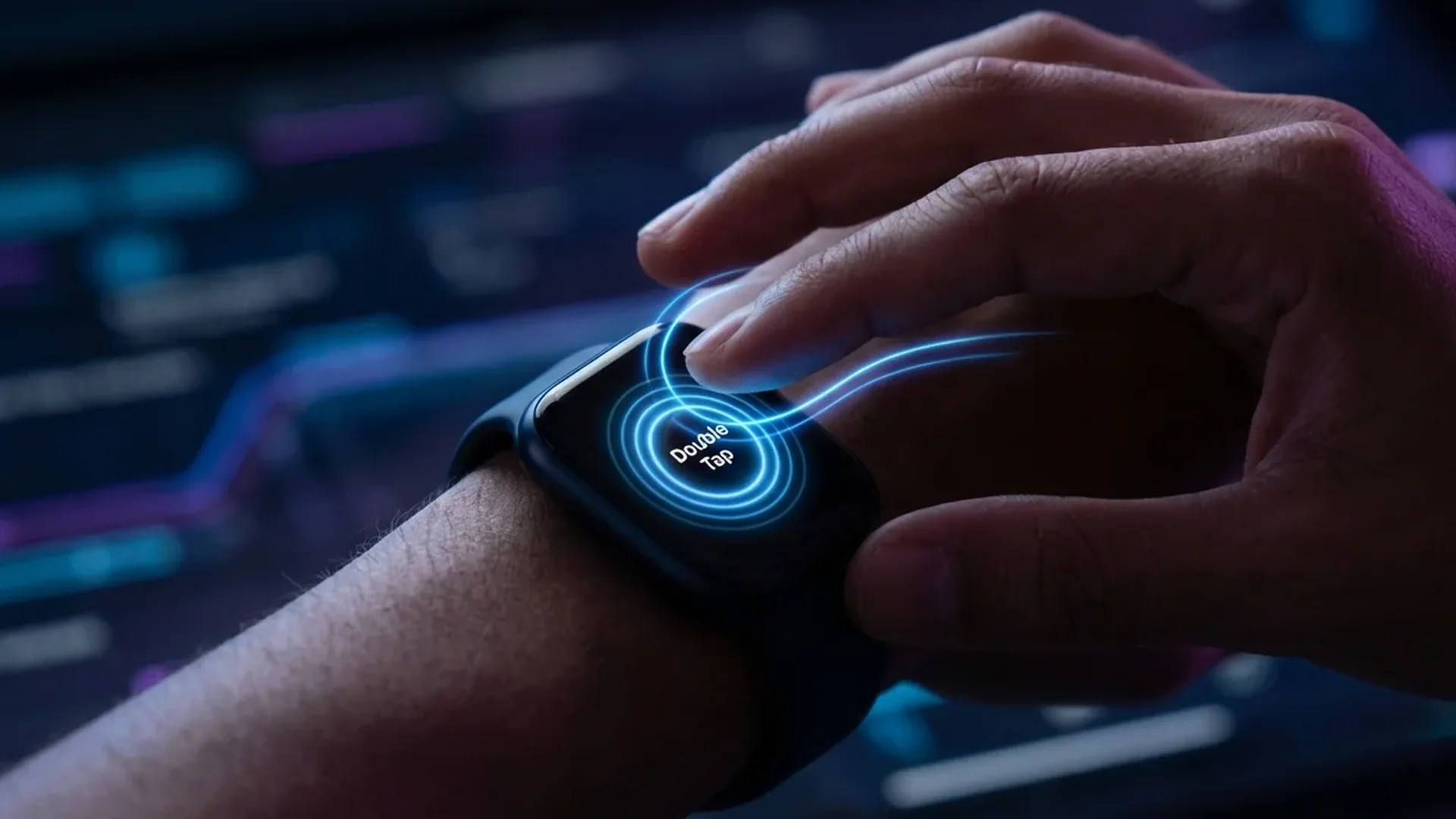
Double Tap is a gesture that lets you control your Apple Watch by tapping your index finger and thumb together twice in quick succession. There's no need to touch the screen or press any buttons — the interaction happens entirely through finger movements on the hand wearing the watch.
Apple introduced this feature in September 2023 alongside the Apple Watch Series 9 and Ultra 2. The technology relies on the S9 chip (and its successors, S10 and S11) which uses machine learning to detect subtle tendon movements and blood flow changes in your wrist. To accomplish this, the watch simultaneously leverages the optical heart rate sensor, the accelerometer, and the gyroscope.
The result is a nearly magical user experience. Even if you're carrying grocery bags, cooking dinner, holding a child, or simply in a situation where you can't use both hands, Double Tap has you covered. The gesture is recognized in fractions of a second, and its accuracy improves over time thanks to machine learning algorithms that adapt to your unique movement patterns.
What makes Double Tap truly remarkable is how Apple's Neural Engine processes the data. The on-device machine learning model analyzes signals from all three sensors simultaneously, creating a comprehensive picture of the subtle physical changes that occur when you tap your fingers together. This processing happens entirely on the watch — no cloud connection needed, no iPhone required. It's a testament to the incredible computing power packed into such a small device.
Did You Know?
Double Tap analyzes data from < 3 separate sensors simultaneously — the optical heart rate sensor, accelerometer, and gyroscope — using an on-device neural network for real-time recognition without any cloud connection required.
What Can You Do with Double Tap?
The greatest strength of Double Tap lies in the fact that it's context-aware — meaning the action it performs depends on what's currently displayed on your screen. Here's a comprehensive breakdown of everything you can do:
📖 Read more: Crash Detection: Real Rescue Stories
- Answer and end phone calls — When you receive a call, a double tap answers it. Another double tap ends the conversation. You don't even need to raise your wrist — the gesture works normally with your arm down.
- Snooze alarms — Silence your morning alarm without fumbling for buttons in the dark. Perfect for those moments when you've just woken up and don't want to open your eyes.
- Play/Pause music — Control music or podcast playback with a single gesture. Works with Apple Music, Spotify, and every other playback app.
- Scroll through notifications — Navigate through your notifications without touching the screen.
- Stop timers — Start or stop your timers and stopwatches hands-free with precision timing.
- Control Smart Stack — Navigate between widgets in the Smart Stack quickly and effortlessly.
- Interact with widgets — Tap the primary button of any widget without touching the display.
- Control AirPods — Skip tracks or pause playback on your AirPods through the watch, ideal during workouts.
This versatility makes Double Tap far more useful than a simple button — it's like having an intelligent click that knows exactly what you need at any given moment. In everyday situations, this feature proves invaluable. Imagine carrying your shopping bags when your phone rings — no need to put anything down, just two finger taps and you've answered the call. Or picture yourself on a morning jog with AirPods in, and you want to skip a track — a quick double tap on the hand wearing your watch, and it's done without breaking your stride.
How to Enable and Configure Double Tap
Setting up Double Tap is a straightforward process. Follow these steps to get started:
- Open Settings on your Apple Watch.
- Navigate to Gestures.
- Tap Double Tap.
- Toggle the feature on if it isn't already enabled.
Within the settings, you can also customize the primary action that Double Tap performs. The two main options are:
- Smart Stack — Double Tap opens and navigates through the Smart Stack (this is the default setting).
- Play/Pause — Double Tap always controls your music playback, regardless of what's on screen.
You can also configure Double Tap through the Watch app on your iPhone. Open the Watch app, go to Gestures, and you'll find the same customization options available there. This can be more convenient if you prefer managing settings from a larger screen. The settings sync immediately between your iPhone and Apple Watch, so changes take effect right away.
📖 Read more: Meta Smartwatch: A Threat to Apple Watch in 2026?
If you find that the gesture isn't activating consistently, don't worry — there are specific steps you can take to improve recognition accuracy. Apple recommends that the watch fits snugly on your wrist (not a loose band) and that the tapping motion be gentle but deliberate. You don't need force — you need precision.
Tips for Maximum Accuracy
To get the most out of Double Tap, follow these expert tips:
- Snug band fit — Make sure your band fits firmly on your wrist. A loose band prevents the sensor from properly reading blood flow changes, which are critical for gesture detection.
- Clear, deliberate motion — Execute a clear, intentional double tap. Avoid random or overly light touches that might not register properly.
- Wrist position — The gesture works best when your wrist is at chest level or lower, in a natural resting position. If you extend your arm too far, detection accuracy may decrease because the sensor readings change.
- Regular use — The machine learning algorithms progressively improve as they learn your specific gesture patterns. The more you use it, the better it gets at recognizing your unique tapping style.
- Software updates — Always keep your watchOS up to date. Apple regularly improves the recognition algorithms with each software update, often resulting in noticeable accuracy improvements.
An important tip: if you're wearing gloves or thick clothing that covers your wrist, detection may be affected. In these cases, Apple has designed the feature to still work, but you might need a more pronounced finger movement to trigger the gesture. During winter months, some users report better results by slightly pulling back their sleeve to expose more of the wrist area where the sensors are located.
It's also worth mentioning that Double Tap works seamlessly with AirPods. If you're listening to music or a podcast and want to pause or skip, you can use the gesture on your Apple Watch instead of touching your earbuds. This is particularly useful during activities like running, cycling, or working out at the gym, where reaching up to your ears might be inconvenient or could disrupt your flow.
📖 Read more: Apple Watch Mindfulness App: Breathing & Calm Guide 2024
Frequently Asked Questions (FAQ)
1. Which Apple Watch models support Double Tap?
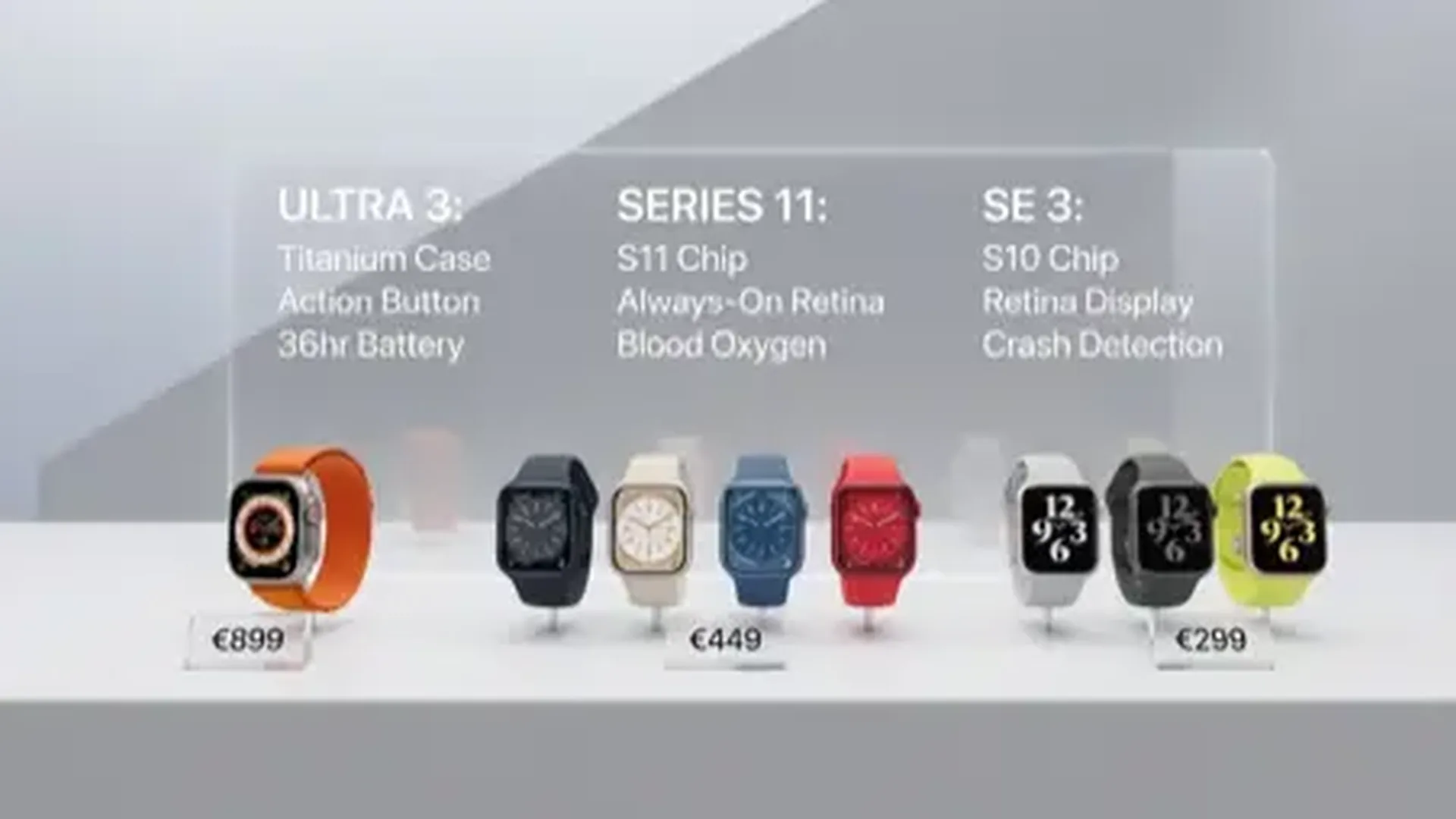
Double Tap is available on the Apple Watch Series 9, 10, 11, Ultra 2, and Ultra 3. It is not supported on Apple Watch SE, Series 8, or any older models, as it requires the S9 processor or newer for on-device machine learning processing. This is a hardware limitation, not a software one, so no software update can bring Double Tap to older models.
2. Does it require an internet connection to work?
No. The entire processing happens locally (on-device) on the Apple Watch's chip. You don't need an internet connection, Bluetooth pairing with your iPhone, or any external service. Recognition occurs in real-time through the neural network running on the S9/S10/S11 processor, making it work even in airplane mode or when completely disconnected.
3. Can I change what the gesture does?
Yes, but to a limited extent. You can choose whether the primary action is Smart Stack or Play/Pause from Settings → Gestures → Double Tap. The remaining actions (answering calls, snoozing alarms, etc.) remain context-aware and cannot be changed. Apple may expand customization options in future watchOS updates, but for now the two-option approach keeps the feature intuitive and reliable.
4. Does it work as an accessibility feature?
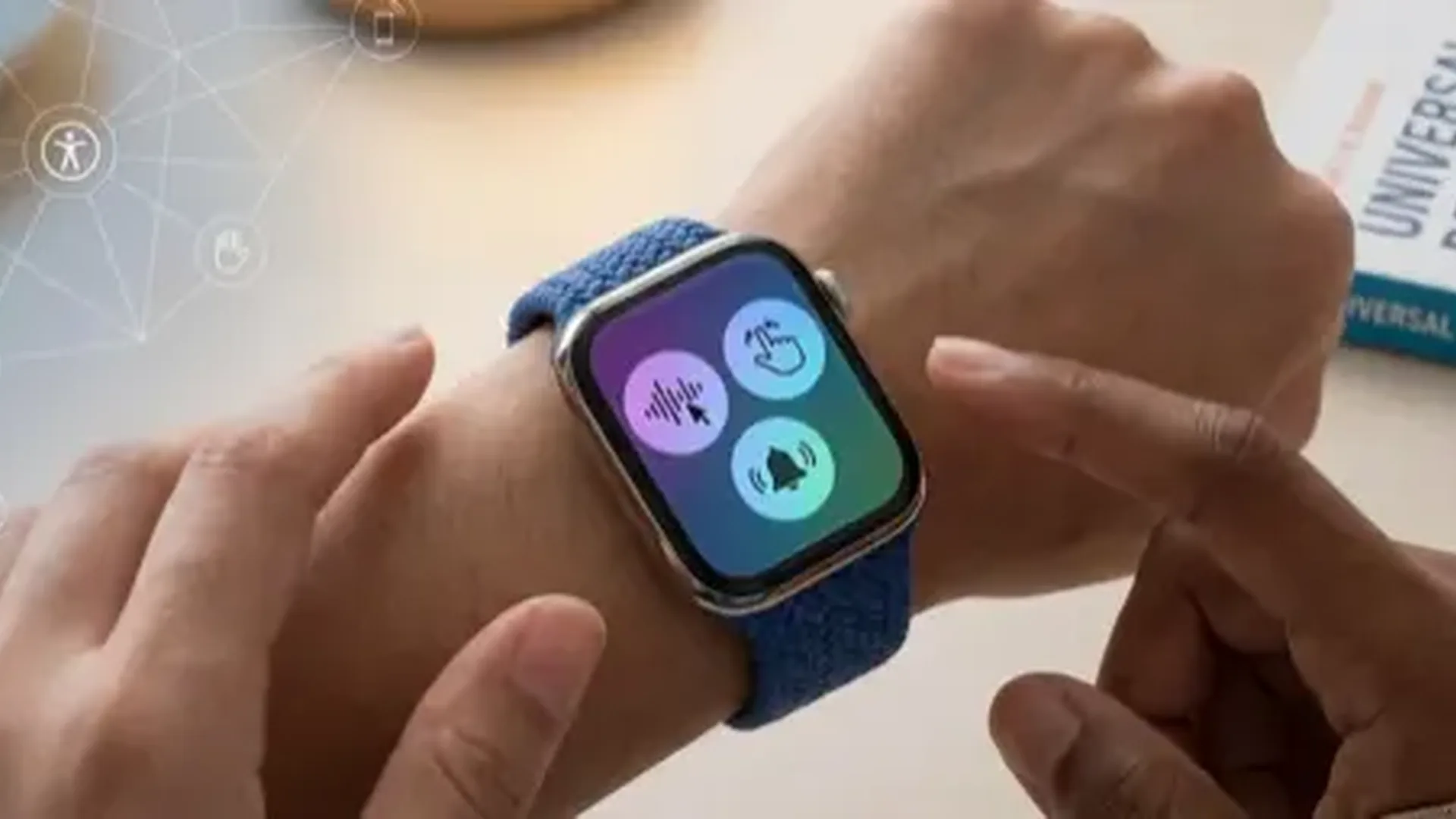
Yes. Double Tap is part of Apple's broader accessibility ecosystem. Additionally, there's the AssistiveTouch feature that offers even more gestures (fist clench, wrist tilt, etc.) for users with motor difficulties. The combined use of Double Tap and AssistiveTouch makes the Apple Watch one of the most accessible wearables on the market, allowing people with various physical limitations to fully interact with their device.
5. Why doesn't it always recognize my gesture?
The most common reasons are: a loose band, a motion that's too fast or too slow, or an extended arm position. Try tightening your band slightly, make a stronger and more deliberate motion, and keep your wrist in a natural position close to your body. Also, make sure you have the latest watchOS update installed, as Apple continuously improves the recognition algorithms. If problems persist, try restarting your Apple Watch — this can recalibrate the sensors and often resolves inconsistent detection issues.
Final Verdict
Double Tap isn't just a gadget feature — it's a prime example of how artificial intelligence and machine learning can make wearables truly intelligent. With < 6 compatible models on the market and continuous improvements through software updates, the gesture is becoming increasingly accurate. If you haven't tried it yet, enable it today — you'll wonder how you ever managed without it.