Apple has set the bar high for accessibility for years, and watchOS 26 brings that commitment to your wrist with unprecedented completeness. From VoiceOver and AssistiveTouch to sound recognition and wheelchair mode, the Apple Watch as of February 2026 is a device that leaves no one behind. Let's explore every accessibility feature in detail.
📖 Read more: watchOS 26 vs watchOS 11: Which Version to Keep?
VoiceOver: Audio Navigation
VoiceOver is the built-in screen reader on Apple Watch that verbally describes every element on screen. With a single tap, you hear what's under your finger. With a double tap, you activate the element. Swiping left or right moves you to the next or previous element. Navigation happens entirely through touch gestures with audio feedback guiding every step.
In watchOS 26, VoiceOver supports more than 40 languages including Greek and many other European languages. The voice is natural and clear, and you can adjust the speaking rate from very slow to very fast depending on your needs. Volume is controlled independently from the watch's general audio output, so you can keep notifications quiet while VoiceOver remains audible.
To enable VoiceOver, go to Settings > Accessibility > VoiceOver and toggle it on. Alternatively, ask Siri to enable VoiceOver for you. If you set triple-click on the Digital Crown as your accessibility shortcut, you can turn it on and off even more quickly in any situation.
AssistiveTouch: Control Without Touching the Screen
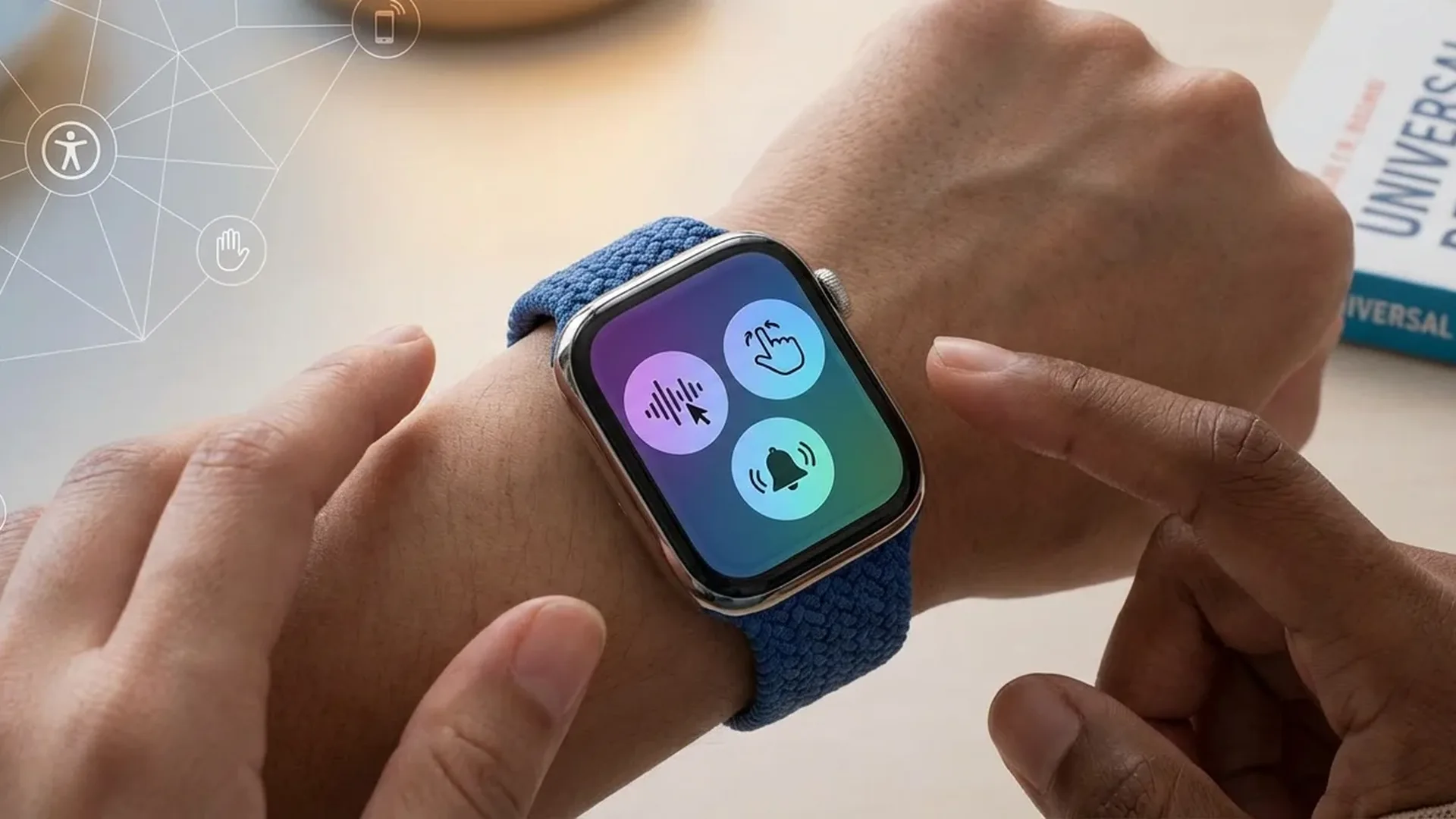
AssistiveTouch is arguably the most impressive accessibility feature on Apple Watch. It allows you to fully control the watch without touching the screen at all, using only hand gestures. The technology relies on the motion sensors and the optical heart rate sensor to detect subtle muscle movements in your wrist and hand.
The four core gestures are: clench (close your fist), double clench, pinch (touch your index finger to your thumb), and double pinch. Each gesture maps to an action. For example, pinch moves to the next item, double pinch goes to the previous item, clench activates the selected item, and double clench opens the action menu. Every part of the watch interface becomes accessible through these four simple movements.
Setting Up AssistiveTouch
Go to Settings > Accessibility > AssistiveTouch and enable it. Spend <10 minutes familiarizing yourself with the gestures. You can customize which action maps to each gesture based on your personal preferences and needs.
📖 Read more: Apple Watch Ultra 3: Is It Worth It After 3 Months of Use?
Visual Settings: Text and Display
watchOS 26 offers extensive settings for improving readability on the small screen. Bold Text makes all text heavier and easier to read at a glance. Dynamic Type lets you increase the font size across 7 levels, making messages and notifications readable even without glasses. The system font scales gracefully without breaking layouts.
The Reduce Motion setting minimizes transition effects and animations for users who experience dizziness or motion sensitivity from on-screen movement. The Zoom function magnifies any part of the screen by up to 15 times with a two-finger double tap. And On/Off Labels replace color-only indicators with clear I/O symbols on toggle switches, helping users with color blindness distinguish between states.
Features for Deaf and Hard of Hearing Users
For people with hearing difficulties, the Apple Watch offers multiple solutions built right into the operating system. Mono Audio combines left and right audio channels into one, so users with single-sided hearing loss don't miss any audio content. Haptic Alerts convert sound notifications into vibration patterns, allowing deaf users to receive all notifications through touch.
The Taptic Time feature is designed for users who can't or don't want to look at the screen to check the time. With a long press on the watch face, the watch produces a series of haptic taps that represent the time: long taps for hours, medium taps for tens of minutes, and short taps for single minutes. It is a discreet way to know the time during meetings or social events without looking at your wrist.
📖 Read more: watchOS 26: Complete Features Guide
Sound Recognition
The Sound Recognition feature uses on-device machine learning to identify important sounds in your environment and alert you through haptic feedback. It recognizes 8 different sounds: doorbell, fire alarm, siren, baby crying, kitchen appliance timers, running water, electrical appliance, and knocking on a door.
This feature is invaluable for deaf users who live independently. The watch becomes their ears, sending strong vibrations and on-screen notifications every time a significant sound is detected. Recognition accuracy exceeds 95% in typical home environments, and the system continuously improves through software updates.
Technology at its best is the kind that removes barriers. For us, accessibility is not a feature but a fundamental principle.
— Tim Cook, CEO AppleFall Detection and Wheelchair Mode
Fall Detection uses the gyroscope and accelerometer to detect serious falls. If you fall and don't move for 60 seconds, the watch automatically calls emergency services and sends your location to your emergency contacts. For users over 55, the feature is enabled automatically when setting up the watch for the first time.
Wheelchair Mode replaces step counting with push counting. Instead of the Stand ring, wheelchair users see the Roll ring, which encourages them to move regularly throughout the day. Workouts include specialized categories such as Outdoor Wheelchair Walk Pace and Outdoor Wheelchair Run Pace, with accurate calorie calculations tuned specifically for wheelchair movement patterns.
📖 Read more: Apple Intelligence on Watch: What It Brings
Apple Watch Mirroring and Type to Siri
The Apple Watch Mirroring feature lets you control your Apple Watch remotely through your iPhone. The watch screen appears on the iPhone display, and you can interact through touch on the larger screen. This is ideal for users with motor difficulties who struggle with the small watch display when precise interactions are needed.
The Type to Siri feature lets you type instead of speaking to Siri. This helps users with speech difficulties or in situations where speaking is not practical. Simply activate Siri and start typing through the small keyboard or the scribble interface. Every Siri command that works by voice also works by typing.
Setting Up for Elderly Parents
If you want to set up an Apple Watch for an elderly parent, enable Bold Text, large Dynamic Type, Fall Detection, Haptic Alerts at maximum intensity, and Quick Actions. Through Family Setup you can manage the watch remotely without your parent needing their own iPhone.
Quick Actions and Touch Accommodations
Quick Actions let you perform tasks with simple hand gestures. For example, you can answer a call by double-clenching your fist, or stop a timer with one quick motion. These gestures work even without AssistiveTouch enabled, making them accessible to all users as a convenience feature as well as an accessibility one.
Touch Accommodations adjust how the screen responds to touch input. You can set the touch duration (how long you need to hold before a tap registers), enable repeated touch ignoring, and change the touch recognition position. This helps users with tremors or involuntary hand movements interact with the watch more reliably and comfortably.
📖 Read more: Emergency SOS: Complete Emergency Guide
Live Captions and Future Features
Apple is working on Live Captions for Apple Watch, a feature that transcribes speech to text in real time directly on the watch screen. While the full implementation hasn't yet been released in all languages, the English version already works reliably enough for basic conversations and phone calls received on the watch.
Looking ahead, expect integration with Apple-certified hearing aids, improved AI-powered sound recognition, and possibly eye-tracking in future watch models. Apple has committed to making every new feature accessible from day one, and this philosophy is clearly evident throughout watchOS 26 and every accessibility setting available.
Frequently Asked Questions
Can a blind person use an Apple Watch?
Yes. With VoiceOver enabled, a blind person can navigate the watch entirely through touch gestures and audio feedback. Every screen element is described verbally with natural-sounding speech.
How does AssistiveTouch work without touching the screen?
It uses the motion sensors and optical heart rate sensor to detect muscle movements in the wrist. Fist clenches, finger pinches, and similar gestures provide full control of the watch interface.
Does Fall Detection notify someone if I fall?
Yes. If a hard fall is detected and you don't move within 60 seconds, the watch automatically calls emergency services and notifies your SOS contacts with your geographic location.
Is VoiceOver available in my language?
VoiceOver supports more than 40 languages including English, Greek, Spanish, French, German, and many more. You can customize speed, tone, and volume to suit your preferences.
Can I set up an Apple Watch for my elderly parent remotely?
Yes. Through Family Setup you can configure and manage an Apple Watch without your parent needing their own iPhone. Enable Fall Detection, large text, and Haptic Alerts for the best experience.
Do accessibility features cost extra?
No. All accessibility features are built into every Apple Watch at no additional cost. Prices start at 299 EUR for the SE and 449 EUR for the Series 10.