📖 Read more: Crash Detection: Real Rescue Stories
How to Activate Emergency SOS
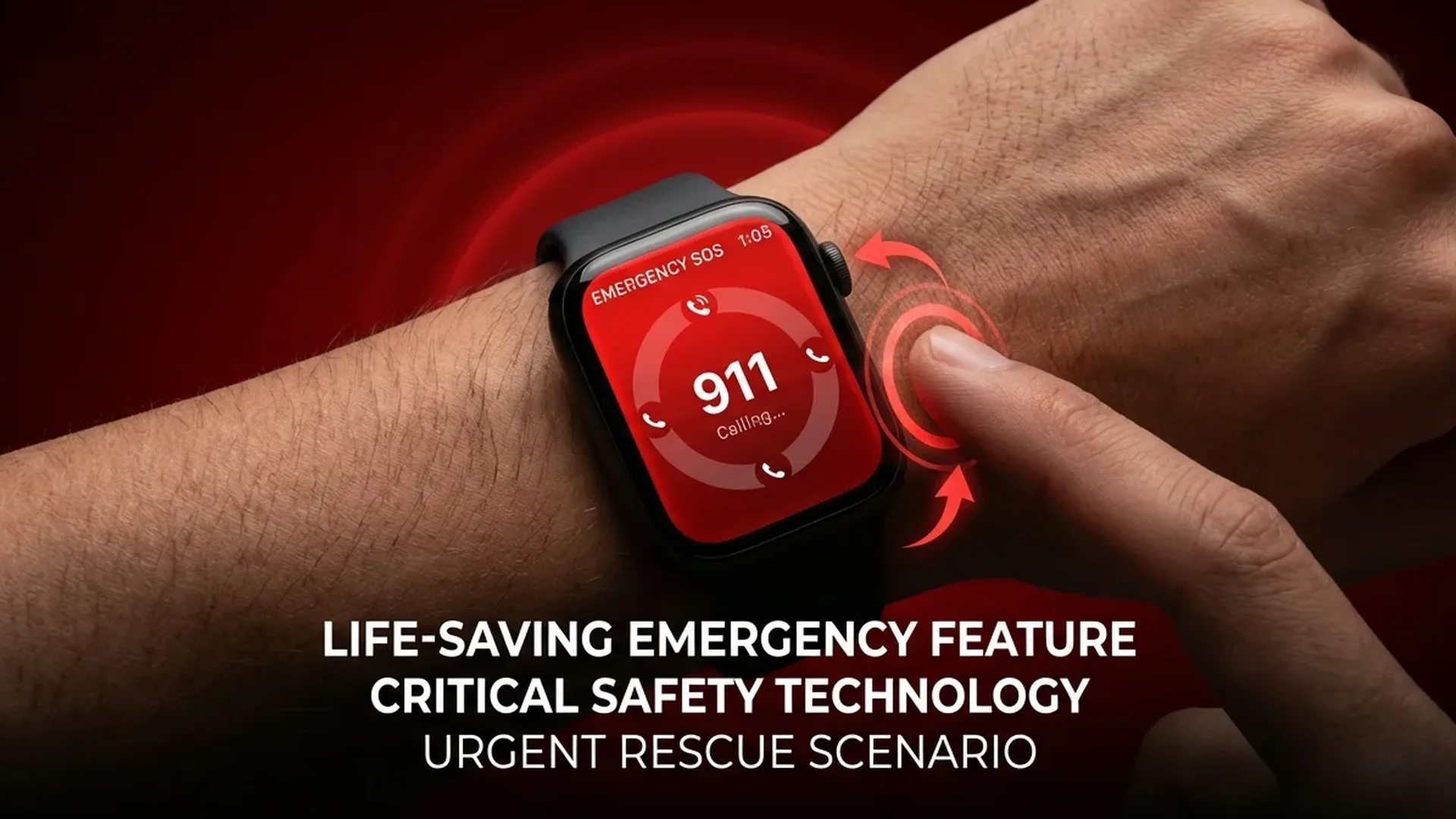
Emergency SOS is one of the most critical safety features on Apple Watch. In an emergency situation, it can automatically call first responders and notify the people you've designated as emergency contacts with your precise, real-time location.
Method 1: Press and Hold the Side Button
The most common activation method is to press and hold the side button for 3 seconds. A menu will appear with three options: Emergency SOS, Medical ID, and Compass (on Ultra models). Slide the Emergency SOS slider to begin the countdown.
Once you slide, an 8-second countdown begins with an audible alarm and haptic feedback. This gives you time to cancel if you pressed by mistake. After the 8 seconds, Apple Watch automatically calls emergency services in your current location.
Method 2: Five Rapid Presses
If you've enabled the relevant setting, you can press the side button 5 times rapidly. This method is particularly useful in panic situations where precise hand movements are difficult. The countdown starts immediately after the fifth press.
Silent Mode
If you're in a dangerous situation and don't want the alarm to sound, simultaneously press and hold the side button and Digital Crown. The call is made silently — with haptic feedback only, no audible alarm or visual flash. This is critical in cases of domestic violence, robbery, or any situation where making noise could put you at greater risk.
Important Warning
Never test Emergency SOS just for fun! The call goes to real emergency services and dispatches real first responders. If you call accidentally, don't hang up — explain to the operator that it was a false alarm. This is far better than an unexplained dropped call.
📖 Read more: Apple Watch Fall Detection Hit by ITC Patent Lawsuit
Emergency SOS via Satellite
One of the most revolutionary safety features on Apple Watch — available on the Apple Watch Ultra 2 and Ultra 3 — is the ability to contact emergency services via satellite, even when there's absolutely no cellular or Wi-Fi coverage available.
The feature uses Globalstar's low-Earth orbit (LEO) satellites. Your Apple Watch guides you to point your wrist toward the sky and shows which direction to face to connect with the nearest satellite. Connection typically takes 15–60 seconds depending on your geographic location, weather conditions, and surrounding obstructions like dense tree canopy or tall buildings.
Once connected, you can send predefined messages to emergency services. Apple has built a smart questionnaire system that asks about the nature of the incident — injury, lost, fire, vehicle accident, and more — so first responders know exactly what they're dealing with before they even arrive at your location.
Medical ID: Your Digital Health Identity
Medical ID is crucial when you're unable to communicate. It displays vital information to rescue personnel and paramedics: blood type, allergies, current medications, chronic conditions, and emergency contacts.
How to Set Up Medical ID
- Open the Health app on your iPhone
- Tap your profile photo (top right corner)
- Select Medical ID
- Tap Edit and fill in:
- Blood type
- Allergies (medications, food, environmental)
- Current medications and dosages
- Chronic conditions (diabetes, heart disease, epilepsy, etc.)
- Emergency contacts (at least 2 people recommended)
- Enable "Show When Locked" so it's visible even when the watch is locked
- Enable "Share During Emergency Call" to automatically send your medical info to dispatchers
Medical ID syncs automatically with your Apple Watch. Anyone — including paramedics and first responders — can access it by pressing and holding the side button on your watch, even without knowing your passcode.
📖 Read more: Apple Watch Series 11 with €100 Discount: Where to Find It
Fall Detection & Crash Detection
Fall Detection
If Apple Watch detects a hard fall — using its built-in gyroscope and accelerometer — it displays an alert on screen with haptic feedback. If you don't respond within 60 seconds, the watch automatically calls emergency services and sends a message with your GPS coordinates to your emergency contacts. The feature is automatically enabled for users over 55 years old, but you can manually enable it in settings at any age.
Crash Detection
Crash Detection uses advanced G-force sensors, the microphone, barometer, and GPS to detect a severe car accident. If the watch determines you've been involved in a vehicle collision — based on extreme impact forces and sudden deceleration — it displays an alert. If you don't respond within the timeout period, it automatically calls emergency services (911 in the US, 112 in Europe, and the appropriate number in other countries) and sends your exact location to authorities and your emergency contacts.
Setup & Compatibility
How to Configure Emergency SOS
- Open the Watch app on your iPhone
- Go to My Watch → Emergency SOS
- Enable the following options:
- Hold Side Button to Dial — activates SOS by holding the button
- Press Side Button 5 Times — activates SOS with rapid presses
- Countdown Sound — plays an audible alarm during countdown
- Review and update your emergency contacts
Does It Work Without an iPhone?
Yes! Emergency SOS works without an iPhone if your Apple Watch has cellular connectivity or is connected to a known Wi-Fi network. GPS-only models require the iPhone to be nearby to make the call. Satellite SOS on Ultra models works completely independently of any cellular or Wi-Fi network.
International Emergency Calling
Apple Watch automatically recognizes which country you're in and dials the correct emergency number. In the US it calls 911, in the UK it calls 999, and across Europe it calls 112. This means even if you're traveling abroad, you don't need to know the local emergency number — your Apple Watch handles it automatically.
After the call, Apple Watch automatically sends a text message with your real-time location to your emergency contacts. The location updates continuously, so if you move, your loved ones always know exactly where you are. This feature is particularly valuable for elderly users and people who live alone.
📖 Read more: Apple Watch Series 12: Rumors and Expectations
Travel Tip
Before traveling internationally, make sure International Emergency Calling is enabled in your settings. Also verify that your Medical ID has up-to-date information, especially if you take any prescription medications or have recently changed doctors.
Frequently Asked Questions (FAQ)
1. What happens if I accidentally trigger Emergency SOS?
Don't panic. You have an 8-second countdown window to cancel the call. If the call goes through, don't hang up — simply tell the operator it was accidental. This is far better than an unexplained dropped emergency call, which may trigger a welfare check dispatch.
2. Does Emergency SOS work without an internet connection?
Yes. The emergency call is made via the cellular network (a standard phone call), not via the internet. If you have an Apple Watch Ultra 2 or Ultra 3, you can even communicate via satellite without any network coverage whatsoever.
3. Do I have to pay for Emergency SOS via Satellite?
Apple offers Emergency SOS via Satellite for free for the first 2 years after activating a compatible device. After that initial period, a subscription fee may be required to maintain satellite access.
4. Which Apple Watch models support all emergency features?
Basic Emergency SOS works on all Apple Watch models from Series 4 and later. Fall Detection requires Series 4 or newer, Crash Detection requires Series 8 or later (including Ultra), and Emergency SOS via Satellite is exclusive to Apple Watch Ultra 2 and Ultra 3.
5. Can I customize which emergency contacts get notified?
Yes. Go to the Health app on your iPhone → Medical ID → Emergency Contacts. You can add multiple contacts, and each one will receive a text message with your real-time location when Emergency SOS is activated. We recommend adding at least two emergency contacts — ideally a family member and a close friend or colleague.