The Apple Watch is not just for adults. With the School Time feature, Apple creates a distraction-free environment for children during school hours. But School Time is not limited to students — it is also an excellent focus tool for anyone who wants to block apps and notifications during specific times of the day. Here is everything you need to know about setting it up in February 2026.
📖 Read more: Maps Offline: Navigation Without Internet
What Is School Time
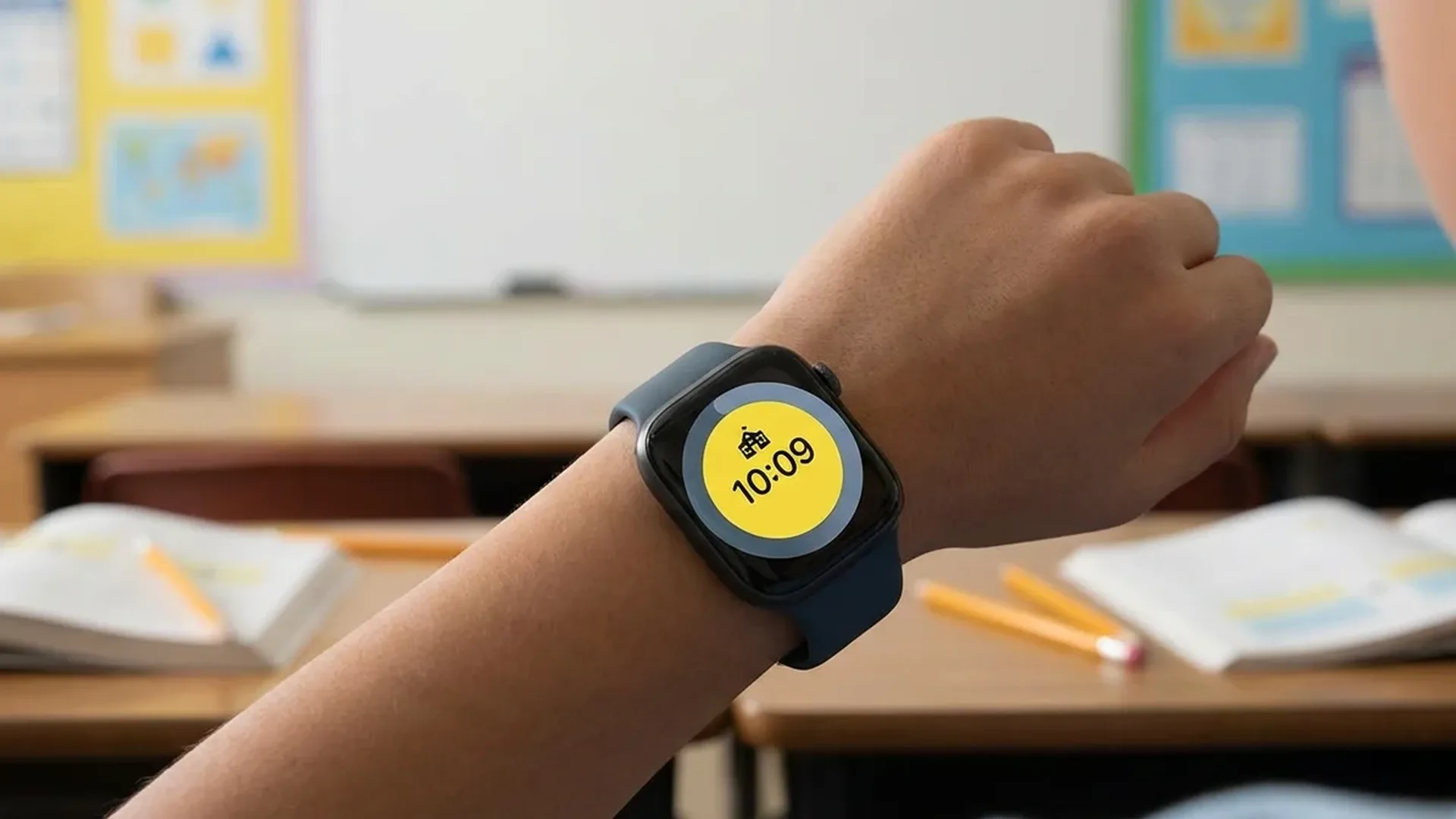
School Time is a feature Apple introduced with watchOS 7 as part of Family Setup. Its purpose is to restrict Apple Watch functionality during school hours so that children are not distracted in class. When activated, the watch displays a special watch face featuring a yellow circle and the time only — nothing else.
The logic is straightforward: during scheduled hours, all apps are blocked, notifications are silenced, and complications vanish. The child can only see the time and make emergency calls. Teachers and parents can easily verify that School Time is active by spotting the distinctive yellow circle on the screen. This visual indicator was specifically designed to be recognisable at a glance from across a classroom.
How to Set It Up
Setup is done through the parent's iPhone (in the case of Family Setup) or directly from your own paired iPhone. Follow these steps:
- Open the Watch app on iPhone
- Navigate to Schooltime (or School Time)
- Toggle the feature on
- Set the schedule (days and times)
- Choose which apps are allowed (optional)
The schedule is fully customisable: you can set different hours for each day of the week. For example, Monday through Friday from 08:00 to 14:00, while keeping weekends disabled. Or you can configure different end times depending on the school timetable for each day. This flexibility makes it suitable for irregular school schedules, after-school activities, or even adult work routines.
Not Just for Kids
School Time is not exclusively for children. Many adults use it as an alternative to Do Not Disturb for meetings, lectures, or deep work sessions. Its advantage is that it completely blocks apps, not just notifications. The yellow watch face serves as a deliberate visual reminder to stay focused.
The Yellow Watch Face
When School Time is active, the Apple Watch displays a distinctive yellow dial showing the time in large numerals. There are no complications, notifications, or other information visible. This yellow face is instantly recognisable — teachers can tell at a glance whether a student's watch is in school mode.
The choice of yellow is deliberate — it is vivid enough to be visible from a distance but not jarring. When the child raises their wrist, they see only the time — there is no temptation to check messages, games, or apps. This minimalist approach is remarkably effective at reducing digital distractions.
Safety: Emergency Calls
One of the most important features is that emergency calls remain active at all times during School Time. The child can call emergency services or designated SOS numbers at any moment. This ensures that safety is never sacrificed for the sake of concentration.
Additionally, if the parent has configured specific contacts as “allowed” in Family Setup, the child can receive calls from them even during Schooltime. This is useful for situations where a parent needs to urgently communicate with the child. The balance between restriction and accessibility is carefully calibrated — critical communication is always possible
"Since we activated School Time, my son stopped playing with his watch in class. His grades improved significantly and his teacher is pleased."
— Parent of a secondary school student, January 2026Differences from Do Not Disturb and Focus Modes
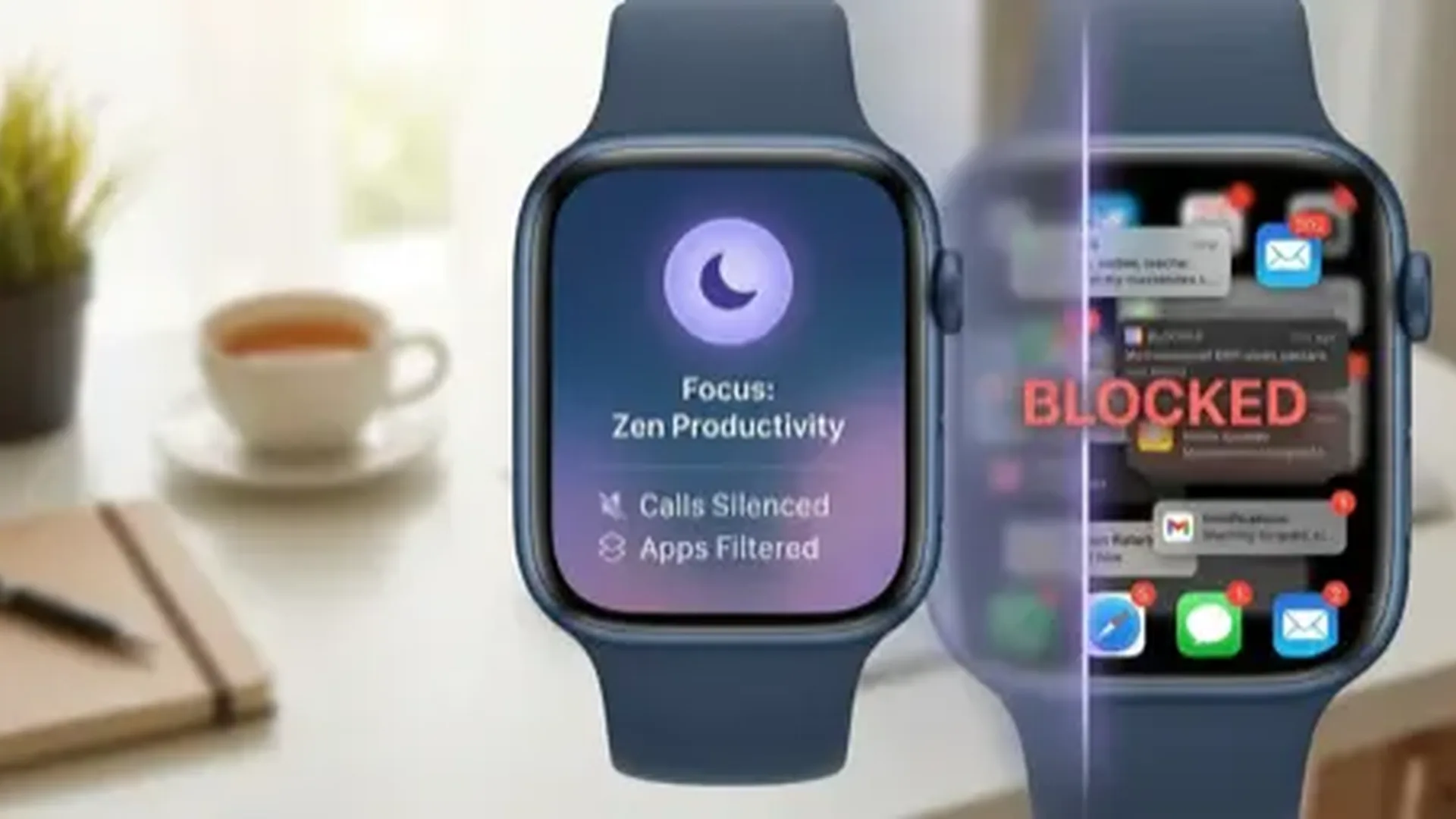
Many people ask why they should use School Time instead of Do Not Disturb or a Focus mode. The key difference is significant: Do Not Disturb silences notifications but does not block apps — the child can still open games and applications. Focus modes offer more options but are more complex to configure and do not change the watch face.
📖 Read more: Apple Watch Battery: 15 Tips for Longer Life
School Time, on the other hand, does three things simultaneously: blocks apps, silences notifications, and switches the watch face to one that shows only the time. Moreover, it records when the child exits School Time early, giving the parent full visibility. This combination of simplicity and accountability is what sets School Time apart from the other options available on watchOS.
Temporary Exit and Usage Reports
The child can temporarily exit School Time by turning the Digital Crown. This is intentional — Apple recognises there are situations where the child needs watch access, such as during break time. However, every exit is logged and recorded.
Parents can view usage reports in the Watch app on their iPhone. These reports show when the child deactivated School Time temporarily, for how long, and how many times. This transparency is important for parents who want to monitor behaviour without being overly restrictive. Apple has deliberately chosen to allow temporary exit rather than full lockdown, based on the philosophy that trust is more effective than control. The usage reports provide accountability without creating an oppressive atmosphere.
Usage Reports
Usage reports are available at Watch app → School Time → Usage Reports. There you can see exactly how many times and for how long School Time was deactivated each day.
Use by Adults
Although School Time was designed for children, an increasing number of adults are adopting it as a productivity tool. University students use it during lectures, professionals activate it in meetings, and some even use it as a “digital detox” — scheduling hours free from digital distractions every day.
The simplicity of School Time is its greatest strength: it requires no complex configuration, there are no confusing options, and it works reliably on every Apple Watch running watchOS 7 or later. It is the most effective solution for anyone who wants a complete distraction block rather than merely silenced notifications. Whether you are a parent managing a child's screen time or an adult struggling to stay focused during work hours, School Time offers a straightforward, no-nonsense approach to digital discipline on the wrist that simply works.
Frequently Asked Questions
Which Apple Watch models support School Time?
School Time is available on any Apple Watch running watchOS 7 or later. This includes the Apple Watch Series 3 and newer, as well as all SE and Ultra models.
Can I allow specific apps?
Yes, you can select specific apps that remain accessible during School Time. This is useful if, for example, you want the child to have access to the Stopwatch or Timer apps during school hours.
Can the child permanently disable it?
No. The child can temporarily exit School Time by turning the Digital Crown, but the feature will automatically re-engage. Only the parent can completely disable it through the Watch app on their iPhone.
Does it work with Family Setup?
Yes, School Time was originally designed as part of Family Setup for Apple Watches managed by a parent. However, it also works on standalone Apple Watches paired with your own iPhone.
Can I set different hours for each day?
Yes. The schedule is fully customisable. You can set different start and end times for each day of the week or disable School Time for specific days such as weekends.
Does it affect health tracking?
No. Health sensors (heart rate, steps, etc.) continue to function normally in the background during Schooltime. All health data is recorded as usual without interruption.
Can I set multiple School Time schedules?
Yes. You can create different schedules for each day of the week, adapting School Time to the school timetable for each day. This is particularly useful for secondary schools where the schedule varies daily. You can also add multiple time blocks within the same day, for example morning and afternoon if the child attends after-school tutoring. The flexibility of the scheduling system means it can accommodate virtually any school or activity timetable without compromise.