The Apple Watch can become an invaluable health and safety companion for your elderly parents or grandparents. Fall detection, emergency SOS calls, heart monitoring, medication reminders — all on their wrist. Follow this step-by-step guide to transform an Apple Watch into a personal safety device for the people you care about most.
Choosing the Right Model
Before setting anything up, you need to pick the best model for your senior. As of February 2026, the two main options are:
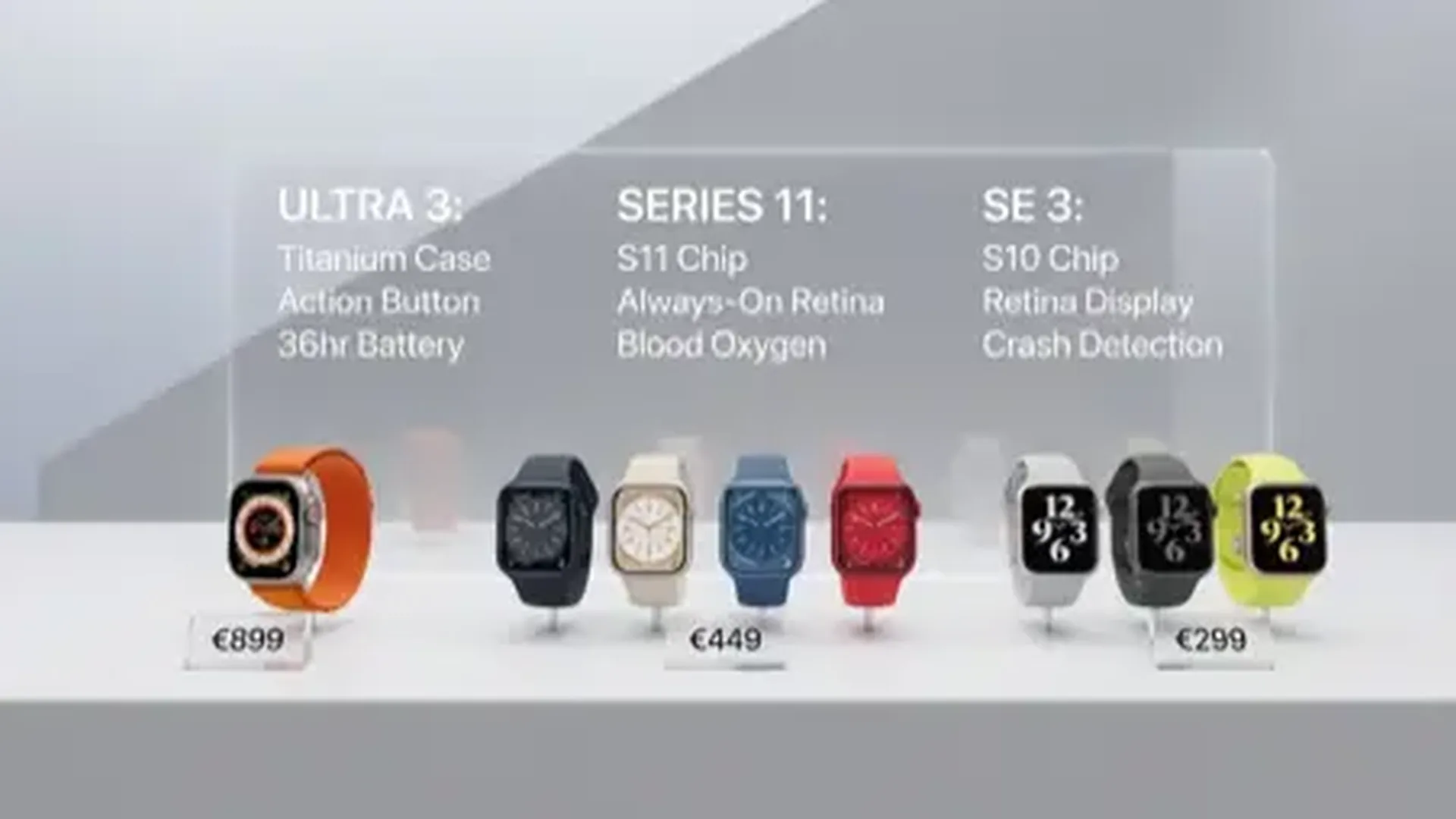
- Apple Watch SE (3rd generation): The budget option, starting at €279. Includes fall detection, Emergency SOS, heart rate sensor, and irregular rhythm notifications. Ideal if cost is a primary concern.
- Apple Watch Series 11: The full-featured option, starting at €449. Adds ECG (electrocardiogram), blood oxygen sensor, wrist temperature sensor, and Always-On display. The best choice when health monitoring is the top priority.
Key recommendation: If the budget allows, choose the Cellular model (GPS + Cellular). This allows the Watch to make calls and send SOS alerts even without an iPhone nearby — critical for seniors who may leave the house without their phone.
Family Setup: NOT Available in Greece
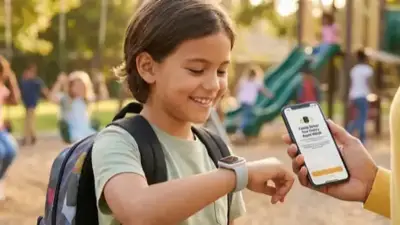
Apple offers a «Family Setup» feature that lets you set up an Apple Watch for someone who does not own an iPhone. Unfortunately, this feature is not available in Greece as of February 2026, as it requires Cellular carrier support from local providers. This means the elderly user will need an iPhone for initial pairing and certain functions. You can use an older iPhone (even an iPhone 8 or newer) as a «home base» that stays at the house.
Step-by-Step Initial Setup
Follow these steps to properly configure an Apple Watch for an elderly user:
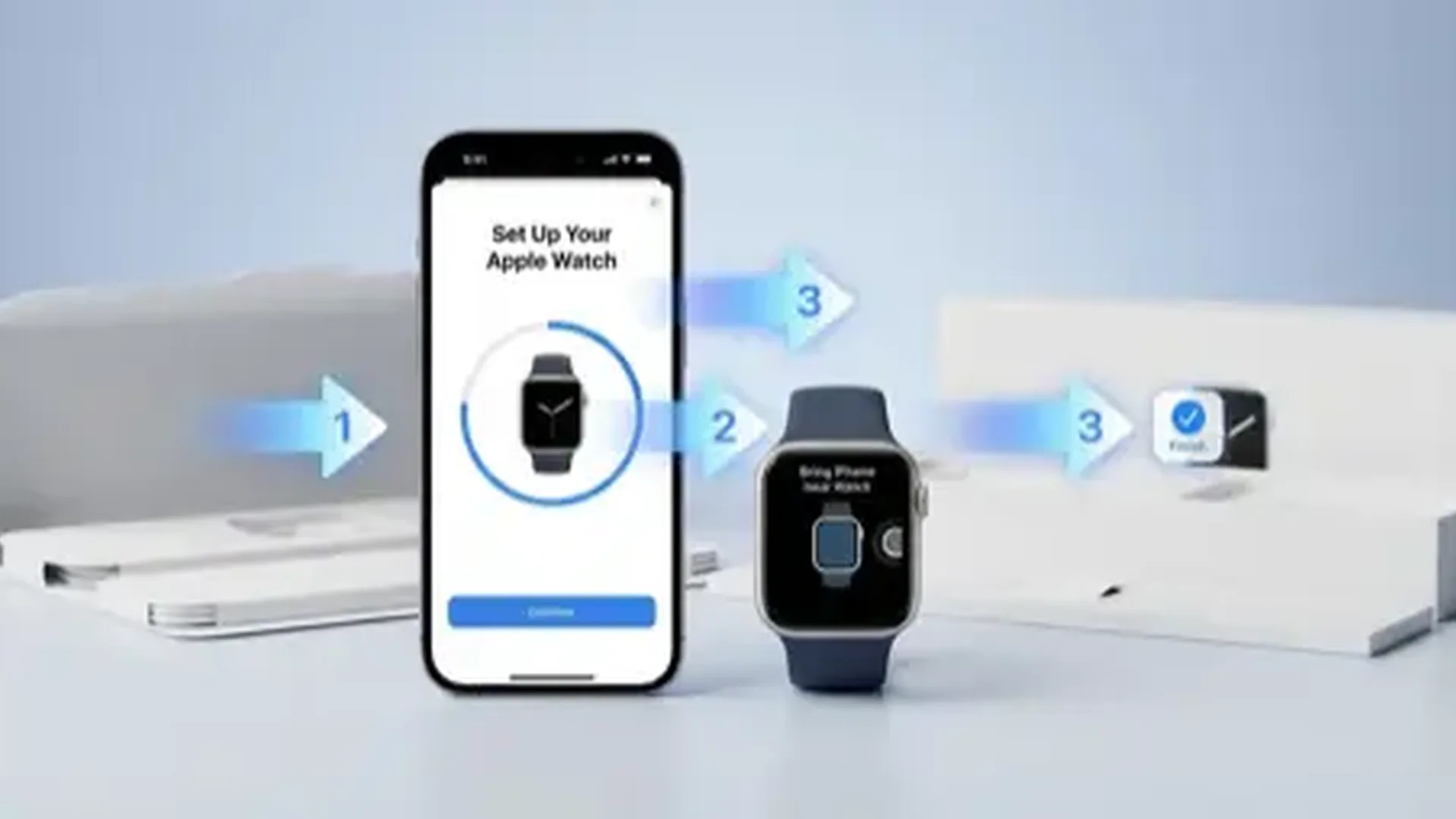
- Pair with iPhone: Open the Watch app on the iPhone and follow the pairing prompts. Make sure the iPhone is running iOS 18 or later.
- Text size: Immediately after pairing, go to Settings > Display & Brightness > Text Size and increase to maximum. Also enable Bold Text.
- Enable Zoom: Settings > Accessibility > Zoom. The user can magnify anything on screen with a double-tap of two fingers.
- Configure SOS: Settings > SOS. Ensure «Hold Side Button to Call» is turned on.
- Enable Fall Detection: Settings > SOS > Fall Detection > Always On. For users aged 65+, this is automatically enabled.
- Set up Medical ID: Through the Health app on iPhone, fill in all medical details.
Fall Detection: The Most Critical Feature
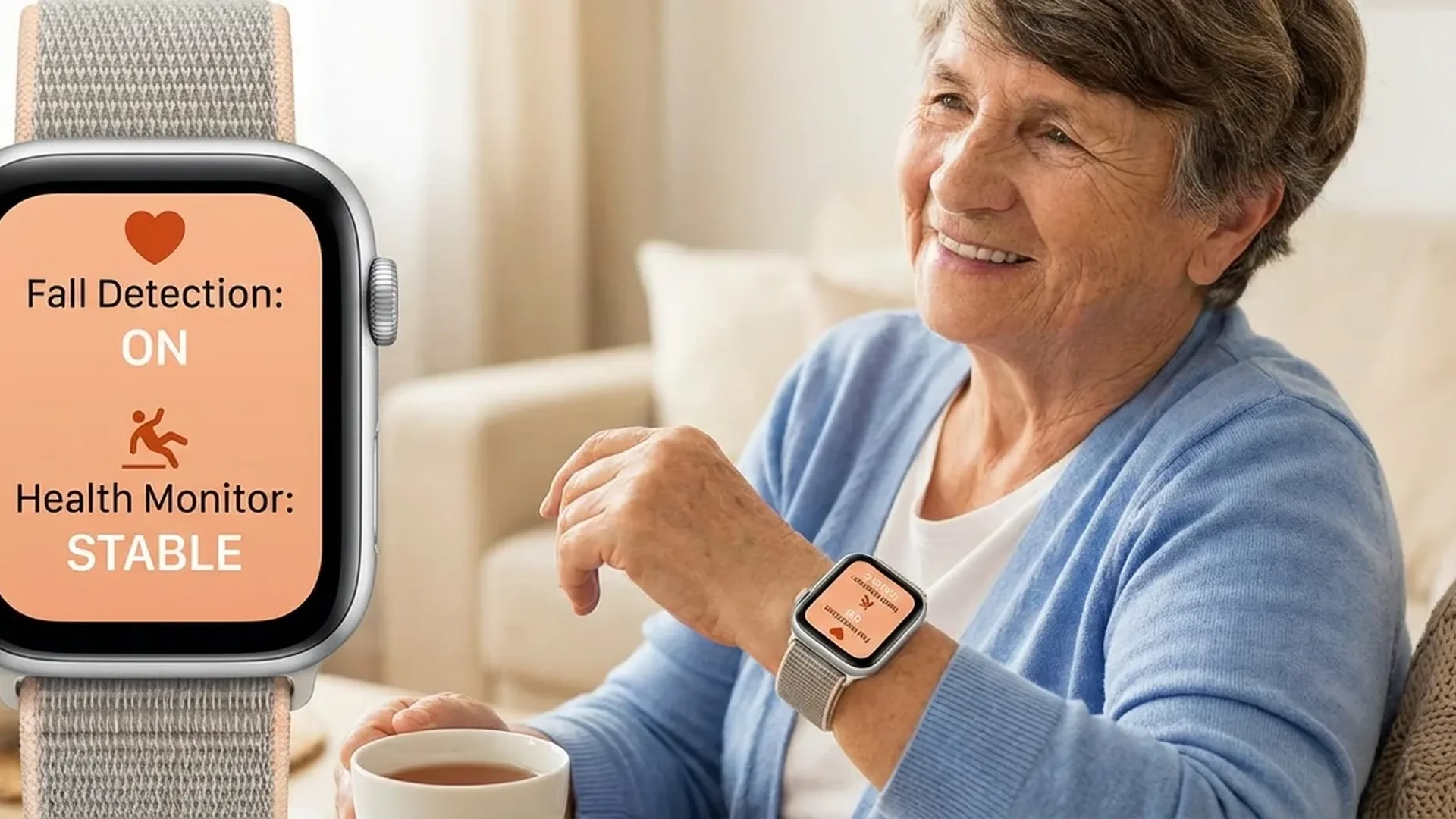
Fall Detection is arguably the single most important Apple Watch feature for elderly users. Using the built-in gyroscope and accelerometer, the Watch can recognise when the wearer has taken a hard fall. When a fall is detected, the Watch displays an alert on screen, taps the wrist, and sounds an alarm. If the user does not respond within 60 seconds, the Watch automatically calls emergency services and sends a location message to designated emergency contacts.
For users aged 65 and over, Fall Detection is enabled automatically during setup, based on the age in their health profile. If you are setting up the Watch on their behalf, make sure their date of birth is correctly entered so the feature activates by default.
Emergency SOS
By pressing and holding the side button, the Apple Watch initiates an emergency call — in Europe, this connects to 112. After the call, it automatically sends a text message with the wearer's GPS location to all designated emergency contacts. Set up at least 2-3 emergency contacts (children, spouse, neighbour) through the Health app on the paired iPhone. This feature works even with a GPS-only model, as long as the paired iPhone is within Bluetooth range.
Medical ID Setup
Medical ID is accessible from the Watch's lock screen by anyone — no passcode required. In an emergency where the wearer cannot communicate, first responders can instantly see vital information. Make sure you fill in:
- Allergies: Medications, foods, or other substances
- Medications: Current prescriptions, dosages, and schedules
- Blood type: Critical for emergency transfusions
- Medical conditions: Diabetes, heart disease, hypertension, etc.
- Emergency contacts: Names, relationships, and phone numbers
«Medical ID on Apple Watch can literally save lives. In an emergency, first responders can immediately see allergies, medications, and contacts — without the patient needing to speak a single word.»
— European First Aid Organisation, 2025Heart Health Monitoring
The Apple Watch offers three key heart monitoring capabilities, each particularly valuable for seniors:
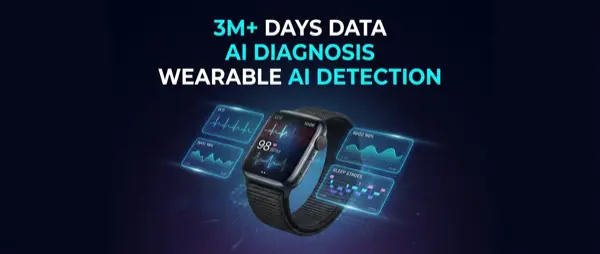
- Irregular Rhythm Notifications: Passively detects possible atrial fibrillation (AFib) in the background, without any user interaction. Available on both SE and Series models.
- High/Low Heart Rate Alerts: Warns if the heart rate drops below 40 bpm or rises above 120 bpm while at rest. Customisable thresholds.
- Electrocardiogram (ECG): Series 11 only. Records a 30-second ECG directly from the wrist. Results are stored as a PDF and can be shared with the user's doctor via email.
Configure the alert thresholds via the Watch app > Heart. For most elderly users, the default thresholds (high: 120 bpm, low: 40 bpm) are appropriate, but it is always worth confirming with their physician.
Medication Reminders
If the elderly user takes medications at specific times, the Medications app is invaluable. Through the Health app on iPhone:
- Tap «Medications» > «Add a Medication»
- Search for or type the medication name
- Set the dosage, form (pill, syrup, etc.) and schedule
- Enable notifications
Each day, at the scheduled time, the Apple Watch vibrates and displays a reminder. The user taps «Taken» or «Skipped», building a medication adherence history that can be shared with their healthcare provider.
Simplified Watch Face
Choose a watch face with large numbers and clear complications. The best options for seniors:
- X-Large: Displays only the time in enormous digits — ideal for users with vision difficulties
- Modular: Add complications for heart rate, medications, and the phone app
- Simple: Clean classic appearance with large, readable indicators
Remove any non-essential complications that might cause confusion: weather, activity rings, stocks, maps. Keep only the essentials: time, date, heart rate, and phone.
Noise Monitoring for Hearing Health
The Noise app measures ambient sound levels in decibels. If the elderly user is exposed to high-noise environments (above 80 dB) for extended periods, the Watch sends a notification. This is particularly useful for preventing additional hearing loss in users who may already have some degradation. Enable it via Settings > Noise > Environmental Sound Measurements.
Siri: Hands-Free Operation
Siri is ideal for elderly users who struggle with small buttons and touch interfaces. With a simple «Hey Siri» command, they can:
- Call contacts: «Hey Siri, call Maria»
- Send messages: «Hey Siri, text George»
- Set timers: «Hey Siri, set a timer for 20 minutes»
- Check the weather: «Hey Siri, what's the weather like?»
Enable «Raise to Speak» so the user can talk to the Watch without saying «Hey Siri» at all — they simply raise their wrist and start speaking. This is particularly intuitive for older users.
Why Cellular Is Worth the Extra Cost
The Cellular edition (GPS + Cellular) allows the Apple Watch to make calls, send messages, and trigger SOS independently of the iPhone. For elderly users who go for walks, visit neighbours, or step out without their phone, this can be genuinely life-saving. Cost: an additional €100 for the device plus €5-10 per month from a mobile carrier.
Battery Tips for Daily Use
For elderly users, charging needs to become part of a simple daily routine. Follow these tips:
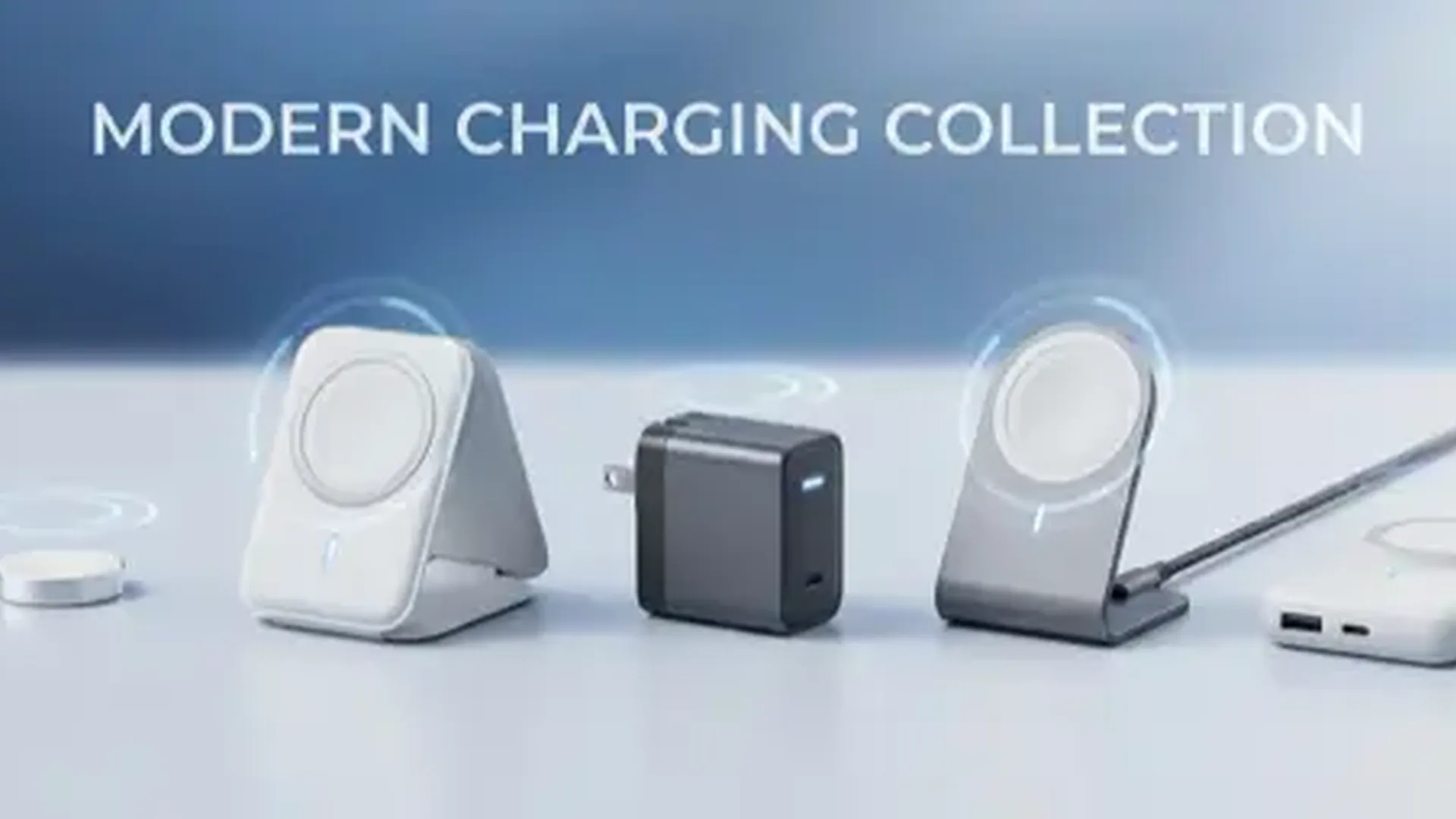
- Charge every night on the bedside table — enable Nightstand Mode so it doubles as a bedside clock
- If battery does not last the full day, enable Low Power Mode through Settings > Battery
- Turn off the Always-On Display if not needed — this saves significant battery life
- Reduce screen brightness to the minimum comfortable level
- Place the charger in an easily accessible spot — ideally right next to the bed, always in the same location
Setting Up Contacts for Quick Calling
Create a favourites list on the Apple Watch so the elderly user can call anyone with just 2-3 taps:
- Open the Contacts app on Apple Watch
- Long-press a contact and select «Favourite»
- Repeat for 5-6 key contacts (children, doctor, neighbour, close friend)
- Add the Phone complication to the watch face for instant access
Alternatively, use Siri: «Hey Siri, call my doctor» works perfectly when contact names and relationships are properly saved in the phone book.
Frequently Asked Questions
Does the elderly user need an iPhone?
In Greece, yes. Apple's Family Setup feature, which allows Watch use without a paired iPhone, is not available in Greece as of February 2026. You can use an older iPhone (iPhone 8 or newer) as a «home base» that stays at the house — the user does not need to carry it with them if the Watch has Cellular.
SE or Series — which should I buy?
If affordability is key, the SE covers fall detection, SOS, and heart rate alerts for €170 less. If health monitoring is the priority, the Series 11 adds ECG, blood oxygen, and wrist temperature — all extremely useful for seniors with heart conditions.
Can it be worn in the shower?
Yes. The Apple Watch has a WR50 water resistance rating (50 metres). It can be safely worn in the shower, though Apple recommends avoiding soaps, shampoos, and lotions that may damage the seals over time.
What if they cannot charge it themselves?
Place the magnetic charger in a fixed spot next to the bed. The magnetic puck makes connection effortless — simply place the Watch on top. Establish a routine: «Every night before bed, put the Watch here.» Consider using a charging stand that holds the Watch upright for easier placement.
Does fall detection work in a wheelchair?
Apple has optimised the fall detection algorithm for wheelchair users. In Settings > Accessibility > Wheelchair, you can enable the corresponding mode so the Watch correctly interprets movements and falls specific to wheelchair use.
How can I monitor their health data remotely?
Through Apple's «Health Sharing» feature, the elderly user can share their Watch health data with you. You will receive notifications if something unusual is detected — irregular rhythm, abnormally low heart rate, or a fall detection event — giving you peace of mind even from a distance.