Your Apple Watch stores a vast amount of personal data — from health metrics and activity history to settings and app layouts. But what happens if it breaks, gets lost, or you upgrade to a new model? In this comprehensive guide, we explain how Apple Watch backup works, what gets saved automatically, what doesn't, and how to ensure your data is always safe.
📖 Read more: Medications: Medicine Reminder Guide
How Apple Watch Backup Works
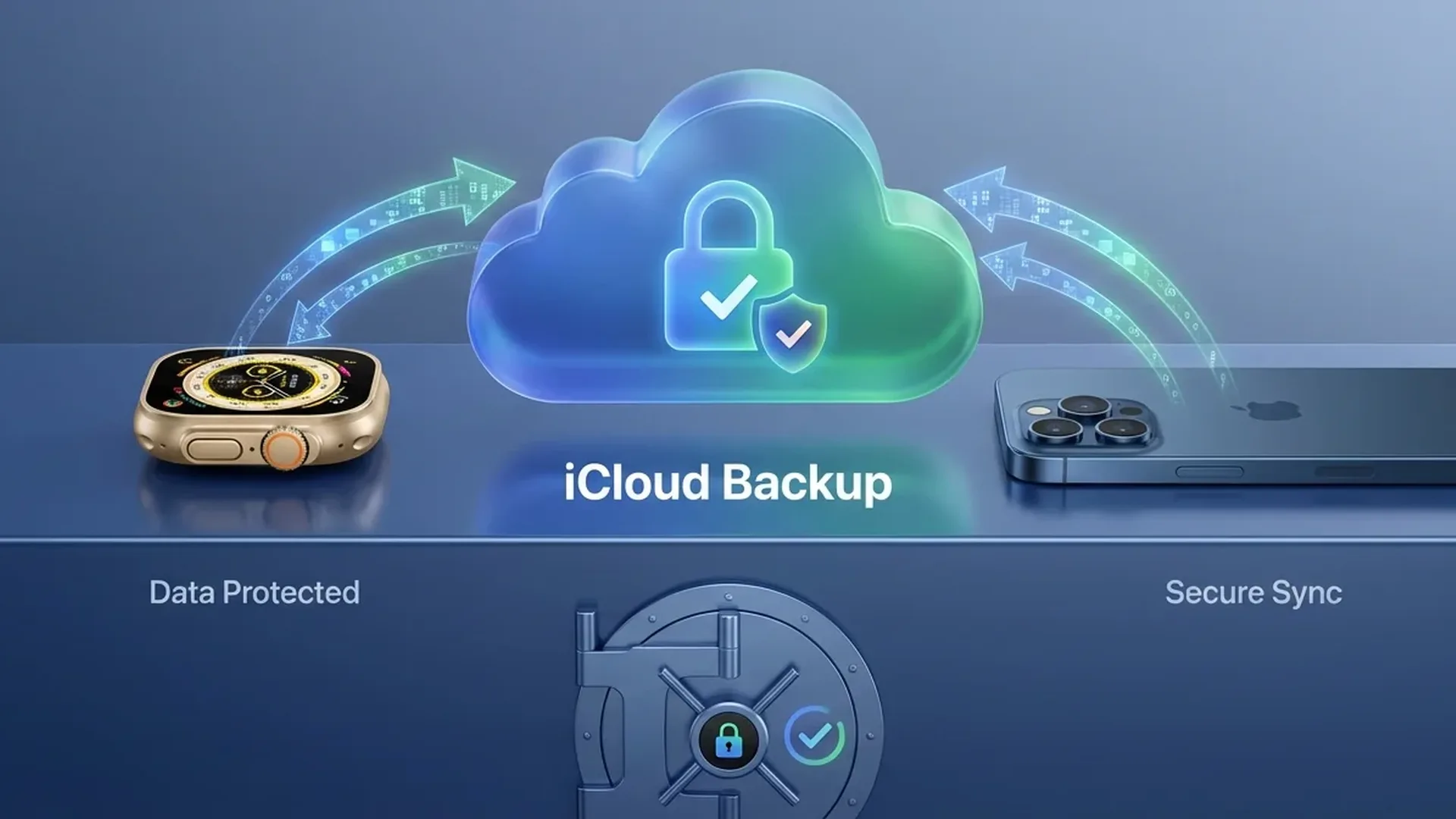
Unlike the iPhone, the Apple Watch doesn't ask you to manually set up a backup. The entire backup process happens automatically in the background. Every time your watch is connected to its paired iPhone via Bluetooth or Wi-Fi, your data is synced and saved.
The Apple Watch backup is stored on the paired iPhone, which in turn backs up to iCloud or your computer via Finder (on Mac) or iTunes (on Windows). This means that if you have iCloud Backup enabled on your iPhone, your Watch data is automatically included.
Apple designed this system to be completely transparent to the user. There is no dedicated “Backup Now” button for the Watch — the process runs automatically whenever the right connection conditions are met. However, there is a way to force a full backup, which we'll explain below.
What Gets Backed Up
The automatic Apple Watch backup includes an extensive list of data. If you ever need to switch watches or restore, the following will be recovered:
- Health Data: Heart rate, blood oxygen levels, wrist temperature, sleep history, and all health metrics tracked by your watch.
- Activity Data: Move, Exercise, and Stand ring history, award history, streaks, and achievements accumulated over time.
- Workout Data: Complete workout history, GPS routes, pace statistics, and heart rate zone analysis from every session.
- Device Settings: Brightness, sounds, haptics, language, wrist orientation, and all general preferences you've configured.
- App Layout: The position of every app on your Home Screen and their order in the Dock for quick access.
- Watch Face Configurations: All watch faces you've created, together with the specific complications selected on each one.
- Notifications & Dock: Per-app notification settings, Dock order, and your customized notification preferences.
- Accessibility: VoiceOver, AssistiveTouch, text size, and all other accessibility preferences you've enabled.
Important Note
Health data is end-to-end encrypted. For it to be included in your backup, you must have encrypted backups enabled in iCloud or on your computer.
What Does NOT Get Backed Up
While the backup is fairly comprehensive, certain items are not included. It's important to know these so you won't be caught off guard during a restore:
- Credit/Debit Cards (Apple Pay): For security reasons, payment cards are never stored in backups. You'll need to re-add them to Wallet after restoring.
- Bluetooth Pairings: Connections to headphones, heart rate sensors, or other Bluetooth accessories don't transfer. You'll need to pair them again.
- Synced Music: Songs or playlists that were downloaded locally to the Watch are not included in the backup. You'll need to sync them again.
- Watch Passcode: The Apple Watch passcode is not stored in backups for security purposes.
"Automatic backup on Apple Watch is one of the most underrated features of the Apple ecosystem — it works silently in the background and saves you when you need it most."
— Apple Support Community, 2026
Manual Backup: How to Force One
If you want to create a complete, up-to-date backup before switching watches or sending your Watch in for repair, there's a proven method to do so:
Step <1: Unpair Your Watch
Open the Watch app on your iPhone. Tap the “My Watch” tab, then tap the (i) icon next to your watch. Select “Unpair Apple Watch.” This action automatically forces a full backup before the unpairing process completes.
Step <2: Confirm
Your iPhone will ask you to confirm. If you have a cellular plan, you'll be asked whether you want to keep it. The process may take a few minutes depending on the volume of data stored on your watch.
Step <3: Storage
Once complete, the backup is saved to your iPhone. If you have iCloud Backup enabled, it will automatically upload to iCloud during the next iPhone backup cycle.
Pro Tip
For maximum data safety, create an encrypted backup of your iPhone via Finder or iTunes immediately after unpairing. This ensures that all health data is fully included in the archive.
📖 Read more: Precision Finding Apple Watch: Enable AirTag 2 Tracking
Restoring from a Backup
Restoring a backup to an Apple Watch is a simple, guided process. You can do it on a brand-new watch or on the same model after a factory reset.
Step <1: Pair
Turn on the Apple Watch and bring it close to your iPhone. The pairing screen will appear automatically. Follow the instructions to scan the swirling animation displayed on the watch screen.
Step <2: Choose “Restore from Backup”
When prompted, select "Restore from Backup" instead of “Set Up as New Apple Watch.” Your iPhone will display a list of available backups, sorted by date.
Step <3: Wait
Select the most recent backup and wait. The process typically takes <5-15 minutes, depending on data volume. The Watch will restart automatically once the restoration is complete.
After the restore, you'll notice that all your settings, watch faces, and activity data are back in place. Don't forget to re-add your payment cards and reconnect your Bluetooth accessories.
Troubleshooting Backup Issues
If you're experiencing problems with backup or restore, try these solutions:
Backup Won't Create
- Make sure both iPhone and Watch are running the latest software versions (iOS <19 and watchOS <12 in 2026).
- Check that there's enough iCloud storage space. If your storage is full, the backup cannot complete. iCloud+ plans start at <0.99€/month for <50GB.
- Restart both devices — this often resolves temporary bugs and connection issues.
- Toggle iCloud Backup off and on again in iPhone Settings > [Your Name] > iCloud > iCloud Backup.
Restore Fails
- Ensure the new Watch is running a watchOS version equal to or newer than the one used when the backup was created.
- Keep both devices close together within Bluetooth range throughout the process.
- Ensure both devices are connected to Wi-Fi and charging during the restore.
- If it continues to fail, try “Set Up as New” and sync your health data manually through iCloud.
No Backup Appears
If no backup appears during the pairing process, it's likely that no backup exists. This can happen if the user never paired the Watch before or if iCloud Backup was disabled on the iPhone. In this case, the only option is a fresh setup.
Best Practices for Data Safety
To maximise the safety of your Apple Watch data, follow these essential tips:
- Enable iCloud Backup: This is the foundation. Without it, Watch data exists only locally on the iPhone and is vulnerable to loss.
- Use Encrypted Backups: Only encrypted backups include health data, Wi-Fi passwords, and call history in full detail.
- Enable 2FA: Two-factor authentication on your Apple ID protects your backups from unauthorized access.
- Monitor iCloud Storage: Go to Settings > [Your Name] > iCloud to check how much space remains.
- Create Periodic Local Backups: Unpair and re-pair your Watch every <2-3 months to ensure you have a fresh backup copy.
Frequently Asked Questions (FAQ)
Can I back up my Apple Watch without an iPhone?
No. The Apple Watch relies exclusively on the paired iPhone for backup creation. There is no way to back up directly to iCloud from the watch itself.
Can I transfer a backup to a different Apple Watch model?
Yes, you can restore a backup to any Apple Watch model, as long as the new watch is running a watchOS version equal to or newer than the one used when the backup was created.
How much storage does an Apple Watch backup use?
A typical Apple Watch backup takes between <200MB and <1.5GB, depending on the number of installed apps, health data volume, and settings. If you use many third-party fitness apps, the size can increase significantly.
Is Fitness+ data included in the backup?
Fitness+ workout data (completed workouts, calories burned) is saved as part of your activity data. However, your Fitness+ subscription (starting at <9.99€/month) and progress in specific programmes are tied to your Apple ID, not to the backup.
How many backups are kept at once?
The system automatically retains the <3 most recent backups. Older backups are automatically deleted to save storage space.