The Apple Watch is the most popular wrist companion in the world — but battery life remains its biggest limitation. Whether you own a Series 11, Ultra 3, or SE, these 15 proven tips will help you squeeze significantly more hours out of every charge without sacrificing the features that matter most.
1. Reduce Screen Brightness
The display is the single biggest battery drain on any Apple Watch. Navigate to Settings → Display & Brightness and lower the brightness to medium or low. Unless you're in direct sunlight, the lower setting is perfectly readable. This simple adjustment alone can save 1-2 hours of battery life per day.
2. Turn Off Always-On Display
The Always-On Display looks impressive, but it comes at a significant energy cost. According to testing, disabling it saves approximately 30% battery life. Go to Settings → Display & Brightness → Always On and toggle it off. The screen will only light up when you raise your wrist or tap the display — a worthwhile trade-off for hours of extra battery.
Pro Tip
If you want to keep Always-On but still save battery, choose a watch face with a dark background. OLED pixels displaying black consume zero energy, so darker faces significantly reduce screen power draw.
3. Disable Wake on Wrist Raise
Every time you raise your arm, the screen activates — even if you didn't intend to check anything. In Settings → Display & Brightness, turn off “Wake on Wrist Raise.” Instead, tap the screen or press the Digital Crown when you actually want to check the time. This eliminates dozens of unnecessary screen activations throughout the day.
4. Use Wi-Fi Instead of Cellular
If you have a GPS + Cellular model, the LTE radio consumes significantly more power than Wi-Fi. When you're at home or the office, make sure the watch connects via Wi-Fi or Bluetooth to your iPhone. Only enable cellular when you genuinely need an independent connection — for example, during a run without your phone. Cellular connectivity can drain the battery 2-3 times faster than Wi-Fi.
5. Turn Off Background App Refresh
Many apps refresh data in the background even when you're not using them. Go to Settings → General → Background App Refresh and disable it for apps that don't need constant updates. Keep it enabled only for essentials like health alerts or weather. Every app refreshing in the background wakes the processor and consumes precious milliamp-hours.
6. Reduce Notifications
Every notification means a vibration, a screen activation, and energy consumption. Open the Watch app on iPhone → Notifications and disable alerts from apps you don't need on your wrist. Social media, email newsletters, and promotional notifications can wait until you check your phone. Cutting unnecessary notifications can save 10-15% battery over a full day.
7. Use Low Power Mode on Long Days
Low Power Mode is your best friend on demanding days. On the Series 11, it extends battery life to ~36 hours, while on the Ultra 3 it reaches an impressive ~72 hours. Enable it from Settings → Battery or swipe up to the Control Center. It disables background heart rate readings, Always-On Display, and reduces Wi-Fi notification frequency while keeping core features operational.
"Battery life isn't worn — it's managed. A small settings adjustment can give you hours of extra use."
— Apple Support Community
8. Disable Noise Monitoring
The Noise Monitoring feature continuously measures ambient decibel levels. If you don't work in a loud environment, turn it off at Settings → Noise → Environmental Sound Measurements. This stops the microphone from running constantly in the background, saving both battery and processing cycles throughout the day.
9. Shorter Haptic Duration
The Taptic Engine consumes energy with every vibration. In Settings → Sounds & Haptics, set the haptic intensity to minimum. For even greater savings, disable vibrations entirely and rely on sound or visual alerts instead. If you receive many notifications daily, the cumulative energy savings from reduced haptics can be significant.
10. Remove Unused Complications
Complications on your watch face — weather, calendar, stocks, and others — refresh regularly and consume battery. Each displayed complication makes background data calls to stay updated. Remove complications you don't use frequently and keep only the essentials like date and activity rings. Fewer complications mean fewer wake-ups and less network activity.
11. Use Simpler Watch Faces
Animated and graphically rich watch faces (Toy Story, Mickey Mouse, Kaleidoscope) consume significantly more energy than minimalist ones. Choose simple faces like Modular, Simple, or Numeral Duo with dark colour schemes. On an OLED display, the darker the background, the less power consumed — black pixels are literally turned off.
12. Turn Off Blood Oxygen at Night
Blood Oxygen (SpO2) measurements run automatically during sleep, activating LED sensors on the back of the watch. If you don't need that data, go to Settings → Blood Oxygen and disable the measurements. Expected saving: approximately 5-8% battery overnight, which means you start each morning with noticeably more charge.
13. Update to the Latest watchOS
Apple optimises energy efficiency with every watchOS update. watchOS 12 (2026) includes major improvements in battery management, featuring more efficient algorithms for health sensors and Bluetooth connectivity. Navigate to Settings → General → Software Update and make sure you're running the latest version. Each update typically brings measurable improvements in standby and active battery life.
14. Set Charging Limit to 80%
The Optimized Battery Charging feature learns your habits and pauses charging at 80% until close to the time you usually need the watch. This protects long-term battery health. You can also enable the Charging Limit under Settings → Battery → Battery Health, which stops charging completely at 80%. Lithium batteries degrade less when not charged to full capacity repeatedly.
Important: Battery Health
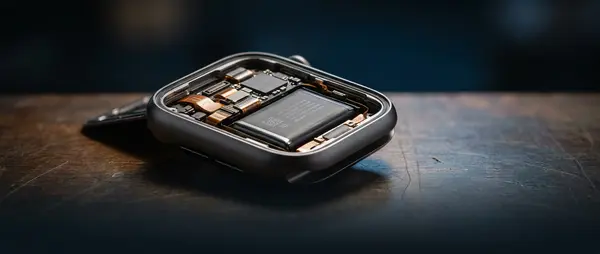
Apple recommends battery replacement when maximum capacity drops below 80%. Replacement costs range from €79 to €99 depending on the model. Check your Battery Health at Settings → Battery → Battery Health.
15. Monitor Battery Health
Your Apple Watch shows how healthy your battery is. Go to Settings → Battery → Battery Health and check the Maximum Capacity percentage. If it's below 80%, the battery needs replacement. Apple offers this service at authorised service centres for between €79 and €99. Additionally, if you notice the watch shutting down unexpectedly or draining in <4 hours, the battery definitely needs replacing.
Bonus: Combined Strategy
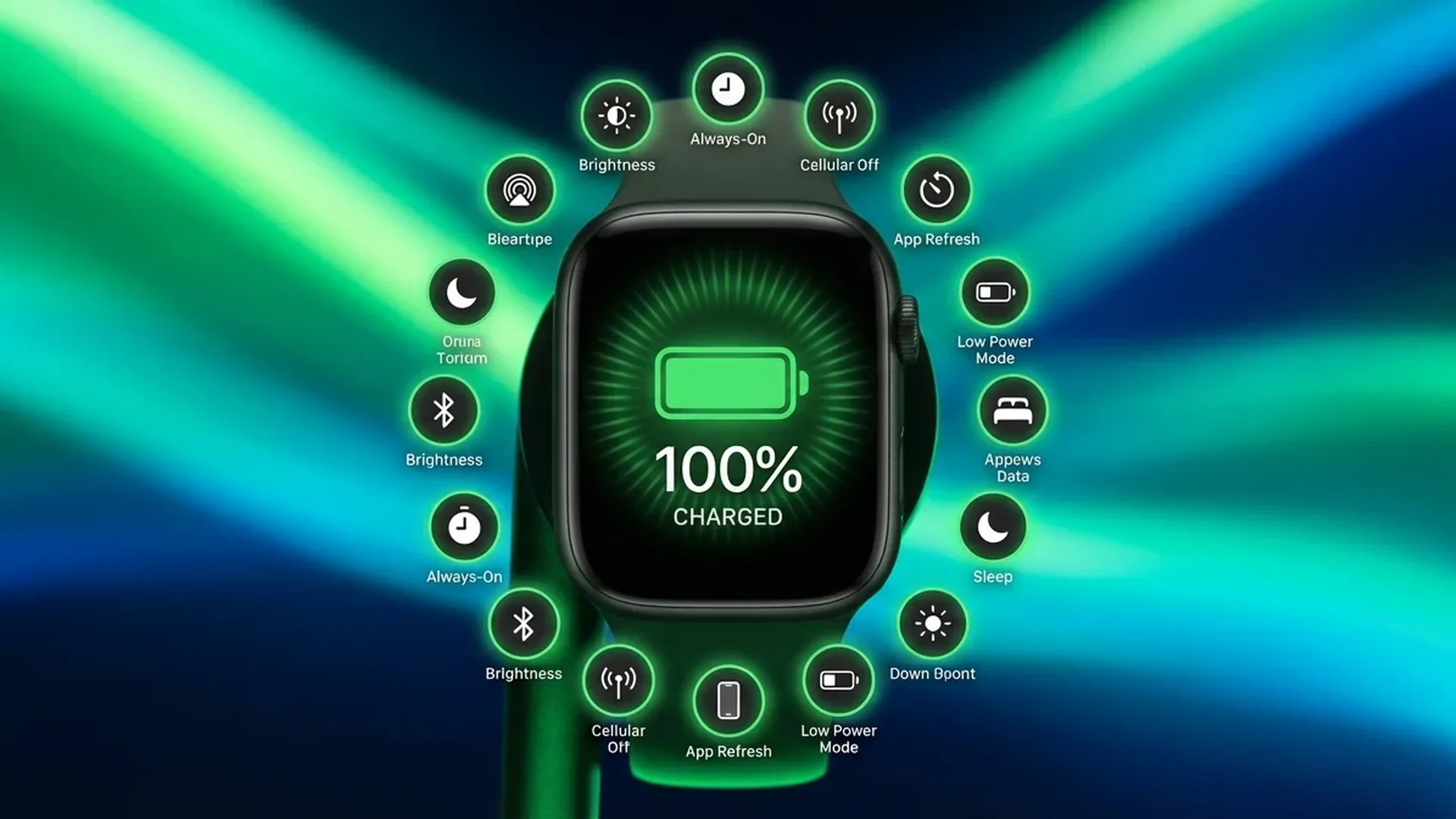
You don't need to apply all 15 tips at once. Start with the most impactful: disable Always-On Display (30% savings), reduce notifications, and remove unused complications. These three changes alone can add 3-5 hours to your daily battery life. On long days or when travelling, enable Low Power Mode for maximum endurance. The key is finding the balance between functionality and longevity that works for your lifestyle.
Frequently Asked Questions (FAQ)
How long does the Apple Watch Series 11 battery last?
Under normal use, the Apple Watch Series 11 lasts approximately 18 hours. With Low Power Mode enabled, battery life extends to ~36 hours. Actual duration depends on usage — frequent GPS workouts can significantly reduce battery life compared to light daily use.
Does Low Power Mode affect health features?
Yes, partially. In Low Power Mode, background heart rate measurements stop and the SpO2 sensor is disabled. However, sleep tracking, emergency SOS alerts, and fall detection continue to function normally. If health monitoring is critical to you, consider using Low Power Mode only when truly needed.
How much does battery replacement cost?
Apple Watch battery replacement costs between €79 and €99 depending on the model, at Apple authorised service centres. If your watch is covered by AppleCare+, replacement due to battery degradation (below 80% capacity) is free of charge.
What is Optimized Battery Charging?
It's a feature that learns when you usually remove the watch from its charger and pauses charging at 80% until shortly before that time. This reduces long-term wear on the lithium battery. It's enabled automatically but you can check it under Settings → Battery. Combined with the 80% Charging Limit, it significantly extends overall battery lifespan.
Should I let my watch drain completely?
No. Lithium-ion batteries do not require full discharge cycles. In fact, frequent full discharges can damage the battery. Ideally, keep the charge between 20% and 80% for maximum battery longevity. This is why features like Optimized Battery Charging and Charging Limit exist.