Imagine hiking in the mountains without signal, traveling abroad without roaming, or commuting underground — and your Apple Watch still guiding you turn by turn. Since watchOS 10, offline maps are a reality. In this guide, you'll learn how to download maps, how much storage they need, and how to make the most of this powerful feature.
📖 Read more: School Time: Distraction-Free Mode Guide
What Are Offline Maps on Apple Watch
Offline maps allow Apple Watch to store maps locally so you can navigate without an internet connection. This feature was introduced with watchOS 10 in fall 2023 and has been significantly improved in watchOS 11 and the current watchOS 12. Essentially, you download a region on your iPhone and the maps automatically sync to your watch.
Navigation happens turn-by-turn right on your wrist. You see the map, directional instructions, and receive haptic feedback (vibrations) at every turn. You don't need your iPhone nearby, you don't need cellular — just the Apple Watch on your wrist and the downloaded maps.
System Requirements
Offline maps require Apple Watch Ultra, Ultra 2, Ultra 3, or Series 9+ running watchOS 10 or later. Older models do not support this feature due to limited storage and processing power. On the iPhone side, you need iOS 17 or later.
How to Download Offline Maps — Step by Step
Step 1: Open Maps on Your iPhone
Start by opening the Apple Maps app on your iPhone. Tap your profile icon (bottom right) to access map settings.
Step 2: Select “Offline Maps”
In the menu you'll see the “Offline Maps” option. Tap it, then tap “Download New Map.”
Step 3: Choose Your Area
A map will appear with a blue rectangular frame. Drag, zoom in, or zoom out to select the area you want. A medium-sized city (e.g., Thessaloniki) needs about < 150-200 MB. An entire prefecture can reach < 400-500 MB.
Step 4: Download
Tap “Download” and wait. You need WiFi or cellular. The download goes to your iPhone first. Once complete, the maps automatically sync to your Apple Watch via Bluetooth or WiFi — this may take several minutes depending on size.
Step 5: Verify on Your Watch
Open the Maps app on your Apple Watch. If the download was successful, you'll see the map even without an internet connection. You can navigate, see points of interest, and receive turn-by-turn directions.
📖 Read more: Apple Watch Battery: 15 Tips for Longer Life
Storage Space and Management
The storage required for offline maps ranges from < 100 MB to < 500 MB per area, depending on how large a region you select and the level of detail included (roads, points of interest, topography). Newer Apple Watch models (Series 9, Ultra 2, Ultra 3) have < 64 GB of storage, so you can comfortably store multiple regions.
To manage your offline maps, go to iPhone → Maps → Profile → Offline Maps. There you'll see downloaded regions, the size of each, and you can delete any you no longer need. Maps update automatically at regular intervals when you have WiFi.
"Offline navigation on my Apple Watch literally saved me during a mountain hike. No signal, no iPhone, just my watch and the downloaded map."
— Apple Watch Ultra 2 UserIdeal Use Cases
Hiking and Mountaineering
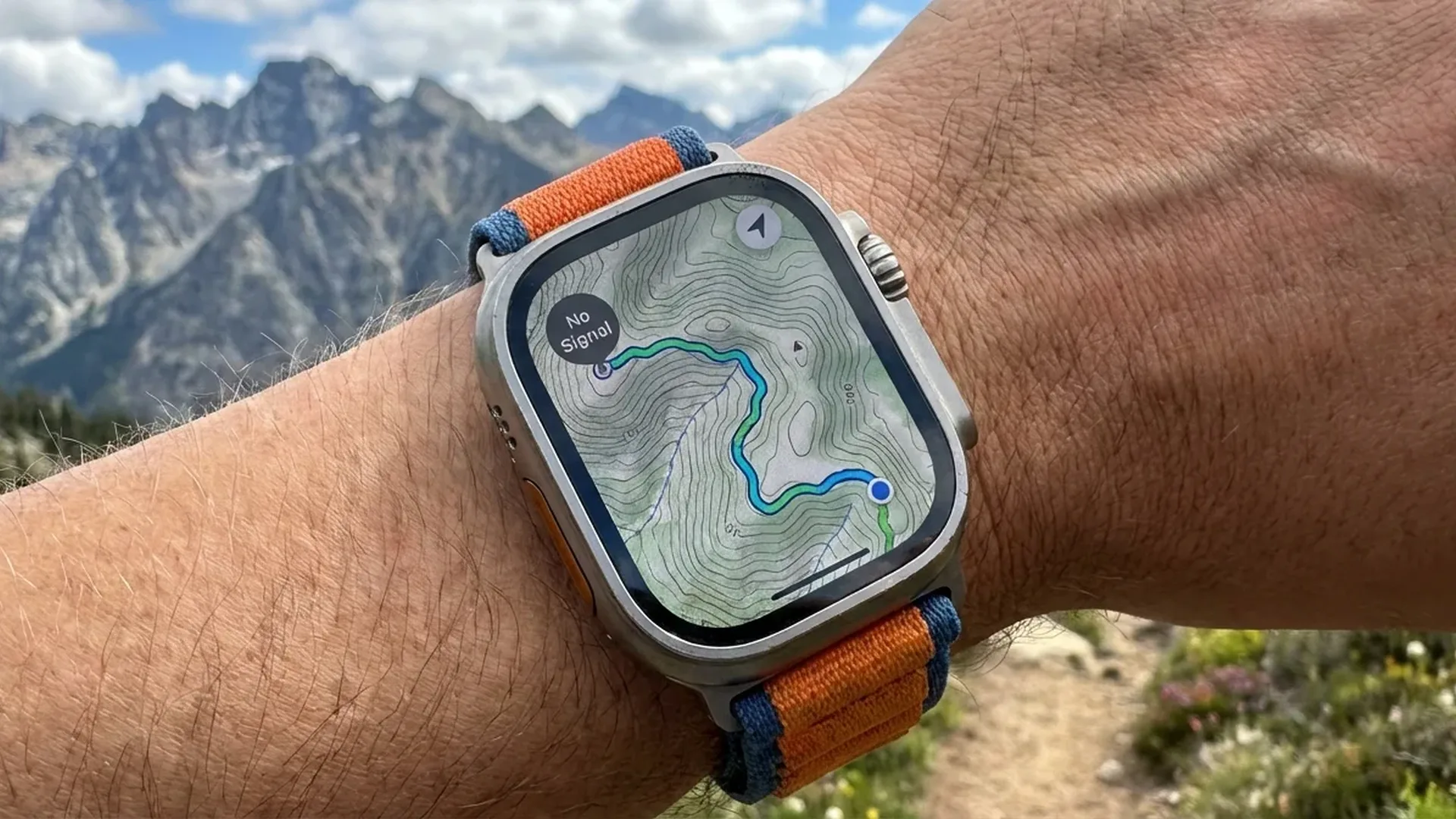
In mountain areas, cellular signal is nonexistent. With offline maps you can see the trail, elevation markers, and topographic details. On Apple Watch Ultra, topographic maps show contour lines, cliffs, rivers, and forested areas — information that's critical for safe hiking.
Traveling Abroad
Without roaming, you have no data. Download your destination city's maps before departure and navigate freely at zero cost. Particularly useful in countries outside the EU where data roaming charges are steep.
Subway and Underground Spaces
There's no signal in the subway. With downloaded maps, you can see stations, exits, and nearby points of interest before emerging. Ideal in large European cities with complex metro networks.
Areas with Poor Signal
Even in urban areas there are “dead zones” — buildings, underground parking, industrial areas. Offline maps ensure your navigation never drops out.
📖 Read more: Apple Watch Cellular: Is the Extra Cost Worth It in 2026?
Topographic Maps on Apple Watch Ultra
If you own an Apple Watch Ultra, Ultra 2, or Ultra 3, you get access to topographic maps — a feature unavailable on standard models. These maps display contour lines, lakes, rivers, hiking trails, and even buildings in 3D representation.
Combined with the Compass app and Waypoints, you can mark points of interest (e.g., water source, campsite, car) and navigate back to them even without signal. This integration makes the Apple Watch Ultra a genuine navigation tool, not just a gadget.
Battery Impact
Offline navigation uses GPS, compass, and display — three of the most power-hungry sensors on the watch. Expect roughly < 3-5% battery drain per hour of navigation. On Apple Watch Ultra, the larger battery means < 10+ hours of continuous GPS navigation. On standard models, this drops to < 5-7 hours.
Haptic Feedback — The Magic on Your Wrist
One of the most underrated features of Apple Watch navigation is haptic feedback. Instead of constantly staring at the screen, the watch alerts you with vibrations. Different vibration patterns mean “turn left,” “turn right,” or “you've arrived.” This is incredibly useful while cycling, running, or when you simply don't want to raise your wrist every ten meters.
Apple has designed three distinct haptic patterns: a steady tap on the left wrist means turn left, on the right means turn right, and a prolonged vibration means you've reached your destination. Combined with the Always-On Display, navigation becomes entirely hands-free — ideal for running in the city or cycling on unfamiliar roads.
The intensity of haptic notifications is adjustable via Settings → Sounds & Haptics. If you're wearing gloves (e.g., winter hiking), crank the intensity to maximum. In warm weather, the default setting works fine.
📖 Read more: Apple Watch vs WHOOP 5: Tracker or Smartwatch?
Waypoints and Compass — Pairing with Offline Maps
The Compass app on Apple Watch Ultra works in synergy with offline maps. You can create waypoints — digital markers at specific locations — and view them on the map or navigate to them. This feature requires no internet connection.
In practice, you can mark where you parked your car, where the trailhead is, or where you spotted something interesting. The compass shows direction and distance to each waypoint, even without signal. This capability has genuinely helped hikers in challenging conditions.
Frequently Asked Questions (FAQ)
Do offline maps work on Apple Watch SE?
No. Offline maps require Apple Watch Series 9, Ultra, Ultra 2, or Ultra 3 (or newer). The Apple Watch SE does not support this feature due to hardware limitations. If the SE is your current device, you'll need to upgrade to a newer model to access offline maps.
How much storage do I need?
Depending on the area, < 100-500 MB. A mid-sized city needs ~< 120 MB. An entire metro area ~< 300 MB. Apple Watch Series 9+ models have < 64 GB of storage, so even < 10 regions fit comfortably.
Do maps update automatically?
Yes. When your iPhone connects to WiFi, offline maps update automatically and then sync to the Watch. You can configure the update frequency or trigger a manual update.
Can I navigate by car without internet?
Yes, turn-by-turn navigation works offline, but you won't have real-time traffic information. The route is calculated based on the stored map. Rerouting works as long as you remain within the downloaded area.
What happens if I leave the downloaded area?
If you go beyond the boundaries, the map won't load for the new area — you'll see blank space. That's why we recommend downloading a sufficiently large region, especially for hiking or road trips. A good rule of thumb is to download an area at least twice the size of your planned route to account for detours, rerouting, and exploration along the way.
Can I use Google Maps offline on the Watch?
As of February 2026, only Apple Maps supports offline maps on Apple Watch. Google Maps on the Watch does not offer offline downloads. This may change in the future, but for now Apple Maps is the only option. It's worth noting that Apple Maps has improved dramatically in recent years in both accuracy and coverage, especially across Europe and the Mediterranean region.