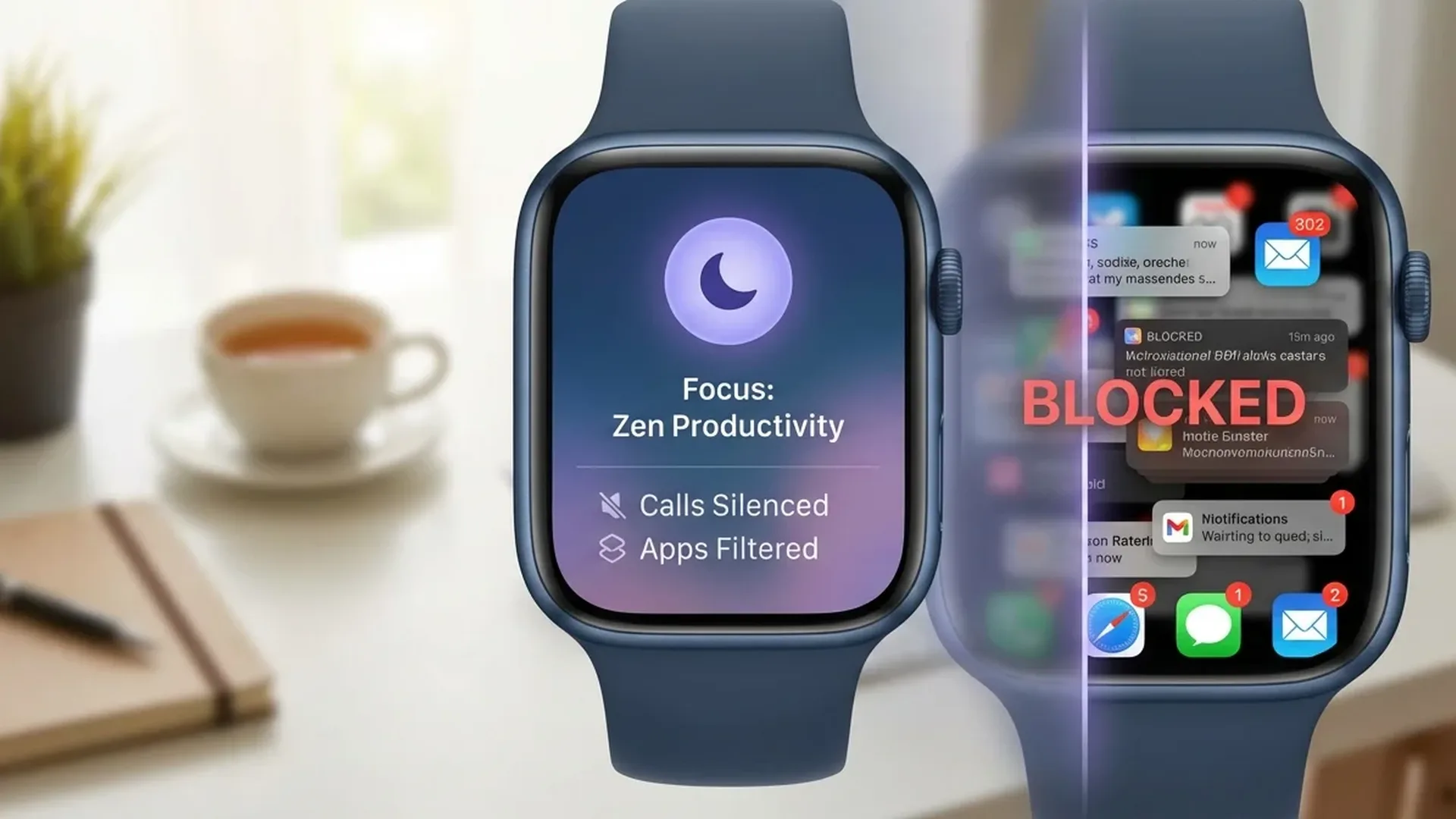
Your Apple Watch receives dozens of notifications every day — from messages and emails to news and reminders. Focus Mode gives you complete control over which notifications reach your wrist and when. In this guide, we break down every aspect of Focus Mode notification filters, from basic setup to the new Apple Intelligence features that arrived with iOS 18.1 and iOS 18.2.
📖 Read more: Apple Intelligence on Watch: What It Brings
What Is Focus Mode
Focus Mode was introduced in iOS 15 and watchOS 8 as an evolution of the classic Do Not Disturb feature. Instead of a single on/off toggle, Focus Mode lets you create multiple concentration profiles with different notification rules based on your activity. Each profile determines which apps and contacts can notify you, while simultaneously changing the appearance of your lock screen and Apple Watch face.
Apple provides <10 pre-built Focus profiles: Do Not Disturb, Personal, Work, Sleep, Fitness, Driving, Reading, and Mindfulness. Beyond these, you can create your own custom Focus modes with full customization options tailored to your lifestyle.
Core Principle
Each Focus Mode acts as a separate notification filter. You set which people and which apps “pass through” the barrier — everything else stays silent until you deactivate the Focus.
Notification Filters: How They Work
Allowed Contacts
In each Focus Mode, you define which contacts can send you notifications. You can select specific individuals or entire groups (e.g., “Favorites”). Starting with iOS 16, Apple added the ability to use reverse filtering — meaning you can silence specific people instead of only allowing certain ones. This provides significantly more flexibility for users who want to block a small number of distracting contacts rather than building an entire allow list.
Allowed Apps
Besides contacts, you also configure which apps can display notifications. For example, in your Work Focus you might allow only Slack, Teams, and Mail, while in Personal Focus you only allow Messages, Instagram, and WhatsApp. Notifications from non-approved apps are stored silently in the Notification Center without any sound or haptic feedback on your Apple Watch.
Time Sensitive Notifications
Certain notifications are marked as “Time Sensitive” — for example, a medication reminder or a security alert from your bank. These can break through your Focus and appear even if their app is not on the allowed list. This ensures you never miss critical alerts. If you prefer stricter silence, you can disable Time Sensitive breakthrough in the Focus settings.
📖 Read more: Apple Watch and 5G: The New Era of Connectivity
Focus Filters: Advanced Customization
Focus Filters, introduced in iOS 16, go a step beyond simple notification filters. They control how apps behave during an active Focus:
- Mail: Show only specific email accounts (e.g., only your work account during Work Focus)
- Safari: Display a specific Tab Group relevant to your current activity
- Messages: Filter conversations based on the active Focus profile
- Calendar: Show only relevant calendars (work events during Work, personal during Personal)
- Low Power Mode: Automatically enable battery saving during Sleep Focus
This means that when you activate Work Focus, the Mail app on your Apple Watch shows only your corporate emails, while personal messages are hidden automatically without being deleted. The same principle applies to Calendar, which displays only your work meetings during business hours.
Automation and Smart Activation
Scheduling Focus Modes
Each Focus can be activated automatically based on <3 types of triggers:
- Time: E.g., Work Focus activates 09:00–17:00, Sleep Focus from 23:00–07:00
- Location: E.g., Fitness Focus activates when you arrive at the gym
- App: E.g., Reading Focus activates when you open the Books app
Smart Activation
Your iPhone learns your daily habits and suggests or automatically activates the appropriate Focus. For instance, if every Monday at 09:00 you manually enable Work Focus, after a few weeks the device starts doing it on its own. This machine learning runs entirely on-device, so no data leaves your iPhone. The learned patterns also sync to your Apple Watch through iCloud.
Cross-Device Synchronization
When you activate a Focus on your iPhone, it automatically activates on your Apple Watch, iPad, and Mac. Conversely, you can enable or disable a Focus directly from the Apple Watch Control Center. If you want independent control per device, you can turn off the “Share Across Devices” setting.
📖 Read more: Apple Watch Cellular: Is the Extra Cost Worth It in 2026?
Focus Mode on Apple Watch
Linking Watch Faces to Focus
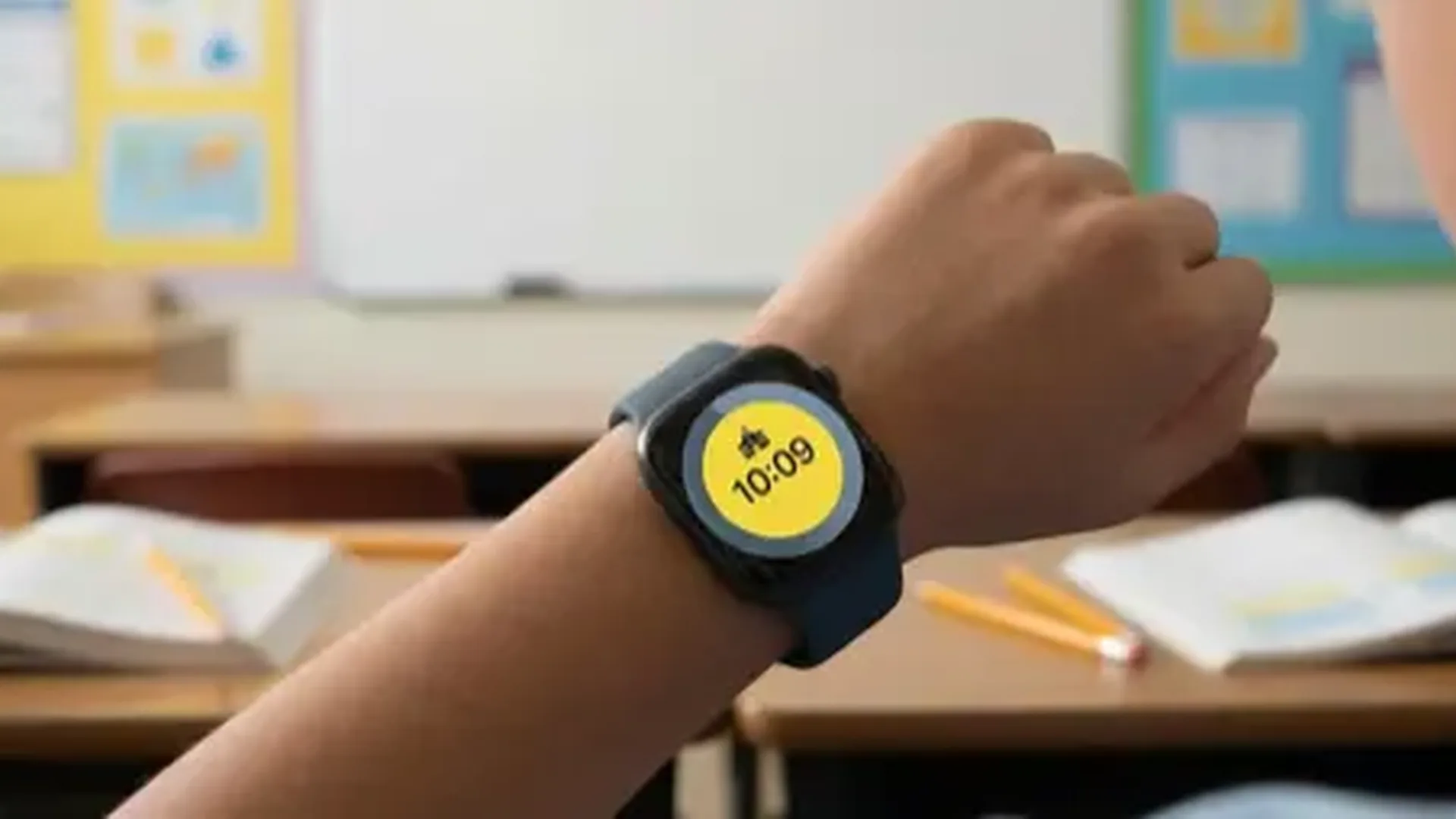
One of the most practical features is linking a specific watch face to each Focus. When Work Focus activates, your Apple Watch automatically switches to a face with professional complications like Calendar, Mail, and Reminders. During Fitness Focus, it switches to a face showing Activity Rings and Workout shortcuts. This means you never need to manually change your watch face throughout the day — the Focus system handles it seamlessly.
Activating Focus from Your Wrist
From your Apple Watch, you can fully control Focus modes without touching your iPhone. Swipe up to the Control Center, tap the Focus icon (crescent moon), and select the Focus you want. You can also see which Focus is currently active at the top of your watch face at any time. Long-pressing a Focus in the Control Center reveals additional options including timers and schedule details.
Fitness Focus and Workouts
The Fitness Focus activates automatically during workouts on your Apple Watch. It silences nearly all notifications except phone calls from your favorites and Time Sensitive alerts. This ensures your training session is not interrupted by a notification about a new Instagram follower or a marketing email. When the workout ends, your previous Focus state is automatically restored.
Apple Intelligence and Smart Filters
Reduce Interruptions (iOS 18.1+)
With iOS 18.1 and watchOS 11, Apple introduced the “Reduce Interruptions” Focus mode powered by Apple Intelligence. Instead of static lists of apps and people, the AI analyzes the content of each notification and decides whether it is genuinely important. A message reading “Your flight gate has changed” will break through, while a “New promo offer” will be silenced. This represents a fundamental shift from rule-based filtering to context-aware intelligence.
Intelligent Breakthrough & Silencing (iOS 18.2+)
In iOS 18.2 and watchOS 11.2, Apple Intelligence evolved further. It now understands the meaning of each notification — even within third-party apps — and autonomously decides whether it should break through the Focus. This means you no longer need to maintain long exception lists — the AI handles that for you, adapting in real time to the urgency and context of every incoming notification.
Focus Status Sharing
When someone sends you a message while you have an active Focus, iMessage notifies them that your notifications are silenced. They can still tap “Notify Anyway” for urgent matters. You can enable or disable this feature per Focus profile, giving you granular control over who knows about your availability status.
📖 Read more: Apple Watch Series 11 with €100 Discount: Where to Find It
Step-by-Step Setup Guide
- Open Settings on your iPhone and tap Focus
- Tap + to create a new Focus or select an existing one
- Under Allowed People, add the contacts you want to be able to notify you
- Under Allowed Apps, add the apps you want to show notifications
- Under Focus Filters, configure how Mail, Calendar, and other apps behave
- In Customize Screens, link a specific Apple Watch face to this Focus
- In Schedule or Automation, add time, location, or app-based triggers
- Enable Share Across Devices for automatic synchronization with Apple Watch
Frequently Asked Questions
Can I have a different Focus on my iPhone and Apple Watch simultaneously?
Yes, if you disable “Share Across Devices” you can control each device independently. By default, however, the Focus syncs across all your Apple devices including your Apple Watch.
What happens to phone calls during Focus Mode?
You can configure whether calls always come through, only from favorites, or are silenced completely. There is also the “Allow Repeated Calls” setting — if someone calls you < 2 times within 3 minutes, the second call breaks through the Focus.
Does Smart Activation work on Apple Watch without iPhone?
Smart Activation relies primarily on your iPhone. On an Apple Watch with Cellular, Focus modes work independently but without Smart Activation — you need manual activation or pre-configured schedules when away from your iPhone.
Do I need Apple Intelligence to use Focus Mode?
No. Focus Mode works fully without Apple Intelligence on any iPhone running iOS 15+ and any Apple Watch running watchOS 8+. Apple Intelligence (available on iPhone 15 Pro and later) adds extra smart filtering capabilities through the Reduce Interruptions Focus, but is not required for standard Focus Mode functionality.
Can I see notifications that were silenced by Focus?
Yes. All silenced notifications are stored in the Notification Center. When you deactivate the Focus, a summary of everything you missed appears — particularly useful on Apple Watch where you can quickly scroll through the summary directly from your wrist.
How many custom Focus modes can I create?
You can create up to <10 custom Focus modes in addition to the pre-built ones. This means the total number exceeds <18 Focus profiles — more than enough for every activity and situation in your daily routine.