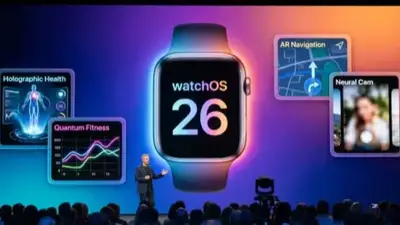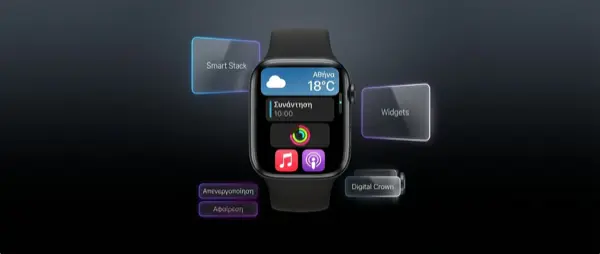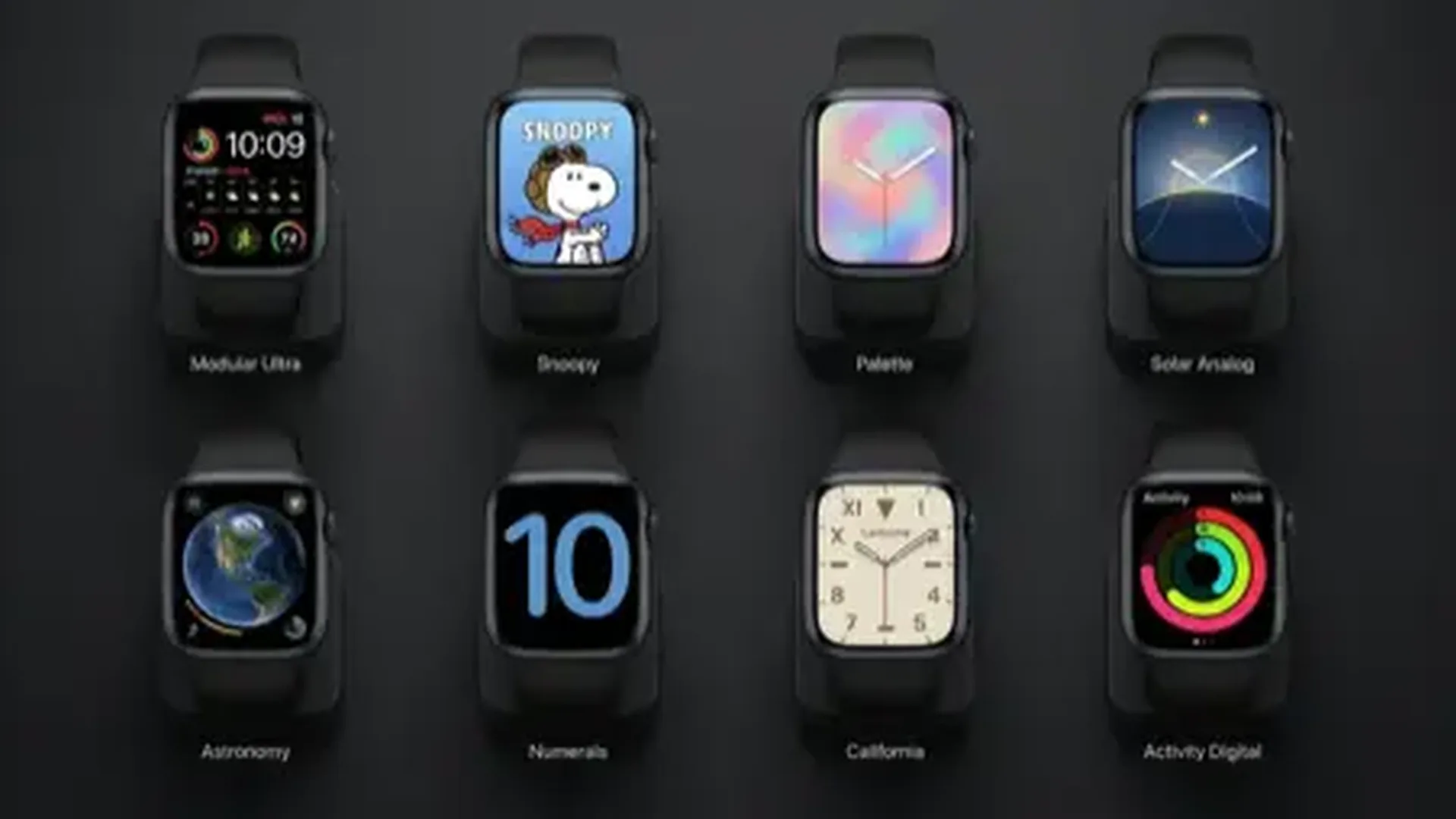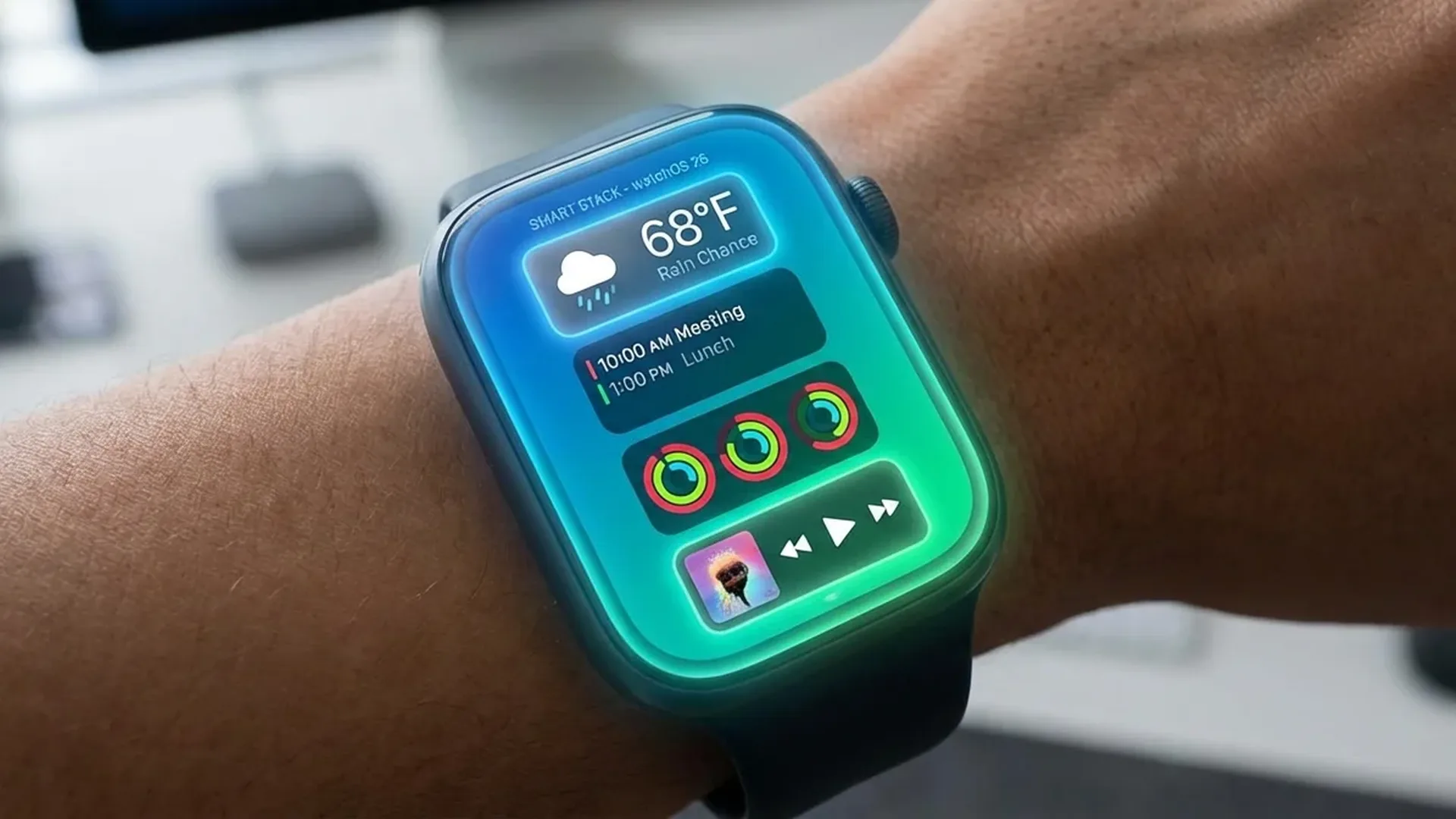
The Smart Stack and widgets are now the fastest way to access information on your Apple Watch. With watchOS 26, widgets become fully interactive, the Smart Stack gets smarter than ever, and customization options surpass every previous version. In this guide, you will learn how to set up, customize, and get the absolute most from widgets on your watch.
📖 Read more: Apple Watch vs Garmin Venu 4: Full Comparison
How the Smart Stack Works
The Smart Stack is a collection of widgets that appears when you scroll up from the watch face using the Digital Crown. Each widget displays real-time information without needing to open an app. In watchOS 26, Apple has significantly upgraded this functionality, making widgets more useful and flexible than they have ever been on any previous version of watchOS.
The core idea behind the Smart Stack is showing the right information at the right time. Using machine learning, watchOS 26 analyzes your habits and automatically rearranges the widgets. If you check the weather and calendar every morning, those widgets will appear at the top during morning hours. In the afternoon, it might surface Activity and Workout widgets instead, matching your daily routine perfectly.
Interactive Widgets in watchOS 26
The biggest change in watchOS 26 is fully interactive widgets. You no longer need to tap on a widget to open the app. You can perform actions directly within the widget itself. This saves time and makes the Apple Watch significantly more efficient for everyday use, reducing the number of taps needed to accomplish common tasks.
Examples of interactive actions include: marking a reminder as complete, toggling HomeKit lights on or off, starting a timer, stopping music playback, pressing play on your podcast, or checking in for a flight. Third-party apps now fully support these interactive widgets, so expect support from your favorite apps to arrive quickly.
How to Add a Widget
Scroll to the bottom of the Smart Stack and tap the "+" button. A list of all available widgets will appear. Tap the one you want to add. You can also long-press any widget to move it to a different position or remove it from the stack entirely.
Pinning and Customizing Order
One of the most useful features of the Smart Stack in watchOS 26 is pinning. By long-pressing a widget, the Pin option appears. Pinned widgets always remain in the position where you placed them, regardless of the Smart Rotation algorithm. This is perfect for widgets you always want at the top, such as Calendar or Activity Rings.
The order of the remaining widgets changes automatically based on three factors: time, location, and routine. If you are at the gym, fitness widgets rise to the top. If you are at home, HomeKit widgets take priority. If an appointment is approaching, the Calendar widget automatically surfaces at the top of the stack.
📖 Read more: Apple Watch vs Pixel Watch 3: Which One Wins?
Best Widgets for Productivity
Calendar
The Calendar widget shows your next appointment with time, title, and location. In watchOS 26, you can tap directly on it to accept or decline an invitation without opening the full app. For busy days, it displays a countdown to each upcoming event so you always know what is next.
Reminders
View your pending reminders and mark them as complete directly from the widget. watchOS 26 now supports lists, so you can view reminders by category. Perfect for your shopping list or tasks that need to be checked off throughout your day.
Weather
Current temperature, conditions, and the forecast for upcoming hours appear in a compact widget. Tapping on it reveals a < 10 day forecast, rain probability, UV index, and wind speed — all the data you need to plan your day or week accordingly.
Best Widgets for Health
Activity
The three Activity rings in real time on your wrist. You can immediately see how many calories you have burned, how many exercise minutes you have logged, and whether you have stood enough times throughout the day. The widget automatically updates every few minutes.
Heart Rate
Your current heart rate in BPM, along with a trend graph for the past few hours. In watchOS 26, the widget displays an alert if your heart rate exceeds or falls below your configured thresholds, giving you critical health information at a glance.
Sleep
View last night's sleep data: total time, sleep stages (REM, deep, core) and your Sleep Score. The widget also shows your weekly sleep average so you can track whether your habits are improving over time.
Third-Party Widget Support
In watchOS 26, third-party developers can now create fully interactive widgets. Apps like Todoist, Carrot Weather, Streaks, WaterMinder, and many others have already been updated. Make sure to update your apps through the App Store to access the latest widget experiences.
📖 Read more: Apple Watch vs WHOOP 5: Tracker or Smartwatch?
AI-Powered Widget Suggestions
The Widget Suggestions system uses machine learning to recommend widgets you might need at any given moment. If you listen to podcasts every morning, a Podcasts widget will automatically appear. If you travel frequently, you will see widgets with your boarding pass or flight information. The suggestions improve over time as the system learns your habits and daily patterns.
To enable automatic suggestions, go to Settings > Smart Stack > Widget Suggestions and make sure the option is turned on. If a particular suggestion does not interest you, swipe left on it to dismiss it permanently, and the system will learn from that feedback.
Widget Sizes and Options
Widgets in watchOS 26 come in two sizes: regular (single) and large (double). A regular widget occupies one slot in the Stack, while a large widget takes two slots and displays more information. For example, the regular Calendar widget shows only the next appointment, while the large version shows the next < 3 upcoming events.
To change the size, long-press the widget, tap Edit, and choose between Small and Large. Not all widgets support the large size, but most first-party Apple widgets offer both options for maximum flexibility.
Smart Stack vs Complications
Many users wonder when to use Smart Stack widgets and when to use complications on the watch face. The answer depends on your usage pattern. Complications are ideal for information you want visible at all times without any interaction — a glance at your wrist is enough. The Smart Stack is ideal for deeper information and actions that require interaction.
The ideal combination: use < 4 essential complications on your watch face (time, Activity, weather, battery) and put everything else in the Smart Stack. This gives you instant access to the basics, while the Smart Stack covers every additional need when you scroll up.
📖 Read more: Apple Watch X: The Anniversary Edition
Creating Widget Setups for Different Activities
An excellent strategy is to create different widget setups combined with Focus modes. For work, include Calendar, Reminders, Mail, and Timer widgets. For fitness, include Activity, Heart Rate, Workout, and Music. For relaxation, include Weather, Podcasts, Mindfulness, and Sleep widgets.
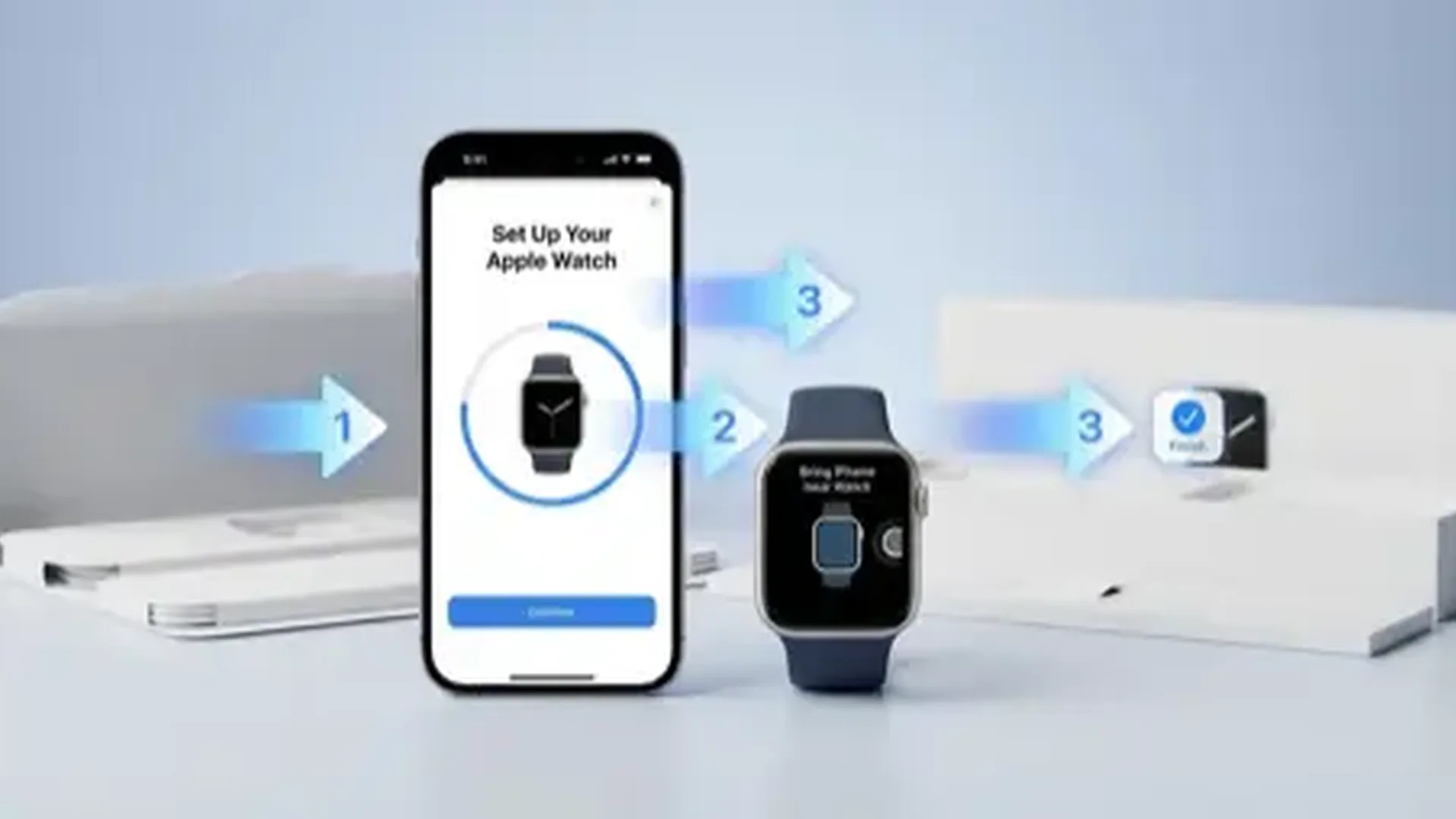
Focus modes in watchOS 26 can automatically change the Smart Stack layout along with your watch face. Set this up in the Watch app on iPhone under Focus > Apple Watch > Smart Stack Layout. You do not need to do anything manually — everything is automated based on time of day, location, or connection to a specific Bluetooth accessory like your gym headphones.
Frequently Asked Questions
How many widgets fit in the Smart Stack?
You can have up to < 20 widgets in the Smart Stack. However, for optimal user experience, we recommend keeping around < 8 widgets so navigation remains fast and efficient without excessive scrolling.
How do I remove a widget?
Long-press the widget you want to remove. A "−" button will appear in the corner. Tap it to remove the widget from the stack. You can always add it back later through the "+" button at the bottom.
Do widgets drain a lot of battery?
Widgets refresh periodically via background refresh. The power consumption is minimal, but if you notice reduced battery life, you can remove widgets you do not use frequently to conserve energy.
Are there third-party widgets?
Yes. Starting with watchOS 26, developers can create fully interactive widgets. Apps like Todoist, Carrot Weather, Streaks, and many others already offer widgets. Update your apps through the App Store to get the latest widget support.
Can I disable the Smart Stack?
Yes. If you prefer not to see the Smart Stack, go to Settings > Smart Stack > Disable. However, you will lose access to a very useful feature that significantly enhances the Apple Watch experience.
How does Smart Rotation work?
Smart Rotation uses machine learning to rearrange widgets based on three factors: time of day, your current location, and recurring habits. Pinned widgets are excluded from rotation and remain fixed in their assigned position at all times.