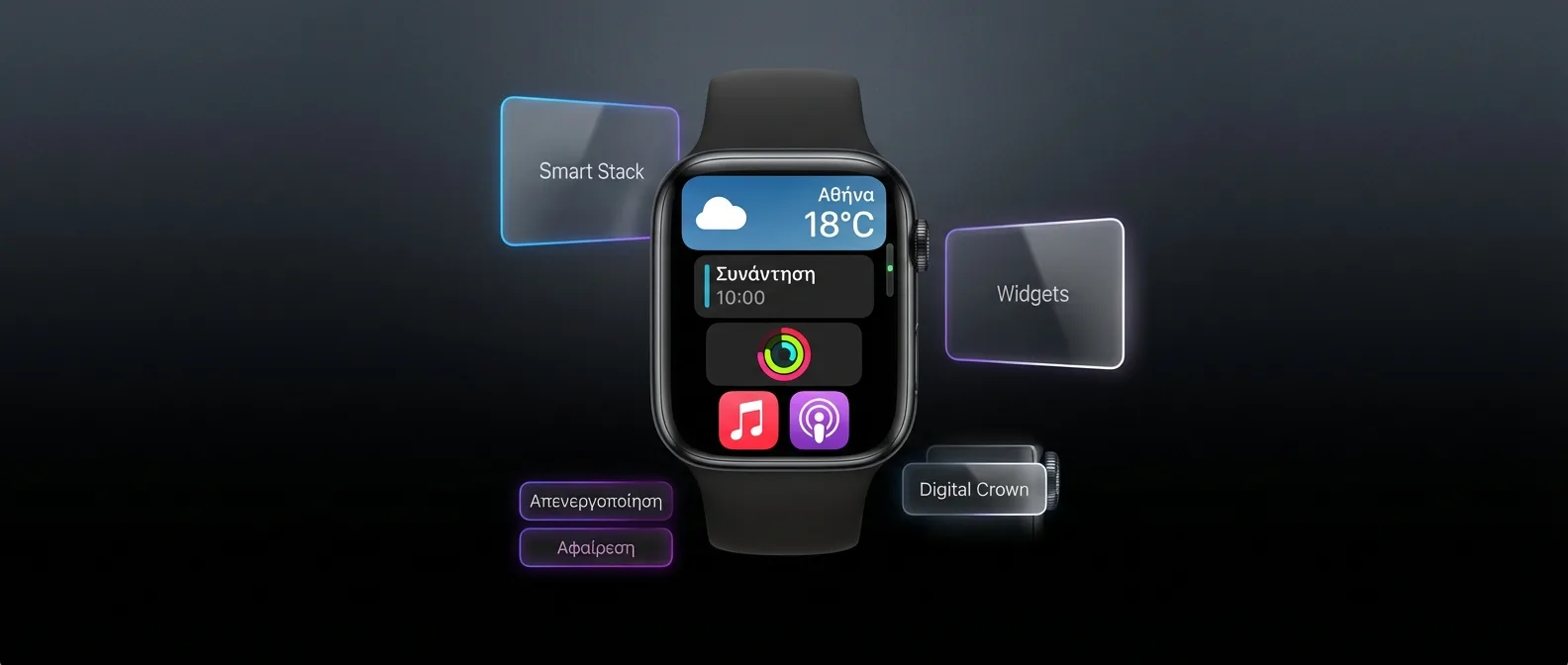
The Smart Stack was introduced with watchOS 10 in September 2023 and has since become a core feature of the Apple Watch. By scrolling up with the Digital Crown, a dynamically adapting stack of widgets appears. Some users love it — others just want to see their watch face. In this guide, we explain how to disable, customize, or completely empty the Smart Stack.
📖 Read more: watchOS 26 Accessibility: Complete Guide
What Is the Smart Stack
The Smart Stack is a smart widget stack accessible from any watch face on the Apple Watch. It was introduced in watchOS 10 — a major change in how you interact with the watch, replacing the older “Glances” system from previous versions.
How It Works
From any watch face, turn the Digital Crown upward and the widgets appear in a vertical stack. Apple uses machine learning to determine which widgets to show and in what order, based on:
- Time of day: Morning = Weather + Calendar, Evening = Sleep + Mindfulness
- Location: Near the gym = Fitness widget first
- Routine: If you check the weather every morning, it will automatically appear at the top
- Pinned widgets: Pinned ones always stay at the top
Supported Widgets
Both Apple's stock apps (Weather, Calendar, Activity, Music, Reminders, News, Stocks, Home, etc.) and third-party apps can display widgets in the Smart Stack. With each new watchOS release, more developers add support — today with watchOS 26, over 100 apps offer widgets.
Can You Completely Disable the Smart Stack?
The short answer: there is no on/off toggle. Apple doesn't offer an option to fully disable the Smart Stack in Settings. However, there are ways to make it essentially invisible.
⚠️ Important: Even if you remove all widgets, scrolling up with the Digital Crown will still open an empty Smart Stack panel. You can't reassign the gesture to something else. However, an empty Smart Stack is unobtrusive and displays nothing.
Method 1: Remove All Widgets (Empty Smart Stack)
This is the most effective method for those who don't want the Smart Stack. By removing every widget, the stack remains empty:
Step-by-step instructions:
- From the watch face, turn the Digital Crown upward to open the Smart Stack.
- Long press on any widget until edit mode appears.
- Each widget will display a red button (—) in the top-left corner.
- Tap the (—) on each widget individually. You'll be asked “Remove?” — tap Remove Widget.
- Repeat until no widgets remain.
- Tap Done (or press the Digital Crown) to exit edit mode.
💡 Tip: Some widgets are “suggested” by machine learning and appear automatically. Even if you remove them, they may reappear. To prevent this, see Method 2 below.
Method 2: Disable via Apple Watch App (iPhone)
You can also manage Smart Stack widgets from your iPhone:
Via iPhone:
- Open the Watch app on your iPhone.
- Go to My Watch (the app's home screen).
- Scroll down until you find "Smart Stack" or look under the "Dock & App View" section.
- Here you can disable Suggested widgets so machine learning no longer adds widgets automatically.
- Remove Pinned widgets one by one by swiping left.
This method is more comprehensive because it also disables Suggested widgets — something you can't do from the watch itself.
Method 3: Choose a Watch Face Without Smart Stack Reliance
Some watch faces interact differently with the Smart Stack. While you can't fully prevent the scroll gesture, some faces don't encourage its use:
- Siri Watch Face: Already displays dynamic information — the Smart Stack is less useful here.
- Photos Face: Many users choose this face and ignore the Smart Stack entirely.
- Chronograph Pro / California: Classic analog faces where the “just tell time” philosophy prevails.
- Modular faces (Infograph, Modular Compact): With many built-in complications, you may not need the Smart Stack at all.
💡 Pro Tip: If you use Infograph Modular with 6 complications, you already have the information (weather, calendar, activity, music) right in front of you. The Smart Stack becomes redundant — just remove the widgets and forget about it.
📖 Read more: watchOS 26: The Best Watch Faces
How to Customize the Smart Stack Instead of Disabling It
If you don't want to remove it entirely but the automatic behavior bothers you, you can make it useful with the right setup:
Pin Only the Useful Widgets
Instead of letting machine learning decide, pin only the 2-3 widgets you actually use:
- Long press on a widget → "Pin Widget"
- Pinned widgets always stay at the top, in a fixed order
- Remove the rest and disable Suggested
The 5 Best Widget Combinations
If you want a minimal but useful Smart Stack, try these combinations:
🏃 Fitness Focus
Activity Rings + Workout + Training Load
💼 Work Day
Calendar + Reminders + Weather
🎵 Minimal
Now Playing + Weather (just 2 widgets)
🏠 Smart Home
Home + Shortcuts + Timer
The Evolution of the Smart Stack
The Smart Stack wasn't always like this. Let's see how it evolved across each watchOS version:
Does It Affect Battery Life?
A common question: if I remove the widgets, will I save battery?
The answer is a small but real saving. Widgets refresh in the background (background app refresh) — fewer widgets means fewer background updates. In practical terms:
- Full Smart Stack (8-10 widgets): ~2-5% increased consumption per day
- Minimal (2-3 widgets): Negligible difference
- Empty Smart Stack: Slightly lower consumption — mostly a psychological benefit
If battery life is your main concern, you're better off enabling Low Power Mode, which doubles battery life (36 hours on Series 10/11, 72 hours on Ultra 3), rather than removing widgets.
Smart Stack vs Complications: Which Should You Use
Many users get confused between Smart Stack widgets and watch face complications. Let's clarify:
Our recommendation: If you use a watch face with many complications (e.g., Infograph with 8 slots), you don't need the Smart Stack — put the information directly on the face. But if you prefer a minimal watch face (e.g., Numerals Duo or Palette), then the Smart Stack becomes useful as a secondary information screen.
📖 Read more: watchOS 26 Widgets: Smart Stack Setup Guide
What Users Say
The Apple Watch community is divided on the Smart Stack. In polls on subreddits like r/AppleWatch:
- ~40% of users actively use the Smart Stack daily
- ~25% have removed it entirely (empty)
- ~20% kept only 1-2 widgets (Weather + Calendar)
- ~15% forgot it exists — never scroll up
The most common criticism? "I want scroll up = Control Center back." Before watchOS 10, turning the Digital Crown upward opened the Control Center (Wi-Fi, Airplane Mode, Theater Mode, etc.). Now the Control Center has moved to the Side Button, which many users don't find intuitive.
Compatible Models
The Smart Stack works on every Apple Watch running watchOS 10 or later:
✅ Supported
Series 6, 7, 8, 9, 10, 11
SE (2nd gen), SE 3
Ultra, Ultra 2, Ultra 3
❌ Not Supported
Series 4, 5
SE (1st gen)
Series 3 and older
Frequently Asked Questions (FAQ)
If I remove all widgets, will they come back on their own?
It depends. Pinned widgets don't come back — they're permanently removed. However, Suggested widgets may reappear if you don't disable “Suggestions” through the Watch app on your iPhone. Follow Method 2 for complete removal.
Can I change the order of widgets?
Yes. Long press on a widget → drag up/down to rearrange. Pinned widgets always appear first, in the order you placed them. Suggested ones appear below, in an order determined by AI.
Does the Smart Stack work on Always-On Display?
No. When the screen is in always-on mode (dimmed), only the watch face is displayed. The Smart Stack only appears when you raise your wrist or tap the screen, and then turn the Digital Crown.
Why doesn't Apple add an on/off toggle?
Apple designed the Smart Stack as a core element of the watchOS experience — similar to the Dock on Mac or widgets on iPhone. Their philosophy is “customize, not remove.” However, the ability to remove all widgets serves as a de facto off switch.
Are there third-party apps for a better Smart Stack?
You can't replace the Smart Stack, but you can add third-party widgets that appear within it. Popular choices: Carrot Weather (more detailed weather), Fantastical (richer calendar), Things 3 (tasks), Widgetsmith (custom widgets).
Conclusion
You can't technically disable the Smart Stack, but you can make it completely invisible by removing all widgets and suggestions. If you decide to keep it, use it the right way: pin only 2-3 widgets you actually use, disable suggested ones, and try a watch face with many complications so you don't even need the Smart Stack. The perfect Apple Watch setup is one that lets you see only what you need — nothing more.