Just unboxed your new Apple Watch and can't wait to strap it on? The initial setup is a straightforward process that takes roughly 15 minutes — as long as you follow the right steps. In this complete guide, we'll walk you through every stage, from powering on to the first sync, so you can start enjoying all your watch's features right away.
What You Need Before You Start
Before you even open the Apple Watch box, make sure you have the following ready:
- iPhone 11 or later — running iOS 26 or newer. Go to Settings → General → Software Update to check.
- Bluetooth turned on — Settings → Bluetooth → toggle On.
- Wi-Fi or cellular connection — Your iPhone needs an active internet connection for pairing.
- Apple Account — You'll need your account credentials during setup.
Tip
Charge your Apple Watch to at least 50% before starting the setup. The initial pairing and sync process drains a fair amount of battery, so you'll want a healthy charge level going in.
Step-by-Step Setup Guide — All 9 Steps
Step 1: Power On Your Apple Watch
Press and hold the Side Button until the Apple logo appears on the screen. This may take a few seconds. If nothing happens, the watch likely needs charging — place it on the magnetic charger and wait at least 10 minutes before trying again.
Step 2: Pair With Your iPhone
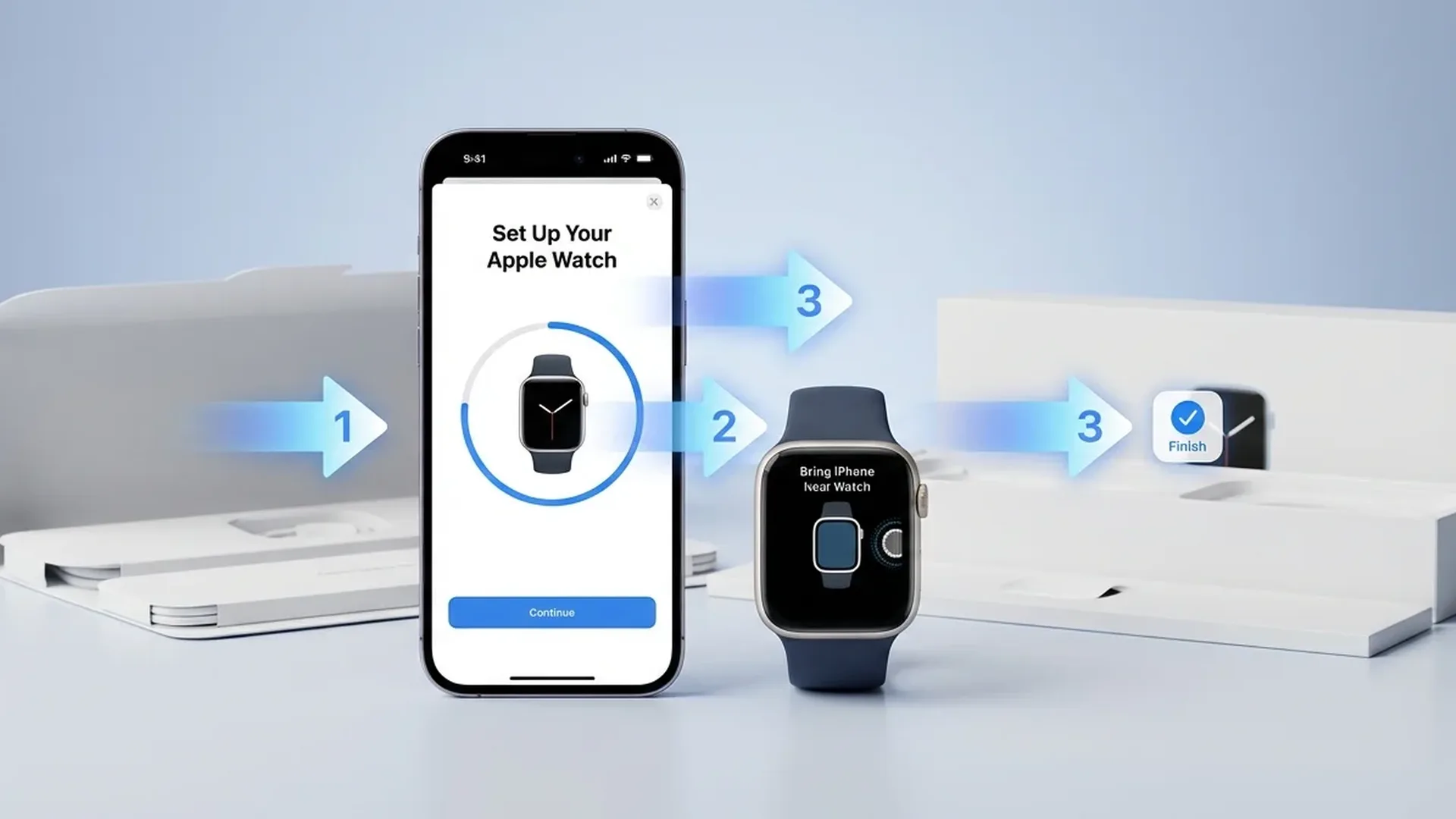
Bring the Apple Watch close to your unlocked iPhone. A message will appear automatically: "Use your iPhone to set up this Apple Watch". Tap Continue.
You'll then be asked whether you want to Set Up for Myself or Set Up for a Family Member. If it's your own watch, choose “Set Up for Myself”. The Family Setup option allows children or elderly family members to use an Apple Watch without their own iPhone.
Step 3: Scan the Animation — Complete Pairing
A swirling animation will appear on the Apple Watch screen. Point your iPhone's camera at it, centering the animation inside the viewfinder. Once the scan completes, pairing is successful. If the camera isn't working properly, tap "Pair Apple Watch Manually" and follow the on-screen instructions.
Note
If you purchased a second-hand Apple Watch and you're prompted for a passcode or see an Activation Lock screen, the watch is still linked to someone else's Apple Account. The previous owner will need to remove it from their account before you can proceed.
Step 4: Set Up as New or Restore From Backup
You'll be asked whether to set up as a new Apple Watch or restore from a backup. If you had a previous Apple Watch, restoring will transfer your settings, apps, and health data. If this is your first, choose “Set Up as New Apple Watch”.
Next, you'll choose which wrist you'll wear the watch on (left or right) and which direction the Digital Crown faces. Then, agree to Apple's Terms and Conditions.
Step 5: Sign In to Your Apple Account
The system will ask you to sign in with your Apple Account (formerly Apple ID). This is required for features like Find My, the App Store, iMessage, and much more. If you're already signed in on your iPhone, the process happens almost automatically.
Step 6: Create a Passcode
You'll be prompted to create a passcode for the Apple Watch. This code is required each time you put the watch on your wrist. It's mandatory if you want to use Apple Pay. You can choose a 4-digit or longer code — or skip this step entirely (though we strongly advise against it).
Security
Even if you don't plan to use Apple Pay right away, create a passcode. It protects your personal data, notifications, and health information in case of loss or theft.
Step 7: Customize Your Settings
Now it's time to tailor the Apple Watch to your preferences. This step includes several sub-options:
- Text size and bold text: Adjust how large text appears on the display.
- Find My: Enable it so you can locate your watch if it's ever lost.
- Location Services: Essential for GPS tracking during workouts and navigation.
- Wi-Fi Calling: Make and receive calls over Wi-Fi, even without cellular signal.
- Diagnostics: Share anonymous usage data with Apple (optional).
- Health notifications: Alerts for irregular heart rhythm, high/low heart rate, and more.
- Emergency SOS: Press and hold the Side Button to call emergency services.
- Fall Detection: Automatically contacts emergency services if a hard fall is detected.
You can change any of these settings later through the Apple Watch app on your iPhone.
Step 8: Additional Features
Depending on your model, you'll see extra settings at this stage:
- Cellular (GPS + Cellular models only): Set up your cellular plan so you can use the watch independently from your iPhone. You may need to contact or use your carrier's app.
- Gestures: Learn the core motions — wrist flick to scroll, double tap (pinch thumb and index finger) for quick actions.
- Depth app: On Ultra models, the Depth app activates automatically when submerged in water.
- Action Button (Ultra): If you have an Apple Watch Ultra, customize the Action button's function — from starting a workout to toggling the flashlight.
- Apple Pay: Add bank or credit cards for contactless payments straight from your wrist. You'll need the passcode you created in Step 6.
Step 9: Sync — Keep Both Devices Close
After all settings are configured, the Apple Watch will begin syncing apps and data from your iPhone. This process can take anywhere from a few minutes to 20-30 minutes, depending on how many apps you have.
Important: Keep both devices close together during the sync. Don't close the Apple Watch app on your iPhone and don't move the devices apart. You'll see a progress indicator on both the watch and the phone.
Tip
Keep both devices charging during the sync — especially if you're restoring from a backup with many apps. This prevents any interruption due to low battery.
Troubleshooting Common Issues
You might run into a few hiccups during the setup process. Here are the most common problems and their solutions:
Apple Watch won't turn on
If pressing the Side Button does nothing, the watch most likely needs a charge. Place it on the magnetic charger and wait at least 15-20 minutes. If it still won't power on, try a different charging cable or outlet.
Asked for a passcode during pairing
If a “new” Apple Watch asks for a passcode during pairing, it means the watch is still paired to another iPhone. The previous owner needs to unpair it through the Apple Watch app on their iPhone, or remove it via iCloud.com.
Activation Lock appears
If you see Activation Lock, the Apple Watch is tied to someone's Apple Account. You cannot bypass this without the original owner's credentials. Contact them or reach out to Apple Support for assistance.
Pairing keeps failing
If pairing won't complete, try the following: restart both devices, make sure Bluetooth is on, and verify that your iPhone is running iOS 26 or later. If nothing works, erase the Apple Watch (Settings → General → Reset) and start from scratch.
"The Apple Watch setup process was designed to be so simple that even if you've never used a smartwatch before, you can get started in just a few minutes."
— Apple Support
After Setup: First Things to Do
Once the sync is complete, your Apple Watch is ready to go. Here are a few things worth doing right away:
- Choose a watch face: Long-press on the screen to browse and customize your watch face.
- Install apps: Open the App Store directly on the Apple Watch or through the iPhone.
- Configure notifications: Go to the Apple Watch app → Notifications to control which alerts reach your wrist.
- Start a workout: Try your first workout using the Workout app to see health tracking in action.
- Enable Always-On Display: On supported models, go to Settings → Display & Brightness → Always On.
Frequently Asked Questions (FAQ)
Do I need an iPhone to set up an Apple Watch?
Yes, an iPhone is required for the initial setup. You need an iPhone 11 or later running iOS 26+. After setup, if you have a Cellular model, many features work independently.
How long does the initial setup take?
The setup itself takes about 10-15 minutes. App syncing can add another 10-30 minutes, depending on the number of apps and your network speed.
Can I connect an Apple Watch to an Android phone?
No. Apple Watch works exclusively with iPhone. It does not support pairing with Android devices or other platforms.
What happens if I switch iPhones?
If you change iPhones, first unpair the Apple Watch from your old phone (this automatically creates a backup). On the new iPhone, start the pairing process and choose to restore from backup.
Can I set up an Apple Watch for a family member?
Yes! Apple supports Family Setup. You can set up an Apple Watch for a child or elderly family member, even if they don't have their own iPhone. A GPS + Cellular model is required.
Will I lose my data if I reset?
If you unpair properly through the Apple Watch app, a backup is automatically created on your iPhone/iCloud. Health data is stored on the iPhone, so it won't be lost.