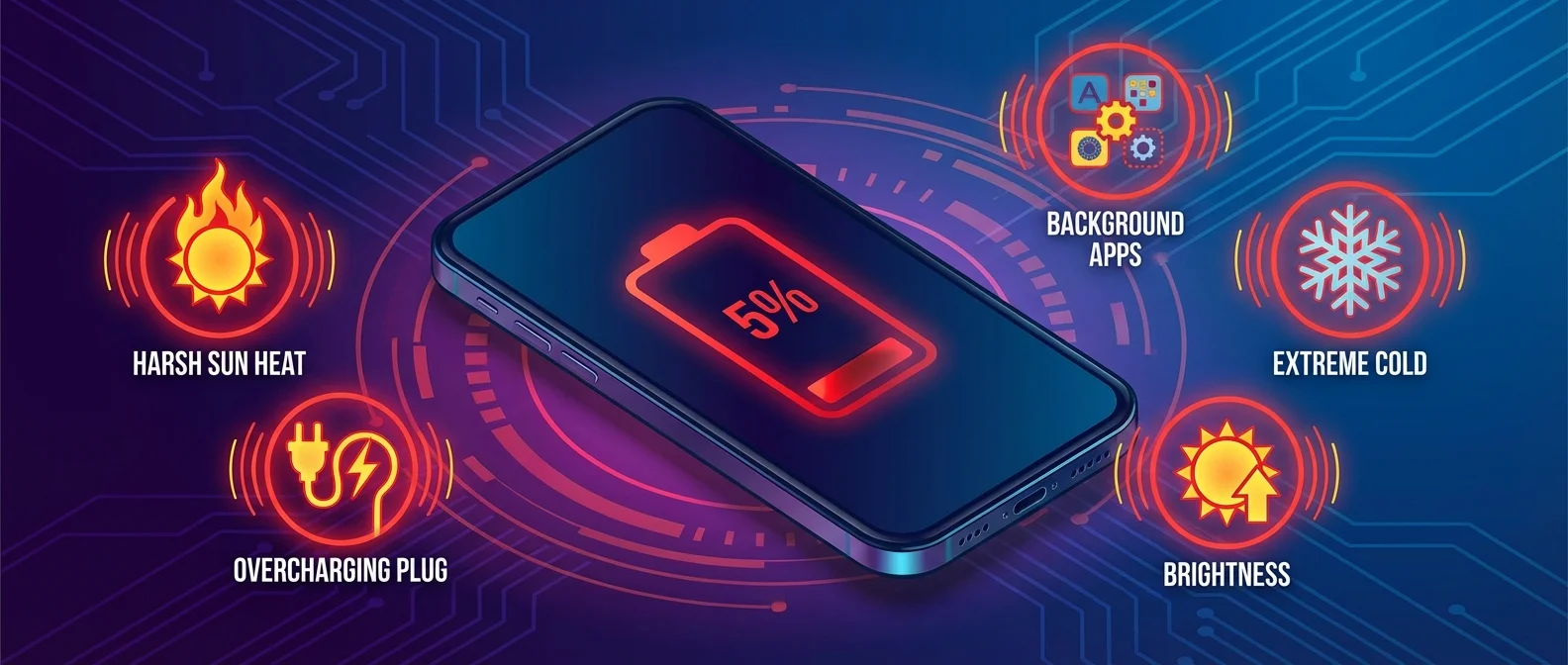
Making these 5 mistakes daily? They're the most common reasons your iPhone battery degrades prematurely — and most of them can be fixed in seconds. Lithium-ion batteries are designed to retain 80% of their original capacity after 500 charge cycles (iPhone 14 and earlier) or 1,000 cycles (iPhone 15+), but the following mistakes dramatically accelerate wear.
1. Charging to 100% Every Time
Charging to 100% stresses lithium-ion battery chemistry. At high charge levels, voltage increases significantly, accelerating chemical aging. The ideal range stays at 20-80%, and Apple added two tools to help with this.
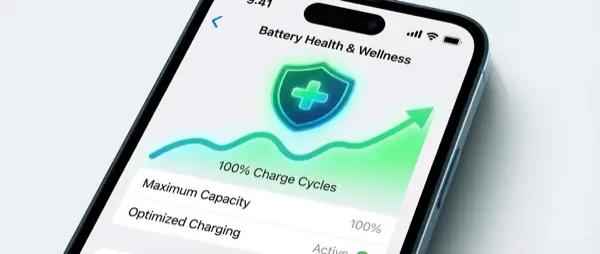
Charge Limit (iPhone 15+) lets you set the maximum charge level from 80% to 100% in 5% increments. If Apple believes a lower limit would help, you'll see a recommendation — e.g., “A charge limit of 95% is recommended.” Your iPhone stops charging at the chosen limit and resumes only if it drops 5% below.
Optimized Battery Charging uses machine learning to learn your charging routine. It needs 14 days and at least 9 charges of 5+ hours in the same location to activate. Once learned, it delays charging past 80% until shortly before you wake up.
2. Using Phone in Extreme Heat
Temperature is the battery's worst enemy. According to Apple, the ideal operating temperature is 62°F to 72°F (16°C to 22°C). Above 95°F (35°C), damage becomes permanent — capacity decreases irreversibly, meaning your battery won't last as long on each charge.
Charging in high temperatures is even worse. iOS may limit charging to 80% when battery temperature exceeds safe limits — you'll see a notification on the Lock Screen. Charging in a sun-baked car, using GPS at the beach, or even charging with a bulky case that traps heat all accelerate degradation.
By contrast, cold temperatures (below 32°F / 0°C) reduce battery life only temporarily. Once the device returns to its normal operating range, performance recovers fully.
3. Cheap/Uncertified Chargers
Chargers without MFi (Made for iPhone) certification can deliver unstable current with irregular voltage, causing overheating and accelerated chemical aging. In the worst case, an uncertified charger can cause a short circuit or damage the charging board.
Starting with iPhone XS and later, iOS checks whether the battery is genuine Apple. If it can't be verified, you'll see an “Unable to Verify” message in Settings → Battery → Battery Health, and battery health information may be inaccurate.
4. Closing All Apps (Myth!)
One of the most widespread mistakes. Many users swipe away every app in the app switcher thinking it saves battery. In reality, the opposite happens.
iOS freezes background apps — they use no CPU or battery. When you force-close and reopen them, your iPhone must load them from scratch (cold start), consuming significantly more energy and RAM compared to simply resuming from the frozen state (warm start).
The only exception: if an app is frozen or unresponsive, force-closing makes sense. In every other case, let iOS manage memory on its own.
5. Location & Bluetooth Always On
Many apps request “Always” location access even when they don't need it. Constant GPS and Bluetooth usage in the background drains battery significantly. In Settings → Battery, you can see which apps report “Background Activity” — those are consuming energy without you actively using them.
Background App Refresh allows apps to update data in the background. You can restrict it to Wi-Fi only or disable it entirely (Settings → General → Background App Refresh). For Mail, switch from Push to manual fetch or increase the refresh interval.
If you're in an area with poor cell coverage, battery drains even faster — your iPhone constantly searches for a stronger signal. In these situations, Airplane Mode saves dramatic amounts of energy.
Bonus: Enable Low Power Mode
Low Power Mode automatically reduces display brightness, optimizes performance, minimizes system animations, and disables background email fetching. It also turns off AirDrop, iCloud sync, and Continuity. Enable it from Settings → Battery or via Control Center — it turns off automatically when your battery reaches a sufficient charge level.