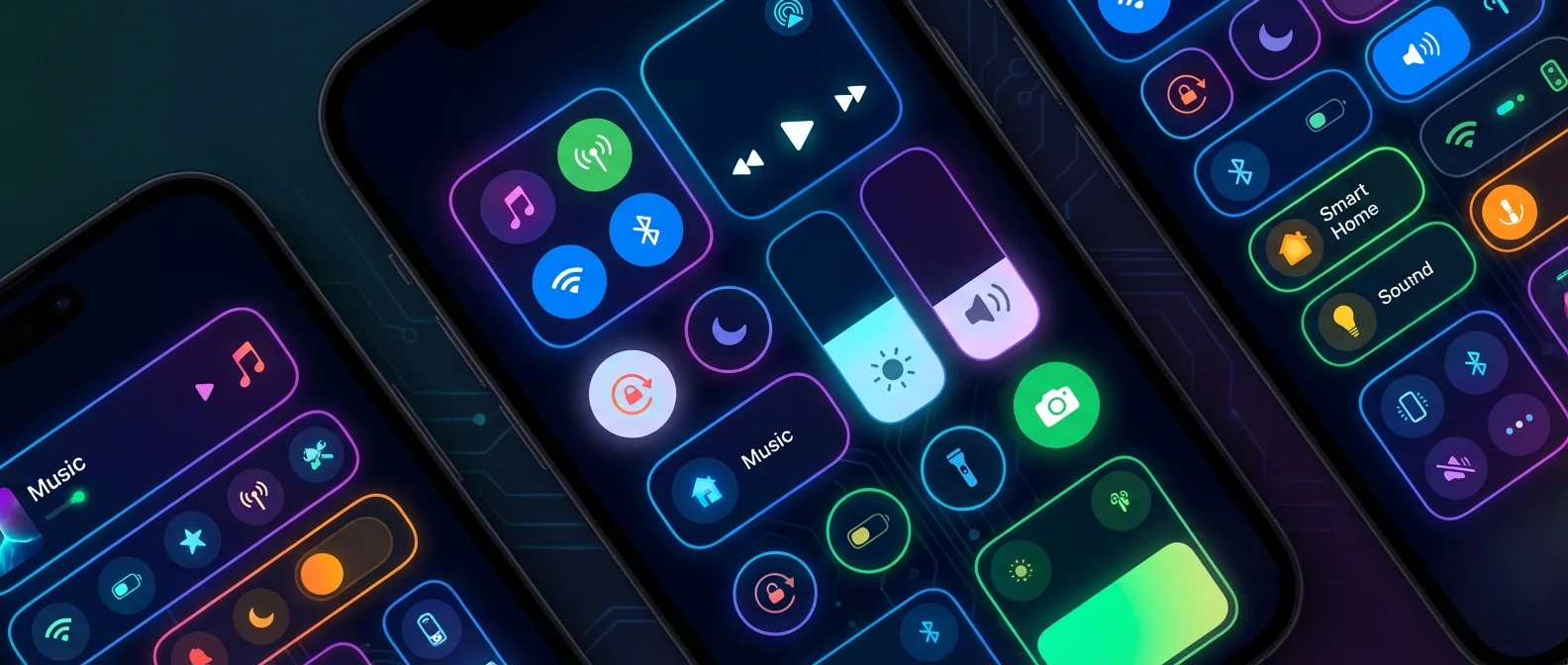
The iPhone's Control Center was completely overhauled in iOS 18 and continues to evolve in iOS 26. Multiple pages, fully resizable controls, a Controls Gallery with dozens of categories, and third-party widgets — it now feels more like a second Home Screen than a simple settings panel.
Multi-Page Control Center
The biggest change iOS 18 brought to Control Center is support for multiple pages. You can now create up to 15 separate pages, each dedicated to a different purpose. By default, Apple sets up pages for essential controls, music, connectivity, and smart home accessories.
You can navigate between pages in three ways: swiping up and down within Control Center, tapping the small icons on the right side of the display, or holding your finger over those icons and scrubbing through them for quick switching. Each page automatically receives an icon based on its content.
Adding & Removing Controls
To enter edit mode, long-press on any empty area in Control Center or tap the "+" button at the upper left. An 8×4 grid of circular spots appears, where you can place, move, or delete controls. Tap "Add a Control" to open the new Controls Gallery.
Controls Gallery
The Controls Gallery is a new library of controls accessible from edit mode. A search bar sits at the top, and controls are organized into categories: Accessibility, Connectivity, Display & Brightness, Focus, Home, Notes, Now Playing, Remote, Shortcuts, Sounds, Translate, Utilities, Vision Accessibility, Voice Memos, Wallet, and more. New controls introduced since iOS 18 include Open Music, Open Any App, Activate Shortcut, Translate, and Tap to Cash.
Resizing Controls
In edit mode, each control displays a curved handle at its bottom-right corner. Drag the handle outward to enlarge or inward to shrink. Basic toggles (Dark Mode, Flashlight, Timer, Low Power Mode) support three sizes: 1 circle, 2 circles horizontal (which also shows the name), or 4 circles in a square. Smart home controls can expand to up to 24 grid spaces, while Now Playing can take over the entire grid.
Third-Party Controls
For the first time, third-party apps can create their own controls for Control Center through the new ControlCenter API. Apps like Shazam, smart thermostats (Nest, Tado), lighting systems (Hue, LIFX), and productivity tools have already taken advantage of this feature. Third-party controls appear in the Controls Gallery alongside built-in options.
Lock Screen Controls
iOS 18 lets you replace the default Flashlight and Camera buttons on the Lock Screen with any control from Control Center. You can even place third-party controls or Shortcuts there. For actions that require data access (such as opening an app), Face ID or Touch ID authentication is required for privacy.
Power Button: At the top right of Control Center, there's now a Power Button. Press and hold it to bring up the shutdown screen — useful if your physical buttons aren't responding. It also locks the iPhone so Face ID is required to unlock.
Creating Custom Pages
To create a new page, tap the empty circle icon at the bottom of the icon list on the right, enter edit mode, and select “Add a Control.” If the controls on a page exceed the available space, the system automatically creates a new page. Usage ideas: one page dedicated to the gym (Timer, Now Playing, Flashlight), one for work (Focus, Alarm, Voice Memos), and one for smart home (lights, thermostat, cameras). To delete a page, simply remove all the controls on it.
What Updates Added After iOS 18
Apple continues to enrich Control Center with every update. iOS 18.1 added 4 new connectivity toggles. iOS 18.4 brought controls for Ambient Music via Apple Music, Apple Intelligence & Siri toggles, and Background Sounds (rain, ocean, white noise). In iOS 26, the Liquid Glass design gives the entire panel a fresh new look.
Organization Tips
Keep your first page limited to the 5-6 controls you use daily. Move rarely used controls to secondary pages. Use larger sizes for controls you tap quickly (like Flashlight) and smaller ones for those you just check visually (like Bluetooth). Try setting a Shortcut as a Lock Screen control for one-tap actions without unlocking.
"The Control Center is now just as customizable as the Home Screen."
— Craig Federighi, Apple WWDC 2024Sources:
MacRumors — Everything New With the iOS 18 Control Center