📖 Read more: iOS 26 Complete Guide: Every New Feature Explained
What Changed with iOS 26 — Liquid Glass Widgets
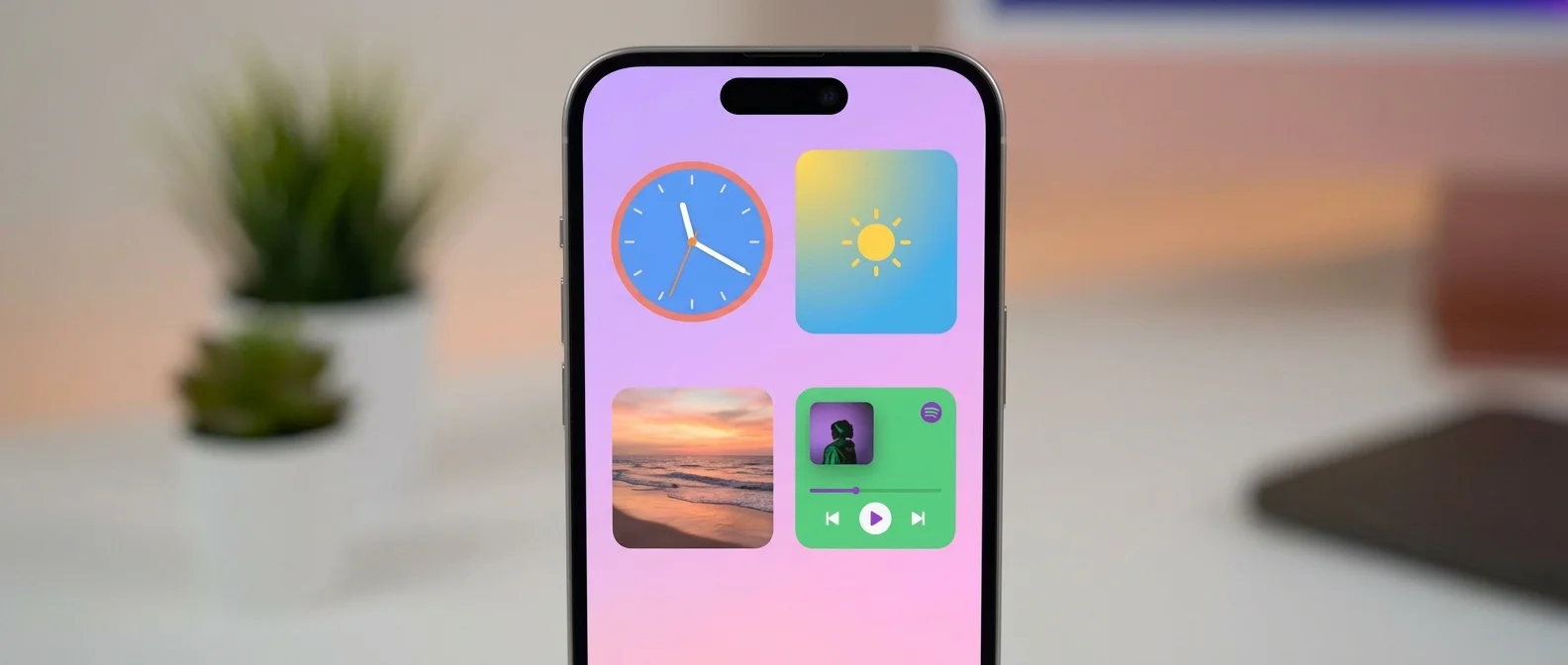
iOS 26 (September 2025) brought the biggest design change since iOS 7. Widgets now use Liquid Glass — a material that looks like real glass, dynamically reflecting colors and light 🔮. App icons and widgets are made from multiple layers of glass that create a sense of depth.
Clear Mode — Translucent Icons
Long-press the Home Screen → Edit → Customize → select Clear. All icons and widgets get a translucent Liquid Glass appearance — like a sheet of glass over your wallpaper 🪟.
You can also still use all the iOS 18 features you know :
- Free placement: Icons and widgets don't snap to grid — place them anywhere you want
- Resize: Transform a small widget into a large one with a long press
- Tinted icons: Apply a color tint to all icons for a uniform look
- Dark Mode icons: Automatic switching between dark/light icons
Best Widgets for 2026
Apple Built-in Widgets
- Weather: Hourly forecast, UV index, wind — in 3 sizes. In iOS 26, you can get weather updates via satellite when out of cell range 🛰️
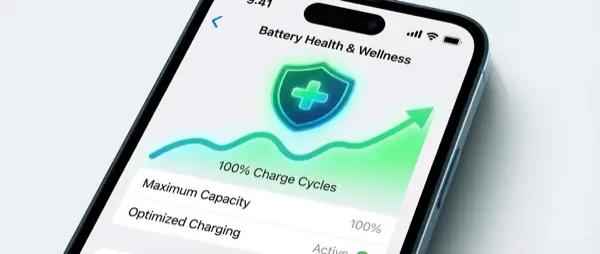
- Batteries: iPhone, Apple Watch, AirPods battery at a glance
- Calendar: Upcoming events with color coding
- Reminders: Check off tasks directly — in iOS 26, Apple Intelligence automatically suggests tasks, groceries, and follow-ups based on your emails 🧠
- Maps: New in iOS 26: learns your routes and alerts you about delays on your usual commute 🚗
- Apple Music: New Pinned Playlists widget — your favorite playlists on the Home Screen. Now Playing on Lock Screen with full-screen album artwork 🎵
- Photos: Featured photos, memories, or specific album
- Fitness Rings: Activity rings for Apple Watch users
Third-Party Widgets
- Widgetsmith: Custom widgets with your own fonts, colors, and designs
- Fantastical: Calendar with detailed weekly view
- Spark: Email preview without opening the app
- Notion: Quick notes or database views right on your Home Screen
📖 Read more: Apple Maps 2026: New Features & Live F1 Tracking
Widget Sizes — Guide
Tip: In iOS 26, widgets resize without deleting them — long-press a widget and drag the corner to resize in real time ✨.
Interactive Widgets (iOS 17+)
Since iOS 17, widgets are no longer static. Interact directly without opening the app :
- Reminders: Check off tasks directly from the widget
- Music: Play/pause, skip track — in iOS 26 with Liquid Glass Now Playing animation 🎶
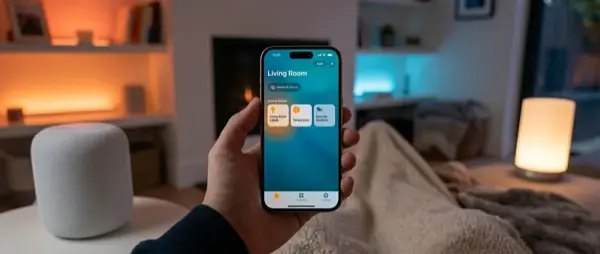
- Home: Toggle lights, air conditioning, thermostat
- Shortcuts: Run automations with one tap — in iOS 26 with built-in Apple Intelligence AI models 🧠
Lock Screen Widgets — iOS 26 Edition
Lock Screen widgets are more powerful than ever in iOS 26 . You can add up to 4 small widgets below the time and a larger one above. The clock can now auto-resize based on your wallpaper, and with Spatial Scene your Lock Screen photos get 3D depth 📸. The most useful widgets:
📖 Read more: Live Activities iPhone: Complete Usage Guide
- Battery: Battery percentage + time to full charge (new in iOS 26)
- Weather: Current temperature with Liquid Glass background
- Calendar: Next event with countdown
- Now Playing: Full-screen album artwork that animates with the music 🎵
- Activity: Real-time rings progress
- Shortcuts: Quick-launch favorite Apple Intelligence actions
Bonus: CarPlay Widgets (iOS 26)
For the first time, widgets appear on CarPlay too! Calendar appointments, HomeKit devices, and Live Activities (flights, deliveries) show up on your car's Dashboard screen 🚘.
Pro Tips
Smart Stacks: Stack multiple widgets in the same space and swipe up/down to switch. iPhone uses machine learning to show the right widget at the right time (e.g., weather in the morning, calendar before work) 🔄.
Aesthetic setups: Combine Clear icons (iOS 26) + Tinted color + a monochrome wallpaper for a minimal, premium look. Use only 2–3 widgets per page for a clean layout.