🆘 Emergency SOS: Emergency Calling
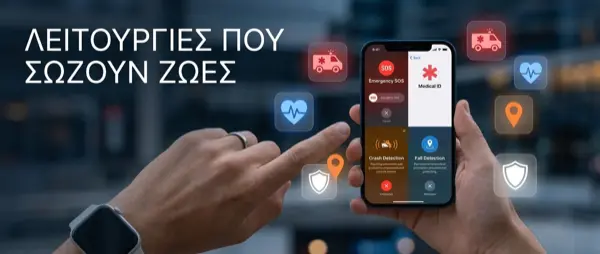
The Emergency SOS feature is arguably the most important safety feature on the iPhone. It allows you to call emergency services quickly and discreetly, even if you can't unlock your device.
How to Use Emergency SOS
- Press and hold the side button and a volume button simultaneously — the Emergency SOS slider appears
- Press 5 times rapidly on the side button — an even faster method
- You can also say "Hey Siri, call 911″ for a voice-activated call
💡 Tip: Go to Settings → Emergency SOS and enable the “Call with 5 Presses” option for even faster access. You can also set up the automatic countdown.
🛰️ Emergency SOS via Satellite
One of the most revolutionary features Apple has added: the ability to send an emergency message via satellite, even in areas with no cellular signal or Wi-Fi. It's available on iPhone 14 and later models.
If you find yourself in a mountainous area, in the middle of the sea, or at a remote location, your iPhone can connect directly to a satellite. Your device guides you with on-screen instructions to point your phone toward the sky and find a satellite signal.
⚠️ Important: Satellite connectivity requires you to be outdoors with a clear line of sight to the sky. Buildings, dense foliage, and deep valleys can block the signal.
🚗 Crash Detection: Car Accident Detection
Crash Detection uses an advanced high G-force accelerometer sensor, barometer, GPS, and microphone to detect if you've been involved in a serious car accident. It's available on iPhone 14 and later.
How It Works
- The sensor detects sudden deceleration or impact (up to 256G)
- The iPhone displays a notification and sounds an alarm
- If you don't respond within 20 seconds, it automatically calls emergency services
- It shares your location, Medical ID details, and crash information
💡 Setup: Settings → Emergency SOS → make sure the "Call After Severe Crash" option is enabled. It's on by default, but it's worth checking.
"Crash Detection technology can make the difference between life and death in cases where the driver is unconscious after a serious accident."
⌚ Fall Detection
Fall Detection is available on Apple Watch (Series 4 and later) and works in conjunction with your iPhone. If the Apple Watch detects a hard fall, it taps your wrist, sounds an alarm, and displays a notification.
How the Device Responds
- If you're moving after the fall — it waits for your response
- If you remain motionless for about 1 minute — it starts a 30-second countdown
- If you don't cancel, it automatically calls emergency services
- It sends a message to your emergency contacts with your location
⚠️ If you're 55 years or older, Fall Detection is enabled automatically. For younger users, you can enable it manually: Watch App → Emergency SOS → Fall Detection → Always On.
🏥 Medical ID: Your Health Identity
Medical ID is a digital health card stored on your iPhone. In an emergency, anyone can view your medical information even from the lock screen — without a passcode.
What You Should Fill In
- Allergies to medications or food
- Blood type and chronic conditions
- Medications you take
- Emergency contacts (up to 5 people)
- Organ donation — if you wish
💡 Setup: Health App → Profile Photo → Medical ID → Edit. Enable the "Show When Locked" and "Share During Emergency Call" options.
📍 Find My iPhone: Device Tracking
Find My isn't just for lost phones. It's a critical safety tool that lets you share your location with trusted people, remotely lock or erase your device, and locate your loved ones.
Location Sharing
Share your real-time location with family and friends through Find My.
Remote Lock
Lock or erase your device if it's stolen, protecting your personal data.
Offline Tracking
The Find My network uses millions of Apple devices for tracking even when offline.
Precision Finding
With Ultra Wideband chip, find your device with centimeter-level accuracy at close range.
✅ Check In: Safe Travel
The Check In feature in Messages allows you to automatically notify a trusted person about your trip. It's ideal for late-night commutes, travel, or any time you want someone to monitor whether you arrived safely.
How It Works
- Open Messages → select a contact → tap + → Check In
- Set a destination or arrival time
- If you don't arrive on time, your iPhone prompts you for an update
- If you don't respond, it automatically shares: location, battery level, cellular signal status, route
"The Check In feature gives me peace of mind when my daughter comes home late at night. I know that if something goes wrong, I'll be notified immediately."
📊 Live Activities for Safety
Live Activities display important safety information in real time on the Dynamic Island and lock screen. You can monitor:
- Location of trusted people in real time via Find My
- Check In progress — how close someone is to their destination
- Weather alerts — extreme weather conditions in your area
- Flight status — track flights of loved ones
🌪️ Safety During Natural Disasters
Your iPhone can become a critical survival tool during natural disasters — earthquakes, floods, wildfires, or extreme weather events.
SOS via Satellite
Even without cellular signal or power, send a help message via satellite.
Offline Location Sharing
The Find My network works even without internet, using Bluetooth.
Government Alerts
Receive Wireless Emergency Alerts (WEA) directly on your device.
Low Power Mode
Maximize battery life in critical moments to stay connected.
🛡️ Safety Check: Security Review
If you're ever concerned about your digital safety or find yourself in a dangerous situation (e.g., domestic violence), Safety Check allows you to immediately revoke all data sharing.
What You Can Do
- Emergency Reset: Immediately revokes ALL location, photo, and notes sharing
- Manage Sharing & Access: Review who can see your location and which apps have access
- Change passwords: Change your Apple ID password, passcode, and Face ID
💡 Setup: Settings → Privacy & Security → Safety Check. In an actual emergency situation, select “Emergency Reset” to immediately revoke all sharing.
🔐 Stolen Device Protection
Stolen Device Protection safeguards your data even if someone steals your iPhone AND knows your passcode. In unfamiliar locations, it requires Face ID or Touch ID for critical actions, and for changes like Apple ID password changes, it also requires a 1-hour security delay.
📋 Complete Safety Setup Guide
Set up all safety features in less than 10 minutes:
💡 Why Every User Should Enable These Features
Many iPhone users don't even know these features exist. The reality is that they can make the difference in a critical moment:
- 🚨 Car accident on a deserted road — Crash Detection automatically calls for help
- ⛰️ Mountain hike with no signal — Emergency SOS via Satellite saves your life
- 🏠 Elderly family member falls — Fall Detection notifies immediately
- 🏥 Allergic shock — Medical ID gives critical information to first responders
- 🌙 Late-night commute — Check In ensures someone is monitoring
"You don't need something bad to happen to set up these features. It only takes 10 minutes. But if you ever need them, you'll be glad you did."
🔄 Real-Life Incidents
Since Apple introduced these features, there have been dozens of documented rescue incidents:
- A family in Nevada was located after a vehicle rollover into a canyon thanks to Crash Detection
- A hiker in Alaska used Emergency SOS via Satellite after an injury on a remote trail
- An elderly man in London was saved thanks to Apple Watch's Fall Detection, which automatically called an ambulance
- Many users in Greece utilized disaster alerts during earthquakes and wildfires
At OnOff.gr, we believe technology should serve human safety. These features aren't gadgets — they're vital tools. Take a few minutes today to set them up and share this guide with your loved ones. 🛡️