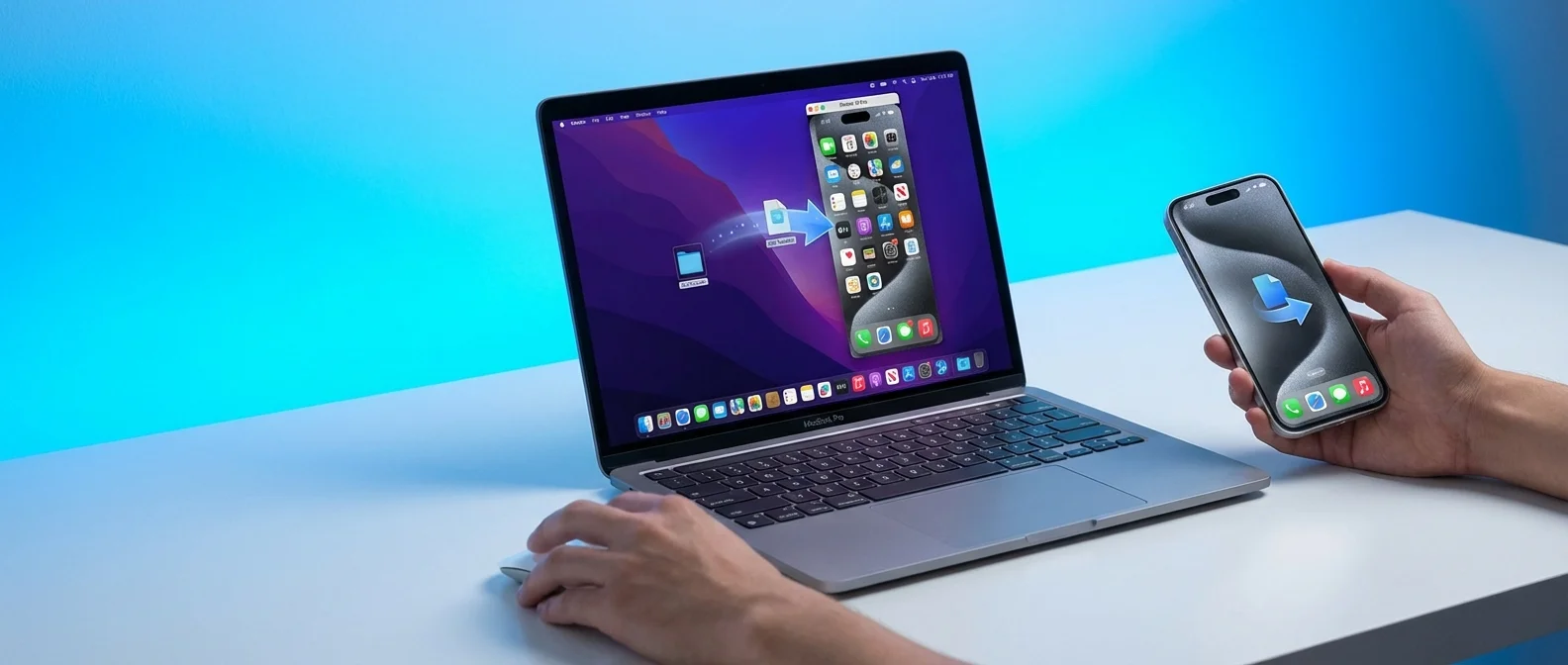
iPhone Mirroring lets you fully control your iPhone from your Mac screen 🖥️ — wirelessly, no cables needed. Drag & drop files, use iPhone apps, view notifications, and type with your Mac keyboard. Starting with macOS Tahoe 26, it also supports Live Activities and Spotlight search for iPhone apps.
📖 Read more: iPhone + Apple TV 2026: Entertainment Tricks
What Is iPhone Mirroring
Announced at WWDC 2024 and shipped with macOS Sequoia 15 + iOS 18, this feature displays your iPhone screen in a dedicated Mac window with full interaction — trackpad, mouse, and keyboard all work as if you were holding the phone. You can even manage your Home Screen (jiggle mode), rearrange apps, and add widgets, all from your computer.
Key Concept: Your iPhone stays locked while you use everything from the Mac. Nobody nearby can see what you're doing on your phone — it can stay in your pocket or bag 🔒.
System Requirements
You need Bluetooth and Wi-Fi active on both devices. They don't need to be on the same network, but must be nearby (same room). Your Mac can't be using AirPlay, Sidecar, or Internet Sharing at the same time.
How to Get Started
Open the iPhone Mirroring app on your Mac (Dock or Launchpad). Unlock your iPhone once for the initial connection ▶️. After that, the iPhone locks automatically while its screen appears on the Mac. You can choose whether to require authentication every time (Touch ID / password) or connect automatically.
What You Can Do
Drag & Drop: Move photos, videos, PDFs, or any file between Mac and iPhone — for example, drag a video from Photos to your desktop, or a photo from Safari into Messages. It also works with the Files app on iPhone 📂.
iPhone Apps on Mac: Use apps that don't exist on Mac — Instagram, banking apps, mobile games. In macOS Tahoe 26, Spotlight can find and launch iPhone apps directly 🔍.
Notifications & Live Activities: iPhone notifications appear in your Mac's Notification Center (with a small iPhone icon). From macOS Tahoe 26, you also see Live Activities — delivery tracking, sports scores — right on your Mac.
📖 Read more: iPhone Fast Charging: 50% in 20 Minutes — How?
Keyboard Shortcuts: ⌘-1 = Home Screen, ⌘-2 = App Switcher, ⌘-3 = Spotlight. Resize: ⌘+ (larger), ⌘-0 (actual size), ⌘- (smaller). Landscape mode triggers automatically when an app requires it.
"iPhone Mirroring completely changes how you work — no need to pick up your phone anymore."
— Craig Federighi, Apple WWDC 2024Security & Privacy
The connection automatically pauses after inactivity 🔐. While mirroring, your iPhone displays that it's “in use” and identifies which Mac is controlling it. After unlocking, it shows exactly which Mac connected, when, and for how long (Settings → General → AirPlay & Continuity → iPhone Mirroring). On corporate Macs, the IT department has no access to your iPhone apps.
StandBy & Charging
While mirroring, your iPhone can charge on a MagSafe stand and display StandBy mode ⏰ — clock, widgets, photos. You use the iPhone from the Mac while it simultaneously charges and shows useful information at a glance.
Limitations
- ❌ Camera & microphone aren't available through mirroring (including Face ID)
- ❌ DRM content: Netflix, Hulu, and similar apps show a black screen
- ❌ Control Center & Notification Center on iPhone aren't accessible
- ❌ Doesn't work alongside AirPlay, Sidecar, or Continuity Camera
- ❌ You can't manage the Lock Screen
Important Note: According to Apple (Jan 2026), iPhone Mirroring is currently unavailable in the European Union due to regulatory restrictions. Activation is expected in a future update — watch Apple's announcements for changes 🇪🇺.