

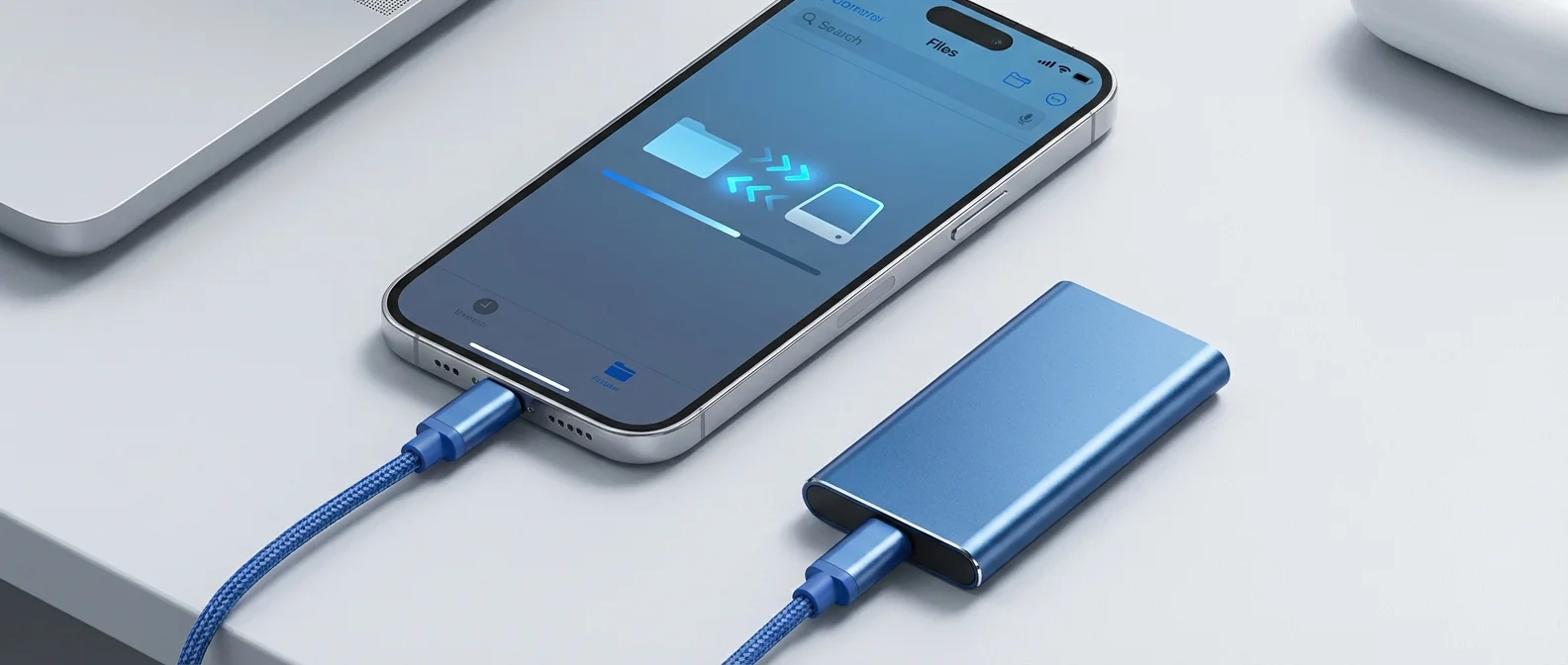
The switch to USB-C didn't just change how you charge your iPhone — it opened an entirely new chapter in file management. You can now connect flash drives, external SSDs, and even SD card readers directly to your iPhone, with zero (or minimal) adapters. In this complete 2026 guide, we break down everything: which storage devices are supported, which file systems work, how to manage files, the best picks, and practical tips for every user.
What USB-C Changes on iPhone
Until iPhone 14, the Lightning port severely limited external storage connectivity. Yes, the Lightning to USB-A adapter existed, but transfer speeds were stuck at USB 2.0 (480 Mbps) — practically ancient. With the move to USB-C, everything changed dramatically.
The iPhone 15 Pro / 15 Pro Max were the first to offer USB 3.2 Gen 2 via USB-C, with transfer speeds up to 10 Gbps — that's 20 times faster than Lightning! The iPhone 16 Pro, iPhone 17 Pro, and iPhone 17 Pro Max continue with USB 3.2. The standard models (iPhone 15, 16, 17) support USB 2.0 via USB-C.
What You Can Connect to Your iPhone
The variety of storage devices you can connect to your iPhone via USB-C is impressive. Let's look at each category in detail:
USB-C Flash Drives
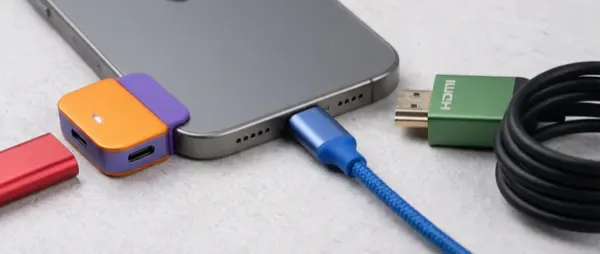
The simplest and most portable solution. A USB-C flash drive plugs directly into the iPhone's port with no adapter needed. Perfect for quick transfers of photos, videos, or documents. Here are the top picks:
SanDisk Ultra Dual Drive USB-C (64GB) — Compact, with both USB-C and USB-A connectors in one stick. Speeds up to 150 MB/s. Price: $10-13. Excellent starter choice.
SanDisk Ultra Dual Drive USB-C (128GB) — Same design, double the capacity. Price: $13-17. Best value overall.
SanDisk Ultra Dual Drive USB-C (256GB) — For photographers and videographers. Price: $22-28.
Samsung Type-C Flash Drive (256GB) — Metal body, 400 MB/s read speed. Price: $25-30. Premium pick.
Kingston DataTraveler 80 M (128GB) — Slider design, USB 3.2 Gen 1. Price: $12-15.
Pro Tip: For maximum transfer speeds, you need an iPhone Pro (USB 3.2) AND a USB 3.0+ flash drive. A USB 2.0 flash drive will work but will be slow regardless of your iPhone model.
External SSD Drives
For large files — 4K video, ProRes footage, large photo libraries — an external SSD is the best solution. Speeds reach 1,000-2,000 MB/s, significantly faster than any flash drive.
Samsung T7 Shield (1TB) — Drop-resistant and waterproof (IP65), 1,050 MB/s. Price: $80-95. The excellent all-around choice.
Samsung T9 (1TB) — Latest generation, USB 3.2 Gen 2x2, speeds up to 2,000 MB/s. Price: $100-120. Top performance.
SanDisk Extreme Portable SSD V2 (1TB) — 1,050 MB/s, IP55, compact design with carabiner clip. Price: $75-90.
WD My Passport SSD (500GB) — Budget option, 1,050 MB/s. Price: $50-65. Good entry-level pick.
Crucial X9 Pro (1TB) — 1,050 MB/s, IP55, metal body. Price: $70-85. Excellent value.
SD Card Readers
If you're a photographer, a USB-C SD card reader lets you transfer RAW photos directly to your iPhone. Apple sells the official USB-C to SD Card Reader ($39), but alternatives from Anker or Ugreen cost $10-15 with identical functionality.
Supported File Systems
Not all formats work with iPhone. Here's the complete list:
exFAT — The most versatile format. Supported by iPhone, Mac, Windows, and Android. No file size limit. This is what we recommend for most users.
FAT32 — Supported, but with a 4GB per-file limit. If you have 4K videos, this won't work.
APFS (Apple File System) — Apple's native format. Works excellently, but isn't compatible with Windows without special software.
Mac OS Extended (HFS+) — Supported, but considered a legacy format now. Use APFS or exFAT instead.
NTFS — The Windows format. Read-only on iPhone — you can't write to it. If you need read-write compatibility between iPhone and Windows PC, use exFAT.
Pro Tip: When you buy a new flash drive or SSD, format it as exFAT before use. This ensures maximum compatibility with iPhone, Mac, Windows, and even TVs or gaming consoles.
File Management: The Files App
The Files app is iPhone's central file management hub. Once you connect an external drive, it automatically appears in the sidebar under “Locations.”
Basic Operations
Copying files: Long-press a file → Copy → Navigate to your destination → Paste. Or use drag & drop on iPad.
Transferring photos: Open the Photos app → Select photos → Share → Save to Files → Choose your external drive.
Bulk transfer: In the Files app, tap “Select” → choose multiple files → Move. You can transfer hundreds of files at once.
Opening files: Most formats open natively — PDF, images (JPEG, HEIC, PNG, RAW), video (MP4, MOV, HEVC), audio (MP3, AAC, FLAC), and documents (Pages, Word, Excel).
ProRes Video Recording to External Drive
This is perhaps the most impressive feature for videographers: the iPhone 15 Pro, 16 Pro, and 17 Pro can record ProRes video directly to an external SSD! ProRes in 4K takes massive space (~6GB per minute), so external storage is practically mandatory.
For this to work, you need an SSD with at least 220 MB/s write speed (most modern SSDs far exceed this) and a USB 3.2 connection (meaning a Pro iPhone model).
"The ability to record ProRes to an external SSD has transformed the iPhone into a professional cinema camera. We shoot entire projects without worrying about storage space."
— Professional VideographerPractical Uses for External Storage
Beyond basic file transfers, there are many practical applications:
Photo Backup
If you don't want to pay for iCloud+ monthly, a 128GB USB-C flash drive ($13-17) is the perfect solution. Transfer photos to the drive weekly or monthly, and you have a physical backup. For comparison: 200GB iCloud+ costs $2.99/month = $35.88/year. A flash drive is a one-time purchase!
File Transfer Between Devices
Need to transfer large files from your computer to iPhone? Instead of slow AirDrop, copy them to a USB-C drive on your computer and then plug it into your iPhone. Ideal for movies, music, or large PDFs.
Travel Storage
On vacation, a compact SSD is the perfect companion. Offload your photos each evening, free up iPhone space, and no laptop needed. Even better: you can show your photos on any TV via Apple TV + AirPlay.
Offline Movies
Traveling by plane without WiFi? Store movies on a USB-C flash drive, plug it into your iPhone, and watch them via VLC or the Infuse app. A 256GB flash drive fits 30-50 movies in MP4 format!
2026 Price Guide
Where to Buy
Amazon: Best prices on Samsung, SanDisk, and Crucial. Free shipping with Prime.
Best Buy: Physical stores, great for seeing products in person. Price-matches Amazon.
B&H Photo: Excellent selection of professional-grade storage. No tax in most states.
Apple Store: Official accessories (SD card reader, USB-C cables). Premium pricing but full warranty.
Troubleshooting Common Issues
Some common problems you may encounter:
Drive not recognized: Make sure it's formatted as exFAT, FAT32, APFS, or HFS+. NTFS drives don't support writing. Also try a different USB-C cable.
Slow transfer speeds: If you have a standard iPhone model (non-Pro), speeds will be USB 2.0 (480 Mbps). This can't be changed — it's a hardware limitation. For fast transfers, you need an iPhone Pro.
Disconnection during transfer: Never remove the drive while a transfer is in progress! This can corrupt your data. Wait for the transfer to complete, then “Eject” from the Files app before disconnecting.
iPhone can't power the drive: Some larger external drives need more power than the iPhone's USB-C port provides. In this case, use a powered USB-C hub.
Pro Tip: If your iPhone's USB-C port isn't working properly — not recognizing drives, unstable charging, or intermittent connection — it may need cleaning or repair. At OnOff.gr, we offer free USB-C port cleaning and port replacement starting at €45.
Data Security
External storage doesn't have iCloud's built-in encryption. If you're storing sensitive data, take precautions:
Hardware Encryption: Some SSDs (e.g., Samsung T7 Touch) have a built-in fingerprint reader and hardware encryption. Even if lost, your data stays safe.
Backup Strategy: Follow the 3-2-1 rule: 3 copies, on 2 different media, 1 offsite. For example: iCloud + external SSD + flash drive at a different location.
Summary: What's Worth Buying
For basic use (photo backup): SanDisk Ultra Dual Drive 128GB ($13-17) — plug and play, compact, enough for thousands of photos.
For photographers/videographers: Samsung T7 Shield 1TB ($80-95) — fast, rugged, perfect for 4K video and RAW files.
For ProRes recording: Samsung T9 1TB ($100-120) — maximum speed ensures seamless ProRes 4K recording.
Budget pick: Kingston DataTraveler 80 M 128GB ($12-15) — reliable, affordable, gets the job done.