

📖 Read more: iPhone 18 Pro: Variable Aperture Camera Changes Everything
What Is Cinematic Mode?
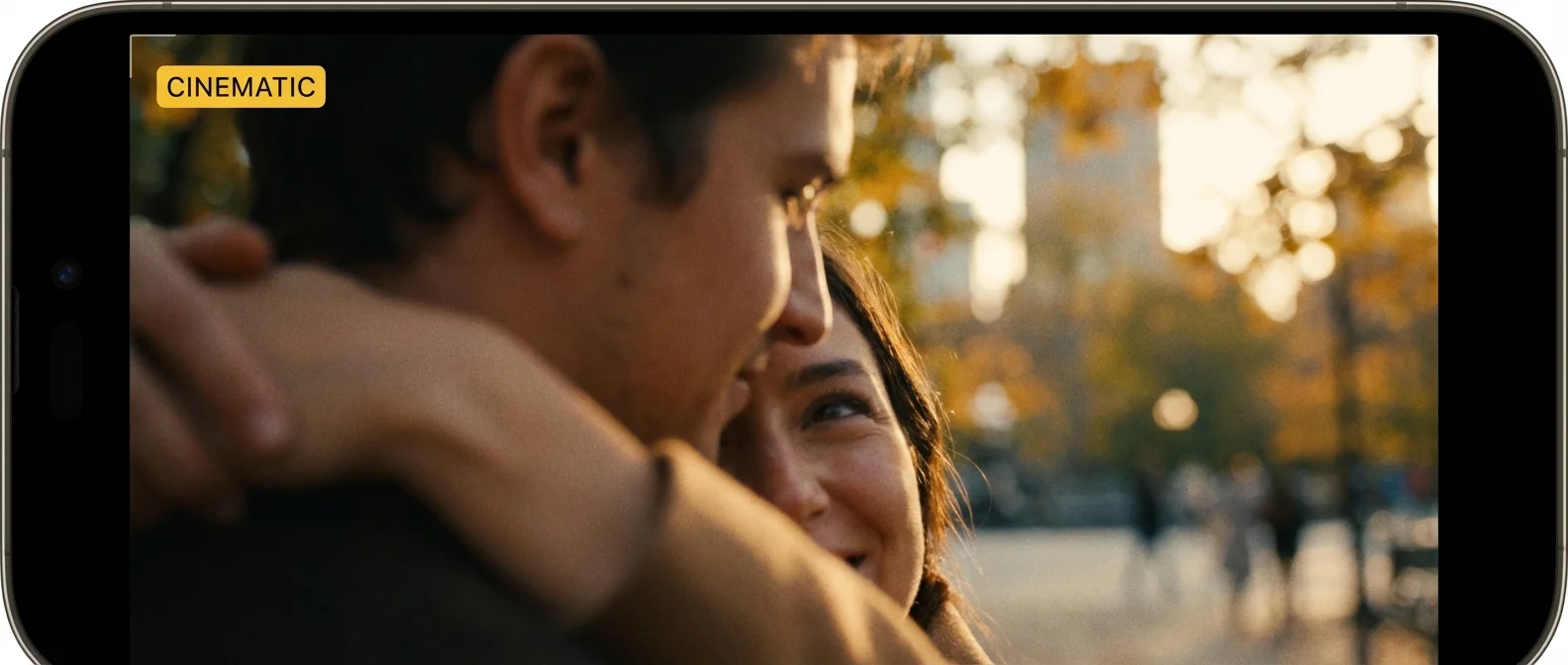
Cinematic Mode uses AI and the Neural Engine to create a shallow depth of field in your videos 🎬 — just like a cinema camera with an ƒ/1.4 lens. It automatically recognizes faces, people, pets, and objects, shifting focus smoothly as the scene changes. On Pro models, the LiDAR Scanner maps the space in 3D for even more accurate depth mapping — dramatically improving the separation line between subject and background.
How to Enable Cinematic Mode
Open the Camera app and swipe to Cinematic mode. In iOS 26, swipe left/right on the Video tab or tap the pop-out menu 📽️. You'll immediately see the blurred background. Tap the red button to record — and tap anywhere on screen to manually shift focus. Long-press to lock AF on a subject.
📖 Read more: Photographic Styles iPhone: Find Your Perfect Look
Rack Focus: The Magic of Cinema
Rack focus is the technique of smoothly shifting focus from one subject to another 🎯. The iPhone does this automatically — if someone is speaking and turns to look behind them, focus transitions to the new point of interest. It even detects when someone enters the frame — focus “jumps” to the new face automatically.
Tips: Place two subjects at different distances (e.g. 1m and 3m apart). Keep the iPhone steady on a tripod or gimbal. Let the algorithm detect faces — or tap manually where you want focus during recording ✋.
📖 Read more: Camera Control iPhone: Complete Button Guide
Post-Editing: Change Focus & Depth
One of the most impressive features: you can change both the focus point and depth of field after recording ✨. In the Photos app → Edit, focus points appear as yellow dots on the timeline. Tap a different point to shift focus. Drag the ƒ-stop slider (ƒ/1.4 for maximum blur → ƒ/16 for everything in focus).
Audio Mix — Cinema-Quality Sound
In iOS 26, Audio Mix lets you edit sound after recording 🎙️. Choose between Standard, In-Frame (only audio from within the frame), Studio (voice isolation), or Cinematic (surround feel). Combined with Cinematic Mode, it delivers results approaching professional production quality.
📖 Read more: 5 Mistakes That Are Killing Your iPhone Battery
Tips for Cinematic Results
Lighting: Good lighting = perfect Cinematic Mode. In low light, the algorithm struggles with edge detection. Natural light or an LED panel near your subject makes a massive difference 💡.
Distance: Keep your subject 3–8 feet away. Use the rule of thirds. Leave space around your subject for an impressive bokeh effect.
Stability: Use a tripod or brace your elbows. Micro-movements are more noticeable in Cinematic Mode due to the blurred background. Action Mode can't be used simultaneously — choose one.